How to Take Notes on iPad: 2 Easy Ways With Notes and Quick Notes

The two easiest ways to take notes on an iPad are the Notes app for longer, organized notes and Quick Notes for capturing an idea while you are using another app. You can type with the on-screen or an external keyboard, write with your finger, or use a compatible Apple Pencil. You do not need an Apple Pencil to get started.

1. Use the Notes app for organized notes

Choose the regular Notes app for class notes, meeting notes, lists, sketches, or anything you will want to find and update later.

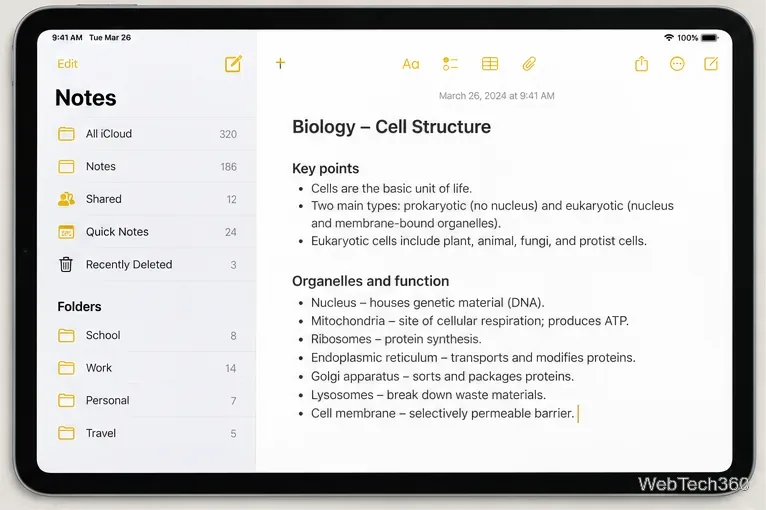
  1. Create a note. Open Notes, choose a folder if you want to file the note somewhere specific, then tap the New Note button (the square-and-pencil icon). Start typing; the first line becomes the note title.
  2. Structure typed notes. Use the Format button for a title, heading, bold text, or other styles. For tasks, tap the checklist button to add items you can mark complete. Short headings and a descriptive first line make long notes easier to scan.
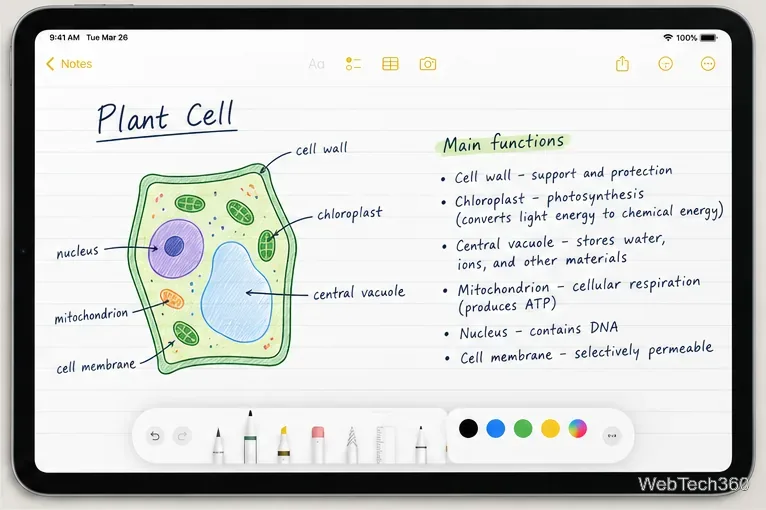
  3. Write or draw by hand. With a compatible Apple Pencil, write directly on the note. To use a finger, tap the handwriting or drawing tools button first, then choose a pen, marker, color, or other tool. You can mix handwriting, sketches, and typed text in the same note.
An iPad Notes example with a folder sidebar and a typed class note open
Example layout: a typed note is open beside the Notes folders.
A handwritten plant-cell study note with a labeled sketch and drawing tools
Handwritten notes and a sketch can sit together on the same page.

If you want handwriting to become typed text as you write, select the Scribble tool in the handwriting toolbar before writing with Apple Pencil. Scribble works only on supported iPad models and languages. Notes can also search handwritten text in supported languages, and you can select handwriting and paste it as typed text. These features are separate from simply drawing with a pen tool.

When you finish, leave the note in its folder. Give it a useful title and, if you keep many notes, group related items in folders or use tags. See Apple’s guides to creating and formatting notes and handwriting and drawing in Notes.

2. Use Quick Notes to capture an idea from another app

A Quick Note opens in a small window over your current screen, so you can jot something down without leaving a web page, document, or other app. Quick Notes are saved in the Notes app’s Quick Notes folder; this is a shortcut into Notes, not a separate note-taking app.

  1. Open the Quick Note window. On a supported setup, swipe up from the bottom-right corner of the display with Apple Pencil. To use a finger, enable the corner gesture in Settings; on current iPadOS versions, look under Settings > Apps > Notes > Corner Gestures. The setting name or location can vary by software version.
  2. Use another route if the gesture is unavailable. Add the Quick Note control to Control Center and tap it, choose Add to Quick Note from the Share menu in a supported app, or press Globe-Q with a connected external keyboard. If a Quick Note is already open, Command-N starts another one.
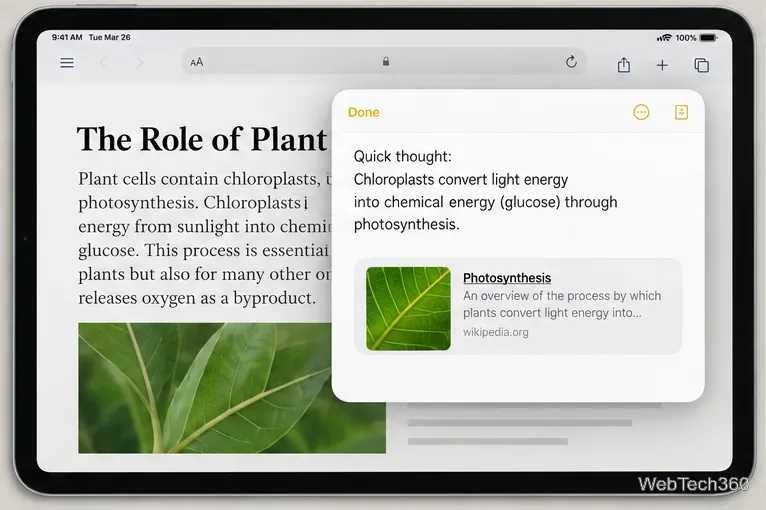
  3. Capture the detail and finish. Type or handwrite in the window. When you are sharing a page or selected text, using the Share menu can keep a link to what you were viewing with the note. Tap Done to close it.
A Quick Note window with a saved page link floating above a reading screen
Quick Notes keeps a short note in view while the original app remains behind it.

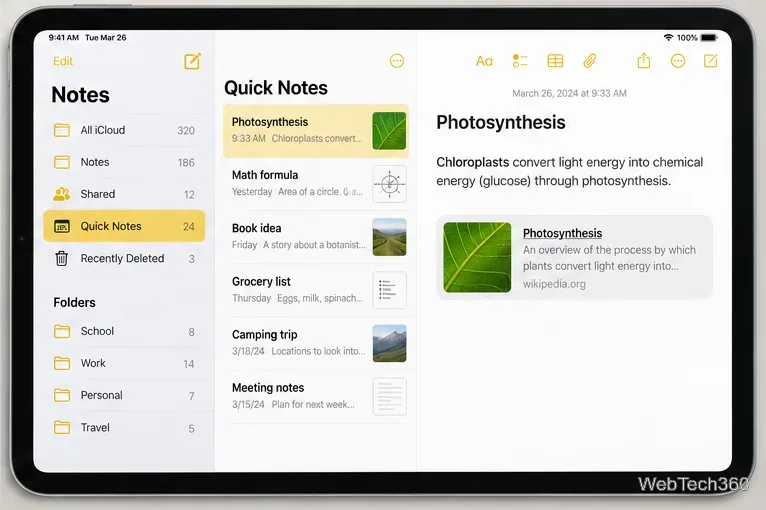
To return to saved items, open Notes and select Quick Notes in the folder list. If the list is hidden, show the sidebar first. You can then open a previous Quick Note or continue editing it.

The Notes sidebar with Quick Notes selected beside a list of saved quick notes
The Quick Notes folder in Notes is where you can reopen earlier captures.

Which method should you choose?

ChooseBest forHow you start
NotesOrganized notes you will revisit, format, or expandOpen Notes and tap New Note
Quick NotesA fast reminder or a note tied to something on screenSwipe from the bottom-right corner, or use Control Center, Share, or a keyboard shortcut

Fix common note-taking problems

  • The corner swipe does nothing: Try the Apple Pencil gesture, turn on the finger corner gesture in Settings, or open Quick Notes from Control Center. A software update may place the setting under a different menu.
  • Apple Pencil will not write: Check that your Pencil model works with your iPad and is paired. Pencil compatibility depends on the iPad model; consult Apple’s Apple Pencil compatibility list.
  • Scribble does not convert handwriting: Select the Scribble tool rather than a drawing pen, and check whether Scribble supports the language configured on your iPad.

For the current gesture options and keyboard shortcut, see Apple’s Quick Notes guide for iPad. Menu names and feature availability can differ by iPad model, language, and iPadOS version.

Leave a Comment

iMessage Is Signed Out on iPhone: How to Fix It

iMessage Is Signed Out on iPhone: How to Fix It

Fix the iMessage Is Signed Out error on iPhone by checking Apple Account sign-in, activation, connectivity, and settings—without erasing your messages.

How to Turn Off VPN on iPhone (App and Settings)

How to Turn Off VPN on iPhone (App and Settings)

Turn off your iPhone VPN in the app or Settings, confirm it disconnected, and stop automatic reconnections without deleting your account.

How to Encrypt an iPhone and Protect Sensitive Information

How to Encrypt an iPhone and Protect Sensitive Information

Learn how to encrypt your iPhone with a strong passcode, protect iCloud and computer backups, and secure your data if your phone is lost or stolen.

How to Clear Cache on iPhone: Safari, Chrome, and Apps

How to Clear Cache on iPhone: Safari, Chrome, and Apps

Learn how to clear Safari and Chrome cache on iPhone, manage app storage safely, and understand when clearing cached data actually helps.

How to Fight Gym Battles in Pokémon GO: Attacks, Dodges, and Taking Control

How to Fight Gym Battles in Pokémon GO: Attacks, Dodges, and Taking Control

Learn how to fight Gym Battles in Pokémon GO, pick effective attackers, use Charged Attacks and dodges, and claim a Gym after defeating its defenders.

Best Cydia Tweaks and Apps for Your Jailbroken iPad: Classic Picks

Best Cydia Tweaks and Apps for Your Jailbroken iPad: Classic Picks

Explore classic Cydia tweaks for jailbroken iPads, from SwipeSelection to Quasar, with compatibility warnings and modern alternatives.

How to Turn Off the Apple Music Splash Screen on iPhone

How to Turn Off the Apple Music Splash Screen on iPhone

Stop Apple Music signup prompts in the Music app. Learn where to find Show Apple Music on iOS and what turning it off does—and does not—change.

Let Mom Know Your iPhone Battery Is Low With an Automatic Text

Let Mom Know Your iPhone Battery Is Low With an Automatic Text

Set up a Shortcuts automation to text Mom when your iPhone battery gets low. Follow four steps, plus delivery checks and privacy tips.

How to Bookmark a Tweet on X (Twitter) on Any Device

How to Bookmark a Tweet on X (Twitter) on Any Device

Save posts on X in a few taps. Learn where to find the Bookmark button on iPhone, Android, and desktop, plus how to view, remove, and organize saved tweets.

How to Enable AR Mode in Pokémon GO on iPhone or Android

How to Enable AR Mode in Pokémon GO on iPhone or Android

Turn on AR mode in Pokémon GO during a wild encounter, find AR settings, and fix camera or device compatibility issues.