iMessage Is Signed Out on iPhone: How to Fix It

Fix the iMessage Is Signed Out error on iPhone by checking Apple Account sign-in, activation, connectivity, and settings—without erasing your messages.
You can turn off Apple CarPlay for one drive by disconnecting your iPhone, stop it from reconnecting to one vehicle by choosing Forget This Car, block CarPlay across vehicles with Screen Time, or disable it in your car’s infotainment settings if that option is available. The best method depends on whether you want a temporary break, a vehicle-specific change, or a systemwide restriction.
For wired CarPlay, park safely and unplug the iPhone’s USB cable. CarPlay ends when the wired connection ends. If you want to keep charging, use a separate power adapter rather than a data-capable USB port that launches CarPlay.
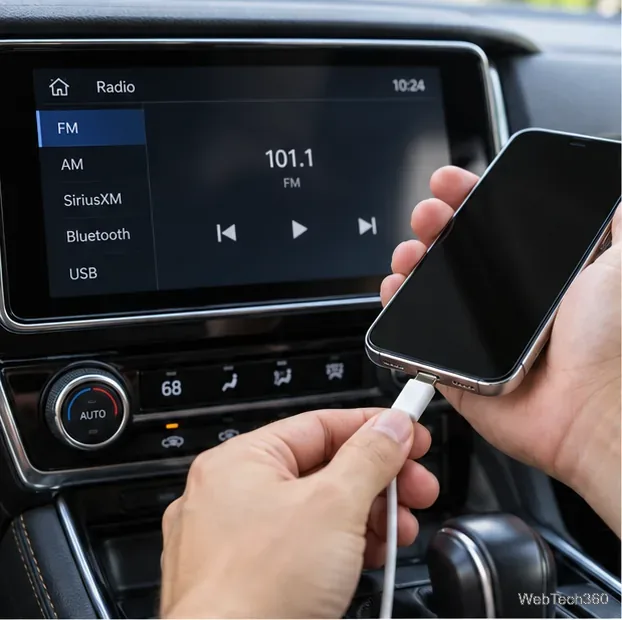
For wireless CarPlay, use the vehicle display’s phone or connectivity menu and choose an option such as Disconnect, Stop projection, or Switch source if the car provides one. The wording is manufacturer-specific. Selecting a different audio source may only hide the CarPlay screen while leaving the phone connected, so use the vehicle’s disconnect control if CarPlay returns. Apple describes wired and wireless setup separately in its CarPlay connection guide.
Use this method when you no longer want a particular car to launch CarPlay automatically but still want to use CarPlay in other vehicles.
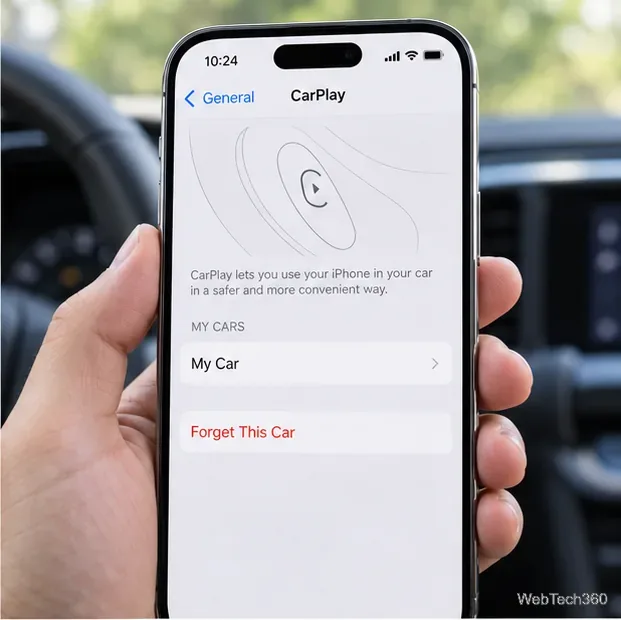
This removes the car from the iPhone’s CarPlay list; it does not necessarily erase information or a saved phone profile stored by the vehicle. For a rental or borrowed car, also remove the iPhone from the car’s paired-device list or guest profile using the vehicle’s controls. Apple documents the Forget This Car path in its CarPlay connection troubleshooting instructions.
If you want CarPlay unavailable in every car, Screen Time can restrict the feature on iPhone versions that include CarPlay under allowed apps. This is a broader change than forgetting one vehicle: CarPlay stays blocked until you allow it again.
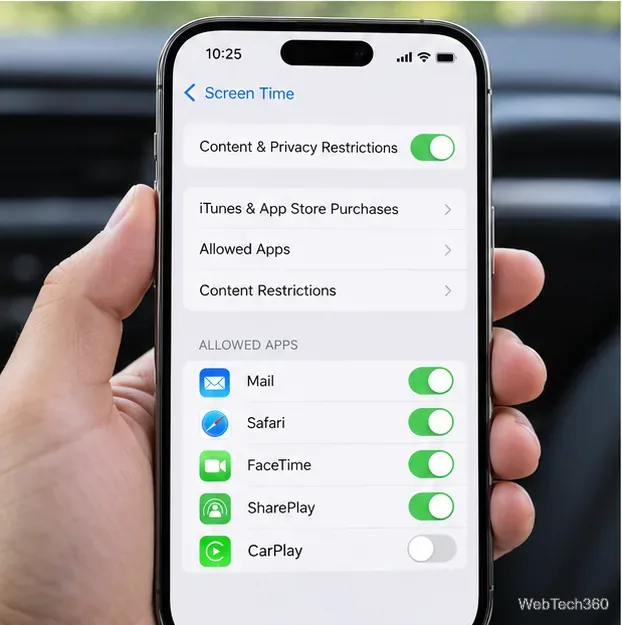
If Screen Time requests a passcode, enter the one used for those restrictions; a family organizer may need to change a managed setting. Apple’s current CarPlay troubleshooting page points to Screen Time and Allowed Apps when checking whether CarPlay is restricted. If you do not see CarPlay in that list, use the vehicle-specific method above or your car’s controls instead of changing unrelated restrictions.
Some vehicles provide a switch for Apple CarPlay, smartphone projection, or automatic phone connection in the infotainment system. While parked, look under menus such as Settings, Connectivity, Phone, or Projection. If available, turn CarPlay off or remove your iPhone from the list of paired devices.
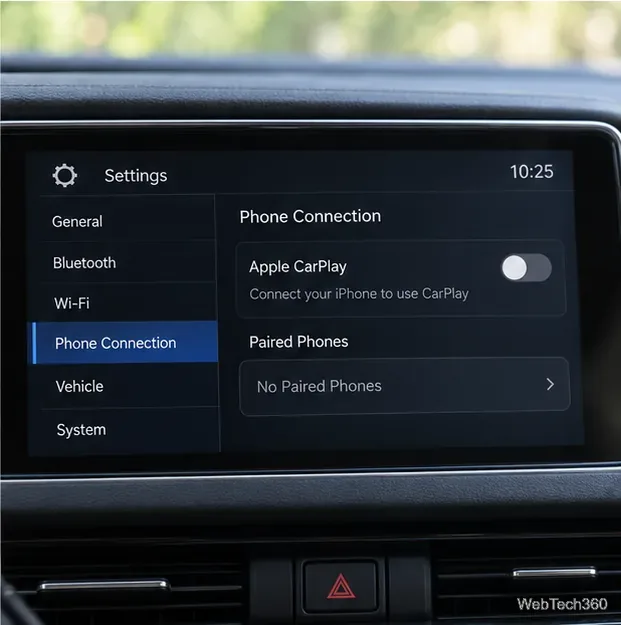
There is no single menu path that applies to every head unit. Check the owner’s manual or the automaker’s support site for the exact procedure. Apple also directs drivers to the vehicle manual for model-specific connection details in its instructions for using CarPlay.
First identify whether your car is using a cable or a wireless connection. Some vehicles that support both may offer wireless CarPlay after you initially connect by USB, so unplugging the cable may not stop future sessions. Use the car’s disconnect option, forget the vehicle on the iPhone, or turn off the vehicle’s wireless CarPlay setting if it has one.
Wireless CarPlay uses Bluetooth and Wi-Fi. Apple’s setup guidance checks that both are on and that Auto-Join is enabled for the CarPlay network. If you want to keep the pairing but prevent automatic wireless joining, check Settings > Wi-Fi for the CarPlay network’s info button and Auto-Join control; availability and behavior can vary by car. Turning off Bluetooth or Wi-Fi globally can also affect headphones, calls, and other connections, so it is usually a less convenient fix.
Fix the iMessage Is Signed Out error on iPhone by checking Apple Account sign-in, activation, connectivity, and settings—without erasing your messages.
Turn off your iPhone VPN in the app or Settings, confirm it disconnected, and stop automatic reconnections without deleting your account.
Learn how to encrypt your iPhone with a strong passcode, protect iCloud and computer backups, and secure your data if your phone is lost or stolen.
Learn how to clear Safari and Chrome cache on iPhone, manage app storage safely, and understand when clearing cached data actually helps.
Learn how to fight Gym Battles in Pokémon GO, pick effective attackers, use Charged Attacks and dodges, and claim a Gym after defeating its defenders.
Explore classic Cydia tweaks for jailbroken iPads, from SwipeSelection to Quasar, with compatibility warnings and modern alternatives.
Stop Apple Music signup prompts in the Music app. Learn where to find Show Apple Music on iOS and what turning it off does—and does not—change.
Set up a Shortcuts automation to text Mom when your iPhone battery gets low. Follow four steps, plus delivery checks and privacy tips.
Save posts on X in a few taps. Learn where to find the Bookmark button on iPhone, Android, and desktop, plus how to view, remove, and organize saved tweets.
Turn on AR mode in Pokémon GO during a wild encounter, find AR settings, and fix camera or device compatibility issues.








