iMessage Is Signed Out on iPhone: How to Fix It

Fix the iMessage Is Signed Out error on iPhone by checking Apple Account sign-in, activation, connectivity, and settings—without erasing your messages.
To turn off messaging for regular members of a WhatsApp group, open the group as an admin, tap its name, select Group permissions, and switch off Send new messages. All group admins can still post, while other members can read the conversation without adding new messages. This is useful when a busy group needs to function as an announcement channel.
You must be a group admin. To check, open the group information page and look for the Admin label next to your name in the participants list. If you are not an admin, ask an existing admin to make the change.
The instructions below apply to current WhatsApp group permissions on Android and iPhone. WhatsApp Web and desktop also provide group controls, although some labels or locations may differ between versions. WhatsApp's official group admin settings guide confirms the Send new messages control.
Launch WhatsApp and open the group you manage. Make sure you're editing the intended group: messaging restrictions apply to one group at a time, not all groups in your account.
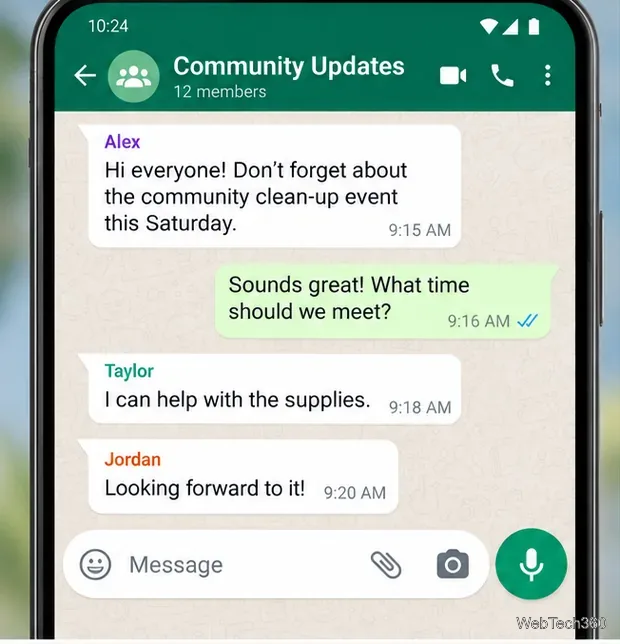
Tap the group name at the top of the conversation. On the information page, find Group permissions. You may need to scroll to see it.
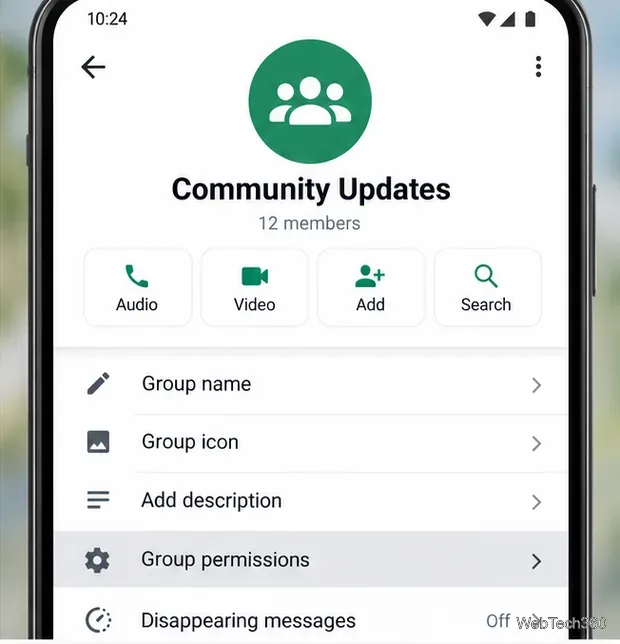
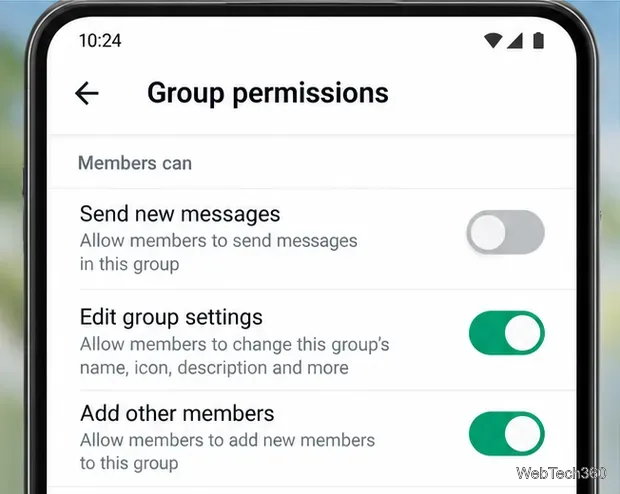
Tap Group permissions and locate Send new messages. The switch determines whether ordinary members may post to the group. This is different from Edit group settings, which controls changes to the group name, icon, and description.
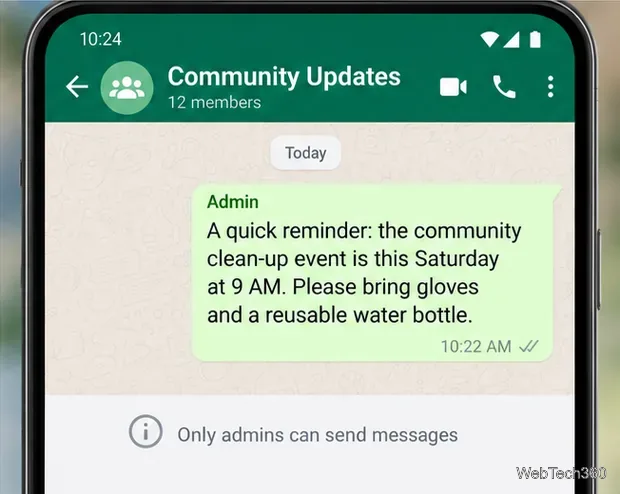
Switch Send new messages off. With this switch off, only group admins can send messages. WhatsApp applies the group setting; if your version asks you to confirm, follow the on-screen prompt.
Using an older WhatsApp interface? The equivalent route may be Group Settings → Send Messages → Only Admins. That was the menu documented when this feature was introduced; the current help page describes the toggle under Group permissions. If neither route appears, update WhatsApp and check that your account is an admin.
Ordinary participants remain members of the group. They can open the chat and read announcements, existing messages, and previously shared media. They cannot send new group messages while the restriction is active. All admins, not just the admin who changed the setting, retain posting privileges.
The setting does not delete chat history, remove members, or prevent them from sending private one-to-one messages. It also does not silence notifications; members who want fewer alerts can mute the group separately. Group participants may see a system notice indicating that the group settings changed.
If you want to reopen the discussion, return to the same group and tap group name → Group permissions. Switch Send new messages back on. On an older interface, choose All Participants under Send Messages instead. Regular members will then be able to post new messages again.
This makes it practical to restrict posting during an announcement, then reopen the group for questions, feedback, or event coordination. Only an admin can reverse the restriction.
If you are an ordinary member who can read but not post in one particular group, an admin may have disabled your group messaging permission. WhatsApp also describes this situation in its messaging troubleshooting guidance. Contact an admin directly if you need to contribute an important update.
Not with this group-wide switch. Send new messages grants posting permission to either everyone or admins only; it does not select specific regular members. Making someone an admin allows them to post, but it also gives them administrative abilities, so reserve that role for people you trust to manage the group.
For school notices, community announcements, team updates, or other one-way communications, restricting member posts keeps the important information easier to find without requiring you to create a new group.
Fix the iMessage Is Signed Out error on iPhone by checking Apple Account sign-in, activation, connectivity, and settings—without erasing your messages.
Turn off your iPhone VPN in the app or Settings, confirm it disconnected, and stop automatic reconnections without deleting your account.
Learn how to encrypt your iPhone with a strong passcode, protect iCloud and computer backups, and secure your data if your phone is lost or stolen.
Learn how to clear Safari and Chrome cache on iPhone, manage app storage safely, and understand when clearing cached data actually helps.
Learn how to fight Gym Battles in Pokémon GO, pick effective attackers, use Charged Attacks and dodges, and claim a Gym after defeating its defenders.
Explore classic Cydia tweaks for jailbroken iPads, from SwipeSelection to Quasar, with compatibility warnings and modern alternatives.
Stop Apple Music signup prompts in the Music app. Learn where to find Show Apple Music on iOS and what turning it off does—and does not—change.
Set up a Shortcuts automation to text Mom when your iPhone battery gets low. Follow four steps, plus delivery checks and privacy tips.
Save posts on X in a few taps. Learn where to find the Bookmark button on iPhone, Android, and desktop, plus how to view, remove, and organize saved tweets.
Turn on AR mode in Pokémon GO during a wild encounter, find AR settings, and fix camera or device compatibility issues.








