iMessage Is Signed Out on iPhone: How to Fix It

Fix the iMessage Is Signed Out error on iPhone by checking Apple Account sign-in, activation, connectivity, and settings—without erasing your messages.
To turn off Shake to Report a Problem in the Facebook app, open Menu, expand Help & support, select Report a problem, and turn off the switch labeled “Shake phone to report a problem.” If shaking your phone opens an unexpected reporting prompt, you can also use that prompt to find the switch. The option affects the reporting shortcut, not your ability to submit a report manually.
This guide covers Facebook on iPhone and Android, explains the related Messenger and Instagram options, and clears up the difference between Facebook’s shake gesture and the iPhone’s built-in Shake to Undo setting. Menu wording or placement may differ by app version.

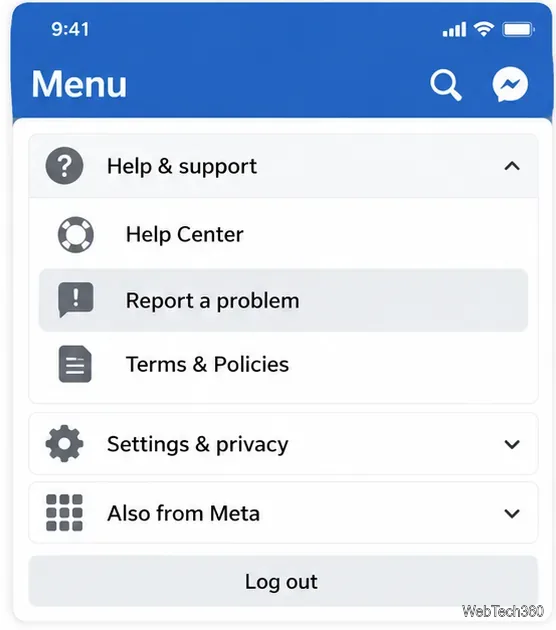
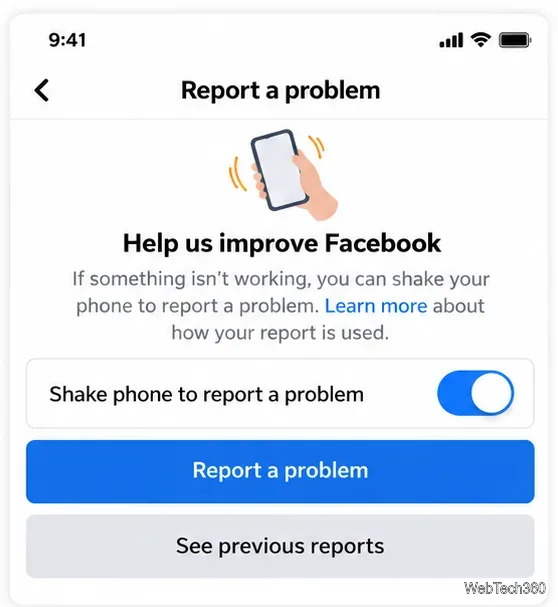
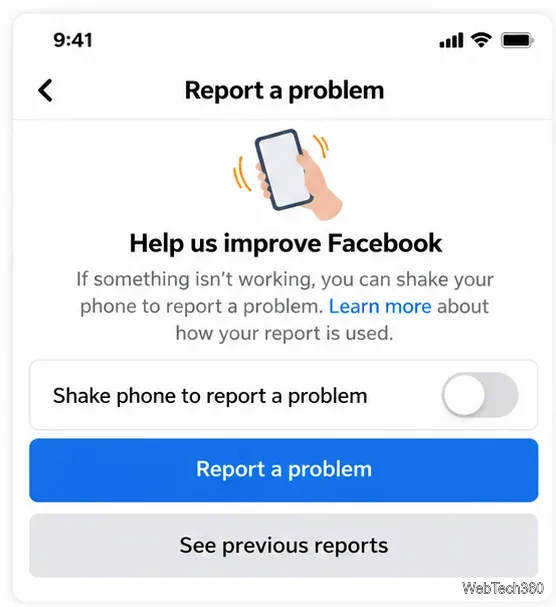
Faster route: If shaking the phone already brings up the reporting screen, open it once and disable the shake switch there. You do not need to submit a report. Avoid shaking the phone forcefully or repeatedly; the menu route is more predictable.
Facebook changes the mobile interface over time, so a menu described in an older tutorial may not match your version. First look for Report a problem under Help & support. If tapping it starts a reporting flow instead of displaying the switch, go back and try opening the prompt with one gentle shake while Facebook is on screen.
If neither route exposes a shake setting, update Facebook from your phone’s app store, close and reopen it, and check again. Don’t assume the iPhone’s Accessibility controls or Android motion settings contain a master switch for Facebook’s reporting feature. If the app still does not offer the control, its availability may depend on your app version or account; the exact alternative path cannot be guaranteed.
The Facebook switch should not be treated as a universal preference for every Meta app. Messenger and Instagram have their own help and reporting flows.
Meta’s Messenger reporting instructions describe opening the reporting prompt by shaking your phone, then switching off Shake phone to report a problem. For manual reports, the Help Center also describes going to Menu → Settings → Report technical problem; menu names can differ across releases.
Instagram likewise has a shake-to-report option. According to Instagram’s technical-problem guidance, the prompt includes a switch to enable or disable Shake phone to report a problem. Check Instagram separately if its own prompt appears unexpectedly. Turning the feature off in Facebook does not establish that Instagram’s setting has changed.
Yes. Disabling the motion shortcut does not remove the reporting tool. Use Menu → Help & support → Report a problem when a feature does not work, a screen fails to load, or an unexpected error appears. Facebook’s official instructions for reporting something that isn’t working describe reporting from the location where you encountered the problem and entering a description.
A useful report says what you expected, what actually happened, what actions led to the issue, and whether you can reproduce it. Attach a screenshot when it genuinely helps. Before sending, review any account details or private information visible in a screenshot or diagnostic report.
No. The Facebook option controls a shortcut inside Facebook. Shake to Undo is an iOS feature for undoing certain edits. Apple lists its separate switch under Settings → Accessibility → Touch → Shake to Undo in the iPhone User Guide.
Turning off shake-to-report in Facebook does not automatically change the iPhone’s Shake to Undo preference, nor does it guarantee that shaking will undo text in every Facebook text field. If you want to undo text without shaking, Apple also documents a three-finger swipe to the left. Android phones do not have an equivalent universal iPhone Shake to Undo switch.
Bottom line: Disable the gesture in the app where it interrupts you, keep the manual bug-reporting route available, and manage iPhone Shake to Undo separately if needed.
Fix the iMessage Is Signed Out error on iPhone by checking Apple Account sign-in, activation, connectivity, and settings—without erasing your messages.
Turn off your iPhone VPN in the app or Settings, confirm it disconnected, and stop automatic reconnections without deleting your account.
Learn how to encrypt your iPhone with a strong passcode, protect iCloud and computer backups, and secure your data if your phone is lost or stolen.
Learn how to clear Safari and Chrome cache on iPhone, manage app storage safely, and understand when clearing cached data actually helps.
Learn how to fight Gym Battles in Pokémon GO, pick effective attackers, use Charged Attacks and dodges, and claim a Gym after defeating its defenders.
Explore classic Cydia tweaks for jailbroken iPads, from SwipeSelection to Quasar, with compatibility warnings and modern alternatives.
Stop Apple Music signup prompts in the Music app. Learn where to find Show Apple Music on iOS and what turning it off does—and does not—change.
Set up a Shortcuts automation to text Mom when your iPhone battery gets low. Follow four steps, plus delivery checks and privacy tips.
Save posts on X in a few taps. Learn where to find the Bookmark button on iPhone, Android, and desktop, plus how to view, remove, and organize saved tweets.
Turn on AR mode in Pokémon GO during a wild encounter, find AR settings, and fix camera or device compatibility issues.








