iMessage Is Signed Out on iPhone: How to Fix It

Fix the iMessage Is Signed Out error on iPhone by checking Apple Account sign-in, activation, connectivity, and settings—without erasing your messages.
The quickest way to turn off the iPhone flashlight is to open Control Center and tap the Flashlight button. On an iPhone with Face ID, swipe down from the top-right corner. On an iPhone with a Home button, swipe up from the bottom edge. Tap the flashlight icon once to switch the rear LED off. If you can reach the Lock Screen, Siri, or an assigned Action button faster, those can also turn it off.
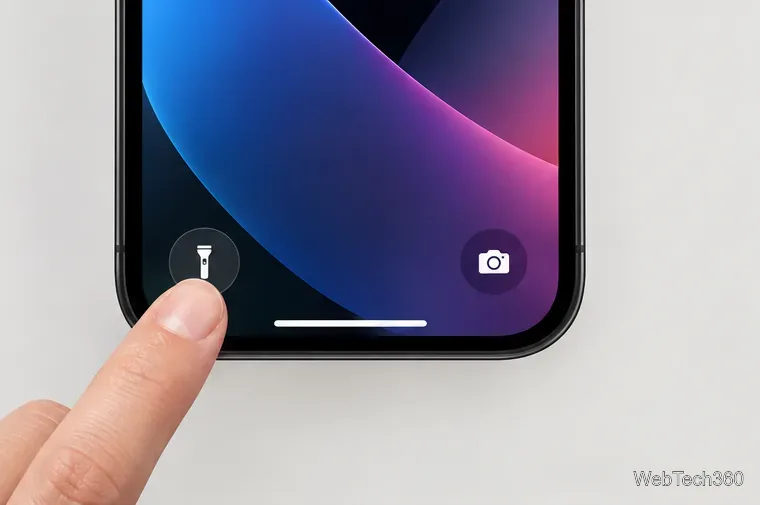
If the flashlight is on and your Lock Screen has a Flashlight button in its lower-left corner, press that control again to switch the light off. Apple’s current iPhone guide describes the Lock Screen button as a way to turn the flashlight on or off. On models that require a firm press to activate Lock Screen controls, press and hold the button. You do not need to unlock the phone first.
If the Lock Screen button is missing, has been replaced, or is difficult to activate, use Control Center instead. The lock-screen shortcut is optional on newer iOS versions, so its absence does not mean the flashlight is stuck.
Control Center works from the Home Screen and from most apps. Open it with the gesture that matches your iPhone:
Find the Flashlight button, shown as a flashlight icon, and tap it once. The icon changes state and the rear light turns off. If you do not see it immediately, look through other Control Center groups by swiping within Control Center; controls can be arranged on more than one page. Apple documents the gestures and current Control Center customization options in its iPhone Control Center guide.
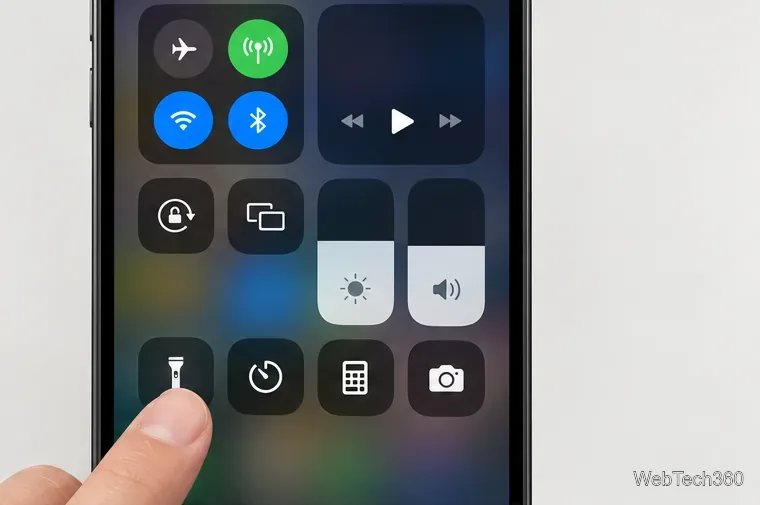
Add it to Control Center, then use the same tap-to-toggle method. On recent iOS versions, open Control Center, tap the Add button (or touch and hold an empty area to edit), choose Add a Control, and select Flashlight. If your iOS version shows a Flashlight option in Settings, go to Settings > Control Center and add it there. The exact editing screen can vary by iOS version, but the flashlight control itself is built into iOS and does not require a separate app.
If the control is already there but the light remains on, tap it again and check the rear camera LED. If you are in the Camera app, remember that its photo-flash setting is separate from the continuous flashlight; changing the photo flash mode does not act as the Control Center flashlight toggle.
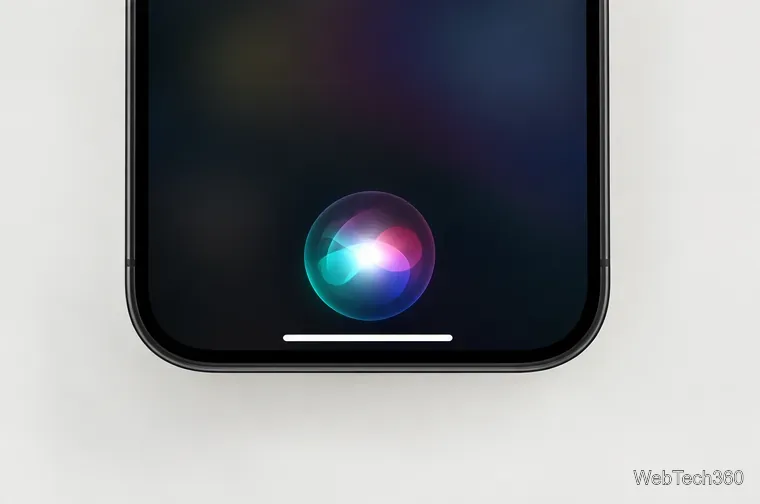
When Siri is available, say, “Siri, turn off my flashlight.” You can use your usual Siri activation method, such as a voice request or the button configured to summon Siri. This is useful when you cannot easily reach the screen. If Siri replies that the light is already off, check the back of the phone in a dim area or open Control Center to confirm the Flashlight button is inactive.
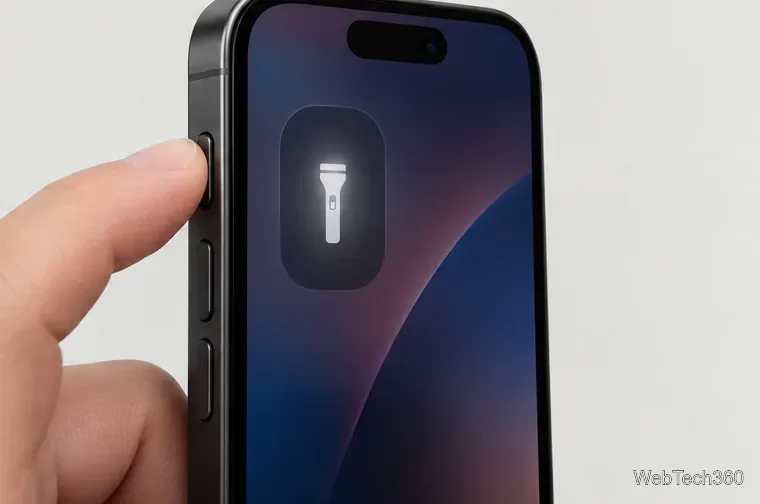
Some iPhone models have an Action button on the left side. It only controls the flashlight if Flashlight is the action currently assigned to it. Press and hold the button to toggle the light off. If holding it changes Silent mode or another feature, the flashlight is not assigned to that button.
To assign it, open Settings > Action Button, swipe through the available actions to Flashlight, and leave that selection active. The Action button is available on supported models; Apple’s Action button guide explains how to choose an action and use it. Once assigned, a press and hold turns the flashlight on or off.
If you want less light rather than no light, open Control Center and touch and hold the Flashlight button. Drag the brightness control up or down to set the output. Changing brightness is not the same as switching the flashlight off: tap the Flashlight button to stop the rear LED completely. Apple also notes that supported iPhone models can adjust flashlight brightness from the on-screen flashlight control.
For a quick check, look at the flashlight icon in Control Center and at the rear LED. If the light is still shining, tap the Control Center button again. The Lock Screen, Control Center, Siri, and Action button are separate shortcuts to the same flashlight, so you can use whichever one is accessible even if another shortcut is unavailable.
For the current steps and supported controls, see Apple’s iPhone flashlight instructions.
Fix the iMessage Is Signed Out error on iPhone by checking Apple Account sign-in, activation, connectivity, and settings—without erasing your messages.
Turn off your iPhone VPN in the app or Settings, confirm it disconnected, and stop automatic reconnections without deleting your account.
Learn how to encrypt your iPhone with a strong passcode, protect iCloud and computer backups, and secure your data if your phone is lost or stolen.
Learn how to clear Safari and Chrome cache on iPhone, manage app storage safely, and understand when clearing cached data actually helps.
Learn how to fight Gym Battles in Pokémon GO, pick effective attackers, use Charged Attacks and dodges, and claim a Gym after defeating its defenders.
Explore classic Cydia tweaks for jailbroken iPads, from SwipeSelection to Quasar, with compatibility warnings and modern alternatives.
Stop Apple Music signup prompts in the Music app. Learn where to find Show Apple Music on iOS and what turning it off does—and does not—change.
Set up a Shortcuts automation to text Mom when your iPhone battery gets low. Follow four steps, plus delivery checks and privacy tips.
Save posts on X in a few taps. Learn where to find the Bookmark button on iPhone, Android, and desktop, plus how to view, remove, and organize saved tweets.
Turn on AR mode in Pokémon GO during a wild encounter, find AR settings, and fix camera or device compatibility issues.








