Home
» IOS
»
How to Turn Off Two-Factor Authentication on an iPhone
How to Turn Off Two-Factor Authentication on an iPhone
Short answer: You usually can’t turn off two-factor authentication for an Apple Account from iPhone Settings. If you turned it on less than two weeks ago, Apple says you can return to your previous security settings using the link in the confirmation email. After that window, or for an account created with two-factor authentication, Apple says the extra protection can’t be removed.
This setting applies to your Apple Account (formerly called an Apple ID), so it affects sign-ins across Apple services and devices. It is not a switch that turns off verification for just one iPhone.
Check the setting on your iPhone
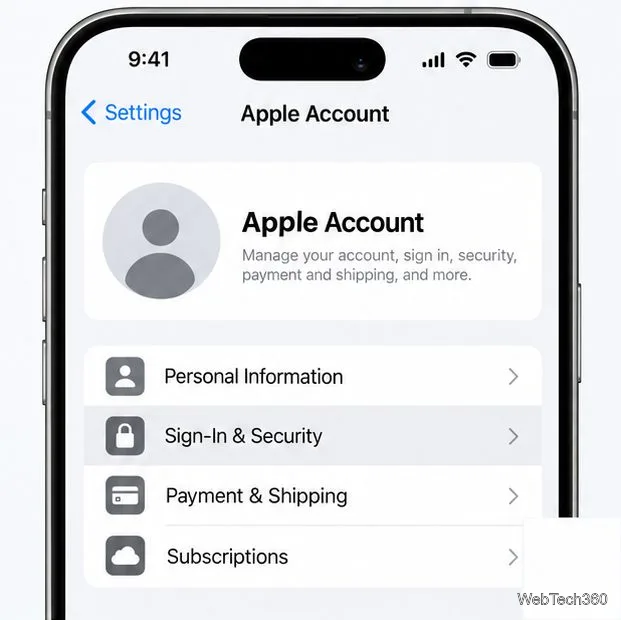
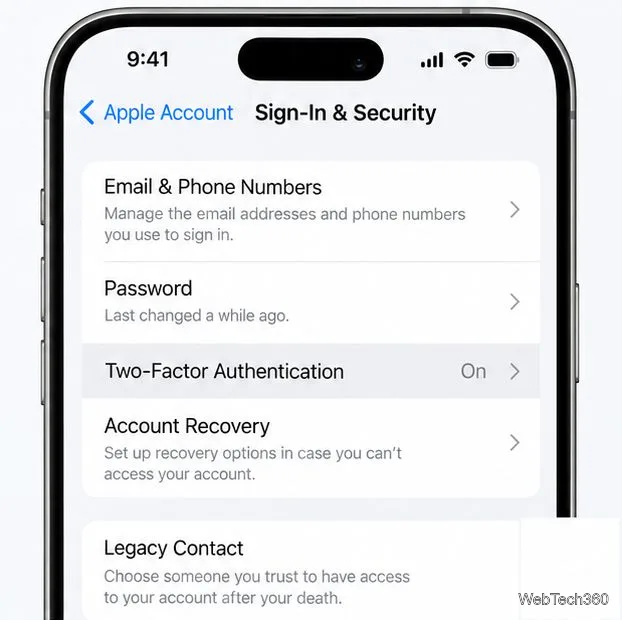
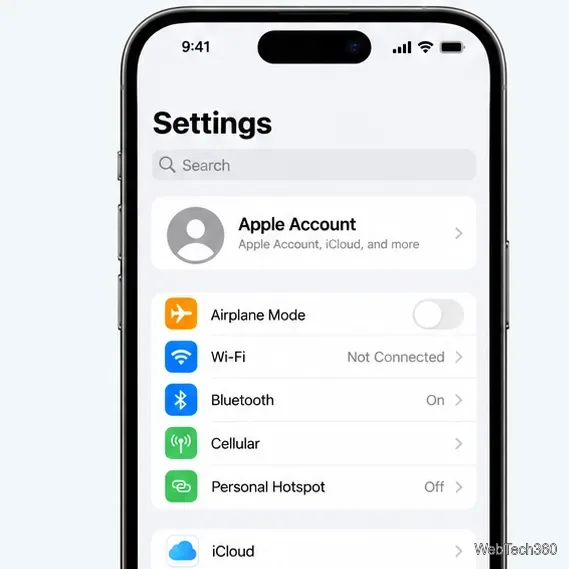
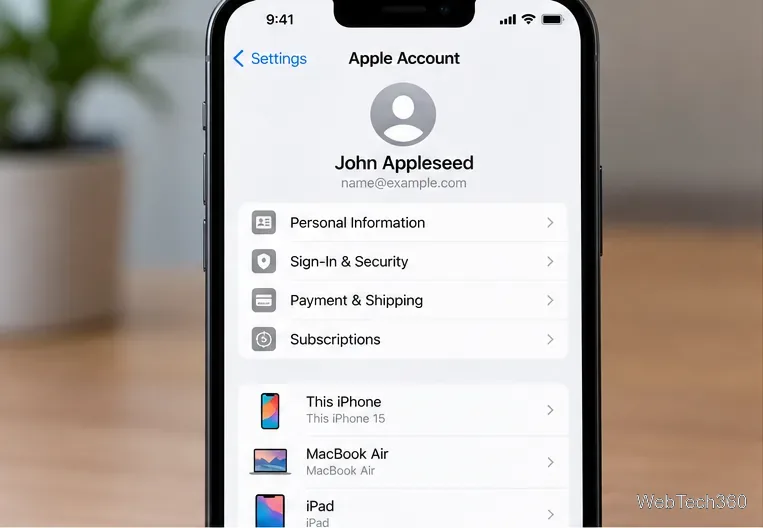
To see the account’s current security options, open Settings, tap your name, then tap Sign-In & Security and Two-Factor Authentication. This screen lets you manage trusted phone numbers; it does not provide a general off switch after the account is enrolled.
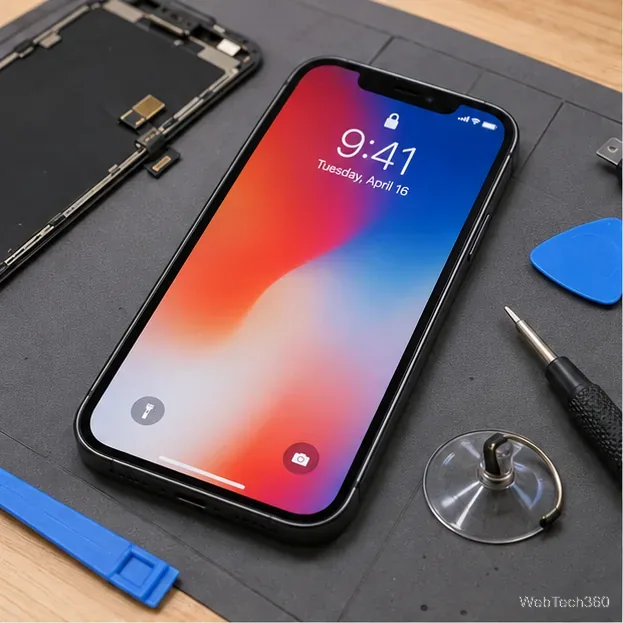
Illustrative Apple Account settings view; exact screen details can vary by iOS version.The Two-Factor Authentication entry is an account security setting, not a device-only toggle.
If you enabled two-factor authentication within the last two weeks
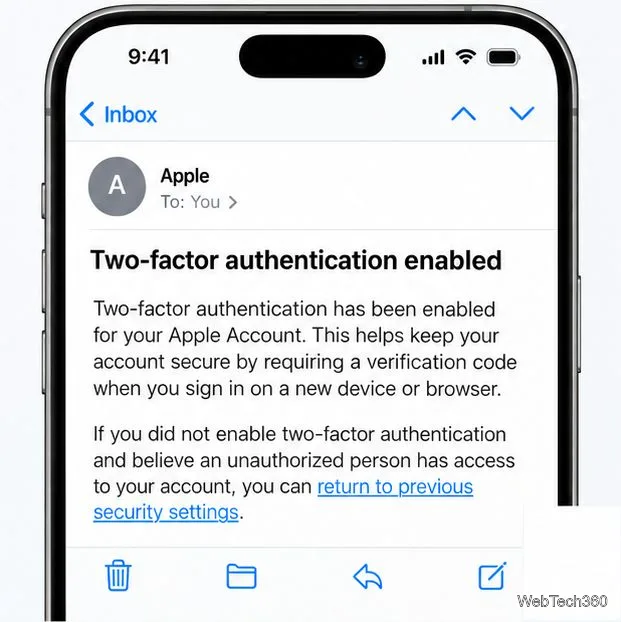
Apple provides a limited withdrawal period after enrollment. Its two-factor authentication guide says to open the confirmation email and use the link to return to your previous security settings.
Find the enrollment email. Search the inbox for the message Apple sent when two-factor authentication was enabled. Check Junk or Spam if it is missing from the main inbox.
Check the date. The two-week period starts when the feature was enrolled, not when you read the email. If more than two weeks have passed, the link may no longer offer the option.
Open the email on a trusted device. Tap the link labeled to return to your previous security settings. Make sure the message is a genuine Apple account email before following any link.
Follow Apple’s account prompts. The change is for the Apple Account as a whole. Review the security notice before confirming, because Apple warns that turning off two-factor authentication makes the account less secure and can prevent use of features that require stronger security.
Apple’s documented route during the withdrawal period is the link in the enrollment confirmation email.
If you cannot find the email but believe you are still within the two-week window, search all folders and verify the enrollment date. Apple’s instructions identify that email link as the way to return to the previous settings; there is no matching off control in iPhone Settings.
If the two-week window has passed
Apple says two-factor authentication cannot be removed after the withdrawal period, and an account created with the feature cannot have it removed. Calling support is not a universal workaround. If the problem is an old, lost, or unwanted phone number, update the trusted number instead of disabling account protection.
Add a new trusted phone number
On your iPhone, open Settings and tap your name.
Tap Sign-In & Security, then Two-Factor Authentication.
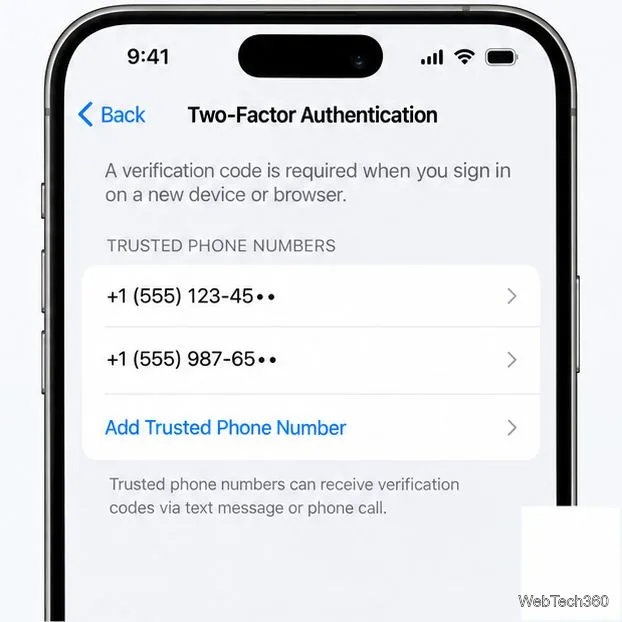
Tap Add a Trusted Phone Number, enter a number you can access, and verify it with the code Apple sends.
After the new number is verified, remove the outdated number using its delete control on the same screen. Keep at least one trusted phone number on the account.
Apple also recommends considering a second trusted number that is not tied to the iPhone you carry. A trusted Apple device can display verification codes too, so adding a backup number or keeping another trusted device available can reduce lockout risk.
Use this screen to add and verify a replacement number while keeping two-factor authentication enabled.
If you no longer have access to any trusted device or number, choose Didn’t Get a Code? or Can’t get to your devices? at the verification screen and follow Apple’s account recovery steps. Recovery can take several days or longer, and Apple says contacting support cannot speed it up. See Apple’s guide to getting a verification code and signing in.
Make sure you’re changing the right setting
Apple Account two-factor authentication is different from your iPhone passcode, Face ID, or a verification setting inside another app. Turning off Face ID or changing the device passcode will not disable Apple Account two-factor authentication. Likewise, if a code prompt comes from Google, a bank, or another service, change that service’s sign-in security in its own app or website.