iMessage Is Signed Out on iPhone: How to Fix It

Fix the iMessage Is Signed Out error on iPhone by checking Apple Account sign-in, activation, connectivity, and settings—without erasing your messages.
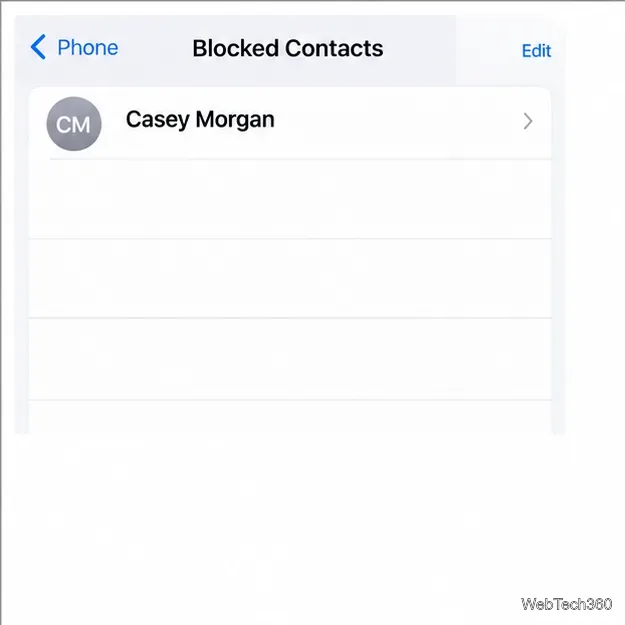
To unblock a number on a current iPhone or iPad, open Settings > Privacy & Security > Blocked Contacts, select the person or number, then tap Unblock Contact. iOS 26 and newer use this shared list, and Apple’s current iOS 27 and iPadOS 27 instructions follow the same route. The steps below also cover older devices and the FaceTime shortcut.
Removing a block lets the person contact you again through Apple’s communication apps. A block managed by Phone, Messages, FaceTime, or Mail applies across Apple apps, while a block inside a third-party app must be removed in that app. Apple’s guide to blocking and filtering communications explains how the shared list works.
These instructions work on iPhone and iPad. If your device is on iOS 18 or iPadOS 18 or earlier, skip to the older-version steps below.
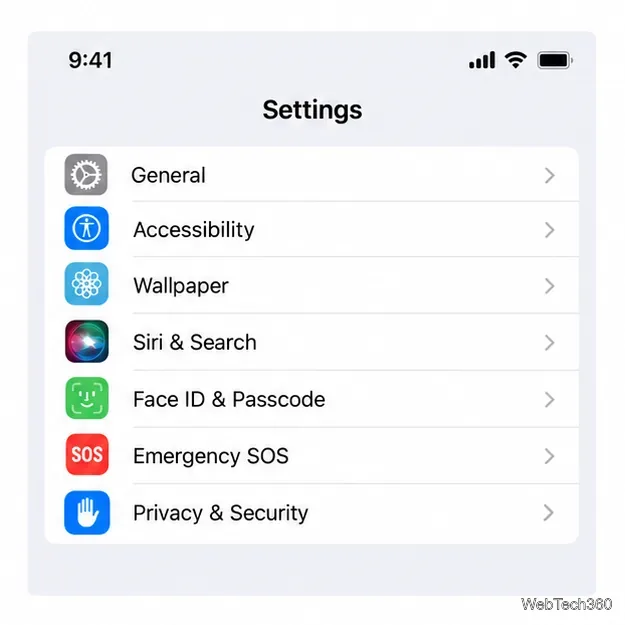
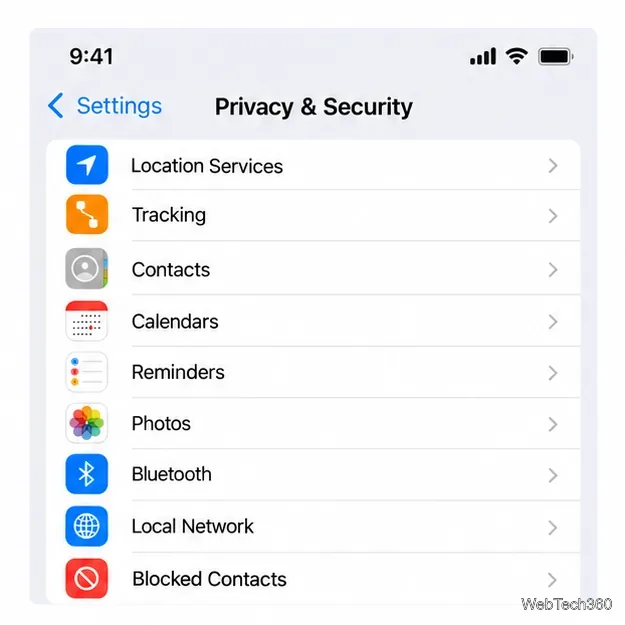
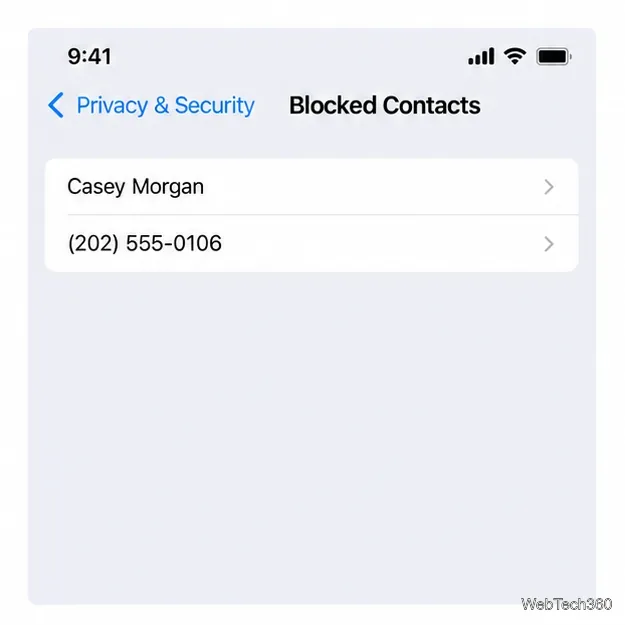
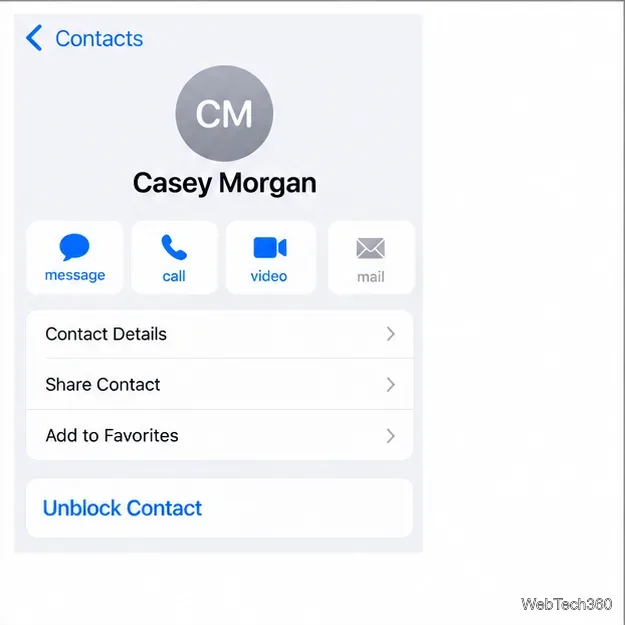
Some iOS 26 or later versions show an Edit control on the Blocked Contacts list instead of opening a contact card. In that view, tap Edit, tap the remove button beside the right entry, then confirm with Unblock. Apple documents both list-management paths in its iPhone and iPad blocked-contacts instructions.
On iOS 18, iPadOS 18, and earlier, blocked contacts are managed from the settings for the app where you blocked them. On an iPhone, start at Settings > Phone > Blocked Contacts. On an iPad, or if the block was made in another app, check the matching path:
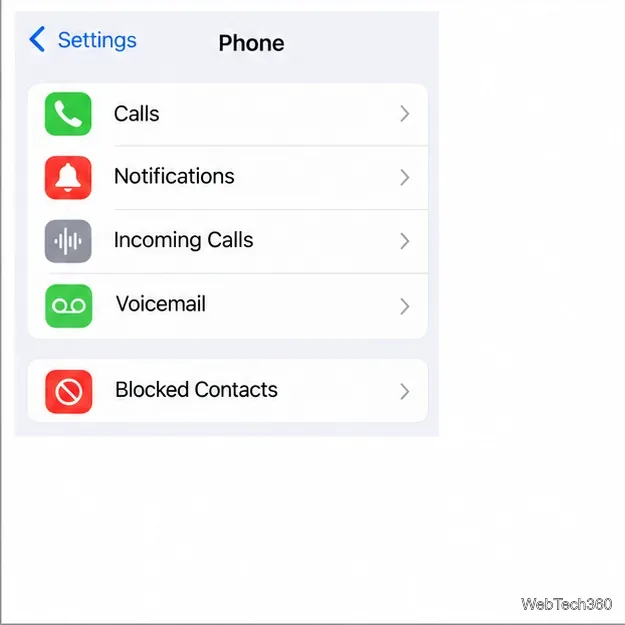
Open the relevant list and locate the number or contact. Depending on the screen, swipe left on the entry and tap Unblock, or use Edit and the remove control. If you remove a person from one Apple app’s blocked list, the change applies across Apple’s Phone, Messages, FaceTime, and Mail apps. The Apple communication settings guide lists the legacy menu locations.
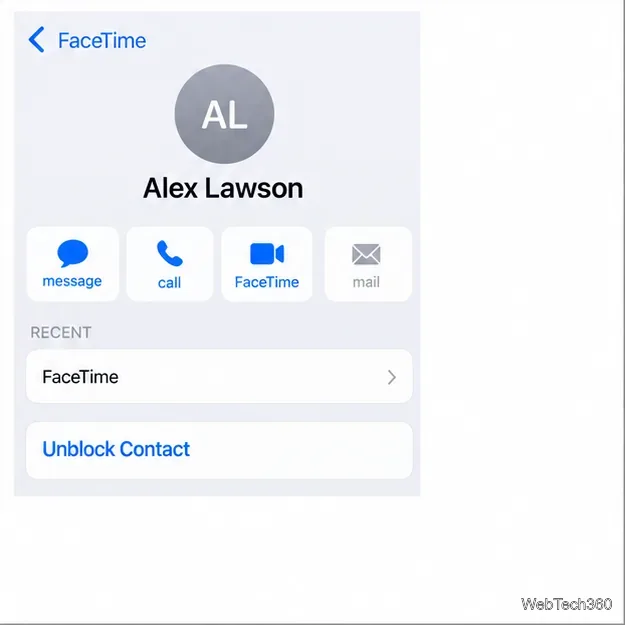
If you have the person’s call in FaceTime history, you may be able to remove the block there. Open FaceTime, tap the call, and choose Unblock Contact. In a Group FaceTime record, tap the caller’s contact information first, then choose the unblock action. Apple also documents a FaceTime settings route: Settings > Apps > FaceTime > Blocked Contacts; swipe left on the contact and tap Unblock.
The same centralized Settings path works on iPad, even if you mainly use it for Messages or FaceTime rather than cellular calls. For Apple’s device-specific steps, see the iPhone User Guide and iPad User Guide.
First confirm that you removed the exact number or email address they use. A contact saved under someone’s name can contain several blocked details, and unblocking one entry does not remove separate blocks for other numbers or addresses. Check a third-party calling or messaging app separately if you blocked the person there.
Also distinguish a block from call filtering. If calls from unknown numbers are silenced or screened, review Settings > Apps > Phone and its call-screening or unknown-caller options. Apple explains those controls in its call-screening guide. A blocked caller may still leave voicemail, but you will not receive a notification; messages sent while the number was blocked are not delivered. Apple says the contact is not notified that a call or message was blocked.
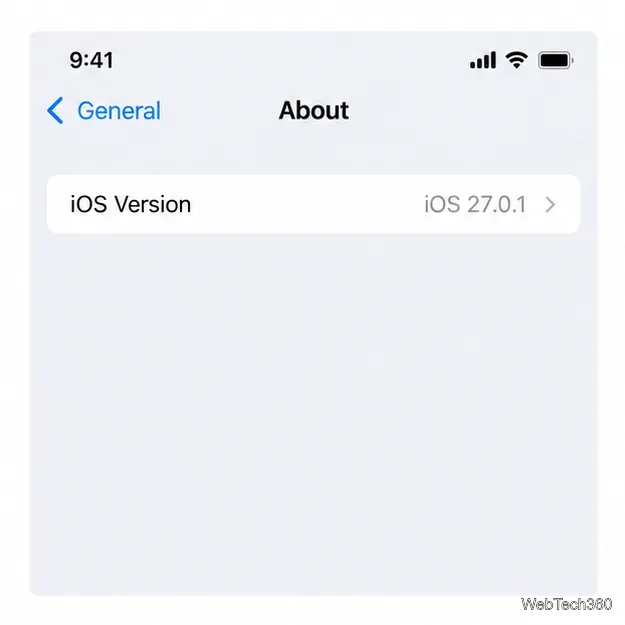
If your menu labels differ, check the device version at Settings > General > About and follow the matching Apple User Guide. That usually resolves whether you should look under Privacy & Security or inside Phone, Messages, or FaceTime settings.
Fix the iMessage Is Signed Out error on iPhone by checking Apple Account sign-in, activation, connectivity, and settings—without erasing your messages.
Turn off your iPhone VPN in the app or Settings, confirm it disconnected, and stop automatic reconnections without deleting your account.
Learn how to encrypt your iPhone with a strong passcode, protect iCloud and computer backups, and secure your data if your phone is lost or stolen.
Learn how to clear Safari and Chrome cache on iPhone, manage app storage safely, and understand when clearing cached data actually helps.
Learn how to fight Gym Battles in Pokémon GO, pick effective attackers, use Charged Attacks and dodges, and claim a Gym after defeating its defenders.
Explore classic Cydia tweaks for jailbroken iPads, from SwipeSelection to Quasar, with compatibility warnings and modern alternatives.
Stop Apple Music signup prompts in the Music app. Learn where to find Show Apple Music on iOS and what turning it off does—and does not—change.
Set up a Shortcuts automation to text Mom when your iPhone battery gets low. Follow four steps, plus delivery checks and privacy tips.
Save posts on X in a few taps. Learn where to find the Bookmark button on iPhone, Android, and desktop, plus how to view, remove, and organize saved tweets.
Turn on AR mode in Pokémon GO during a wild encounter, find AR settings, and fix camera or device compatibility issues.








