iMessage Is Signed Out on iPhone: How to Fix It

Fix the iMessage Is Signed Out error on iPhone by checking Apple Account sign-in, activation, connectivity, and settings—without erasing your messages.
To unsend a message on Facebook Messenger, open the conversation, press and hold the message you sent, choose Delete, and select Delete for everyone. This removes the message from the conversation for everyone in the chat. If you only want to hide it from your own inbox, choose Delete for you instead.
Messenger previously called these options “Unsend for everyone” and “Unsend for you.” The names may differ on older app versions, but the distinction is the same. Here is how to use the current controls on iPhone, Android, and a computer.
The steps are essentially the same on both mobile platforms. You can remove an individual message without deleting the entire conversation.
Launch the Messenger app, open the one-on-one or group conversation, and scroll to the message you sent. Make sure you select the correct message, especially when several were sent in a row.
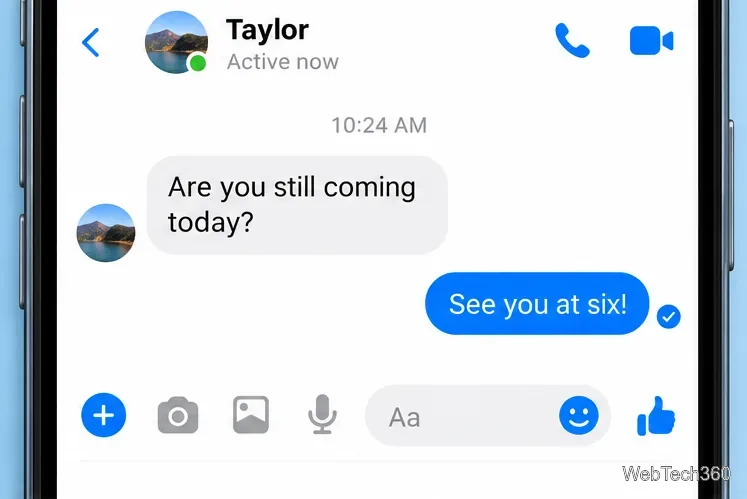
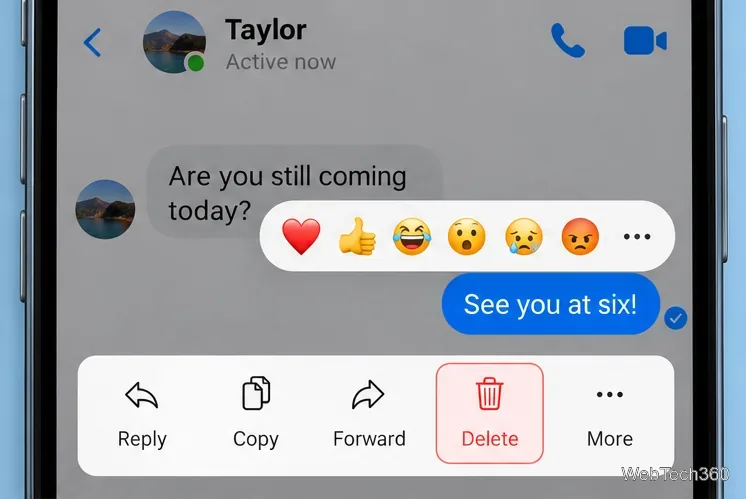
Touch and hold your message until its actions appear. You may see reactions along with commands such as Reply, Copy, Forward, More, or Delete. Tap Delete; on some layouts you may need to tap More first.
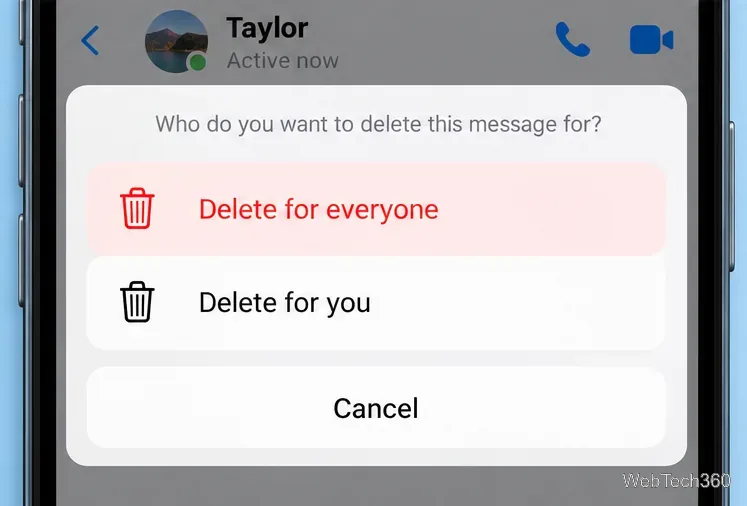
When Messenger asks who should lose access to the message, select Delete for everyone, not Delete for you. Confirm the action if prompted. This is the step that retracts the message from the other participants’ chat view.
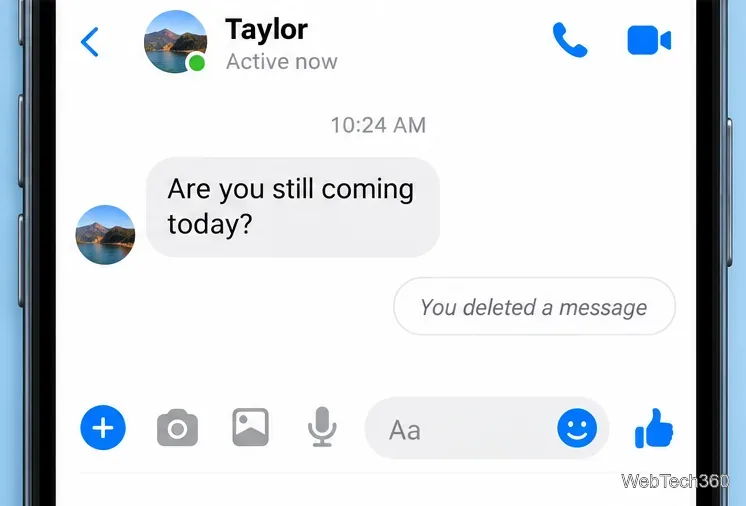
Return to the thread and check that the original message is no longer displayed. Messenger may show a deleted-message notice in its place. A visible notice does not mean that the deleted text is still available to other participants.
Desktop menu labels and placement can vary with the Facebook interface. The important part is selecting the option that applies to everyone rather than only your account.
| Option | What happens |
|---|---|
| Delete for everyone | Removes a message you sent from the chat for all participants, although they may have already seen or saved it. |
| Delete for you | Removes the message from your own view. Other participants can still see their copy. |
| Delete chat | Removes the conversation from your own chat list; it does not retract every message from other people's accounts. |
You cannot use Delete for everyone to retract something another person sent. In a group chat, choosing it for your own message affects the group conversation, not just one recipient.
Older tutorials mention a 10-minute window. That was a limit from Messenger's original unsend rollout, not the rule to assume today. Meta's current instructions describe Delete for everyone without that old 10-minute deadline. Separately, Messenger lets you edit a sent message for up to 15 minutes, and Meta says you can still delete it after that editing window closes.
If you need to fix a minor typo rather than retract the message, use Edit when it is available. See Meta's guide to editing Messenger messages for the current limit.
Yes, they may have seen it before it was deleted. Someone could have opened the chat, read a notification preview, taken a screenshot, or copied the text. Deleting for everyone cannot undo any of those actions. Participants may also see that a message was removed, even if the content itself is no longer visible.
Do not treat unsending as a guarantee of confidentiality. If you shared sensitive information with the wrong person, consider contacting them directly and taking any other appropriate steps to protect that information.
For the official wording and device-specific instructions, refer to Meta's Messenger help page on deleting messages and chats. Messenger interfaces can change, but the difference between deleting for everyone and deleting only for yourself remains the key decision.
Fix the iMessage Is Signed Out error on iPhone by checking Apple Account sign-in, activation, connectivity, and settings—without erasing your messages.
Turn off your iPhone VPN in the app or Settings, confirm it disconnected, and stop automatic reconnections without deleting your account.
Learn how to encrypt your iPhone with a strong passcode, protect iCloud and computer backups, and secure your data if your phone is lost or stolen.
Learn how to clear Safari and Chrome cache on iPhone, manage app storage safely, and understand when clearing cached data actually helps.
Learn how to fight Gym Battles in Pokémon GO, pick effective attackers, use Charged Attacks and dodges, and claim a Gym after defeating its defenders.
Explore classic Cydia tweaks for jailbroken iPads, from SwipeSelection to Quasar, with compatibility warnings and modern alternatives.
Stop Apple Music signup prompts in the Music app. Learn where to find Show Apple Music on iOS and what turning it off does—and does not—change.
Set up a Shortcuts automation to text Mom when your iPhone battery gets low. Follow four steps, plus delivery checks and privacy tips.
Save posts on X in a few taps. Learn where to find the Bookmark button on iPhone, Android, and desktop, plus how to view, remove, and organize saved tweets.
Turn on AR mode in Pokémon GO during a wild encounter, find AR settings, and fix camera or device compatibility issues.








