How to Update Firmware on an Activity Tracker or Smartwatch

To update firmware on an activity tracker or smartwatch, open its official companion app or the watch’s own settings, check for a software update, and follow the installation prompts. Keep the device charged and connected until it restarts. The exact menu depends on the brand: some trackers receive updates over Bluetooth, while Wi-Fi-capable watches can often update directly.

Before you update: check the app, connection, and battery

Firmware is the software that controls a wearable’s hardware and core functions. Updates can fix bugs, address security issues, and improve features. First identify the exact model, since similarly named watches may use different apps or update methods.

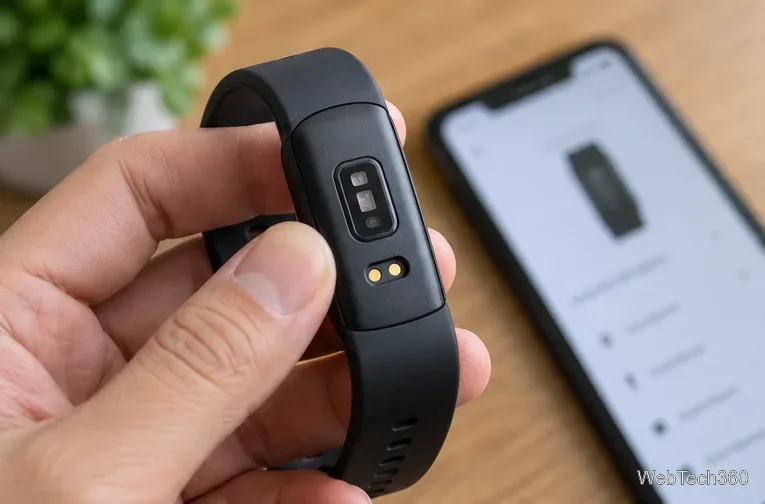
Back of a black fitness tracker showing its optical sensors and charging contacts beside a phone
Check the model and charging contacts so you can follow the right instructions for your tracker.
  • Use the official app. Install it from the manufacturer’s support site or a trusted app store, and update the app itself before proceeding.
  • Charge both devices. Aim for at least 50% battery on the watch or band unless its manufacturer specifies another threshold. Keep an Apple Watch on its charger during installation.
  • Maintain a stable connection. For phone-based updates, turn on Bluetooth, keep the wearable near the phone, and use reliable internet access. For standalone updates, connect the watch to Wi-Fi if required.
  • Allow enough time. Downloading, transferring, and installing can take several minutes to an hour or longer, depending on the model and update.
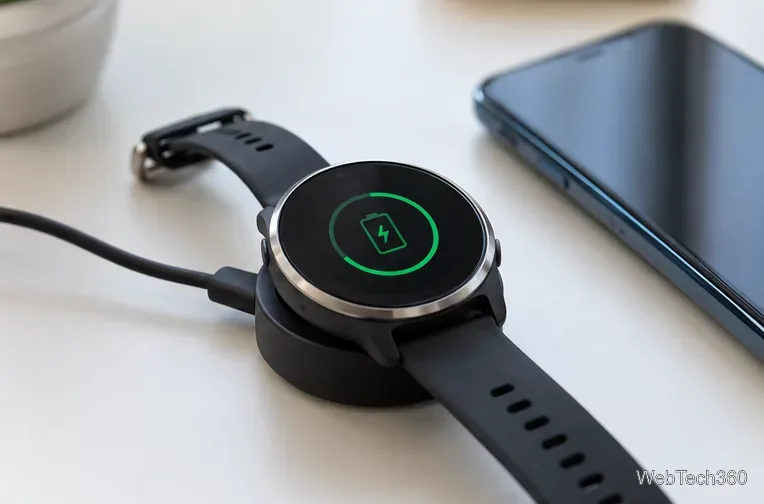
Round smartwatch resting on a magnetic charging dock with a charging symbol visible
Place your smartwatch on its charger before starting a lengthy software installation.

How to update smartwatch or fitness tracker firmware

  1. Open the correct update location. Launch the paired device’s official companion app, or open Settings on a smartwatch that supports direct software updates.
  2. Reconnect and sync. Confirm the app shows your watch or tracker as connected. If it is missing, make sure Bluetooth is enabled and that the phone is close by.
  3. Check for an update. Open the device details or software/firmware update menu. Look for an available release and read any battery, network, or compatibility requirements.
  4. Download and install. Select the available update and follow the prompts. Keep the devices close together; do not force a restart, disconnect the charger, or close an app the manufacturer says to leave running.
  5. Verify completion. Wait for the wearable to restart, reconnect, and finish syncing. Reopen its About, Versions, or Software Update screen to check the installed version or confirm that no update is pending.
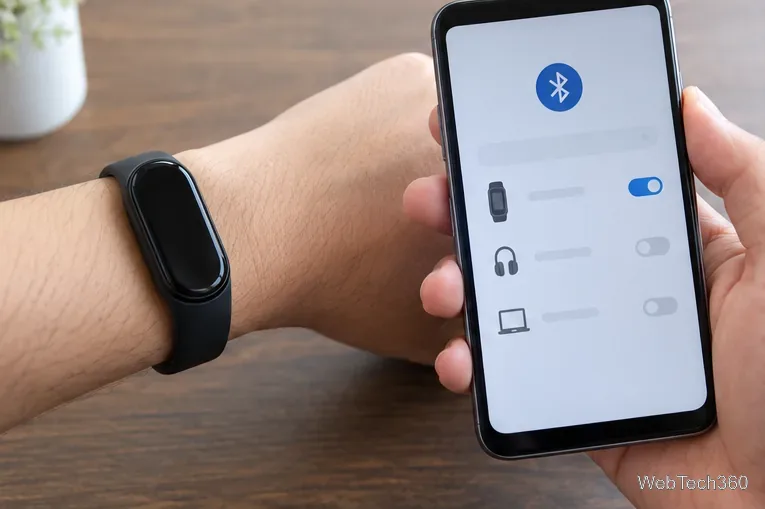
Fitness band worn on a wrist next to a smartphone displaying a Bluetooth device connection screen
A reliable Bluetooth link is important for trackers that receive software from a paired phone.
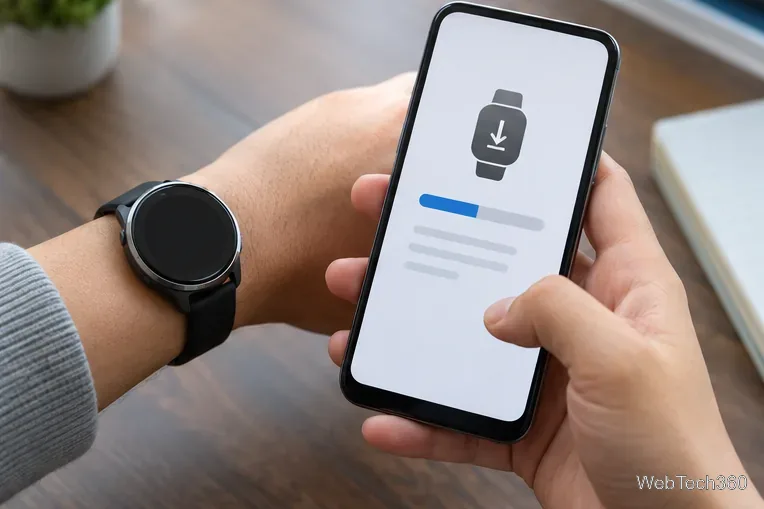
Smartwatch on a wrist beside a smartphone showing a wearable software download progress bar
Leave the paired devices together while the firmware package downloads and installs.

Where to find firmware updates on popular brands

These are manufacturer-documented routes, not universal menus. Older models and regional app releases may display different labels.

  • Apple Watch: On iPhone, open Watch > My Watch > General > Software Update. Alternatively, use Settings > General > Software Update on the watch while connected to Wi-Fi. Apple requires at least 50% watch battery and advises keeping it on the charger. See Apple’s watchOS update instructions.
  • Fitbit trackers: In the Google Health app, open Connections, select the device, then tap Update if offered. Releases are rolled out gradually; a missing button can mean there is no update for your device yet. See Google’s Fitbit update guide.
  • Samsung Galaxy Watch: On supported models, open Galaxy Wearable > Watch settings > Watch software update > Download and install; some versions also have a software update option on the watch. See Samsung’s instructions.
  • Google Pixel Watch: On the watch, open Settings > System > System updates. Use Wi-Fi and a charger with at least 50% battery. See Google’s Pixel Watch instructions.
  • Garmin: Supported watches can use Garmin Express on a Windows PC or Mac: connect the watch with its USB cable, select it in Garmin Express, and choose Install or Install All. Other Garmin models can receive updates through Garmin Connect or the watch itself; check the specific manual. See Garmin Express update steps.
  • Xiaomi Smart Band: For supported models, open Mi Fitness > Device > Update. Keep the band close to the phone while its update package transfers. See Xiaomi’s band firmware guide.
  • Withings: In the Withings app, select your device, open its settings, and tap Check for updates. See Withings’ device update guide.

If the firmware update does not start or gets stuck

First check the battery level, internet connection, Bluetooth pairing, and available storage. Update the companion app, bring the devices closer, and wait if the screen still shows progress. Fitbit and Withings both note that updates can roll out in stages, so another user receiving an update does not guarantee immediate availability on your device.

If the update has clearly failed, follow the manufacturer’s troubleshooting steps and then retry. A normal restart of the phone and watch may help, but do not interrupt an active firmware installation. Do not reset the wearable to factory settings unless its official support guidance calls for it and you have backed up important data; a reset can erase locally stored information.

Does updating the phone app also update the watch?

Not necessarily. The companion app and the wearable’s firmware are separate software components. Updating the phone app may be required to deliver a device update, but it does not prove the watch firmware changed. Check the wearable’s reported software version after installation. A watch that no longer receives new releases may still report that its installed version is the latest compatible one.

Leave a Comment

iMessage Is Signed Out on iPhone: How to Fix It

iMessage Is Signed Out on iPhone: How to Fix It

Fix the iMessage Is Signed Out error on iPhone by checking Apple Account sign-in, activation, connectivity, and settings—without erasing your messages.

How to Turn Off VPN on iPhone (App and Settings)

How to Turn Off VPN on iPhone (App and Settings)

Turn off your iPhone VPN in the app or Settings, confirm it disconnected, and stop automatic reconnections without deleting your account.

How to Encrypt an iPhone and Protect Sensitive Information

How to Encrypt an iPhone and Protect Sensitive Information

Learn how to encrypt your iPhone with a strong passcode, protect iCloud and computer backups, and secure your data if your phone is lost or stolen.

How to Clear Cache on iPhone: Safari, Chrome, and Apps

How to Clear Cache on iPhone: Safari, Chrome, and Apps

Learn how to clear Safari and Chrome cache on iPhone, manage app storage safely, and understand when clearing cached data actually helps.

How to Fight Gym Battles in Pokémon GO: Attacks, Dodges, and Taking Control

How to Fight Gym Battles in Pokémon GO: Attacks, Dodges, and Taking Control

Learn how to fight Gym Battles in Pokémon GO, pick effective attackers, use Charged Attacks and dodges, and claim a Gym after defeating its defenders.

Best Cydia Tweaks and Apps for Your Jailbroken iPad: Classic Picks

Best Cydia Tweaks and Apps for Your Jailbroken iPad: Classic Picks

Explore classic Cydia tweaks for jailbroken iPads, from SwipeSelection to Quasar, with compatibility warnings and modern alternatives.

How to Turn Off the Apple Music Splash Screen on iPhone

How to Turn Off the Apple Music Splash Screen on iPhone

Stop Apple Music signup prompts in the Music app. Learn where to find Show Apple Music on iOS and what turning it off does—and does not—change.

Let Mom Know Your iPhone Battery Is Low With an Automatic Text

Let Mom Know Your iPhone Battery Is Low With an Automatic Text

Set up a Shortcuts automation to text Mom when your iPhone battery gets low. Follow four steps, plus delivery checks and privacy tips.

How to Bookmark a Tweet on X (Twitter) on Any Device

How to Bookmark a Tweet on X (Twitter) on Any Device

Save posts on X in a few taps. Learn where to find the Bookmark button on iPhone, Android, and desktop, plus how to view, remove, and organize saved tweets.

How to Enable AR Mode in Pokémon GO on iPhone or Android

How to Enable AR Mode in Pokémon GO on iPhone or Android

Turn on AR mode in Pokémon GO during a wild encounter, find AR settings, and fix camera or device compatibility issues.