iMessage Is Signed Out on iPhone: How to Fix It

Fix the iMessage Is Signed Out error on iPhone by checking Apple Account sign-in, activation, connectivity, and settings—without erasing your messages.
You can use Google Translate offline on Android or iPhone by downloading the languages you need before you lose internet access. With the correct language packs saved to your phone, you can translate typed text without Wi-Fi or cellular data. Supported language pairs can also work with camera translation. Downloading the packs takes only a few steps, but you need an internet connection to get them first.
Open the Google Translate app while connected to Wi-Fi and decide which languages you’ll translate from and to. For example, if you want to understand Spanish signs and translate English phrases into Spanish, download both English and Spanish when they’re offered. A language with no download icon isn’t available for offline download.
Wait until each download finishes and shows as downloaded. Keeping the app installed is not enough: you need the language files on the same phone you’ll use offline.
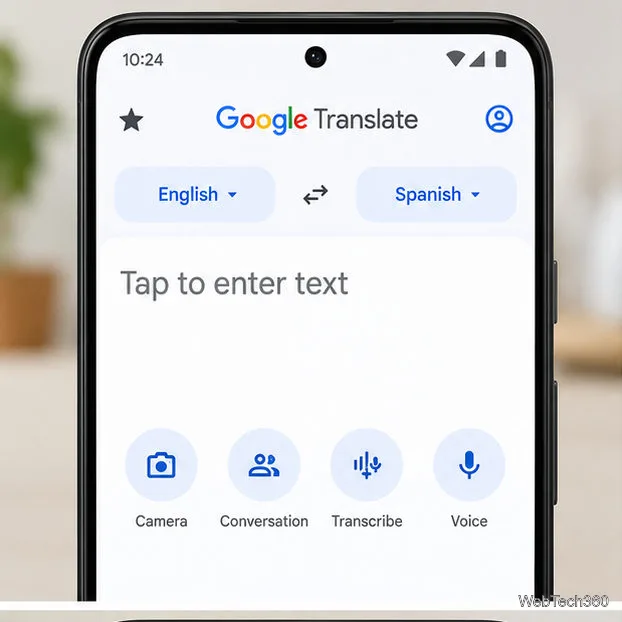
The language-picker layout can vary slightly by app version. Google’s documented Android path starts with the language selector, rather than requiring you to find a separate offline-settings tab.
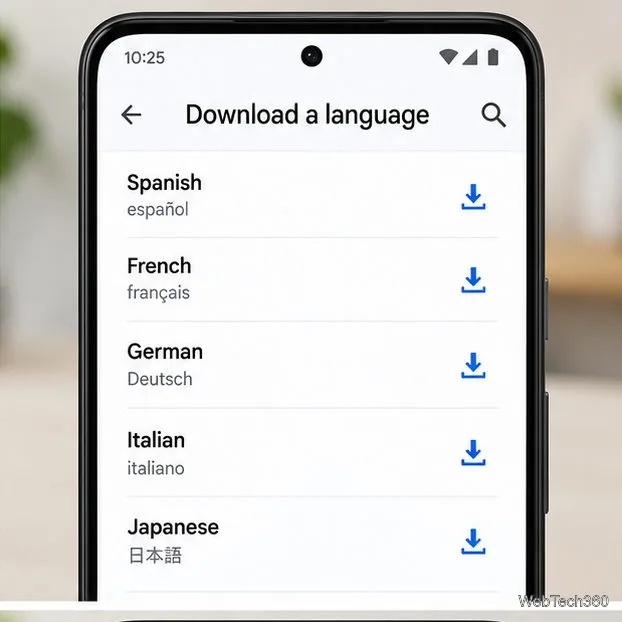
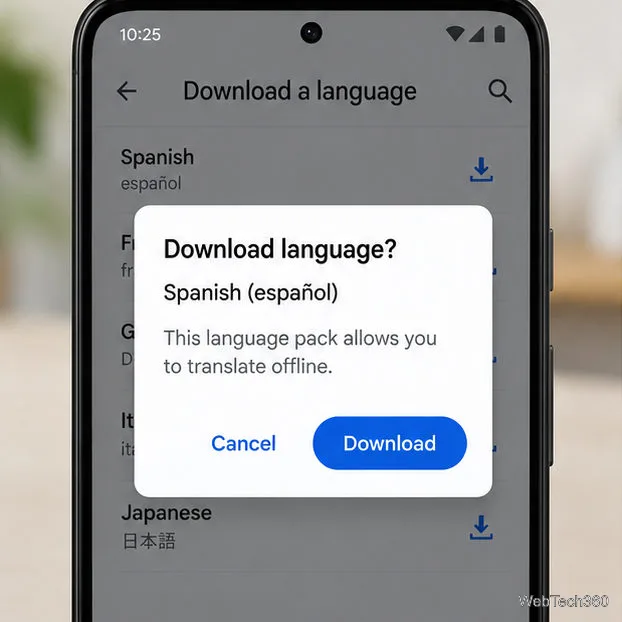
See Google’s Android offline-language instructions for Google’s current menu guidance.
If the download icon is missing, that language cannot currently be saved for offline use. Don’t confuse Google Translate with Apple’s separate Translate app; the steps here are for Google’s app.
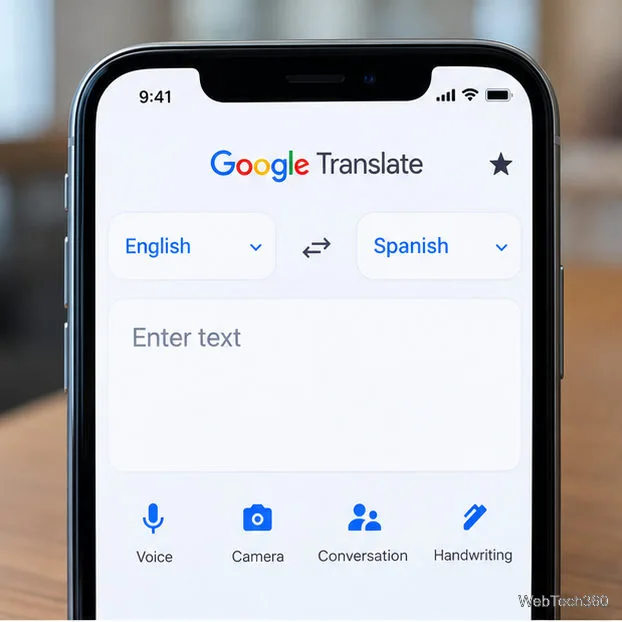
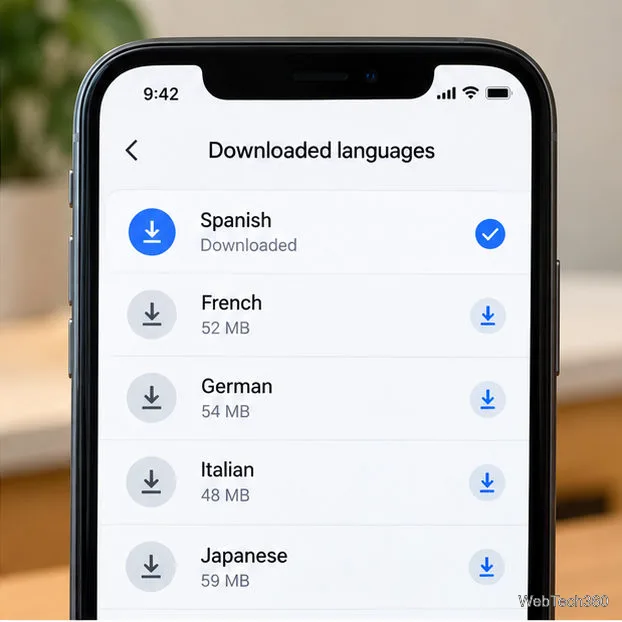
For exact iPhone steps, refer to Google’s iPhone and iPad instructions.
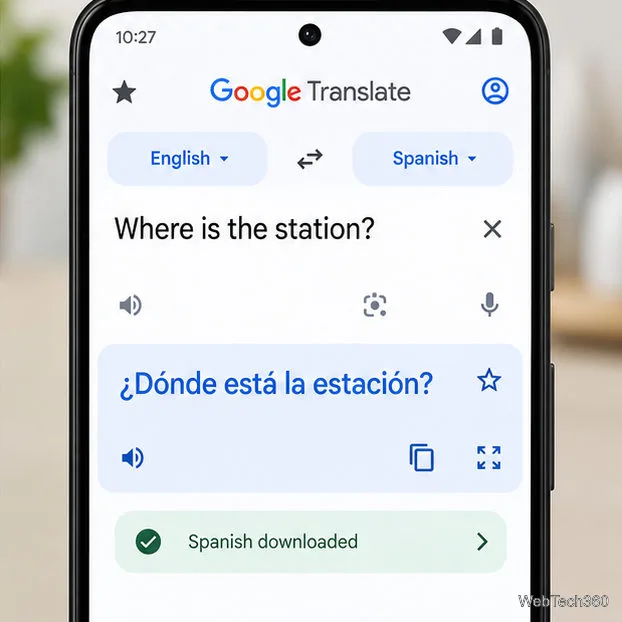
After the packs are installed, turn off Wi-Fi and cellular data—or briefly enable airplane mode—to verify your setup. Open Google Translate, choose the downloaded source and target languages, and type a short sentence. The translated text should appear if that language pair is supported offline.
Try switching the direction of translation too. Having both language packs saved is the safest preparation, but the functions available can differ by language and device. Some speech, live conversation, or other online-powered features may still require a connection. Don’t assume every button in the app works offline just because text translation does.
Yes, for supported languages. Google documents offline camera translation after the required language files have finished downloading. In Translate, select the correct languages, tap Camera, and point the phone at a clearly printed sign or menu. On iPhone, Google advises downloading both the source and destination languages for offline camera use.
Not every camera function or language has identical offline support. If you see an error, verify your language selection and download status. Good lighting, large text, and a steady camera improve results; blurry or decorative lettering can be misread.
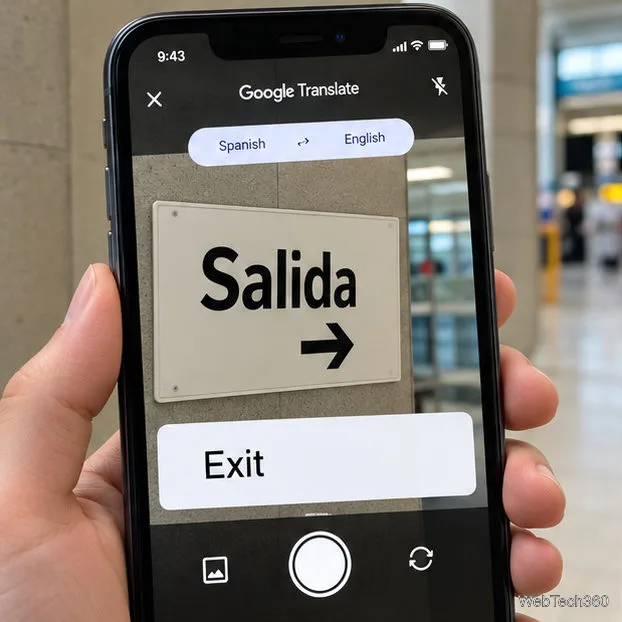
Check Google’s camera translation guide for Android or Google’s camera translation guide for iPhone for device-specific camera instructions.
Offline packs use storage space and may receive improved versions. Reconnect to Wi-Fi occasionally and open the downloaded-language management screen:
Removing a language pack also removes the ability to use that language offline until you download it again. The availability and size of upgrades can vary.
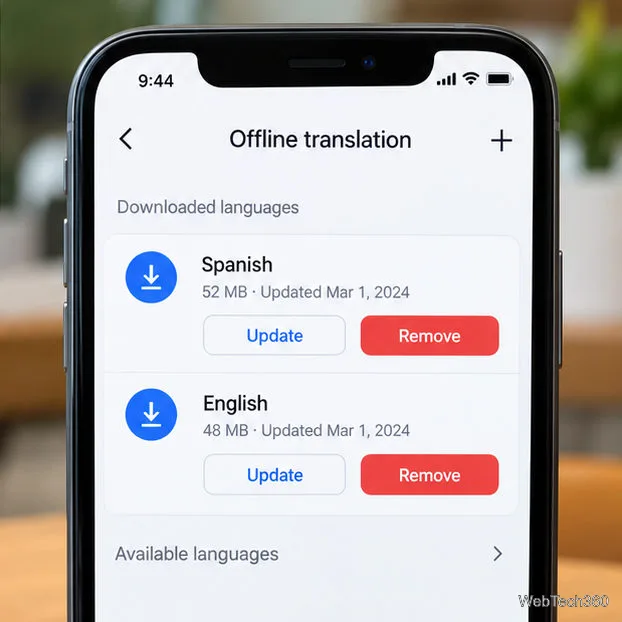
The most useful final check is simple: test the exact language pair in airplane mode before leaving home. That confirms your setup without relying on a feature that might need internet access.
Fix the iMessage Is Signed Out error on iPhone by checking Apple Account sign-in, activation, connectivity, and settings—without erasing your messages.
Turn off your iPhone VPN in the app or Settings, confirm it disconnected, and stop automatic reconnections without deleting your account.
Learn how to encrypt your iPhone with a strong passcode, protect iCloud and computer backups, and secure your data if your phone is lost or stolen.
Learn how to clear Safari and Chrome cache on iPhone, manage app storage safely, and understand when clearing cached data actually helps.
Learn how to fight Gym Battles in Pokémon GO, pick effective attackers, use Charged Attacks and dodges, and claim a Gym after defeating its defenders.
Explore classic Cydia tweaks for jailbroken iPads, from SwipeSelection to Quasar, with compatibility warnings and modern alternatives.
Stop Apple Music signup prompts in the Music app. Learn where to find Show Apple Music on iOS and what turning it off does—and does not—change.
Set up a Shortcuts automation to text Mom when your iPhone battery gets low. Follow four steps, plus delivery checks and privacy tips.
Save posts on X in a few taps. Learn where to find the Bookmark button on iPhone, Android, and desktop, plus how to view, remove, and organize saved tweets.
Turn on AR mode in Pokémon GO during a wild encounter, find AR settings, and fix camera or device compatibility issues.








