How to Use Instagram Story Questions and Share Answers

To use Instagram Story Questions, create a Story, open the sticker tray, select Questions, type a prompt, and share it. People who can see your Story can submit written answers, and you can review them privately or share selected answers in another Story. The feature works in Instagram's mobile app on iPhone and Android.

How to add Questions to an Instagram Story

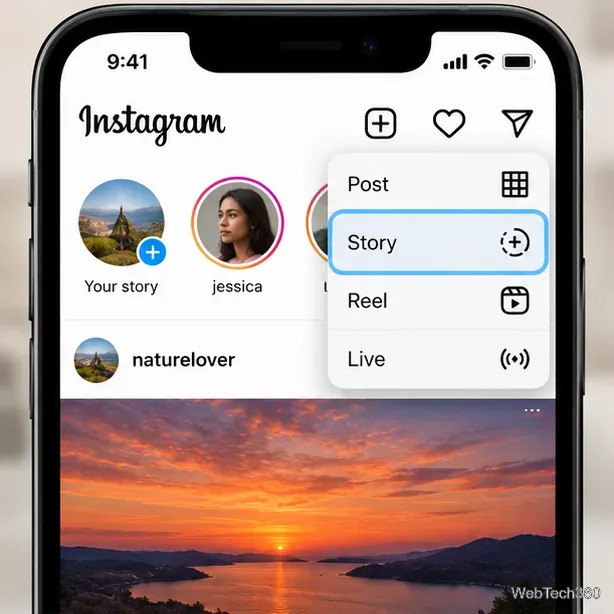
  1. Start a Story. Open Instagram, tap the Create (+) control, and choose Story. Depending on the app layout, you can also start from your profile picture or swipe into the Story camera.
    Instagram home screen with the Create menu open and Story selected
    Choose Story from the Instagram Create menu.
  2. Add a background. Take a photo, record a video, or select something from your phone's gallery. A plain background also works if you want the question to be the focus.
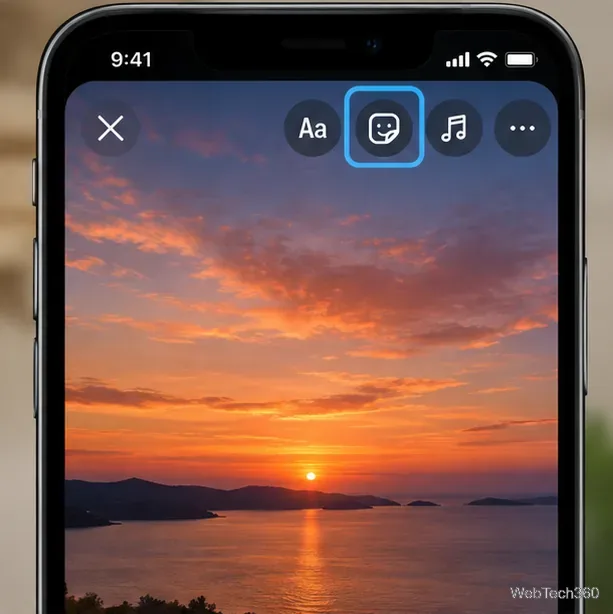
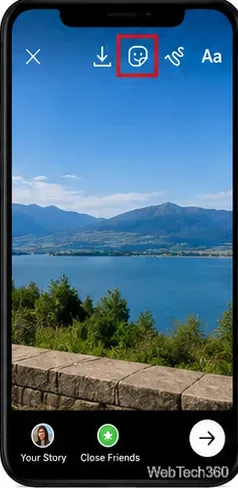
  3. Open the sticker tray. In the Story editor, tap the square smiley-face Stickers icon near the top.
    Instagram Story editor displaying a sunset image with the Stickers button highlighted
    The Stickers button is in the Story editing toolbar.
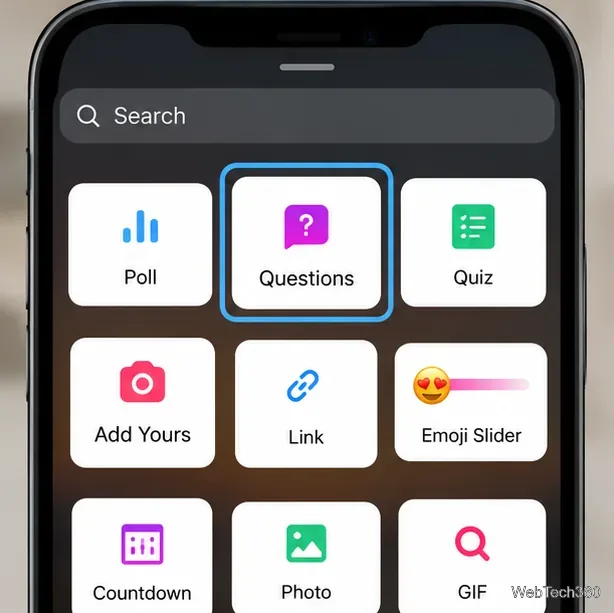
  4. Choose Questions. Find Questions in the sticker tray, or search for it if your tray has a search field. Don't select Poll if you want viewers to write their own responses rather than vote on preset choices.
    Instagram sticker picker showing the Questions sticker among Poll, Quiz, and other stickers
    Select Questions, not Poll or Quiz, for written answers.
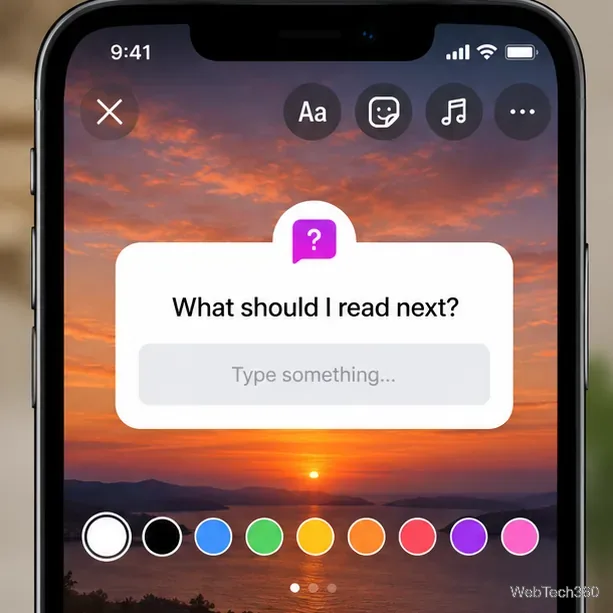
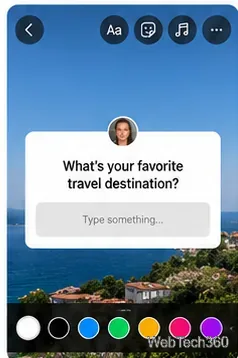
  5. Write and position your prompt. Tap the default text, such as “Ask me a question,” and enter something specific. Use the available color controls if you want to change the sticker's appearance, then drag it away from important details in your picture.
    Questions sticker on a sunset Story asking What should I read next with color choices visible
    Replace the default prompt and adjust the sticker before posting.
  6. Share the Story. Review the final layout and choose Your Story or Close Friends, as appropriate. Your exact sharing labels may vary slightly by app version.
    Story composer with Your Story and Close Friends sharing choices along the bottom
    Choose the audience before publishing your Story.

For Instagram's current explanation of the sticker tray and feature availability, see its official guide to using stickers.

How someone answers your question

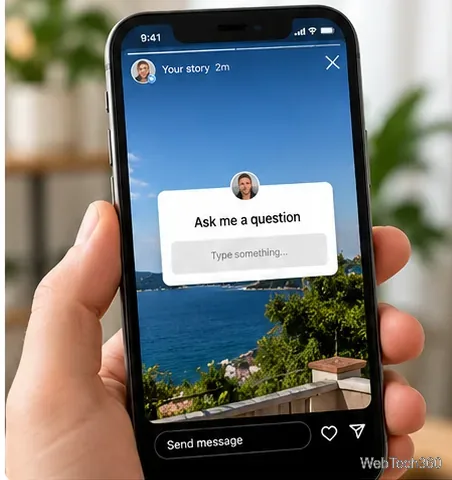
When a viewer opens your Story, they can tap the answer field in the Questions sticker, type their response, and submit it. They don't need to send a separate direct message. Whether someone can see your Story depends on your account and audience settings; the sticker does not make a private Story public.

Published Instagram Story displaying an Ask me a question box that viewers can tap
Viewers tap the question box to type and send their response.

You can also answer Questions stickers in other people's Stories the same way. Remember that the person who posted the Story can see which account submitted your answer.

Where to find and share responses

  1. Open your own Story containing the Questions sticker.
  2. Open its activity or viewer details. Swipe up on the Story or tap the activity/viewer indicator, depending on the version of Instagram you use.
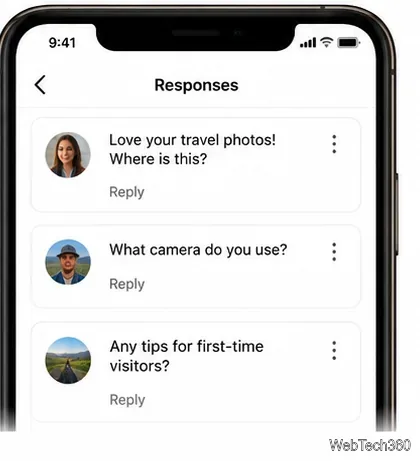
  3. Look for Responses. Review the submitted answers and tap one you want to address.
    Instagram Responses panel displaying separate submitted questions with Reply controls
    Open the response list to review individual submissions.
  4. Choose how to respond. If Instagram offers Share response, select it to make a new Story featuring that answer. Add your own text, photo, or video before publishing. You can also choose a private reply when that option is available, rather than broadcasting the answer.

Sharing a response is optional. You don't have to publish every submission, and you should get permission before reposting personal or sensitive information.

Are Instagram Story Questions anonymous?

No—not to the Story creator. The account posting the Questions sticker can identify who submitted a response. Other viewers cannot browse the private response list. If the creator shares a submitted response to a new Story, Instagram normally leaves out the original sender's profile photo and username. However, the text itself may reveal who wrote it, so avoid assuming your answer is completely anonymous.

Control who can participate

The simplest way to narrow your audience is to publish the question to Close Friends or limit who can see your Stories in your privacy settings. Keep in mind that Instagram's Story replies setting concerns message replies; it should not be treated as a guaranteed on/off switch specifically for Questions-sticker submissions.

For direct Story messages, the current settings path is generally Profile → Menu → Messages and story replies → Story replies. Instagram explains this control in its official Story reply settings guide.

Question ideas that invite useful answers

Short, focused prompts are usually easier to answer than a vague request. For example:

  • “What should I read next?” for book recommendations.
  • “What's one thing you wish you'd known before your first job?” for a career discussion.
  • “Which part of this tutorial should I explain better?” for actionable feedback.
  • “What's your favorite travel destination?” for an easy conversation starter.
Questions sticker asking What is your favorite travel destination above a text response field
A specific prompt helps viewers understand what to answer.

What if the Questions sticker is missing?

First, update Instagram from your phone's app store. Start a fresh Story rather than a regular post, open the full sticker tray, and search for Questions. If it still doesn't appear, restart the app. Instagram notes that some stickers may not be available to every account or in every content format or region. Avoid third-party apps that ask for your Instagram password just to add a question box.

Most standard Stories disappear from public view after 24 hours unless added to a Highlight. If you plan to address several answers, review responses while the Story is active, then share the ones that deserve a thoughtful follow-up.

Leave a Comment

iMessage Is Signed Out on iPhone: How to Fix It

iMessage Is Signed Out on iPhone: How to Fix It

Fix the iMessage Is Signed Out error on iPhone by checking Apple Account sign-in, activation, connectivity, and settings—without erasing your messages.

How to Turn Off VPN on iPhone (App and Settings)

How to Turn Off VPN on iPhone (App and Settings)

Turn off your iPhone VPN in the app or Settings, confirm it disconnected, and stop automatic reconnections without deleting your account.

How to Encrypt an iPhone and Protect Sensitive Information

How to Encrypt an iPhone and Protect Sensitive Information

Learn how to encrypt your iPhone with a strong passcode, protect iCloud and computer backups, and secure your data if your phone is lost or stolen.

How to Clear Cache on iPhone: Safari, Chrome, and Apps

How to Clear Cache on iPhone: Safari, Chrome, and Apps

Learn how to clear Safari and Chrome cache on iPhone, manage app storage safely, and understand when clearing cached data actually helps.

How to Fight Gym Battles in Pokémon GO: Attacks, Dodges, and Taking Control

How to Fight Gym Battles in Pokémon GO: Attacks, Dodges, and Taking Control

Learn how to fight Gym Battles in Pokémon GO, pick effective attackers, use Charged Attacks and dodges, and claim a Gym after defeating its defenders.

Best Cydia Tweaks and Apps for Your Jailbroken iPad: Classic Picks

Best Cydia Tweaks and Apps for Your Jailbroken iPad: Classic Picks

Explore classic Cydia tweaks for jailbroken iPads, from SwipeSelection to Quasar, with compatibility warnings and modern alternatives.

How to Turn Off the Apple Music Splash Screen on iPhone

How to Turn Off the Apple Music Splash Screen on iPhone

Stop Apple Music signup prompts in the Music app. Learn where to find Show Apple Music on iOS and what turning it off does—and does not—change.

Let Mom Know Your iPhone Battery Is Low With an Automatic Text

Let Mom Know Your iPhone Battery Is Low With an Automatic Text

Set up a Shortcuts automation to text Mom when your iPhone battery gets low. Follow four steps, plus delivery checks and privacy tips.

How to Bookmark a Tweet on X (Twitter) on Any Device

How to Bookmark a Tweet on X (Twitter) on Any Device

Save posts on X in a few taps. Learn where to find the Bookmark button on iPhone, Android, and desktop, plus how to view, remove, and organize saved tweets.

How to Enable AR Mode in Pokémon GO on iPhone or Android

How to Enable AR Mode in Pokémon GO on iPhone or Android

Turn on AR mode in Pokémon GO during a wild encounter, find AR settings, and fix camera or device compatibility issues.