iMessage Is Signed Out on iPhone: How to Fix It

Fix the iMessage Is Signed Out error on iPhone by checking Apple Account sign-in, activation, connectivity, and settings—without erasing your messages.
To use Live View in Google Maps, find your destination, tap Directions, choose Walking, and open the camera-based navigation option at the bottom of the route preview. On iPhone, the button may say Live View; Google's current Android instructions call it Navigate. Point your camera at nearby buildings or signs so Maps can locate you, then follow the directions displayed over your surroundings.
Google now describes this augmented reality (AR) experience as Lens in Maps. It helps pedestrians orient themselves on unfamiliar streets, but it isn't designed for driving or cycling.
Live View requires the Google Maps app on a compatible Android phone or iPhone, permission to use its camera, and an outdoor area with enough Street View coverage. Your phone must support Google's AR technology (ARCore on Android or ARKit on compatible Apple devices). Availability also varies by country and location, even if ordinary Google Maps directions work there.
Choose a well-lit place where the camera can see recognizable buildings and street signs. A clear sky alone, a dark street, or a path lined only with trees may not give Maps the visual information it needs. You can check Google's Android instructions or iPhone instructions for current availability and controls.
Open Google Maps and enter an address, business, or landmark in the search bar. You can also tap a destination directly on the map. Select the correct place and tap Directions to see routes from your starting point.
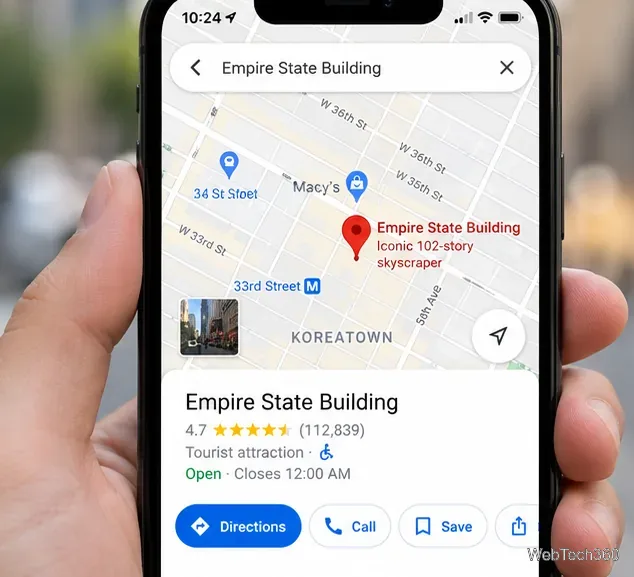
In the row of travel modes above the route, choose the walking person icon. At the bottom of the walking route preview, tap Live View on iPhone or Navigate on Android, according to Google's current help pages. Labels can differ by platform and app release. You do not need to visit the Navigation settings menu first to start a walking route.
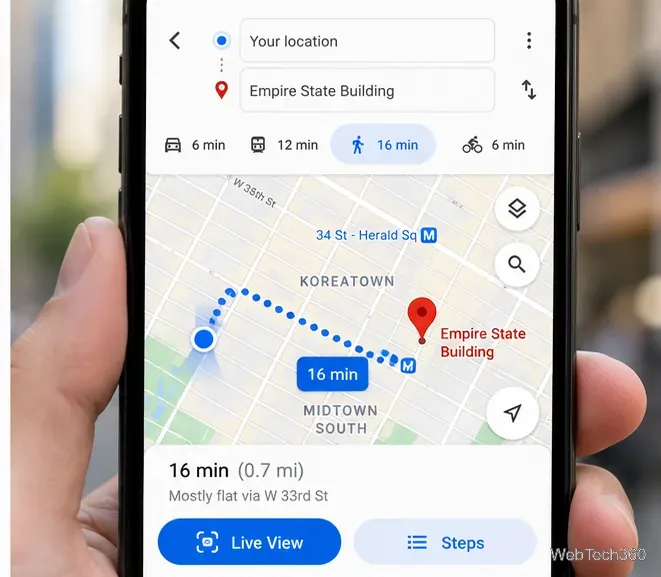
If Google Maps asks for camera access, allow it. Hold your phone upright while standing safely on the sidewalk and point the camera toward buildings or signs across the street. Follow any prompts on screen while the app determines your position. If recognition fails, try a brighter area with more visible storefronts, building fronts, or street signs.
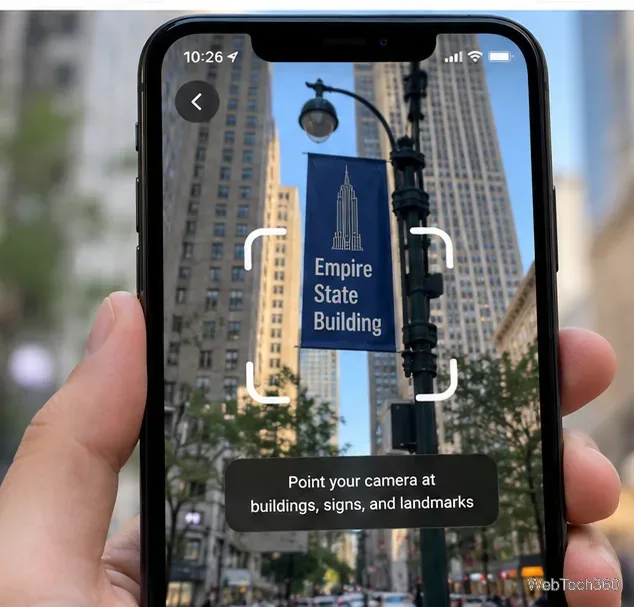
Once Maps recognizes where you are, the camera view shows directional cues over the street scene. Check the indicated direction while stopped, then put your phone down and walk normally. Google says the device can vibrate when you reach the next navigation step or your destination. To see the camera directions again, bring the phone upright and tap the camera navigation button if needed.
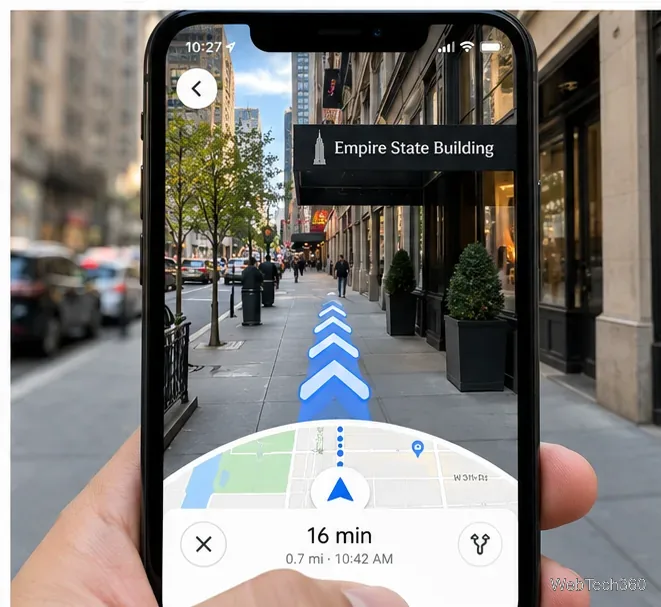
You can use the standard 2D map whenever you don't need camera guidance. By default, tilting your phone can switch between the camera view and the map. If you'd rather keep the map from switching automatically, check Profile picture or initial → Settings → Navigation and look under Walking options for the Live View or tilt-related controls. Settings may differ by device and app version; turning a Live View switch off is not a required setup step.
If the camera option never appears, use the ordinary walking directions instead. There isn't a reliable switch or workaround that forces AR navigation in an unsupported area.
Live View walking navigation places turn guidance over what your camera sees. Lens in Maps search, accessible through the Lens icon in the search bar where supported, helps identify or explore nearby places through the camera. Street View lets you examine previously captured panoramic street imagery. They are related features, but viewing Street View photos or tapping Lens search is not the same as starting a Live View walking route.
Use AR directions as occasional orientation checks, not as something to watch continuously. Stay aware of traffic, crossings, obstacles, and posted signs, and follow actual street conditions if a visual arrow appears inconsistent with a safe pedestrian route.
Fix the iMessage Is Signed Out error on iPhone by checking Apple Account sign-in, activation, connectivity, and settings—without erasing your messages.
Turn off your iPhone VPN in the app or Settings, confirm it disconnected, and stop automatic reconnections without deleting your account.
Learn how to encrypt your iPhone with a strong passcode, protect iCloud and computer backups, and secure your data if your phone is lost or stolen.
Learn how to clear Safari and Chrome cache on iPhone, manage app storage safely, and understand when clearing cached data actually helps.
Learn how to fight Gym Battles in Pokémon GO, pick effective attackers, use Charged Attacks and dodges, and claim a Gym after defeating its defenders.
Explore classic Cydia tweaks for jailbroken iPads, from SwipeSelection to Quasar, with compatibility warnings and modern alternatives.
Stop Apple Music signup prompts in the Music app. Learn where to find Show Apple Music on iOS and what turning it off does—and does not—change.
Set up a Shortcuts automation to text Mom when your iPhone battery gets low. Follow four steps, plus delivery checks and privacy tips.
Save posts on X in a few taps. Learn where to find the Bookmark button on iPhone, Android, and desktop, plus how to view, remove, and organize saved tweets.
Turn on AR mode in Pokémon GO during a wild encounter, find AR settings, and fix camera or device compatibility issues.








