iMessage Is Signed Out on iPhone: How to Fix It

Fix the iMessage Is Signed Out error on iPhone by checking Apple Account sign-in, activation, connectivity, and settings—without erasing your messages.
To have your iPhone remember where you parked, you usually do not need to give Siri a special “remember” command. Apple Maps can place a Parked Car marker automatically after your iPhone disconnects from your car’s CarPlay or Bluetooth system and you leave the vehicle. Siri can help you get to the saved marker: ask Siri to open Maps, then choose Parked Car under Siri Suggestions.
This is different from the older advice to say “Remember where I parked my car” or to change a separate Siri location permission. Apple’s current instructions use Maps settings and iPhone location services. Set those up before relying on the marker.
Connect your iPhone to the vehicle’s CarPlay system or pair it with the car’s Bluetooth system. The phone needs to recognize the vehicle connection so Maps can detect when that connection ends. If you have used CarPlay or Bluetooth for calls or audio before, the car may already be paired. If not, pair it from the vehicle’s display or the iPhone’s Bluetooth settings, following the instructions for your car.
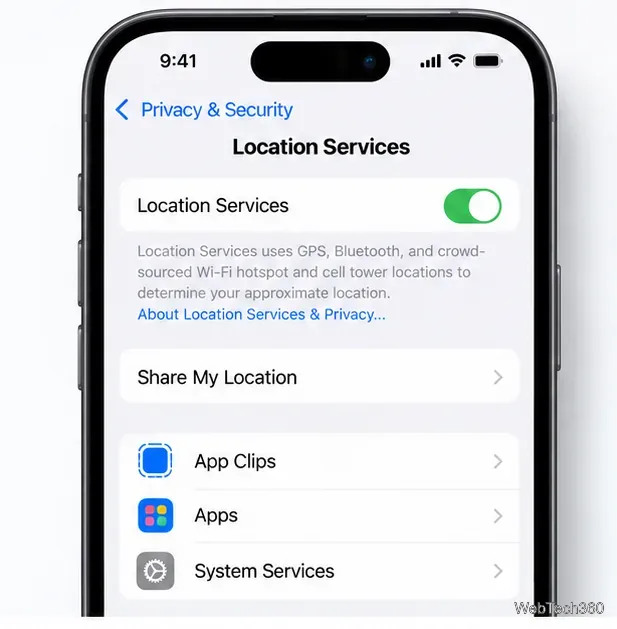
On iPhone, open Settings > Privacy & Security > Location Services and make sure Location Services is on. Then open System Services and turn on Significant Locations. Some iOS versions may show a slightly different label, such as “Significant Locations & Routes.” These system location controls help Maps record the parked-car location. The relevant controls are in Location Services and Maps, rather than a Siri-only location switch.
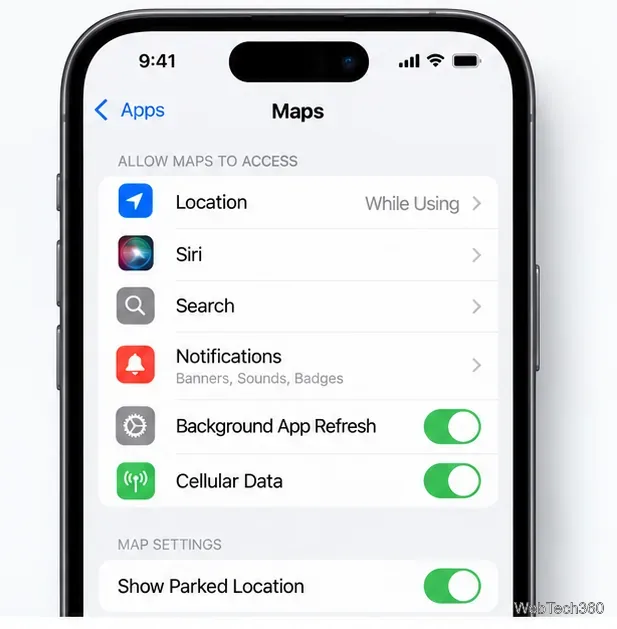
Open Settings > Apps > Maps and turn on Show Parked Location. On older iOS versions, Maps may appear directly in the main Settings list instead of under Apps. If this setting is off, Maps will not display the automatic parked-car marker even when the iPhone is paired to the car.
Use CarPlay or the paired Bluetooth connection during the trip. After you park, turn off the vehicle or otherwise end its connection to the iPhone, then exit the car with your iPhone. Maps should place a Parked Car marker without requiring you to open the app or speak a command at the time you park.
The marker is a map location, not a record of your exact stall. In a large or multilevel garage, note the floor, section, or a nearby sign, or take a quick photo as a backup. If your vehicle does not connect to the iPhone through CarPlay or Bluetooth, the automatic disconnect-based feature may not have the signal it needs; manually mark the spot in Maps or use a photo instead.
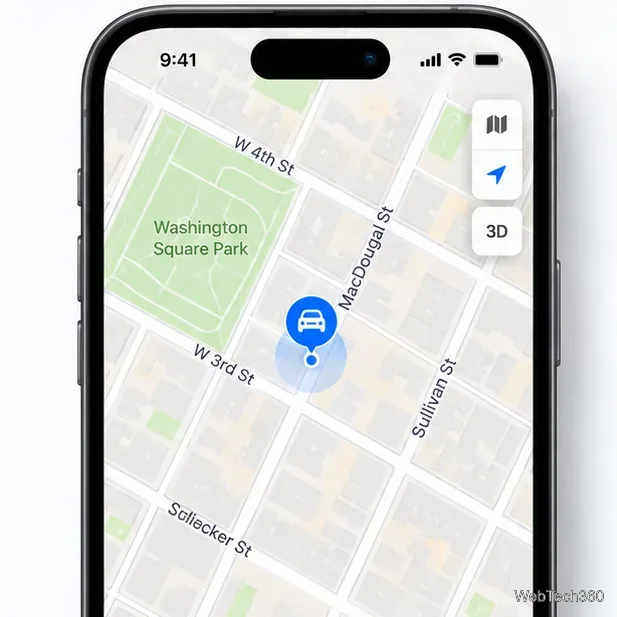
When you are ready to return, activate Siri and say “Open Maps.” In Maps, look below Siri Suggestions and tap Parked Car. If Siri opens Maps without showing the suggestion, you can select the same Parked Car entry in the app. Apple’s documented retrieval path is this Maps suggestion; the marker is created automatically by the car connection event, not by a voice command to Siri.
Tap Directions on the Parked Car card to see a route back. For a nearby vehicle, use the walking route and follow the map to the marker. If the displayed position seems approximate, check the surrounding street or garage entrance and use the floor or landmark you noted when parking.
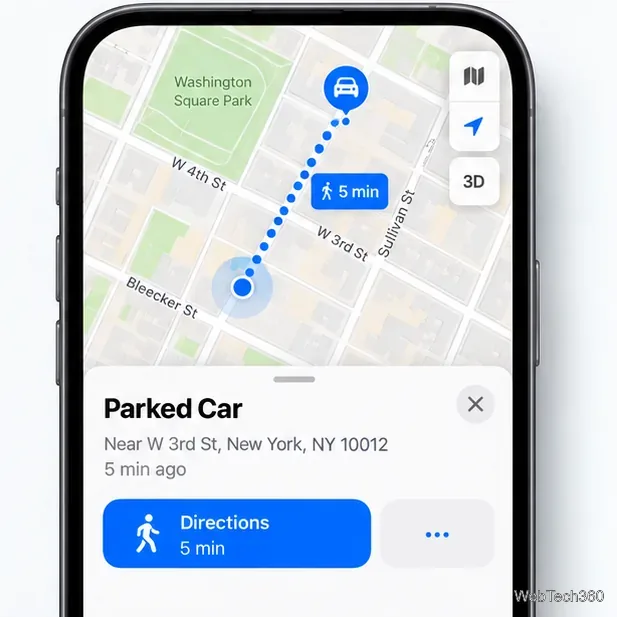
You can remove a marker from Maps by touching and holding it, then tapping Remove Car. This is optional; it is useful if you want to clear the current marker after finding the vehicle.
Apple’s current guide to finding a parked car in Maps lists these settings and explains how to remove a marker. The short version: Maps remembers the spot automatically when the car connection ends, and Siri can open Maps so you can retrieve it.
Fix the iMessage Is Signed Out error on iPhone by checking Apple Account sign-in, activation, connectivity, and settings—without erasing your messages.
Turn off your iPhone VPN in the app or Settings, confirm it disconnected, and stop automatic reconnections without deleting your account.
Learn how to encrypt your iPhone with a strong passcode, protect iCloud and computer backups, and secure your data if your phone is lost or stolen.
Learn how to clear Safari and Chrome cache on iPhone, manage app storage safely, and understand when clearing cached data actually helps.
Learn how to fight Gym Battles in Pokémon GO, pick effective attackers, use Charged Attacks and dodges, and claim a Gym after defeating its defenders.
Explore classic Cydia tweaks for jailbroken iPads, from SwipeSelection to Quasar, with compatibility warnings and modern alternatives.
Stop Apple Music signup prompts in the Music app. Learn where to find Show Apple Music on iOS and what turning it off does—and does not—change.
Set up a Shortcuts automation to text Mom when your iPhone battery gets low. Follow four steps, plus delivery checks and privacy tips.
Save posts on X in a few taps. Learn where to find the Bookmark button on iPhone, Android, and desktop, plus how to view, remove, and organize saved tweets.
Turn on AR mode in Pokémon GO during a wild encounter, find AR settings, and fix camera or device compatibility issues.








