iMessage Is Signed Out on iPhone: How to Fix It

Fix the iMessage Is Signed Out error on iPhone by checking Apple Account sign-in, activation, connectivity, and settings—without erasing your messages.
To verify a WhatsApp security code for a contact, open your one-to-one chat, tap the person’s name, and select Encryption. WhatsApp can automatically check the connection, and you can confirm it yourself by scanning the contact’s QR code or comparing the 60-digit security number. You don’t need to turn on end-to-end encryption first: personal chats and calls are encrypted by default.
This extra check is useful when discussing sensitive information or confirming that a recent security-code change is legitimate. The code is not your account login code, and it is not the secret key that decrypts your messages.
These steps apply to a one-to-one conversation in WhatsApp on Android or iPhone. Labels may vary slightly by app version.
Open the right conversation. In WhatsApp, select the individual chat you want to check. Make sure the contact name and phone number are the ones you expect; codes belong to a specific conversation, not to WhatsApp as a whole.
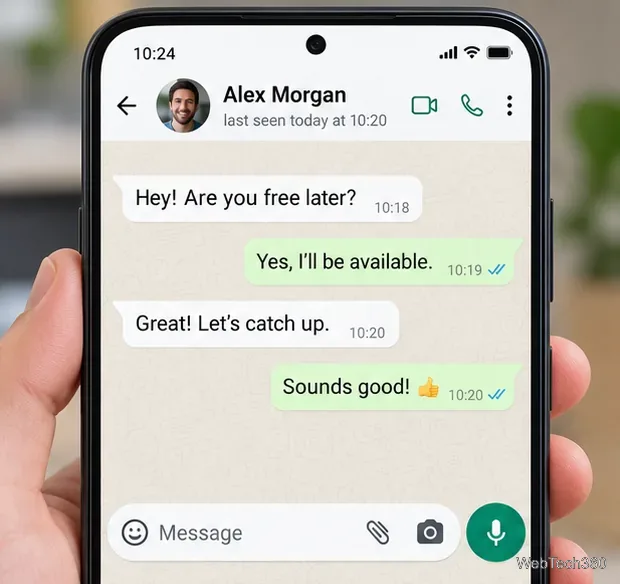
Open the Encryption screen. Tap the contact’s name to open their information, then tap Encryption. This screen explains the chat’s end-to-end encryption and provides verification options.
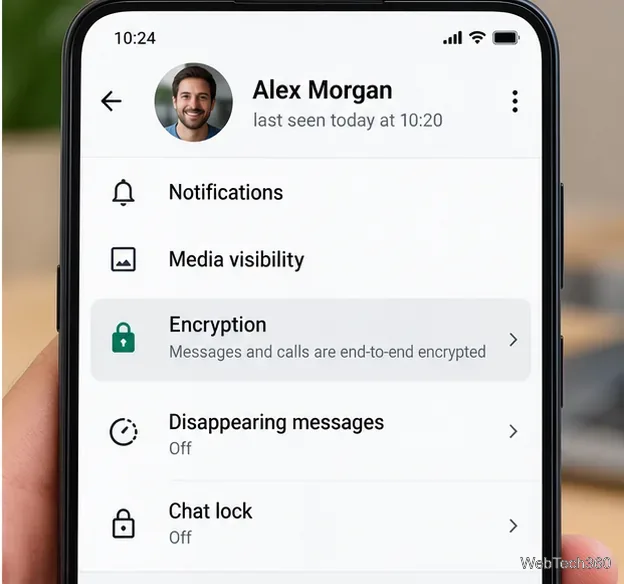
Check the automatic result, or compare the code. Allow WhatsApp to complete its automatic verification, if shown. To check manually, have your contact open the same Encryption screen. Both of you should see a QR code and a 60-digit number for your shared chat. Compare all 60 digits, not just the first or last few.
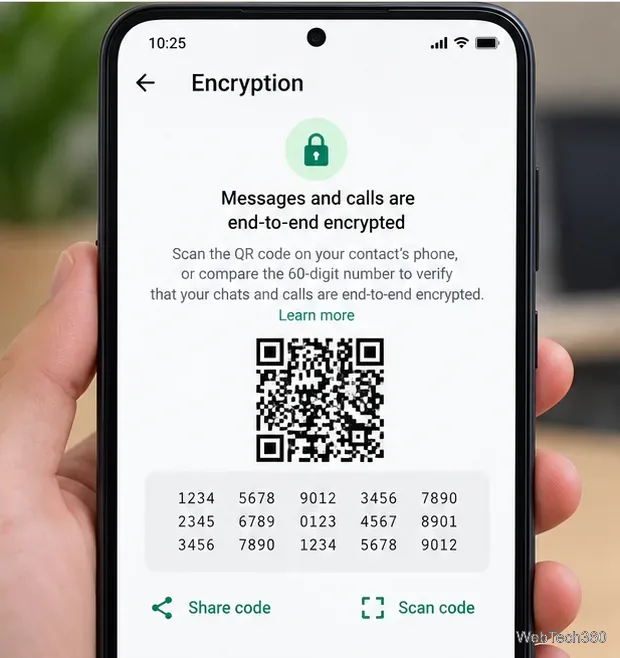
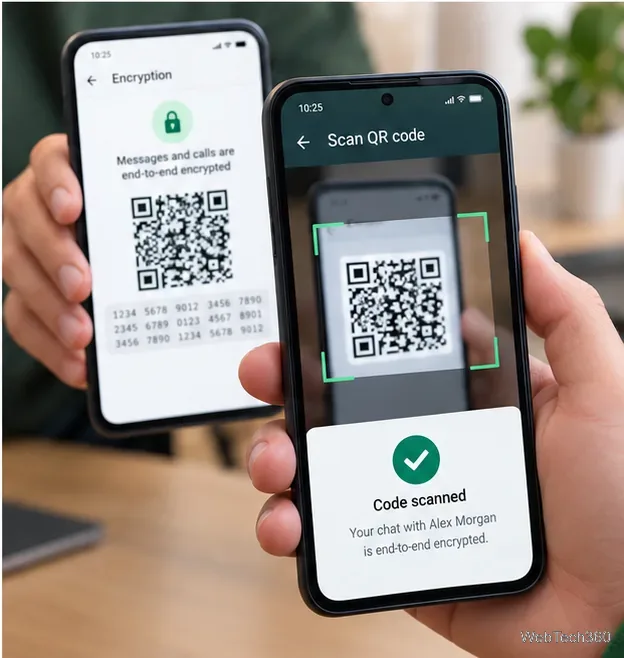
Scan the QR code if you’re together. With both phones nearby, tap the scanning option on one phone and point its camera at the QR code on the other person’s screen. A successful match produces a confirmation, commonly a green check mark. If scanning is inconvenient, you can compare the full numbers instead.
You don’t have to meet in person. Each person can open the Encryption screen for the same one-to-one chat, then compare the complete 60-digit number. WhatsApp may offer a Share control that lets you send the number through another app, such as email or SMS. You can also read the number aloud over a trusted call.
Prefer an independent, trusted communication channel when confirming a contact’s identity, especially if you’re concerned about impersonation. A screenshot or message containing an old code is not a substitute for comparing the current numbers displayed on both devices. QR scanning typically uses the other phone’s live screen, so remote verification is simplest with the numeric code.
A mismatch does not automatically mean someone is reading your messages. First, confirm you’re checking the intended person and phone number. Then ask whether either of you recently reinstalled WhatsApp, switched phones, or added or removed a linked device. These changes can result in a new security code.
Have both people open the current Encryption screen again. If necessary, exchange a new message so the latest contact information can refresh, then repeat the scan or the full 60-digit comparison. Don’t rely on a saved screenshot or a code copied before a device change. If the codes still disagree, pause sensitive exchanges and confirm the person’s identity through another channel before proceeding.
Each end-to-end encrypted one-to-one chat has a code representing the encryption keys associated with that connection. The visible QR code and 60-digit value are verification information, not the private encryption keys. A changed code generally reflects changed encryption-key or device information, rather than WhatsApp suddenly switching off encryption.
WhatsApp can notify you about security-code changes if you enable security notifications on the devices where you want those alerts. The availability and location of this setting can vary between mobile and desktop versions. An alert is a prompt to verify again, not proof of an attack. WhatsApp’s automatic verification technology, called key transparency, also checks key authenticity without requiring everyone to manually compare 60 digits.
These two codes serve very different purposes. The 60-digit chat security code helps you compare encryption information with a contact. WhatsApp’s account registration code, typically a short one-time code sent during sign-in or device registration, is private and must never be given to another person. Sharing a chat security code does not reveal the secret encryption keys or unlock your conversation, but it’s still sensible to exchange verification information only with the person you’re checking.
For official explanations and updated device-specific instructions, see WhatsApp’s end-to-end encryption guide, its security-code change guidance, and Meta’s technical explanation of automatic key verification.
Fix the iMessage Is Signed Out error on iPhone by checking Apple Account sign-in, activation, connectivity, and settings—without erasing your messages.
Turn off your iPhone VPN in the app or Settings, confirm it disconnected, and stop automatic reconnections without deleting your account.
Learn how to encrypt your iPhone with a strong passcode, protect iCloud and computer backups, and secure your data if your phone is lost or stolen.
Learn how to clear Safari and Chrome cache on iPhone, manage app storage safely, and understand when clearing cached data actually helps.
Learn how to fight Gym Battles in Pokémon GO, pick effective attackers, use Charged Attacks and dodges, and claim a Gym after defeating its defenders.
Explore classic Cydia tweaks for jailbroken iPads, from SwipeSelection to Quasar, with compatibility warnings and modern alternatives.
Stop Apple Music signup prompts in the Music app. Learn where to find Show Apple Music on iOS and what turning it off does—and does not—change.
Set up a Shortcuts automation to text Mom when your iPhone battery gets low. Follow four steps, plus delivery checks and privacy tips.
Save posts on X in a few taps. Learn where to find the Bookmark button on iPhone, Android, and desktop, plus how to view, remove, and organize saved tweets.
Turn on AR mode in Pokémon GO during a wild encounter, find AR settings, and fix camera or device compatibility issues.








