iMessage Is Signed Out on iPhone: How to Fix It

Fix the iMessage Is Signed Out error on iPhone by checking Apple Account sign-in, activation, connectivity, and settings—without erasing your messages.
If you’re searching for Incognito Mode on Safari, Apple calls the feature Private Browsing. It keeps pages, recent searches, and AutoFill details out of Safari’s ordinary history, and private tabs aren’t shared with your other Apple devices. It doesn’t make you anonymous online: websites can still identify accounts you sign in to, and a private tab alone doesn’t switch on Apple’s separate IP privacy features.
Private Browsing is useful when you share a device or want a browsing session kept out of the usual Safari history. Apple says Safari does not remember the pages you visit, your search history, or your AutoFill information in this mode. Private tabs also stay out of the tab lists shown on your other Apple devices. Safari adds tracking protections in private sessions, including blocking known trackers and removing tracking identifiers from URLs.
That is different from erasing existing records. If you browsed in a regular window first, switching to Private Browsing does not remove that earlier history. And “private” describes what Safari stores on your device; it is not a promise that every person or service involved in the connection cannot see activity.
Look for a dark or gray search field, or the word Private, to confirm you are in the private tab group. On iOS 17 and earlier, open the Tabs view, swipe to the Private tab group, and tap the plus button to open a tab. Apple’s iPhone Private Browsing instructions show both the current route and the older layout.
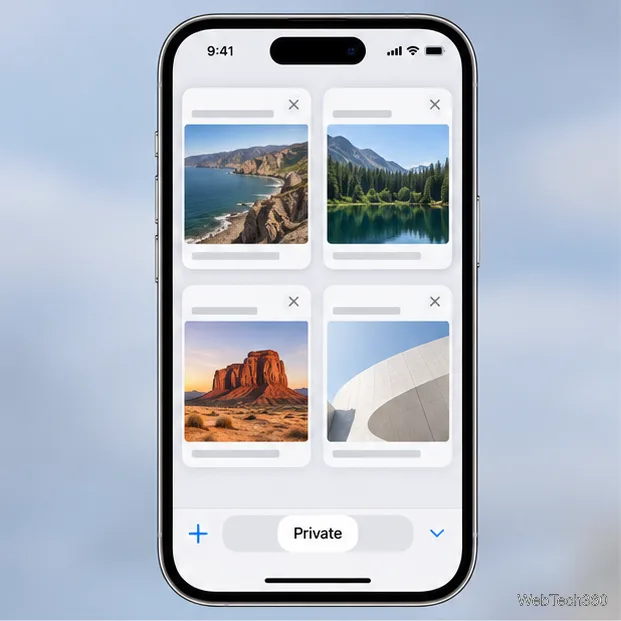
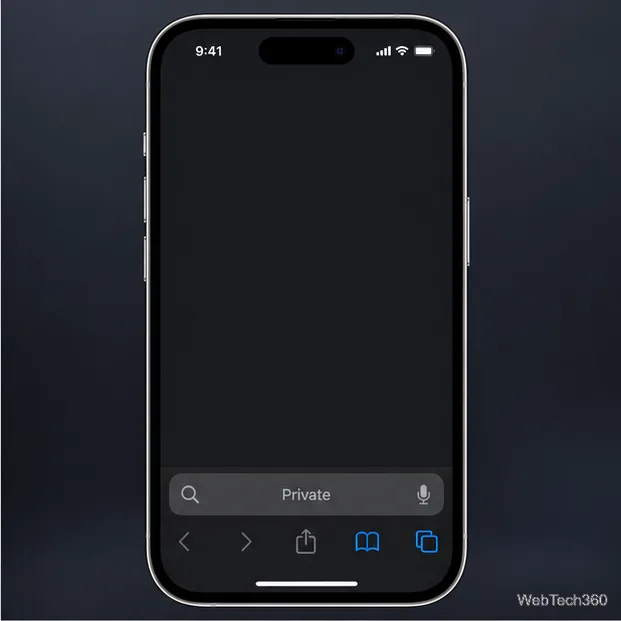
Tap More, then choose New Tab to return to regular browsing. On older versions, switch from the Private tab group to the numbered regular tab group. Switching away does not close your private tabs; Safari keeps them available and locks them when you leave Private Browsing. If someone else can unlock your phone, close private tabs from the tab overview too.
On supported iPhones, private tabs can require Face ID, Touch ID, or your device passcode when you return to them. If you need to review the control, open Settings > Apps > Safari and look for the Private Browsing unlock requirement under Privacy & Security. The exact label depends on the device. See Apple’s guide to Locked Private Browsing.
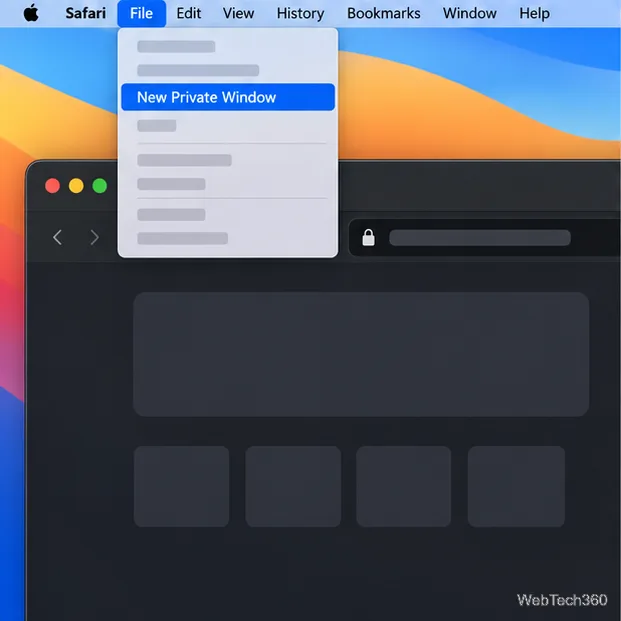
Safari keeps private windows separate from regular windows. Apple notes that pages, recent searches, and AutoFill information from private browsing aren’t saved, and changes to cookies and website data aren’t saved after the private session. To leave the mode, close the private window or choose File > New Window for a regular one. Apple documents the shortcut and steps in its Safari troubleshooting guide and Mac Safari User Guide.
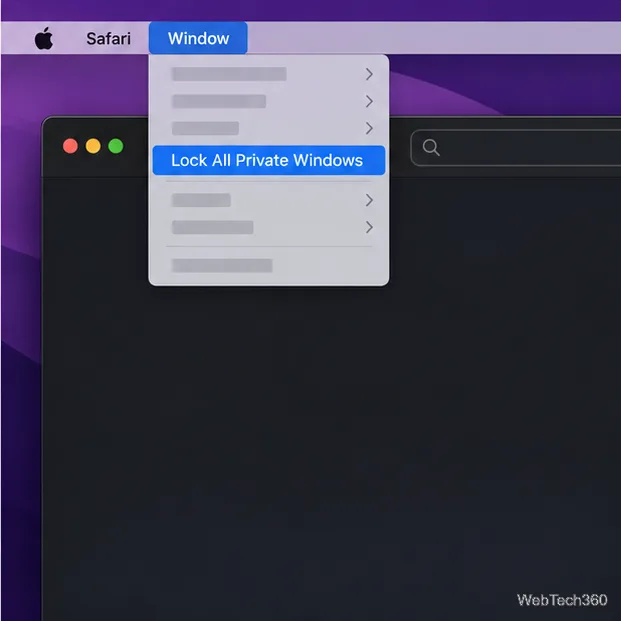
On Mac, Safari can lock private windows so they require your password or Touch ID to reopen. In Safari, choose Safari > Settings > Privacy and enable the option to require a password or Touch ID for locked tabs. Then choose Window > Lock All Private Windows. Safari can also lock private windows automatically when you lock or leave your Mac, depending on your settings.
Private Browsing and iCloud Private Relay do different jobs. Private tabs keep a session out of Safari history; Private Relay routes Safari traffic through two relays to help prevent websites from seeing your IP address and network providers from collecting your Safari browsing activity. Turning on a private tab does not enable Private Relay.
Clear Safari history separately. On iPhone, go to Settings > Apps > Safari > Clear History and Website Data. On Mac, choose History > Clear History in Safari and select the period to clear. This removes Safari’s saved history and related browsing data, but it does not delete downloaded files or erase records kept independently by websites or other apps. Apple lists the details in its guide to keeping Safari browsing history private.
Fix the iMessage Is Signed Out error on iPhone by checking Apple Account sign-in, activation, connectivity, and settings—without erasing your messages.
Turn off your iPhone VPN in the app or Settings, confirm it disconnected, and stop automatic reconnections without deleting your account.
Learn how to encrypt your iPhone with a strong passcode, protect iCloud and computer backups, and secure your data if your phone is lost or stolen.
Learn how to clear Safari and Chrome cache on iPhone, manage app storage safely, and understand when clearing cached data actually helps.
Learn how to fight Gym Battles in Pokémon GO, pick effective attackers, use Charged Attacks and dodges, and claim a Gym after defeating its defenders.
Explore classic Cydia tweaks for jailbroken iPads, from SwipeSelection to Quasar, with compatibility warnings and modern alternatives.
Stop Apple Music signup prompts in the Music app. Learn where to find Show Apple Music on iOS and what turning it off does—and does not—change.
Set up a Shortcuts automation to text Mom when your iPhone battery gets low. Follow four steps, plus delivery checks and privacy tips.
Save posts on X in a few taps. Learn where to find the Bookmark button on iPhone, Android, and desktop, plus how to view, remove, and organize saved tweets.
Turn on AR mode in Pokémon GO during a wild encounter, find AR settings, and fix camera or device compatibility issues.








