Home
» IOS
»
iOS 20 Battery Drain on iPhone 18? How to Fix the Real iOS 27 Battery Issues
iOS 20 Battery Drain on iPhone 18? How to Fix the Real iOS 27 Battery Issues
If you searched for “iOS 20 battery drain” on an iPhone 18, the first thing to fix is the version number, not the phone. Apple announced the iPhone 18 Pro and iPhone 18 Pro Max on September 9, 2026, and Apple says those models feature iOS 27, not iOS 20. Apple also says iOS 27 becomes available on September 14, while the iPhone 18 Pro lineup reaches customers beginning September 18. That timing matters: as of September 14, there is not yet a verified, widespread post-release “iPhone 18 battery drain” problem to diagnose.
This guide therefore answers the useful question behind the keyword: what should you do if an iPhone on the newest iOS suddenly drains faster than expected, especially right after setup or a major update? The workflow below follows Apple’s current battery-support guidance. Apple’s battery help pages were still documented around iOS 26 when checked on September 14, so wording or screen layout may change slightly in iOS 27. The troubleshooting logic—check update activity, identify the real power user, use power-saving modes, review battery health, and control heat—remains the safest place to start.
Is fast battery drain right after an iOS update always a bug?
No. Apple says battery life can temporarily be lower after a software update because update-related tasks continue in the background even after the phone is usable. In Settings > Battery, Apple may show an Ongoing iOS Update Insight while those tasks are still running. Apple’s advice is to wait a few days and check again before concluding that the update permanently reduced battery life.
This is especially relevant when you have just restored a backup, moved to a new iPhone, synced a large Photos library, re-downloaded apps, rebuilt search indexes, or completed device setup. A new phone can be busy even when you are not actively touching it.
Before changing a long list of settings, open Settings > Battery. Look for an Insight or suggestion above the usage section. If the phone explicitly says an iOS update or device setup is still ongoing, give it time, keep the phone on reliable Wi-Fi when practical, and reassess after the background work finishes.
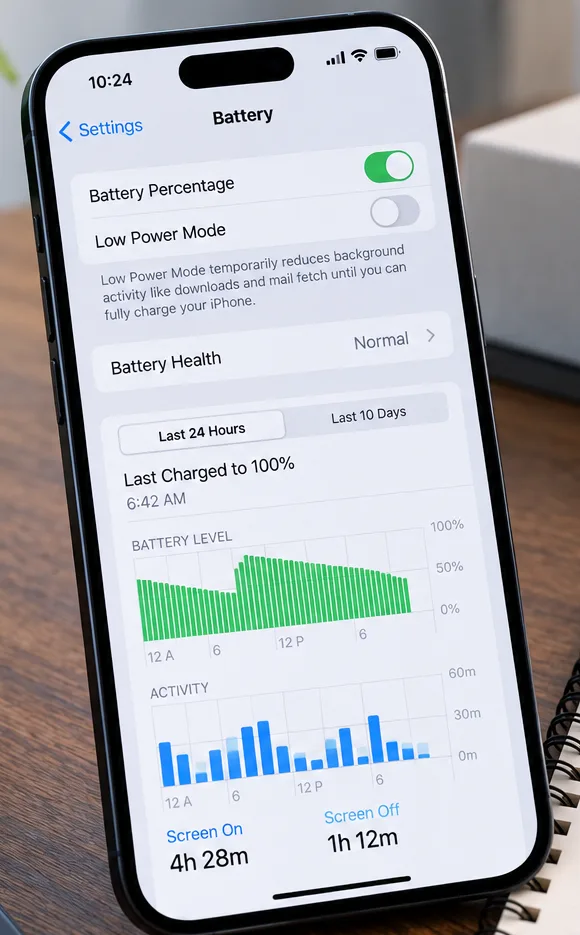
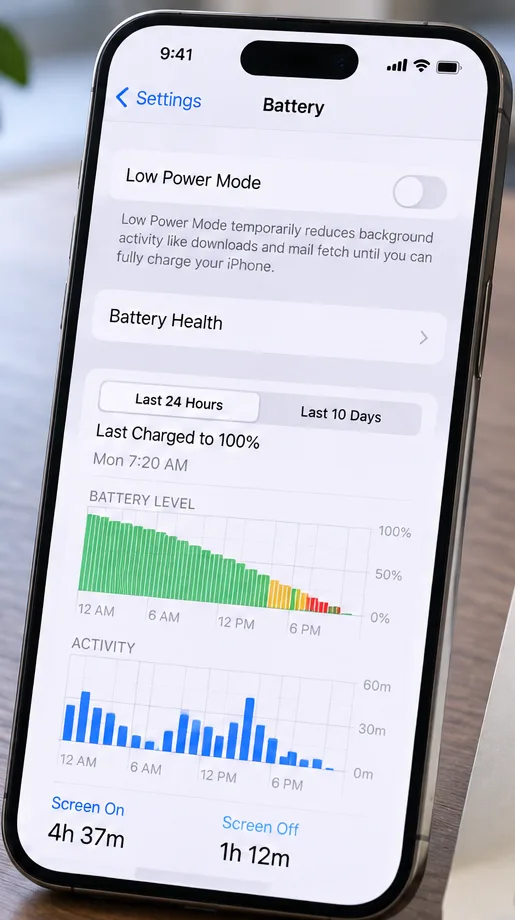
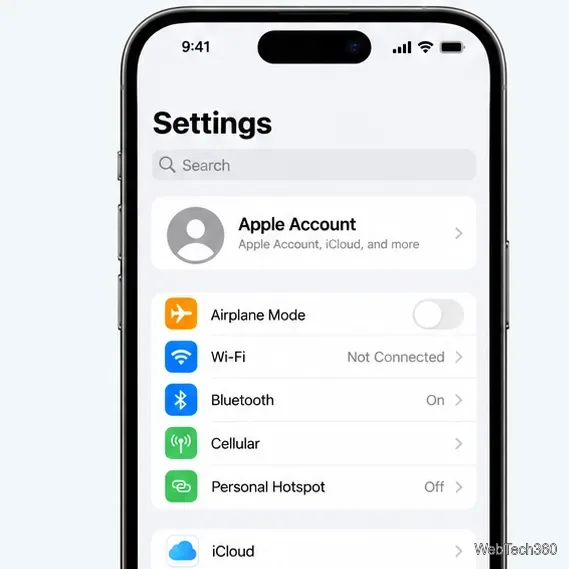
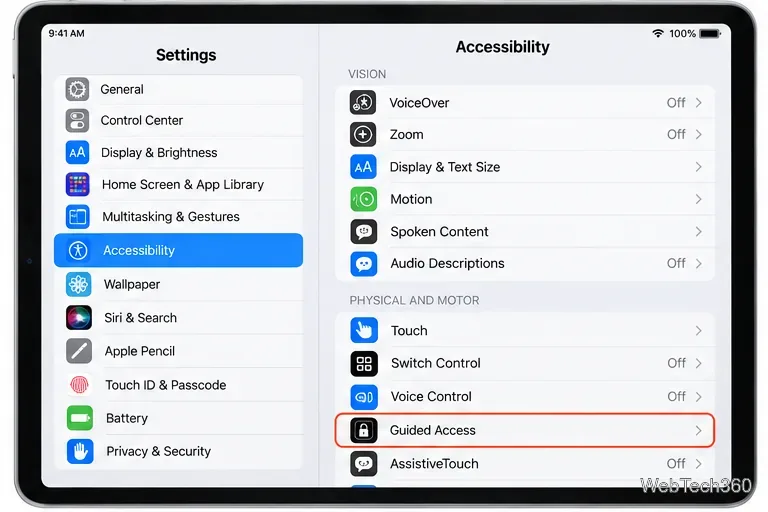
Start in Settings > Battery. The exact layout can vary by iOS version, but the useful evidence is the same: charging history, battery level, activity, and battery-health information.
What should you avoid at this stage?
Do not immediately erase the phone, replace the battery, or disable every background feature because the battery looked worse for one afternoon after an update. Those actions make it harder to identify the cause. First establish whether the drain continues after the post-update period and whether the Battery screen points to a specific app, poor cellular coverage, notifications, or unusually heavy screen use.
How do you find what is actually using the battery?
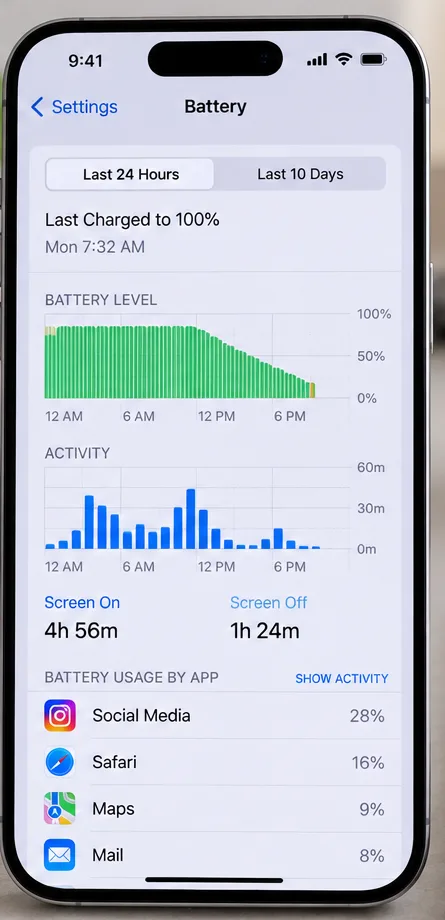
Use Battery usage data before guessing. Apple’s current support instructions say to open Settings > Battery and use the Daily Usage chart. On supported software, View All Battery Usage lets you compare recent days and see which apps and system activities consumed power.
Apple explains several labels that are particularly useful:
On Screen: the app was visible and actively used. High battery use may simply reflect long screen time.
Background Activity: the app continued doing work such as playing audio, syncing, fetching mail, or using location while not in the foreground.
Cellular Coverage or low signal: weak reception can increase power use because the phone keeps working to maintain or find a connection.
Notifications: frequent alerts can wake the device repeatedly.
The goal is not to punish whichever app appears first. Compare battery percentage with how long you actually used it. A video or navigation app consuming significant power during several hours of active use can be normal. An app with little foreground use but unusually high background time deserves more attention.
Use the battery charts and per-app list to separate heavy on-screen use from background consumption. Focus on patterns, not one percentage in isolation.
What should you change if one app is the clear culprit?
Change the behavior that the Battery screen identifies, not every setting on the phone. If an app shows excessive Background Activity, start inside that app and in its relevant iPhone permissions. Reduce unnecessary automatic syncing, continuous location access, or overly frequent notifications only when they are not needed for the app’s purpose.
For location, Apple lets you review permissions under Settings > Privacy & Security > Location Services. A navigation, fitness, ride-hailing, or delivery app may legitimately need location in the background at certain times. A simple utility may not. The right choice depends on what the app is supposed to do.
If Battery usage points to weak cellular coverage, moving to a stronger signal or using Wi-Fi when practical can help. Apple specifically notes that Wi-Fi generally uses less power than cellular data for internet activity and recommends 5G Auto on supported iPhones so the phone can switch to LTE when 5G does not provide a meaningful advantage.
If notifications are repeatedly waking the phone, reduce nonessential alerts for the specific high-activity app rather than turning off all notifications. This preserves useful alerts while cutting unnecessary wake-ups.
Should you turn on Low Power Mode or Adaptive Power?
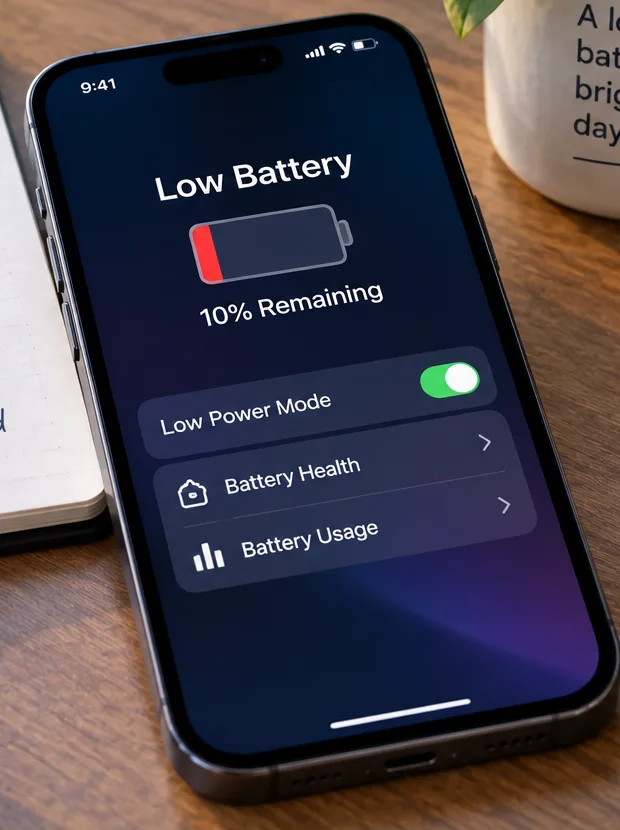
Low Power Mode is the fastest temporary fix when you need more runtime today. On iPhone 15 and later, Apple’s current path is Settings > Battery > Power Mode > Low Power Mode. It reduces power use by limiting or disabling some background activity and visual effects. Apple says it turns off automatically after the phone charges above 80 percent.
Adaptive Power is different. It is designed to make smaller automatic adjustments on higher-usage days, such as modestly lowering brightness, limiting background activity, or making performance adjustments. Apple’s currently published compatibility page lists iPhone 17 models, iPhone Air, iPhone 16 models, iPhone 15 Pro, and iPhone 15 Pro Max. Because the iPhone 18 Pro has been announced but has not yet started retail availability as of this article’s verification date, check the Power Mode screen on the shipping device rather than assuming the toggle is present or enabled by default.
Low Power Mode is useful when immediate runtime matters. On recent iPhones, Apple places the control under Battery > Power Mode.
More features and background behavior are temporarily reduced
Your usage varies and you want automatic help
Adaptive Power, if available
It may make small brightness or performance adjustments
You are gaming, shooting video, or doing performance-heavy work
Use normal power unless battery life is the priority
Maximum performance consumes more energy
When is Battery Health the real problem?
Battery Health matters when drain is persistent and cannot be explained by usage, setup, signal, or a specific app. Apple says that on iPhone 15 and later you can open Settings > Battery > Battery Health to review battery information. Rechargeable lithium-ion batteries are consumable components, so capacity and peak performance decline as they chemically age.
On a newly purchased iPhone 18 Pro, you would not normally expect age-related wear to explain severe drain immediately. If a new device shows an unexpected Battery Health warning or a Service message, document what the phone reports and contact Apple rather than trying to “calibrate” the battery with repeated full discharges.
Battery Health is a separate question from daily battery usage. Check it when fast drain remains unexplained or the phone reports a service condition.
Can heat make an iPhone look like it has a battery problem?
Yes, and heat is worth treating separately from software drain. Apple says iPhone is designed to work best in an ambient range of 62° to 72° F (16° to 22° C) and warns against using or charging it in ambient temperatures above 95° F (35° C), which can permanently reduce battery lifespan. Charging itself produces heat, and iPhone may reduce charging current or limit charging above 80 percent when temperatures are too high.
If the phone is hot, remove obvious heat sources before chasing software fixes: move it out of direct sun, stop an intensive game or camera session, and avoid charging under blankets or in a hot parked car. Do not cool the phone aggressively in a refrigerator or freezer; a gradual return to normal ambient temperature is safer.
Apple also says Wi-Fi and Bluetooth are designed to draw minimal power when not actively connected, so disabling both all day is not a strong general-purpose battery strategy. Keep the services you need and focus on the actual activity shown in Battery settings.
Use this short decision sequence. It avoids unnecessary resets while giving you useful evidence if support is needed:
Confirm the actual iOS version under Settings > General > About or Software Update. On the announced iPhone 18 Pro lineup, Apple says the operating system is iOS 27—not iOS 20.
If the battery changed immediately after an update or restore, check Settings > Battery for an Ongoing iOS Update or device-setup Insight and give background work a few days to finish.
Review Daily Usage and per-app/system activity. Look for unusually high background time, weak cellular coverage, or notification activity.
Use Low Power Mode when you need immediate runtime, and use Adaptive Power if the shipping device supports it and that behavior fits your needs.
Check Battery Health and temperature. If the phone reports Service, shuts down unexpectedly, becomes abnormally hot during light use, or continues draining rapidly after background work has finished and no app explains it, contact Apple Support.
Common battery-drain mistakes to avoid
The most common mistake is treating every post-update battery drop as proof of a defective update. Apple explicitly says update tasks can continue in the background and affect battery life and thermal performance for a while. Another mistake is changing many settings simultaneously; that makes it impossible to know which change actually helped.
Also avoid judging battery life from one unusually heavy day. Camera recording, gaming, navigation, tethering, poor cellular reception, high screen brightness, and long display-on time can all legitimately increase consumption. Compare similar days and similar workloads.
Finally, do not assume a new iPhone 18 Pro has a confirmed battery defect simply because the search term is trending. As of September 14, 2026, Apple has announced the iPhone 18 Pro and iPhone 18 Pro Max, but retail availability begins September 18. That means credible post-release battery evidence is not yet available at scale.
Bottom line: what is the best fix?
There is no single “iOS 20 battery drain fix” for iPhone 18 because that software/device combination is not the one Apple announced. The real starting point is iOS 27 and an evidence-based diagnosis. If drain begins right after an update, wait for background work to finish. If it continues, use Battery usage to identify the cause. Apply Low Power Mode when you need immediate savings, review Battery Health if the problem persists, and keep the phone away from excessive heat.
That approach is less dramatic than resetting the device or turning off half of iOS, but it is also more likely to identify the real cause without creating new problems.
Verified September 14, 2026. Apple’s iPhone 18 Pro models were announced but had not yet reached their September 18 retail availability date when this article was checked. Apple’s battery-support pages referenced here were still documented around iOS 26; menu wording or layout may change with iOS 27.