Home
» IOS
»
iPhone 18 Connectivity Issues: How to Fix Wi-Fi and 5G Drops
iPhone 18 Connectivity Issues: How to Fix Wi-Fi and 5G Drops
Updated September 14, 2026: Apple announced iPhone 18 Pro and iPhone 18 Pro Max on September 9, with preorders starting September 12 and retail availability beginning September 18. That timing matters: as of this update, there is not yet a credible basis for calling Wi-Fi or 5G drops a widespread iPhone 18 hardware defect. Apple also has not announced a standard iPhone 18 in its current lineup. This guide therefore focuses on verified, Apple-supported troubleshooting rather than treating early complaints or rumors as confirmed defects. See Apple’s iPhone 18 Pro announcement.
There is one relevant software change to know about. iOS 27 starts rolling out September 14, and Apple says it improves transitions between Wi-Fi and cellular connections. That is a platform feature, not proof that a particular connectivity bug has been fixed. If you are troubleshooting an iPhone 18 Pro, iPhone 18 Pro Max, or another supported iPhone, use the steps below to isolate whether the problem is the phone, the local Wi-Fi network, the cellular carrier, or a configuration such as a VPN.
Start by identifying which connection is actually failing: Wi-Fi, cellular data, or the handoff between them.
Before You Change Anything: Identify the Failure
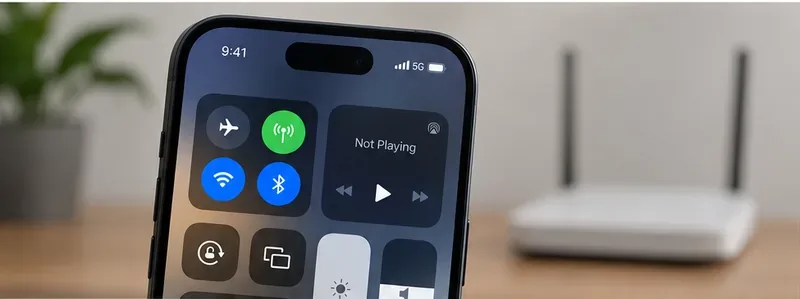
A connection that feels like “the internet keeps dropping” can come from several different places. If Wi-Fi disconnects but 5G works, focus on the router or saved Wi-Fi settings. If Wi-Fi works but cellular shows SOS, No Service, or Searching, focus on the carrier, eSIM/SIM, coverage, and carrier settings. If both fail at the same time, software, VPN/security software, or a broader network issue becomes more likely.
What you see
Most likely scope
Best first check
Wi-Fi icon disappears only at home
Home router or saved network
Test another device and another Wi-Fi network
5G/LTE disappears or shows SOS
Carrier, coverage, account, or cellular line
Airplane Mode, carrier status, eSIM/SIM line
Wi-Fi stays connected but pages do not load
Router, ISP, DNS/VPN, captive portal
Test other devices and temporarily remove VPN/security software
Drops occur when leaving or entering Wi-Fi range
Network handoff
Update iOS, then compare Wi-Fi and cellular separately
How to Fix iPhone 18 Wi-Fi and 5G Drops
1. Confirm Whether Wi-Fi or Cellular Is Failing
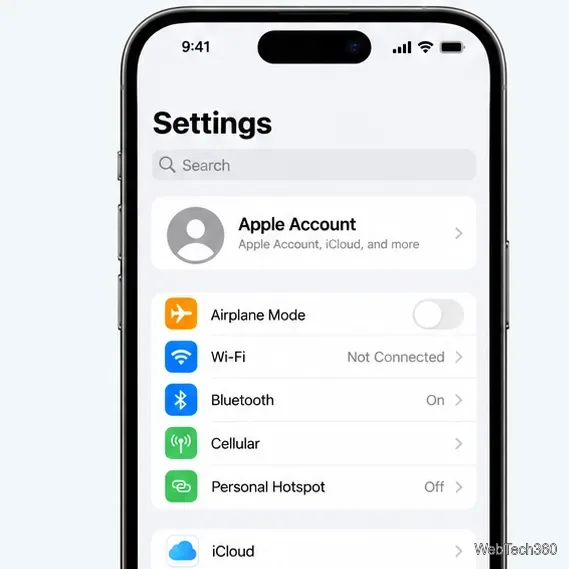
Open Settings and check Wi-Fi and Cellular separately. A simple isolation test is to turn Wi-Fi off briefly and load a page over cellular, then turn Wi-Fi back on and repeat the same test. If only one path fails, you have already narrowed the problem considerably. Avoid changing several settings at once; otherwise you will not know which change actually helped.
Apple’s iOS 27 page says the system can more seamlessly choose the best available Wi-Fi or cellular connection. If the problem happens specifically during a handoff, make sure you are testing on the current software available to your device. See Apple’s iOS 27 overview.
2. Refresh the Wireless Radios With Airplane Mode
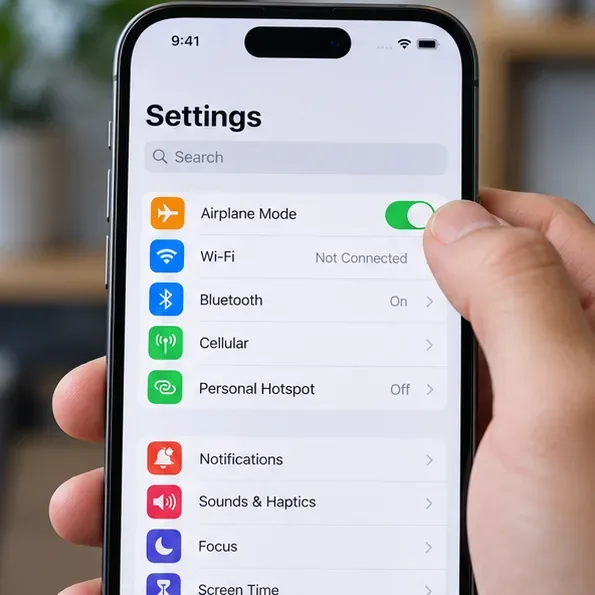
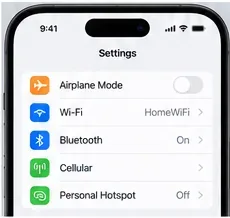
For cellular problems such as SOS, No Service, or Searching, Apple recommends turning Airplane Mode on for at least 15 seconds, then turning it off. This forces the phone to re-register its wireless connections without erasing your saved networks. If the problem continues, restart the iPhone before moving to more disruptive steps.
Turn Airplane Mode on for at least 15 seconds, then turn it off to refresh the wireless connection.
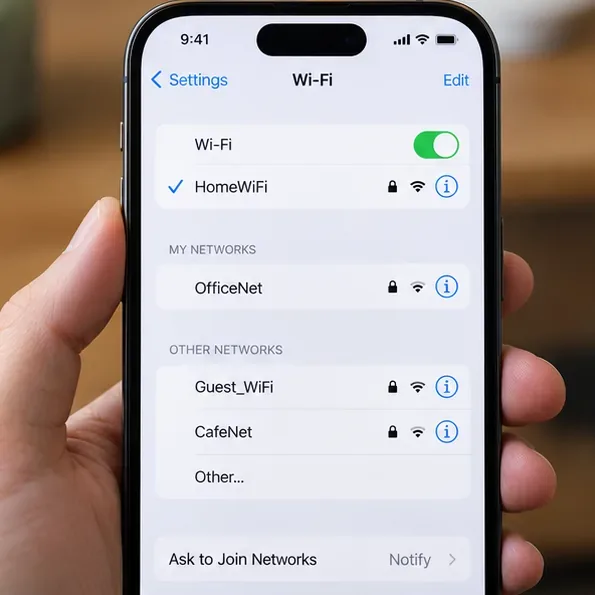
If the issue is limited to one Wi-Fi network, open Settings > Wi-Fi and confirm there is a checkmark next to the intended network. If the network has recently changed its password, security mode, or router settings, forgetting and rejoining it can clear stale connection information. Apple notes that forgetting a network can be useful after router settings change.
Verify that the intended Wi-Fi network is selected before changing deeper network settings.
To forget a known network, open Settings > Wi-Fi, use the information control for the network, choose Forget This Network, then reconnect and enter the password again. On managed work or school devices, this option can be restricted. See Apple’s guide to forgetting a Wi-Fi network.
4. Test the Router, ISP, and Signal Before Blaming the iPhone
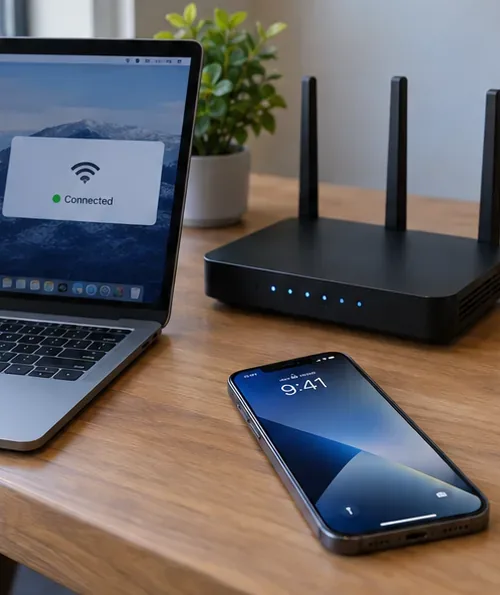
Use another phone or computer on the same Wi-Fi. If multiple devices lose internet access, the iPhone is probably not the root cause. Apple recommends checking that the router is powered on, within range, running current firmware, and able to serve other devices. If your router exposes separate bands, trying another band can also help isolate a range or interference problem. Restarting the router and modem can clear temporary faults.
Compare the iPhone with another device on the same router. If both fail, investigate the router or internet service first.
Apple’s latest Wi-Fi troubleshooting instructions are available in If you can’t connect to Wi-Fi on iPhone or iPad. If every device on the network is offline, contact the ISP rather than repeatedly resetting the phone.
5. Update iOS and Check for a Carrier Settings Update
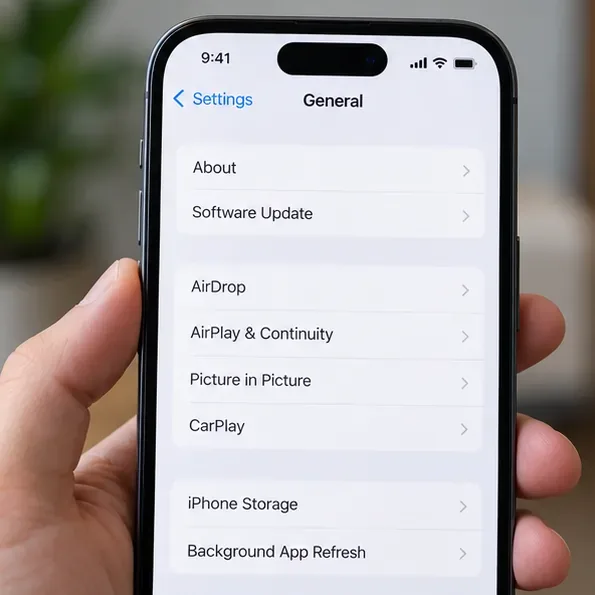
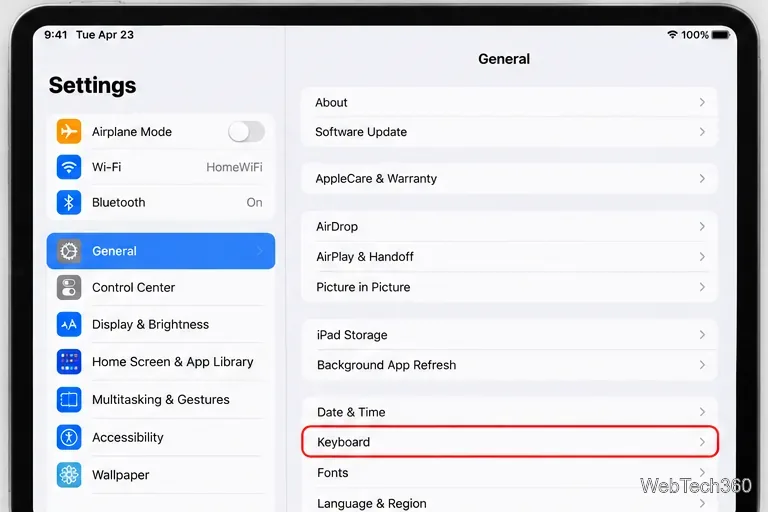
Software and carrier configuration both affect connectivity. Go to Settings > General > Software Update and install the current release offered for your device. On September 14, 2026, Apple’s iOS page lists iOS 27 as beginning its rollout. Availability can vary by device and region, so use the version actually offered in Software Update rather than forcing a build from an unofficial source.
Use General > Software Update for iOS updates, and General > About to check for a carrier settings prompt.
Then open Settings > General > About. If a carrier settings update is available, iOS can prompt you to install it. Apple says these updates can improve cellular connectivity and performance and can add support for features such as 5G or Wi-Fi Calling. See Apple’s carrier settings update instructions and Apple’s iPhone update guide.
6. Verify Cellular Data and the Correct SIM or eSIM Line
Open Settings > Cellular and confirm Cellular Data is enabled. If you use Dual SIM or Dual eSIM, verify that the intended line is turned on and selected for cellular data. A newly activated eSIM can also require updated carrier settings. If the line is missing entirely, activation fails, or the phone remains on SOS despite good coverage, the carrier is the right next contact because only the carrier can verify account provisioning, outages, blocks, and plan eligibility.
Check Cellular in Settings and confirm the intended mobile line is enabled before changing 5G behavior.
If you are traveling internationally, confirm whether Data Roaming is required by your plan before enabling it. Do not enable roaming casually if your carrier may charge extra.
7. Compare 5G Auto With LTE to Isolate a 5G-Specific Drop
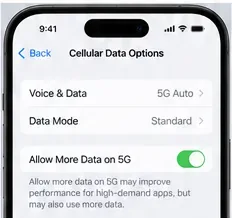
On supported iPhones, Settings > Cellular > Cellular Data Options > Voice & Data lets you choose among options such as 5G Auto, 5G On, and LTE, depending on your carrier. Apple explains that 5G Auto uses Smart Data mode and can switch to LTE when 5G does not provide a meaningful benefit. If your connection drops only on 5G, temporarily selecting LTE is a useful diagnostic test. If LTE stays stable while 5G repeatedly fails in the same location, check 5G coverage and plan support with your carrier.
Use Cellular Data Options to compare 5G behavior with LTE and determine whether the drop is specific to 5G.
Do not assume that forcing 5G On is always better. Apple notes that 5G On uses 5G whenever it is available and can reduce battery life, while 5G Auto is designed to balance performance and efficiency. See Apple’s 5G settings guide.
8. Remove VPN/Security Software for a Test, Then Reset Network Settings Only if Needed
Before performing a network reset, check for VPN or third-party security software that monitors network traffic. Apple warns that this software can block internet access or communication with services and devices. If one of these apps was installed shortly before the drops began, uninstall it, restart the iPhone, and test again. If the issue disappears, contact the software provider before reinstalling or re-enabling its configuration. Apple’s guidance is in its VPN and third-party security troubleshooting article.
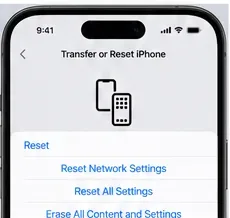
If the problem remains after the earlier checks, use Settings > General > Transfer or Reset iPhone > Reset > Reset Network Settings. Apple says this removes saved Wi-Fi networks and passwords, cellular settings, and VPN/APN settings. Because it is disruptive, it belongs near the end of the process, not at the beginning. Managed work or school devices should be checked with IT before a reset.
Reset Network Settings is a last-resort software step because it removes saved Wi-Fi, cellular, VPN, and APN configuration.
When the Problem Is Probably Not an iPhone 18 Defect
A repeatable pattern usually tells you where to escalate. If other devices fail on the same Wi-Fi, contact the router maker or ISP. If cellular service shows SOS, No Service, or Searching while Wi-Fi works, ask the carrier to verify coverage, outages, account status, device provisioning, and eSIM/SIM activation. If one VPN configuration causes the problem, contact that VPN or security provider.
If the iPhone cannot connect to any Wi-Fi network, or cellular problems continue after the carrier confirms that the account and network are healthy, Apple recommends service or further diagnostics. On modern iOS versions, the Apple Support app can also provide additional diagnostics for cellular issues.
What We Know—and What We Do Not—About iPhone 18 Connectivity
Verified: Apple announced iPhone 18 Pro and iPhone 18 Pro Max on September 9, 2026, and retail availability begins September 18. iOS 27 begins rolling out September 14 and Apple describes smoother Wi-Fi-to-cellular transitions.
Not verified as of September 14, 2026: a widespread iPhone 18 Pro or Pro Max Wi-Fi or 5G defect affecting retail users. Because the phones have not yet reached their official retail availability date, claims of a broad real-world failure should be treated cautiously until Apple, carriers, or a meaningful body of owners can reproduce it.
Practical takeaway: use the troubleshooting order above to isolate the layer that is failing. Start with quick radio and network checks, verify the router and carrier, update software and carrier settings, compare 5G with LTE, test without VPN/security software, and reserve Reset Network Settings for the end. That approach fixes common configuration and network problems without pretending an unverified “iPhone 18 connectivity bug” is already established fact.