Home
» IOS
»
iPhone 18 Pro Max Ghost Touch: Is the Screen Actually Defective?
iPhone 18 Pro Max Ghost Touch: Is the Screen Actually Defective?
Short answer: not necessarily. A screen that opens apps, types, scrolls, or registers taps you did not make can feel like a defective display, but Apple’s own troubleshooting guidance shows that intermittent or overly sensitive touch can also be affected by moisture or debris, a case or screen protector, a connected USB-C accessory, the charger or outlet, software state, or a previous display repair.
There is also an important timing issue. Apple announced iPhone 18 Pro and iPhone 18 Pro Max on September 9, 2026, with preorders beginning September 12 and general availability beginning September 18. At the time this article was researched — September 14, 2026 — regular retail units had not yet reached general availability. That means there is not yet a verified basis for describing “ghost touch” as a widespread iPhone 18 Pro Max defect.
If you are reading this after launch and your phone is registering phantom touches, the steps below are still the right way to separate a temporary input problem from a screen that may need service.
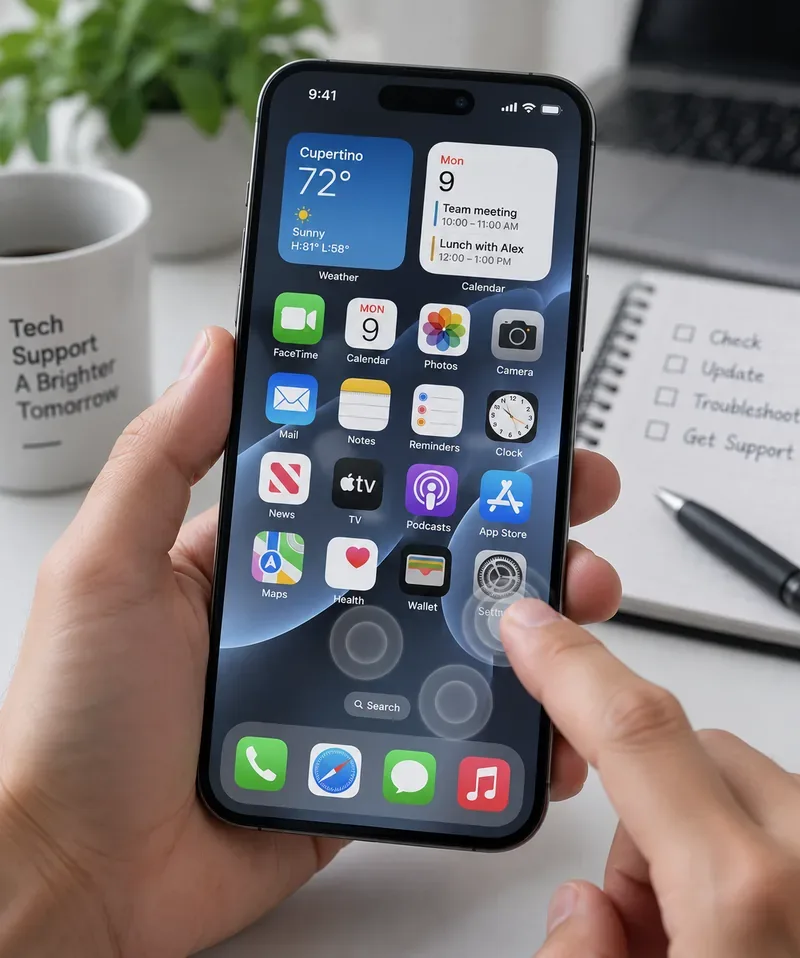
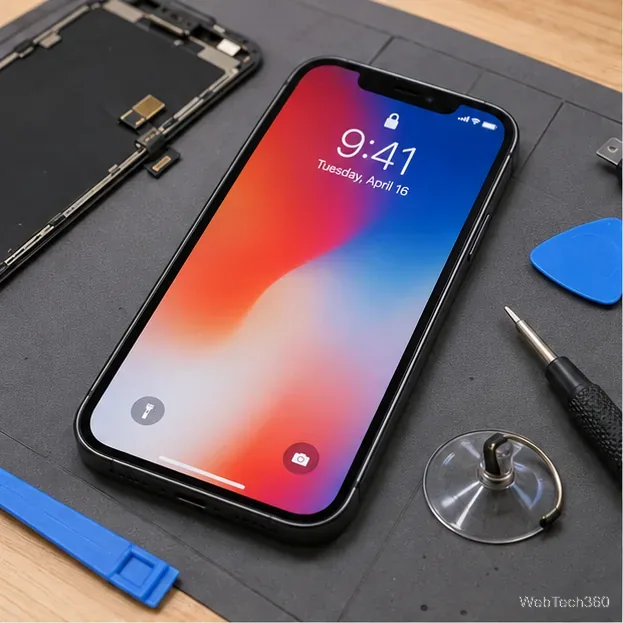
A touchscreen troubleshooting scene illustrates unintended touch input. The image does not document a verified iPhone 18 Pro Max defect or an actual Apple diagnostic screen.
First: has Apple confirmed an iPhone 18 Pro Max “ghost touch” bug?
No confirmed model-wide defect has been identified in the official Apple material checked for this article. Apple’s September 9 iPhone 18 Pro announcement describes the new hardware and states that availability begins September 18. Apple’s touchscreen support documentation addresses overly sensitive or intermittent touch generally, rather than naming an iPhone 18 Pro Max-specific problem.
This distinction matters. A few reports, videos, or forum posts can be useful clues after a product ships, but they do not establish a manufacturing defect by themselves. A confirmed issue normally needs reproducible evidence, official acknowledgment, a software release note, a service program, or enough consistent cases to show a pattern.
Action: if you encounter a claim that “all iPhone 18 Pro Max units have ghost touch,” look for an Apple support document, service program, or software note that explicitly names the model and issue. Until such evidence exists, treat the claim as unverified.
Misconception: any phantom tap means the display panel is bad
That is too broad. Apple’s support page for an iPhone screen that is too sensitive or responds intermittently recommends four checks before service: restart the device, make sure the screen is clean and free of debris or water, disconnect USB-C or Lightning accessories, and remove cases or screen protectors.
Those steps matter because touchscreens are part of a larger system. The display panel, touch digitizer, software, electrical environment, accessories, and physical layer sitting on top of the glass can all influence what you experience.
Action: before assuming the phone needs a new screen, reproduce the problem with a clean, dry display, no case or screen protector, and no cable connected.
What does “ghost touch” actually look like?
“Ghost touch” is a common informal term, not the name of an Apple diagnostic condition. People usually use it to describe one or more of these symptoms:
apps opening without an intentional tap;
text being selected or keys being pressed unexpectedly;
the screen scrolling or swiping on its own;
touches registering in a different place from where you touched;
rapid, repeated input in one area of the display; or
touch behavior that becomes unstable only while the phone is charging.
The pattern is important. A single accidental tap near the edge is different from repeated input when nobody is touching the screen. A problem that happens only with one charger is different from one that occurs at the lock screen, in multiple apps, and while the phone is unplugged.
Action: note when the symptom occurs — charging or unplugged, one app or everywhere, portrait or landscape, warm or cool, case on or off. A repeatable pattern is much more useful for diagnosis than the label “ghost touch.”
Misconception: if it happens while charging, the screen must be defective
Not according to Apple’s own troubleshooting sequence. Apple specifically tells users with intermittent touch problems to disconnect USB-C or Lightning accessories. If the screen works normally after the accessory is removed, Apple recommends trying a different outlet, cable, or charger.
That does not prove every charging-related touch problem is caused by a charger. It does mean the charging setup is a legitimate variable to isolate before blaming the display.
Action: unplug the phone and test it for several minutes. If the problem disappears, repeat the test with a known-good cable, adapter, and wall outlet. If the phone behaves normally unplugged but consistently becomes unstable with one charging setup, change that setup before arranging a screen repair.
Misconception: a screen protector or case cannot cause touch problems
Apple explicitly recommends removing them during troubleshooting. A poorly fitted protector, damaged edge, trapped debris, pressure from a tight case, or a protector that does not sit correctly on the display can complicate touch behavior.
This does not mean screen protectors commonly cause severe phantom input. It means they are easy to eliminate as a variable, and doing so costs far less time than resetting or repairing the phone.
Action: remove the case and screen protector temporarily, clean the glass with an appropriate dry or slightly damp lint-free cloth, then retest. If the issue disappears, replace the accessory rather than the phone.
Misconception: if the screen looks dry, water cannot be involved
Visible water is not the only thing worth checking. Apple tells users to make sure the screen is clean and free of both debris and water. Small amounts of moisture, sweat, residue, or contamination on the glass can make touch behavior less predictable.
If the phone has recently been exposed to liquid, do not use phantom input as proof that the touch sensor has permanently failed. The condition of the device and whether liquid entered the enclosure matter.
Action: clean and dry the exterior completely before testing. If the phone had meaningful liquid exposure and abnormal touch continues after the exterior is dry, stop repeated troubleshooting and arrange inspection rather than assuming a software bug.
Misconception: iOS 27 has already been proven to cause iPhone 18 Pro Max ghost touch
That is not established by the official sources checked here. Apple announced that iPhone 18 Pro models ship with iOS 27, and iOS 27 begins rolling out on September 14. But an operating-system release date is not evidence that a specific touchscreen fault is caused by software.
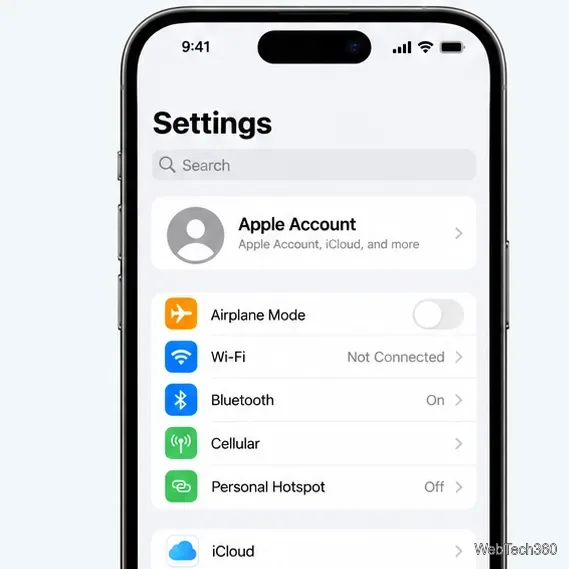
Software can affect input behavior, which is why keeping the phone current is sensible. Apple’s update guidance says you can check for available software under Settings > General > Software Update. See Apple’s official iPhone and iPad update instructions.
Action: if the issue appears after launch, check for the latest available iOS update and read its included notes. Do not erase the phone or perform a full factory reset as your first response to a few unexplained taps; first isolate the simpler variables Apple lists.
Misconception: a previous screen replacement cannot be related
It can be relevant. Apple says iPhone displays are engineered together with iOS, and it warns that nongenuine replacement displays can cause Multi-Touch problems. Apple specifically lists missed touches, touches registering in the wrong location, unexpected touches during calls, and accidental edge or palm touches among possible issues.
Apple also lets supported iPhone models show display repair information in Settings > General > About > Parts and Service History. A genuine repair can be identified there, while an “Unknown” message can indicate a part that is nongenuine, not functioning as expected, not verified after repair, or otherwise unable to be verified.
Action: if the phone has ever had a display replacement, check Parts and Service History before assuming a new iOS version created the problem. If the entry shows an unresolved or unknown display status, contact the repair provider or Apple.
When does a hardware problem become more likely?
No single symptom proves a defective panel, but the case for hardware service becomes stronger when the behavior is persistent and survives the basic isolation steps.
What you observe
What it suggests
Best next action
Touch problems stop when the charger is unplugged
Charging accessory, cable, outlet, or electrical environment may be involved
Try a different known-good charger, cable, and outlet
Problem stops with the case or protector removed
Accessory fit or pressure may be involved
Replace the accessory and retest
Problem appears only in one app
App or software behavior is more plausible than a system-wide display fault
Update the app and iOS; test other apps
Same area registers false touches across multiple apps and the lock screen
Display/touch hardware becomes more suspicious
Arrange service if restart and isolation steps do not help
Problem began after a drop, impact, or liquid exposure
Physical damage becomes more plausible
Have the device inspected
Problem began after a display replacement
Repair quality, part status, or calibration may be relevant
Check Parts and Service History and contact the repair provider
Action: if false input persists while the phone is clean, dry, unplugged, case-free, protector-free, restarted, and current on software — especially if the same screen region misbehaves repeatedly — move from home troubleshooting to professional inspection.
How should you test the phone without overdiagnosing it?
Use a short, controlled sequence. The goal is not to “fix” every possible cause at once; it is to change one variable at a time so you learn something from the result.
Restart the iPhone. Then test before reconnecting accessories.
Clean and dry the display. Make sure no water or debris remains.
Remove the case and screen protector. Test the bare screen.
Disconnect USB-C accessories. Test while running on battery.
Try multiple apps and the lock screen. Determine whether the problem is system-wide.
Check Software Update. Install a newer public release if Apple has made one available.
Check Parts and Service History if the phone has been repaired.
If the problem disappears at one step, repeat the test once to verify the relationship. If it remains under all conditions, service is the more appropriate next step.
Action: record a short video from another device if you can reproduce the issue reliably. A video showing false touches while your hands are away from the screen can help a technician understand an intermittent problem.
When should you stop troubleshooting and contact Apple?
Apple’s touchscreen support page says that if the screen still is not working after its basic checks, the device may need service. At that point, repeated resets and accessory swapping are unlikely to provide much new information.
Service is especially appropriate when:
phantom touches make the phone difficult or unsafe to use;
the symptom occurs across the system, not just one app;
the display is cracked, lifting, discolored, or physically damaged;
the phone has had a significant drop or liquid exposure;
touches repeatedly appear in the same location; or
the behavior continues after Apple’s recommended isolation steps.
Apple’s iPhone service and repair page can start a repair request or direct you to an Apple Store or Apple Authorized Service Provider. Apple states that its Limited Warranty covers manufacturing defects for one year from purchase, while accidental damage and other circumstances depend on coverage and inspection.
Action: back up the iPhone before service if the phone remains usable, then let Apple or an authorized provider inspect it. Do not assume in advance that the repair will be free or that the entire display must be replaced.
What is still unknown about iPhone 18 Pro Max touch behavior?
The biggest limitation is simply that the product is too new for broad retail evidence at the time of writing. Apple announced the iPhone 18 Pro Max on September 9, preorders opened September 12, and general availability is September 18. On September 14, there is not yet a normal installed base large enough to support a confident claim about a widespread post-launch touch defect.
That could change. Apple may publish an iOS update, a support note, or a service program if a reproducible issue appears after customers begin using the phone. Or the early “ghost touch” label may turn out to describe unrelated individual cases involving accessories, contamination, damage, or repaired displays.
Action: if you are reading this after September 18, recheck Apple’s official Service Programs page and the latest iOS update notes before relying on older troubleshooting claims.
Bottom line: is your iPhone 18 Pro Max screen defective?
Maybe, but ghost touch alone is not enough to prove it. The strongest evidence for a hardware fault is persistent, repeatable false input that remains after the screen is clean and dry, accessories are disconnected, the case and protector are removed, the phone has been restarted and updated, and the problem occurs across multiple parts of iOS.
If the symptom disappears when you unplug a charger, remove a protector, clean the glass, or leave one problematic app, the display itself becomes a weaker suspect. If it survives every isolation step — especially after impact, liquid exposure, or a previous screen repair — professional inspection is the sensible next move.
Most importantly, do not treat the phrase “iPhone 18 Pro Max ghost touch bug” as an established model-wide defect as of September 14, 2026. Apple has not documented one in the official material reviewed here, and the phone has not yet reached general retail availability. Diagnose the behavior you can reproduce, not the headline attached to it.