iMessage Is Signed Out on iPhone: How to Fix It

Fix the iMessage Is Signed Out error on iPhone by checking Apple Account sign-in, activation, connectivity, and settings—without erasing your messages.
If your iPhone is not ringing, first check whether calls arrive with no sound or go straight to voicemail. A silent incoming-call screen usually points to Silent mode, low ringer volume, Focus, a ringtone, or sound output. If the call never appears, check call screening, blocked numbers, forwarding, and cellular service. Work through these eight checks and place a test call after each change.
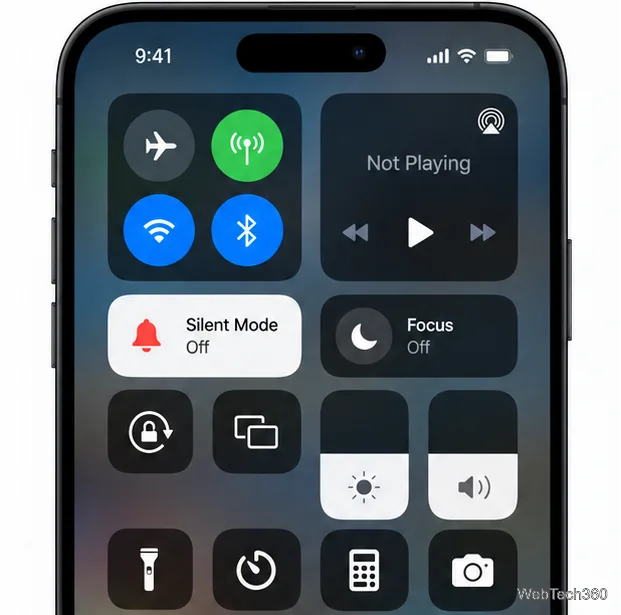
Open Control Center by swiping down from the top-right corner, then check the Silent Mode control. On an iPhone with a Ring/Silent switch, move it toward the display so orange is not showing. On models with an Action button, press it only if that button is set to control Silent mode; otherwise use Control Center. Silent mode stops ringtones and alerts even though media or alarms may still make sound. See Apple's instructions for turning Silent mode off.
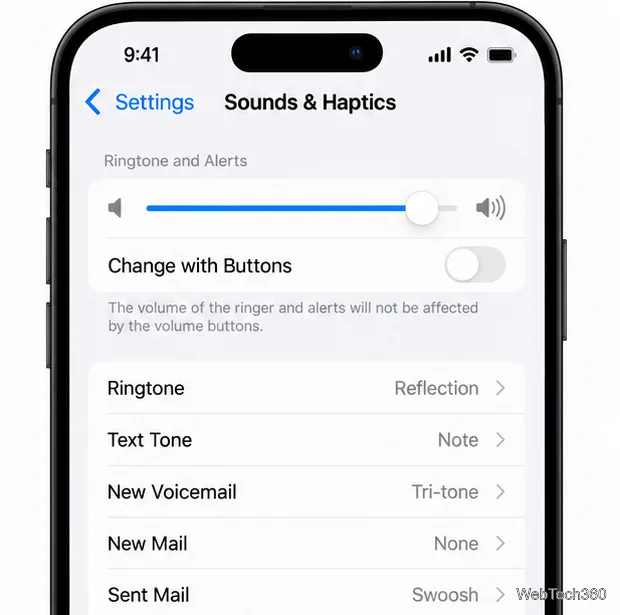
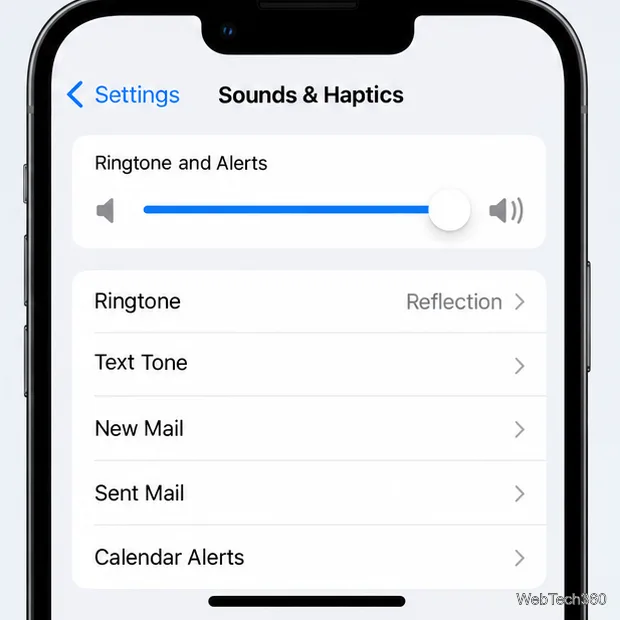
Go to Settings > Sounds & Haptics and raise the Ringtone and Alerts slider. Tap Ringtone and choose a built-in tone to preview it. The side volume buttons may control media while a song or video is playing; when nothing is playing, they can adjust ringer volume if Change with Buttons is enabled. Setting the slider directly is the clearest test. Apple's sound and vibration guide explains these controls.
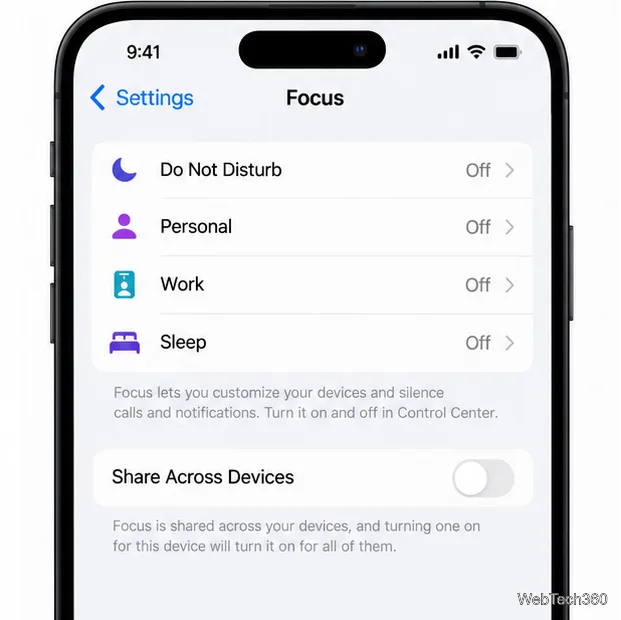
Do Not Disturb, Sleep, Work, and other Focus modes can silence calls based on their allowed people and apps. Open Control Center and tap the active Focus to turn it off, then check Settings > Focus. If calls ring after disabling it, review the Focus settings for allowed callers and any schedule or automatic activation that turns it back on. Apple's Focus guide covers schedules and call permissions.
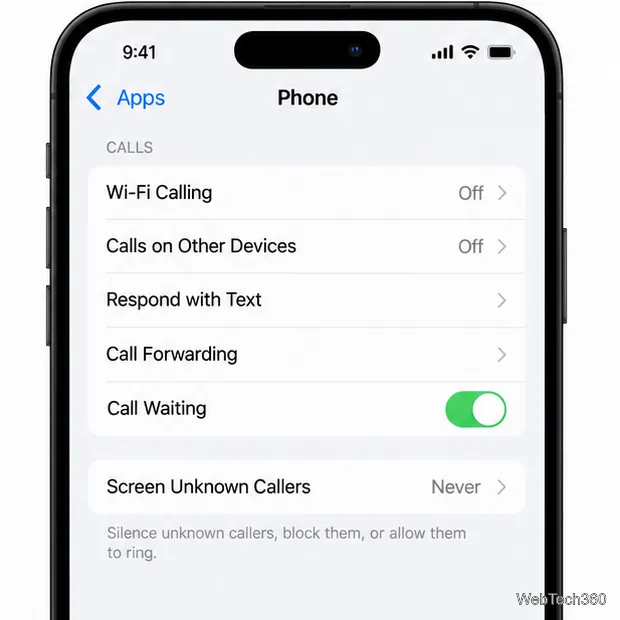
If only new or unfamiliar numbers are silent, open Settings > Apps > Phone and review Screen Unknown Callers. Set it to Never to let unsaved numbers ring; Silence sends them to voicemail, while call screening can delay the ring until the caller responds. Also check Blocked Contacts and call-filtering or spam settings. If calls from everyone go elsewhere, review Call Forwarding and turn it off for a test. Apple's unknown-caller settings guide describes these options.
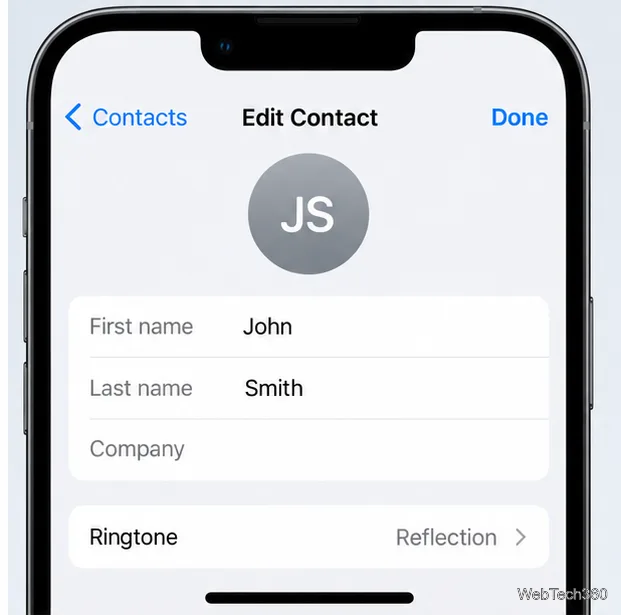
If your iPhone rings for most people but not one caller, their contact card may have a different ringtone assigned. Open Contacts, choose the person, tap Edit > Ringtone, and select a standard tone. Save the change and ask that person to call again. This isolates a contact-specific setting from the phone's main ringer. Apple's ringtone instructions show where to change a contact's tone.
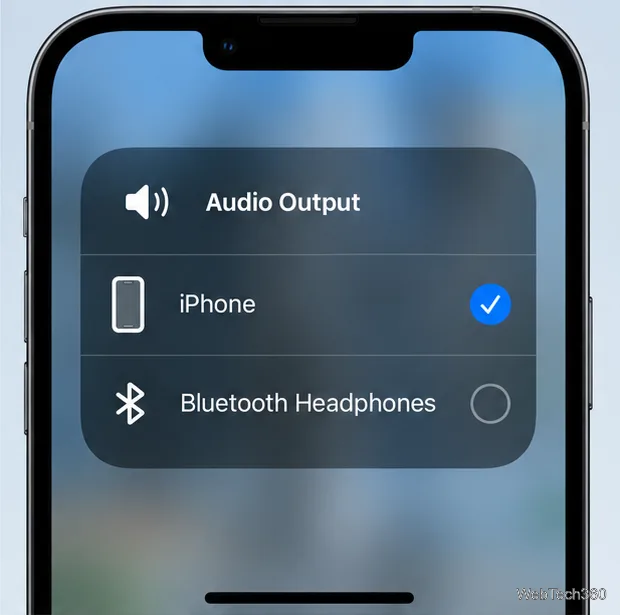
If you use Bluetooth earbuds, a hearing device, or a car audio system, disconnect it briefly and test the iPhone in a quiet room. Temporarily disconnect it and test with the iPhone nearby in a quiet room. The Control Center output picker shows where media playback is sent; Apple explains it in its Bluetooth audio guide. This is only an isolation check: if the incoming call does not appear on screen, continue to the call-setting and reception checks.
Play the ringtone sample from Settings > Sounds & Haptics. Remove a case or screen protector temporarily and check that the speaker and receiver openings are not blocked. If they need cleaning, use a clean, dry, soft-bristled brush; do not push a pin into an opening or use a hair dryer. If the slider is dimmed or you hear no sound from it, the speaker may need service. Apple's speaker troubleshooting steps explain how to test it safely.
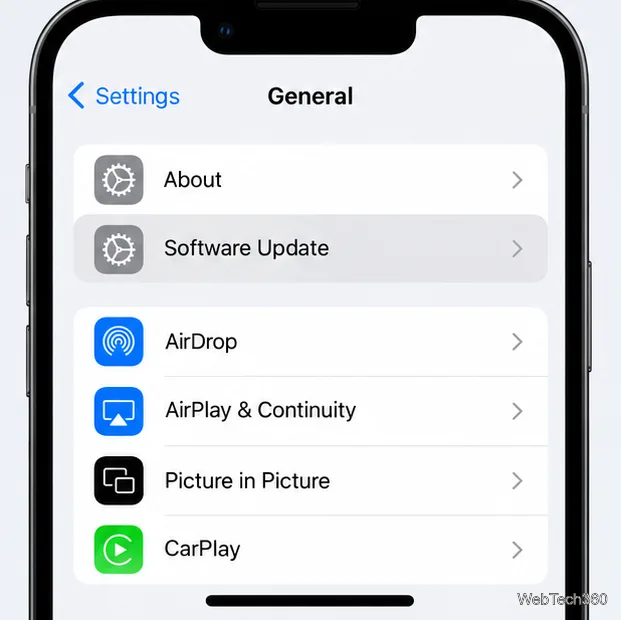
Restart the iPhone, then check Settings > General > Software Update and install an available update when convenient. If the phone does not receive calls at all, switch Airplane Mode on, wait five seconds, and switch it off; test again in another location. If your carrier supports Wi-Fi Calling, it may help where cellular coverage is weak. Ask your carrier about a local outage, account restriction, or calling error. Apple recommends checking both software and network conditions in its call reception troubleshooting guide.
If the ringtone sample is silent, distorted, or the speaker control is unavailable, contact Apple or an authorized service provider for diagnosis. If the sample plays normally but incoming calls are missing, contact your carrier before erasing the iPhone; a factory reset is not a first-line fix for a ringing problem. Keep track of whether the issue affects every caller, only unsaved numbers, or only one contact, since that pattern helps identify the setting to review.
Fix the iMessage Is Signed Out error on iPhone by checking Apple Account sign-in, activation, connectivity, and settings—without erasing your messages.
Turn off your iPhone VPN in the app or Settings, confirm it disconnected, and stop automatic reconnections without deleting your account.
Learn how to encrypt your iPhone with a strong passcode, protect iCloud and computer backups, and secure your data if your phone is lost or stolen.
Learn how to clear Safari and Chrome cache on iPhone, manage app storage safely, and understand when clearing cached data actually helps.
Learn how to fight Gym Battles in Pokémon GO, pick effective attackers, use Charged Attacks and dodges, and claim a Gym after defeating its defenders.
Explore classic Cydia tweaks for jailbroken iPads, from SwipeSelection to Quasar, with compatibility warnings and modern alternatives.
Stop Apple Music signup prompts in the Music app. Learn where to find Show Apple Music on iOS and what turning it off does—and does not—change.
Set up a Shortcuts automation to text Mom when your iPhone battery gets low. Follow four steps, plus delivery checks and privacy tips.
Save posts on X in a few taps. Learn where to find the Bookmark button on iPhone, Android, and desktop, plus how to view, remove, and organize saved tweets.
Turn on AR mode in Pokémon GO during a wild encounter, find AR settings, and fix camera or device compatibility issues.








