iMessage Is Signed Out on iPhone: How to Fix It

Fix the iMessage Is Signed Out error on iPhone by checking Apple Account sign-in, activation, connectivity, and settings—without erasing your messages.
If your iPhone repeatedly drops Wi-Fi, cannot use cellular data, or will not connect through a personal VPN after basic troubleshooting, Reset Network Settings can clear saved network configurations. On current iOS, open Settings > General > Transfer or Reset iPhone > Reset > Reset Network Settings. It does not erase your photos, messages, apps, or other personal content, but you will need to reconnect and may need to restore some network settings.
Try the smaller fixes first. Make sure Airplane Mode is off and Wi-Fi is on. Restart the iPhone if Wi-Fi is dimmed or acting stuck. If other devices also cannot get online, restart the router and modem, check that the router has power and is in range, and contact the internet provider if the outage continues. If only one Wi-Fi network fails, test another network to see whether the issue follows the iPhone.
Apple recommends resetting network settings only after other Wi-Fi solutions fail. Its Wi-Fi troubleshooting guide also covers router checks and what to do when the iPhone says it is connected but has no internet. If your school or workplace manages the iPhone or installs its VPN and network settings, ask the IT administrator before resetting.
If Bluetooth is the only problem, do not assume this reset will repair a pairing. Apple’s reset instructions focus on Wi-Fi, cellular, VPN, and APN settings; for a Bluetooth accessory, use Apple’s pairing and unpairing steps.
This is a targeted settings reset, not a factory reset. Apple says previously used networks and personal VPN settings that were not installed by a configuration profile or mobile device management (MDM) are removed. Apple’s Wi-Fi instructions also say saved Wi-Fi networks and passwords, cellular settings, and VPN and APN settings are reset. Wi-Fi turns off and back on, so the iPhone disconnects from the current network.
For the full list of reset options, see Apple’s guide to resetting iPhone settings.
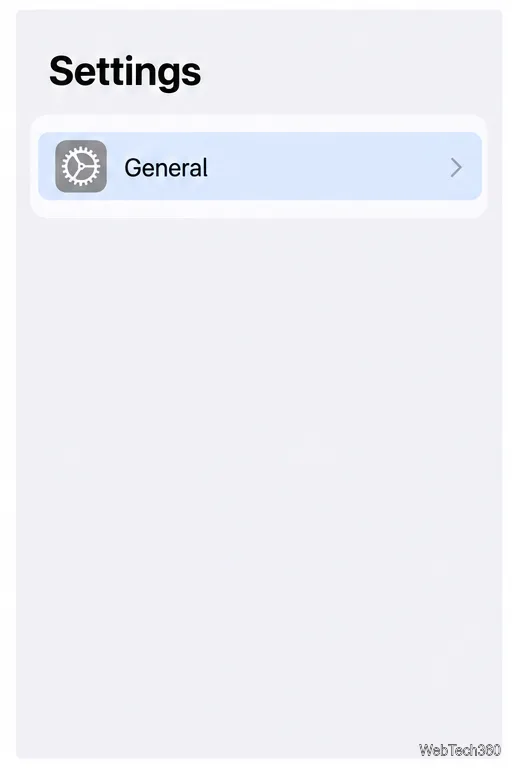
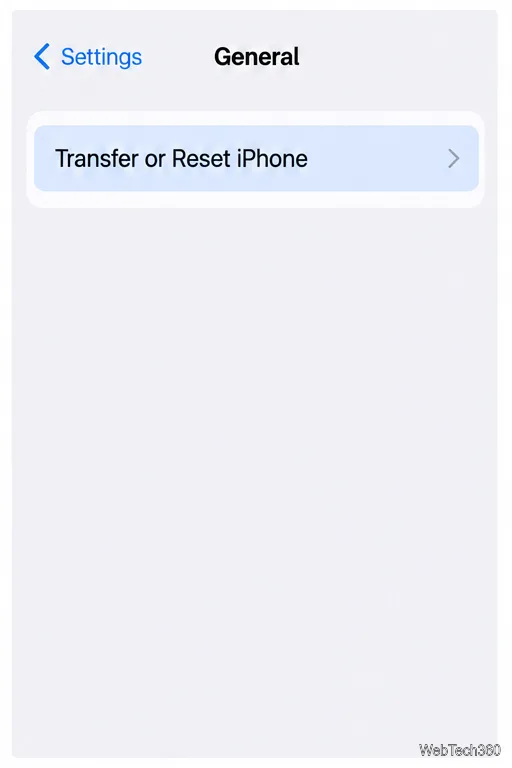
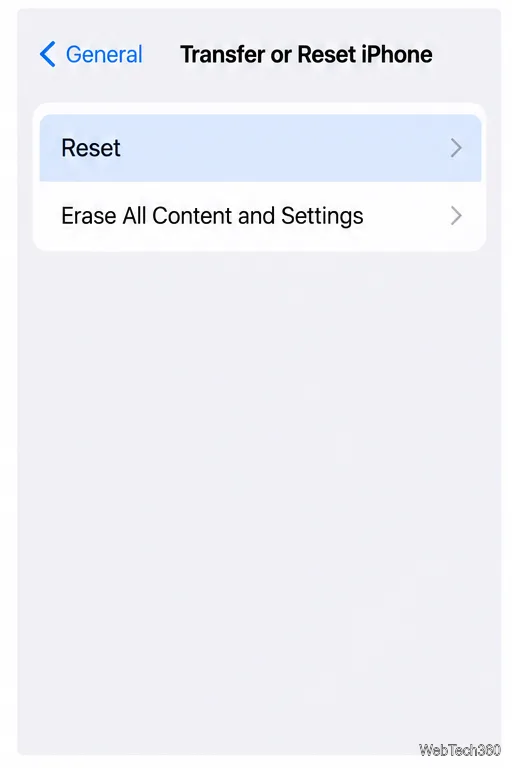
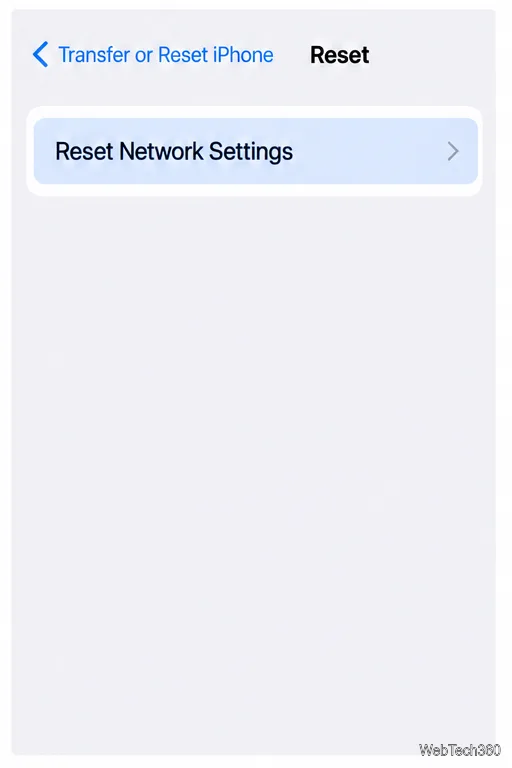
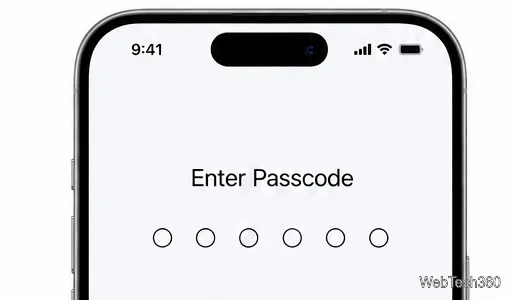
The iPhone will disconnect from Wi-Fi as its network settings are reset. It may take a short time for connectivity to return. You do not need to erase the device or remove an eSIM to complete this step.
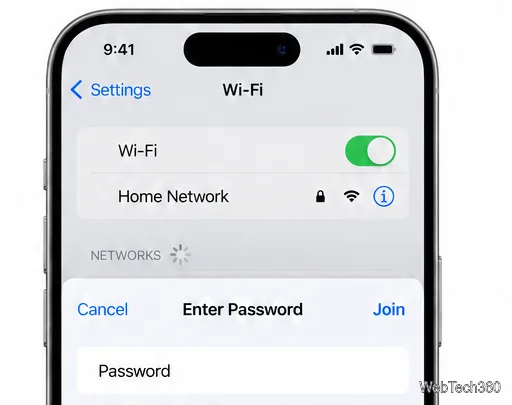
Open Settings > Wi-Fi, turn Wi-Fi on if needed, tap your network name, enter the password, and tap Join. If you do not know the password, get it from the network owner or router administrator. Hotels, campuses, and public networks may also require you to complete a sign-in page after joining.
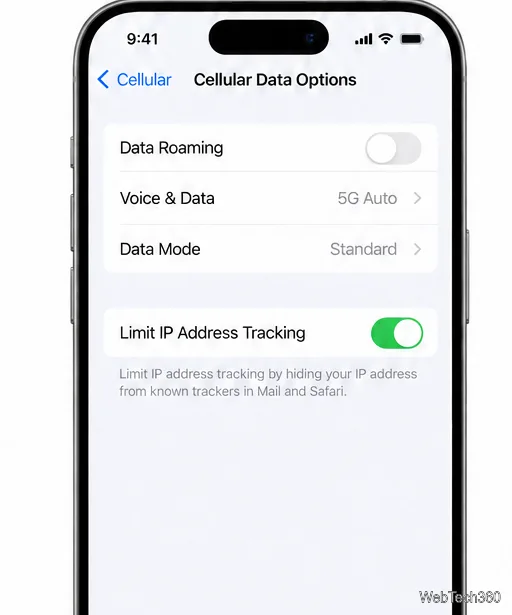
If cellular data is still unavailable, open Settings > Cellular and confirm the line and Cellular Data are on. If you travel, check Data Roaming: Apple notes that a network reset may turn it off. A reset cannot fix a carrier outage, an inactive plan, weak coverage, or a damaged SIM. If the status bar shows SOS, No Service, or Searching, follow Apple’s cellular service troubleshooting steps and contact your carrier if the line still cannot connect.
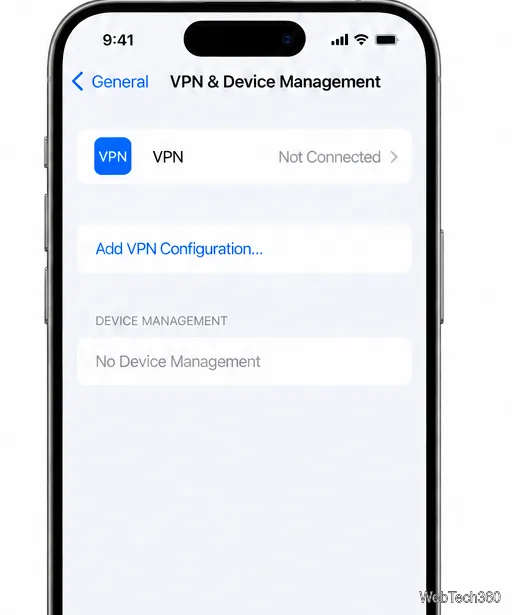
Open the VPN provider’s app, sign in if needed, and follow its current setup instructions. Some apps ask permission to add a VPN configuration. If your VPN came from work or school, contact the administrator instead of removing or recreating a managed profile.
Test Wi-Fi on another device and try the iPhone on a different network. If multiple devices fail on the same router, contact the internet provider or router maker. If the iPhone cannot join any Wi-Fi network, or cellular service remains unavailable after checking the plan and coverage, contact Apple Support or your carrier, depending on which connection is affected. A network reset is useful for clearing configuration problems, but it cannot correct an outage or account issue outside the iPhone.
Fix the iMessage Is Signed Out error on iPhone by checking Apple Account sign-in, activation, connectivity, and settings—without erasing your messages.
Turn off your iPhone VPN in the app or Settings, confirm it disconnected, and stop automatic reconnections without deleting your account.
Learn how to encrypt your iPhone with a strong passcode, protect iCloud and computer backups, and secure your data if your phone is lost or stolen.
Learn how to clear Safari and Chrome cache on iPhone, manage app storage safely, and understand when clearing cached data actually helps.
Learn how to fight Gym Battles in Pokémon GO, pick effective attackers, use Charged Attacks and dodges, and claim a Gym after defeating its defenders.
Explore classic Cydia tweaks for jailbroken iPads, from SwipeSelection to Quasar, with compatibility warnings and modern alternatives.
Stop Apple Music signup prompts in the Music app. Learn where to find Show Apple Music on iOS and what turning it off does—and does not—change.
Set up a Shortcuts automation to text Mom when your iPhone battery gets low. Follow four steps, plus delivery checks and privacy tips.
Save posts on X in a few taps. Learn where to find the Bookmark button on iPhone, Android, and desktop, plus how to view, remove, and organize saved tweets.
Turn on AR mode in Pokémon GO during a wild encounter, find AR settings, and fix camera or device compatibility issues.








