iMessage Is Signed Out on iPhone: How to Fix It

Fix the iMessage Is Signed Out error on iPhone by checking Apple Account sign-in, activation, connectivity, and settings—without erasing your messages.
If your iPhone says SOS or SOS only at the top of the screen, it has lost its connection to your cellular carrier. That status does not mean an emergency call is already in progress. To clear it, restore cellular service. If you mean the button-activated Emergency SOS feature, you can turn off its automatic shortcuts in Settings, but you cannot disable every way to call emergency services.

The status-bar message means your iPhone is not registered on your carrier’s cellular network. Depending on the country, carrier, and available coverage, it may still be able to place an emergency call over another carrier’s network. It is a network condition, not a warning that your iPhone has sent an SOS alert or contacted your emergency contacts. Wi-Fi may still work while cellular service does not.
Apple’s guide to SOS, No Service, and Searching explains the status and the steps for reconnecting. Changing the Emergency SOS button settings will not remove the status-bar message.
Emergency SOS is the iPhone’s quick way to call local emergency services. On many iPhone setups, holding the side button and either volume button brings up the Emergency SOS controls and countdown. A rapid side-button shortcut may also be available, depending on region and settings. When the call ends, iPhone can text your emergency contacts and share your current location if it is available.
Emergency SOS and the SOS status icon are related to emergencies but do different things: one is a calling shortcut; the other reports a cellular connection problem.
To stop the two automatic button shortcuts from starting an emergency-call countdown, turn off their switches. Apple lists these controls under Settings > Emergency SOS.
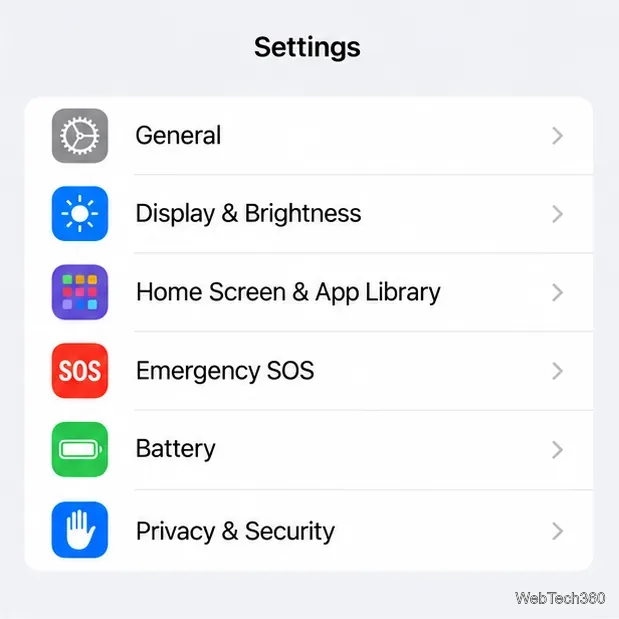
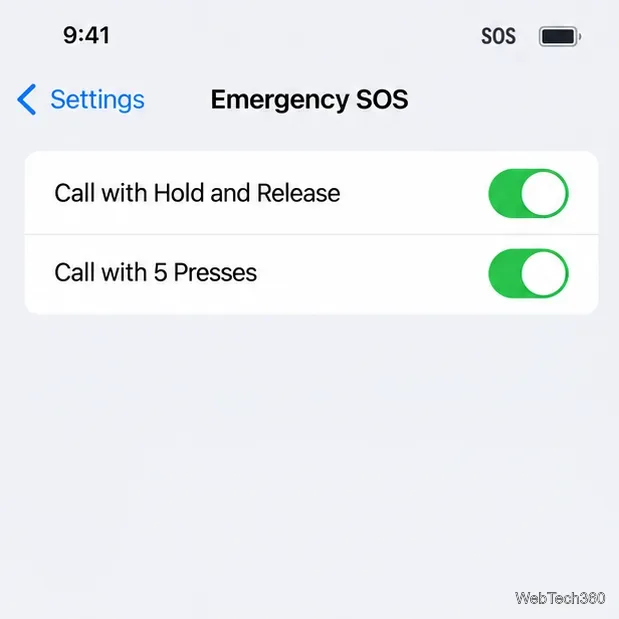
When both switches are gray, those button shortcuts are off:
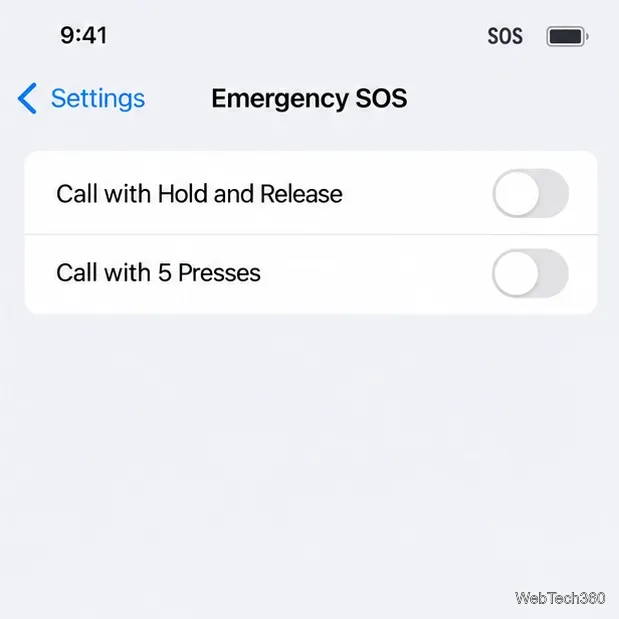
This change only affects the listed shortcuts. It does not remove the Emergency option from the passcode screen or prevent you from calling your local emergency number manually. It also does not fix SOS in the status bar. Button gestures and available settings can differ by region, so use the controls shown on your iPhone. Apple’s Emergency SOS instructions describe the current controls and what happens after a call.
If your goal is to restore the carrier signal, try these steps instead of changing Emergency SOS:
If the message remains after these checks, your carrier can verify network coverage, account status, and SIM or eSIM provisioning. If the carrier finds no issue, Apple recommends contacting support when a device problem may be involved.
Before disabling quick-call shortcuts, review who could be contacted in an emergency. In the Health app, tap your profile picture, choose Medical ID, and check the emergency contacts. After an emergency call, iPhone can send those contacts a text and share your location, when available; location updates may continue for a period after SOS mode starts.
Medical ID is separate from the SOS status icon. You can set it up in Health and choose whether it is visible from the Lock Screen. Automatic sharing of Medical ID during an emergency call is available in the United States and Canada when configured; availability can differ by region. See Apple’s Medical ID setup guide for the current options.
No. It means cellular service from your carrier is unavailable. The Emergency SOS countdown and an emergency call are separate.
No. Restore the cellular connection by refreshing Airplane Mode, restarting, checking your SIM or eSIM, and contacting your carrier if needed.
No single switch disables every emergency-calling option. You can turn off the automatic button shortcuts, while a manual emergency call remains available from the passcode screen.
Fix the iMessage Is Signed Out error on iPhone by checking Apple Account sign-in, activation, connectivity, and settings—without erasing your messages.
Turn off your iPhone VPN in the app or Settings, confirm it disconnected, and stop automatic reconnections without deleting your account.
Learn how to encrypt your iPhone with a strong passcode, protect iCloud and computer backups, and secure your data if your phone is lost or stolen.
Learn how to clear Safari and Chrome cache on iPhone, manage app storage safely, and understand when clearing cached data actually helps.
Learn how to fight Gym Battles in Pokémon GO, pick effective attackers, use Charged Attacks and dodges, and claim a Gym after defeating its defenders.
Explore classic Cydia tweaks for jailbroken iPads, from SwipeSelection to Quasar, with compatibility warnings and modern alternatives.
Stop Apple Music signup prompts in the Music app. Learn where to find Show Apple Music on iOS and what turning it off does—and does not—change.
Set up a Shortcuts automation to text Mom when your iPhone battery gets low. Follow four steps, plus delivery checks and privacy tips.
Save posts on X in a few taps. Learn where to find the Bookmark button on iPhone, Android, and desktop, plus how to view, remove, and organize saved tweets.
Turn on AR mode in Pokémon GO during a wild encounter, find AR settings, and fix camera or device compatibility issues.








