iMessage Is Signed Out on iPhone: How to Fix It

Fix the iMessage Is Signed Out error on iPhone by checking Apple Account sign-in, activation, connectivity, and settings—without erasing your messages.
True Tone is an Apple display feature that uses ambient-light sensors to adjust the screen’s color and intensity to suit the lighting around you. The goal is for whites and other colors to look more consistent as you move between a cool daylight room and a warmer indoor space. It changes how the display looks; it does not edit the photo, video, or other file you’re viewing.
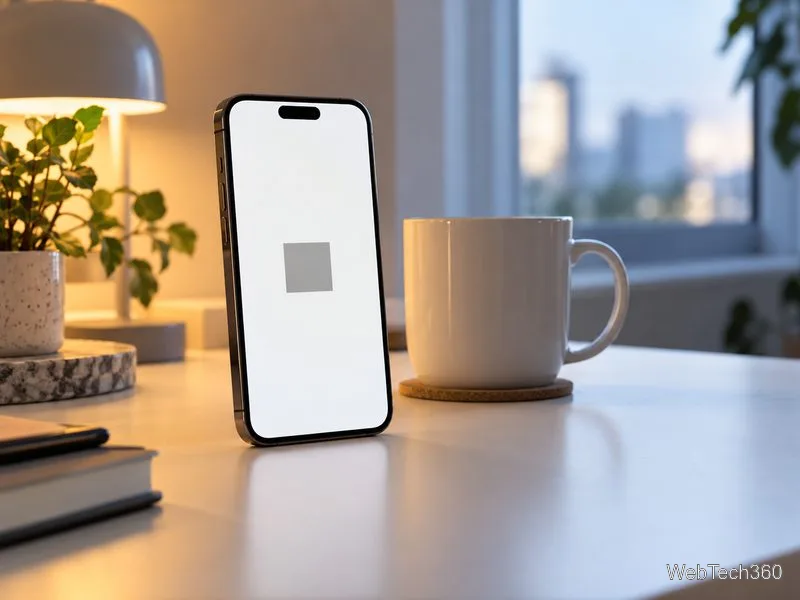
Light in a room has a color, even when it looks white to you. A warm lamp can cast a yellowish tone, while daylight or some LEDs can look cooler. True Tone senses the surrounding light and adjusts the display’s color balance and intensity so the screen feels less out of place in that environment. The change is subtle and happens automatically on supported devices.
That adjustment is different from increasing screen brightness to fight glare. Apple treats Auto-Brightness as a separate control: on iPhone and iPad, it changes the display brightness in response to ambient light. True Tone primarily adapts the display’s color appearance, while Auto-Brightness manages how light or dark the screen is. Neither can eliminate reflections from direct sunlight.
| Feature | What it changes | When it changes |
|---|---|---|
| True Tone | Display color balance and intensity | Automatically in response to surrounding light |
| Night Shift | Moves display colors toward a warmer range | On a schedule or when you turn it on |
| Auto-Brightness | Overall screen brightness | Automatically in response to ambient brightness |
True Tone and Night Shift can be used at the same time. Night Shift is deliberately warmer, often for evening viewing; True Tone responds to the light in the room and may adjust the screen in either direction. Dark Mode is different again: it changes the appearance of supported apps and system surfaces, not the display’s white point.
Apple’s iPhone and iPad display guide explains True Tone, Night Shift, and Auto-Brightness, including how to find the controls.
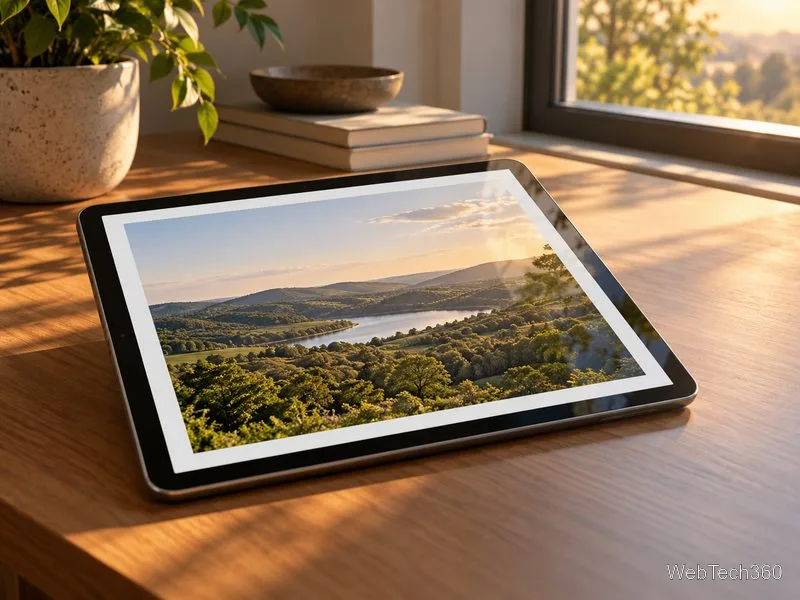
True Tone is available only on compatible hardware. Apple’s current iPhone and iPad list includes iPhone 8 and later, iPhone SE (2nd generation) and later, and specified iPad models across the iPad, iPad Pro, iPad Air, and iPad mini lines. The iPad list includes some older Pro and Air models, so don’t rely on the generation name alone—check the exact model in Apple’s supported-device list.
On Mac, True Tone is available on supported Retina-display Mac computers and selected Apple displays, including Studio Display, Studio Display XDR, and Pro Display XDR. External-display support depends on the display and Mac you connect. If the option is missing, the hardware or the selected display may not support it. Apple’s Mac instructions describe supported external-display setups.
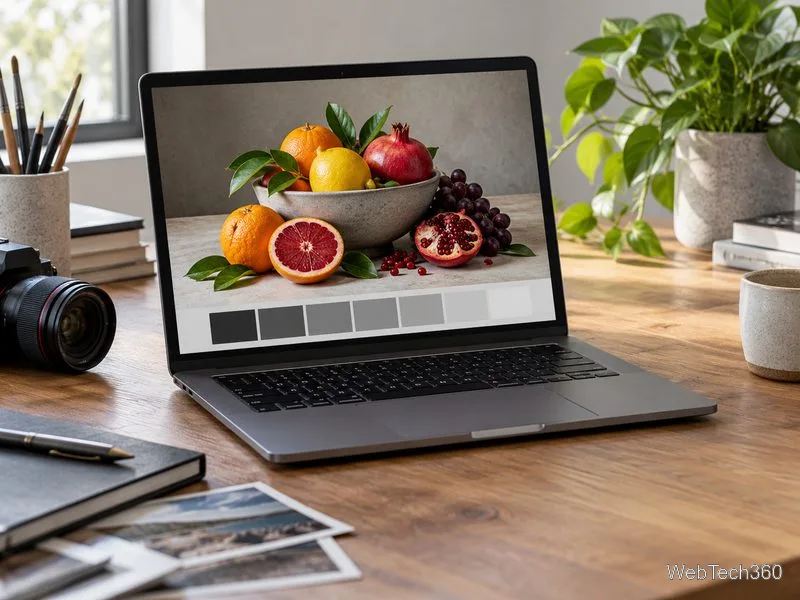
For reading, browsing, and everyday use, you can leave it on if you like how the display looks. Some people prefer a screen that adapts across rooms; others notice the color shift and would rather keep the white point steady. There is no single setting that suits everyone, and True Tone is a viewing preference rather than a setting that improves the underlying image.
For photo, video, or design work where you need to judge color precisely, consider turning it off while reviewing color. Ambient lighting can affect how you perceive the same image, and True Tone intentionally changes the display to respond to that lighting. Keep your room lighting steady as well. On supported iPad Pro models, Reference Mode is designed for workflows that need a display matched to common color standards; enabling it disables True Tone and Night Shift. See Apple’s guide to display presets and reference modes.
You can also open Control Center, touch and hold the brightness control, then tap the True Tone button. If the switch is unavailable, check that your model supports the feature and that an incompatible display setting—such as Reference Mode on a supported iPad Pro—isn’t active.
On macOS versions earlier than Ventura, open System Preferences and choose Displays. Apple notes that the True Tone control appears only for displays that support it. Some accessibility display settings, including color inversion, grayscale, or increased contrast, can also turn True Tone off.
In short, True Tone is an automatic ambient-light adjustment for a compatible Apple display. Leave it on for an adaptive everyday look, or turn it off when you want the screen’s color to remain more consistent while evaluating images.
Fix the iMessage Is Signed Out error on iPhone by checking Apple Account sign-in, activation, connectivity, and settings—without erasing your messages.
Turn off your iPhone VPN in the app or Settings, confirm it disconnected, and stop automatic reconnections without deleting your account.
Learn how to encrypt your iPhone with a strong passcode, protect iCloud and computer backups, and secure your data if your phone is lost or stolen.
Learn how to clear Safari and Chrome cache on iPhone, manage app storage safely, and understand when clearing cached data actually helps.
Learn how to fight Gym Battles in Pokémon GO, pick effective attackers, use Charged Attacks and dodges, and claim a Gym after defeating its defenders.
Explore classic Cydia tweaks for jailbroken iPads, from SwipeSelection to Quasar, with compatibility warnings and modern alternatives.
Stop Apple Music signup prompts in the Music app. Learn where to find Show Apple Music on iOS and what turning it off does—and does not—change.
Set up a Shortcuts automation to text Mom when your iPhone battery gets low. Follow four steps, plus delivery checks and privacy tips.
Save posts on X in a few taps. Learn where to find the Bookmark button on iPhone, Android, and desktop, plus how to view, remove, and organize saved tweets.
Turn on AR mode in Pokémon GO during a wild encounter, find AR settings, and fix camera or device compatibility issues.








