iMessage Is Signed Out on iPhone: How to Fix It

Fix the iMessage Is Signed Out error on iPhone by checking Apple Account sign-in, activation, connectivity, and settings—without erasing your messages.
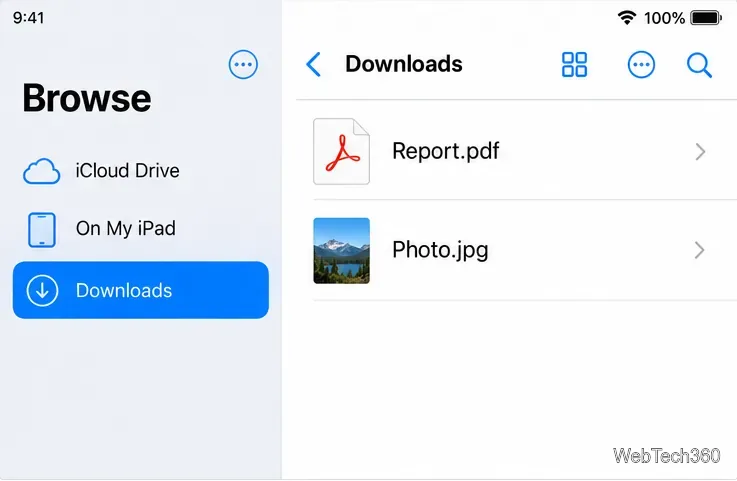
If you downloaded a file from the internet on your iPad, start in the Files app. Open Browse, then tap Downloads. You can also open Safari and tap its Downloads button to get to a recent download. The folder may be stored in iCloud Drive or locally on the iPad, depending on Safari’s download setting.
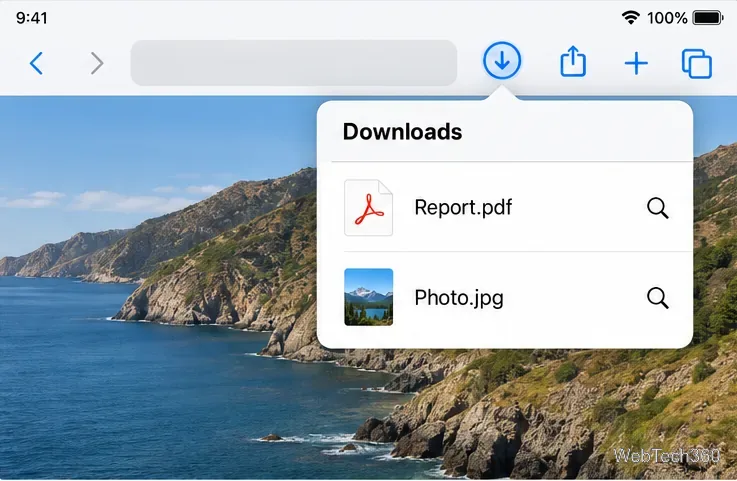
If you just downloaded the item, Safari offers a shortcut: return to the page and tap the Downloads button beside the search field. It can show whether a download is still in progress and open completed files. If the button is not visible, the download may have finished earlier; use Files to browse the folder instead.
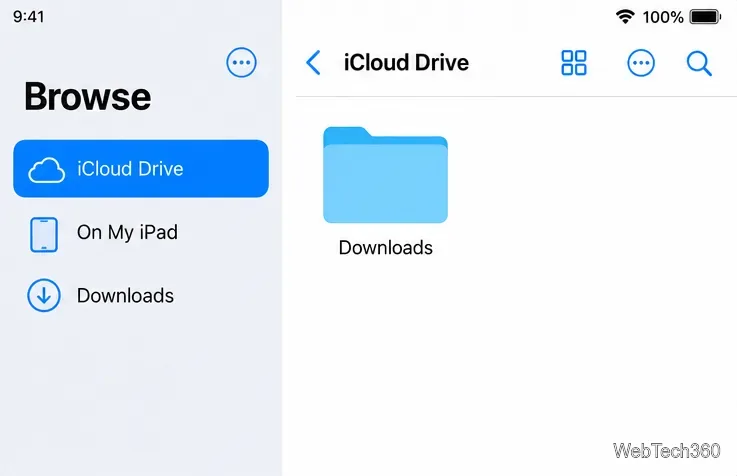
The Downloads folder can be in iCloud Drive, on the iPad itself, or in a folder you selected. To check or change Safari’s destination, open Settings, tap Apps, tap Safari, then tap Downloads. The available choices are:
In Files, check the Downloads item in the sidebar first. If you still do not see the file, tap iCloud Drive or On My iPad under Browse and open Downloads there. Also check any custom folder you chose. Changing Safari’s destination is useful for future downloads; it does not move a file you already saved.
Not every item called a download lands in the same folder. The choice you make when saving it determines where to look:
This distinction explains why a picture may be missing from Downloads even though it was saved successfully: “Save Image” adds it to the photo library, while “Save to Files” lets you select a folder.
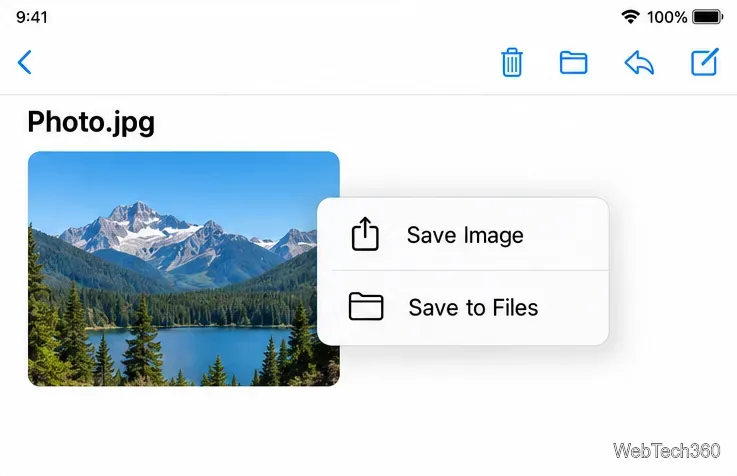
If the download link opens a document instead of saving it, use the Share button and select Save to Files when available. That gives you a chance to choose a destination you can find again.
For Safari downloads, set the preferred destination under Settings > Apps > Safari > Downloads. Choose iCloud Drive if you want the same file available across devices using the same Apple Account; choose On My iPad for a local copy; or choose Other to use a different folder. For a Mail attachment or a PDF preview, select Save to Files and confirm the folder before tapping Save.
Apple’s current instructions include finding downloaded files on iPad, choosing Safari’s download location, and saving Mail attachments.
Fix the iMessage Is Signed Out error on iPhone by checking Apple Account sign-in, activation, connectivity, and settings—without erasing your messages.
Turn off your iPhone VPN in the app or Settings, confirm it disconnected, and stop automatic reconnections without deleting your account.
Learn how to encrypt your iPhone with a strong passcode, protect iCloud and computer backups, and secure your data if your phone is lost or stolen.
Learn how to clear Safari and Chrome cache on iPhone, manage app storage safely, and understand when clearing cached data actually helps.
Learn how to fight Gym Battles in Pokémon GO, pick effective attackers, use Charged Attacks and dodges, and claim a Gym after defeating its defenders.
Explore classic Cydia tweaks for jailbroken iPads, from SwipeSelection to Quasar, with compatibility warnings and modern alternatives.
Stop Apple Music signup prompts in the Music app. Learn where to find Show Apple Music on iOS and what turning it off does—and does not—change.
Set up a Shortcuts automation to text Mom when your iPhone battery gets low. Follow four steps, plus delivery checks and privacy tips.
Save posts on X in a few taps. Learn where to find the Bookmark button on iPhone, Android, and desktop, plus how to view, remove, and organize saved tweets.
Turn on AR mode in Pokémon GO during a wild encounter, find AR settings, and fix camera or device compatibility issues.








