Home
» IOS
»
Why Do Apps Close Suddenly on iOS 15? Causes and Fixes
Why Do Apps Close Suddenly on iOS 15? Causes and Fixes
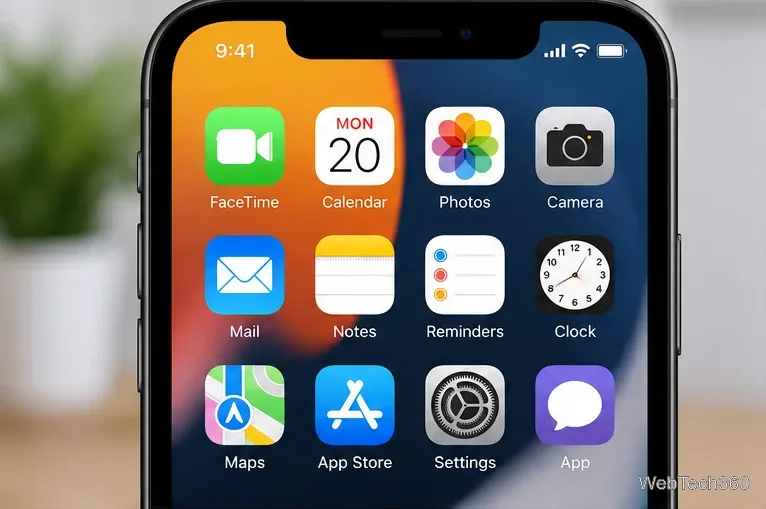
If an app suddenly disappears and drops you back to the Home Screen on iOS 15, the app has most likely crashed. A crash can come from a bug in the app, an outdated app build, a temporary iOS problem, damaged local app data, or a device that is short on free storage. If only one app is affected, troubleshoot that app first. If many apps—including Apple apps—are closing unexpectedly, focus on iOS, storage, and the device itself.
Apple’s current guidance for an app that closes unexpectedly is to close and reopen it, restart the device, check for app and system updates, then delete and redownload the app if needed. That order is safer than jumping straight to a factory reset. See Apple’s official troubleshooting steps for apps that close unexpectedly.
An app that vanishes and returns you to the Home Screen is usually crashing rather than closing normally.
1. Close and reopen the crashing app
Start with the simplest fix. On an iPhone without a Home button, swipe up from the bottom and pause to open the App Switcher. On an iPhone with a Home button, double-click the Home button. Find the problem app, swipe up on its preview, then open it again.
Do this for the app that is misbehaving, not every app on the phone. Apple notes that force-closing apps unnecessarily can make them take longer to reopen because their data must be loaded again.
2. Restart the iPhone
A restart clears temporary system state that can contribute to repeated crashes. A model-independent method on iOS 15 is Settings > General > Shut Down. Drag the slider, wait for the iPhone to turn off, then hold the side button until the Apple logo appears. After the phone starts, try the app again.
3. Update the app
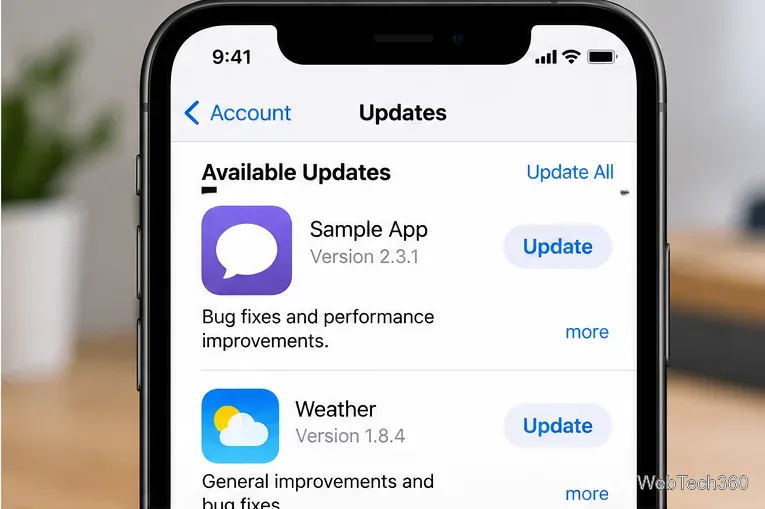
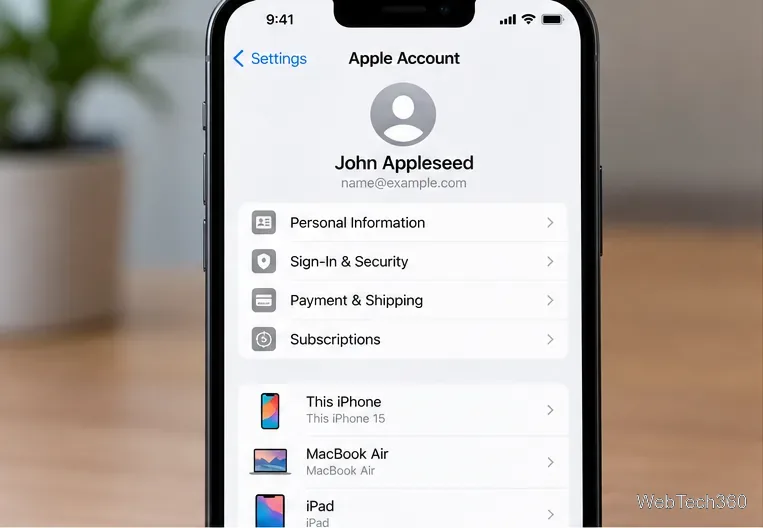
If one or two apps are crashing, an app update is one of the most important fixes. Open the App Store, tap your profile picture, and look for available updates. Tap Update beside the problem app, or update all apps. Apple says App Store apps normally update automatically, but you can also update them manually; see Apple’s manual app update instructions.
Install an available app update before trying more disruptive fixes.
If no update is offered, the developer may not have released a fix for iOS 15, or the newest version may require a later iOS release. Check the app’s App Store page for compatibility information.
4. Install the newest iOS version your iPhone supports
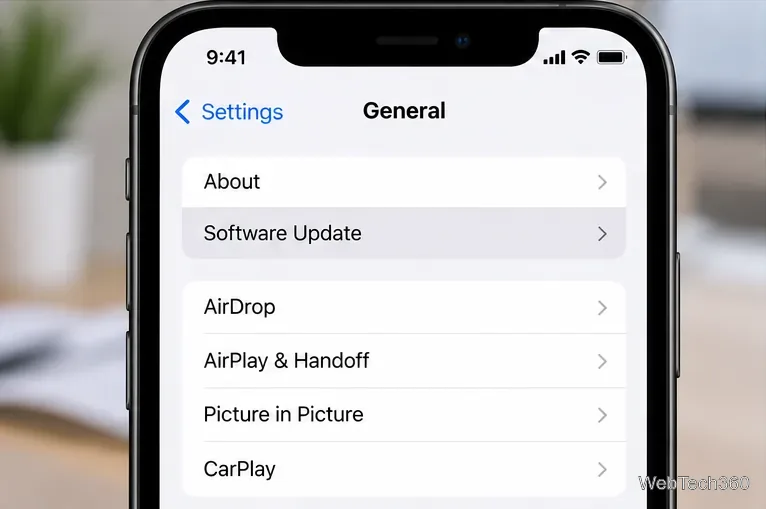
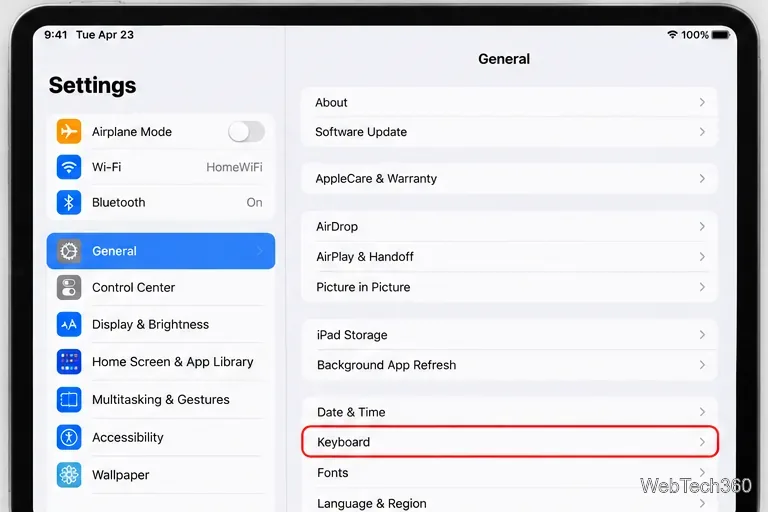
If the app is current but still crashes, go to Settings > General > Software Update. Install the newest iOS version offered for your iPhone. If your model can upgrade beyond iOS 15, moving to the latest supported release can provide bug fixes and newer app compatibility. Apple recommends backing up before a system update and provides the current process in its iPhone and iPad update guide.
Use Settings > General > Software Update to check for the newest iOS release available to the device.
5. Check available storage
Very low free space can cause broader performance problems. Open Settings > General > iPhone Storage and review the available space and Apple’s recommendations. Apple advises keeping at least 1 GB of free space to avoid slowdowns. If storage is tight, remove large downloads you no longer need or offload unused apps. Apple explains these options in its iPhone performance guidance.
6. Delete and reinstall the app
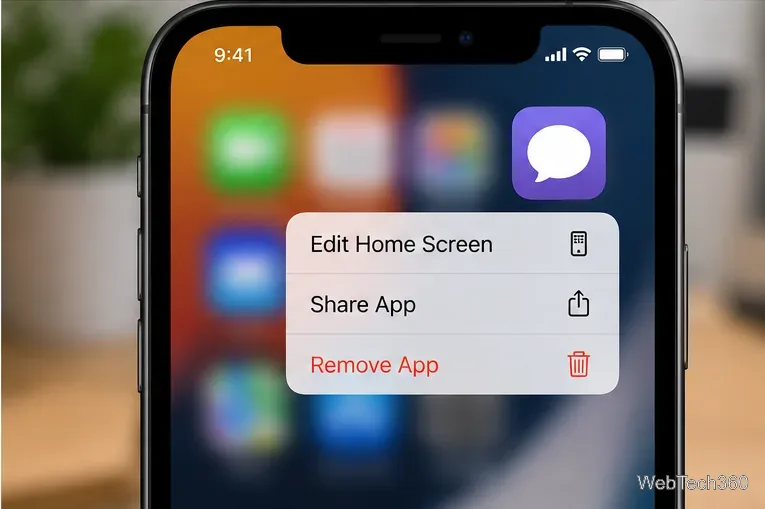
If the crash is limited to one app and updates did not help, reinstalling it can replace damaged local app files. Touch and hold the app icon, tap Remove App, then Delete App. Reinstall it from the App Store afterward. Apple warns that deleting an app can remove data stored only inside that app, so confirm that important data is synced or backed up first. Deleting an app also does not automatically cancel its subscriptions. See Apple’s app deletion instructions.
Use Remove App, then Delete App, only after checking that important app data is backed up or synced.
What if every app keeps closing?
If several unrelated apps, including built-in Apple apps, crash repeatedly, do not erase the iPhone as your first step. Make sure the phone is running the newest software it supports, restart it, and check that storage is not nearly full. If the problem continues after those checks, back up the iPhone and contact Apple Support for device-level troubleshooting.
If only one third-party app still crashes after an update and reinstall, the problem is more likely to be app-specific. Apple recommends contacting the developer; you can find App Support from the app’s App Store listing. Apple documents the process in its guide to contacting an app developer.
Bottom line
Apps that close suddenly on iOS 15 are usually crashing, not being intentionally shut down by iOS. Work from least disruptive to most disruptive: reopen the app, restart the iPhone, update the app, update iOS, check storage, and reinstall the affected app. A full erase and restore should be a last-resort device troubleshooting step, not the default fix for a single crashing app.