iMessage Is Signed Out on iPhone: How to Fix It

Fix the iMessage Is Signed Out error on iPhone by checking Apple Account sign-in, activation, connectivity, and settings—without erasing your messages.
AirPods may pause because Automatic Ear Detection thinks an earbud has been removed, audio switches to another device, a gesture pauses playback, or the app or connection interrupts. First look at the playback screen: Paused points to a playback command or setting; a loading spinner or sound that cuts in and out points to streaming or Bluetooth.
Use the pattern below to pick a first check. A reset is rarely the best first step.
| Symptom | Check first |
|---|---|
| Pauses when an earbud shifts | Fit and Automatic Ear Detection |
| Stops when another Apple device starts playing | Audio output and automatic switching |
| Spinner, gaps, or choppy sound | Streaming, Bluetooth distance, or interference |
| One earbud shuts off or warns about battery | Charge level |
When it happens, check the playback controls. If the play button appears and the timeline stops, the app has paused. If a spinner appears, audio skips, or sound returns without you pressing Play, suspect buffering or a wireless dropout.
Play downloaded audio with your phone, tablet, or computer nearby, then try another app. If local audio is steady but streaming is not, check the app and your Wi-Fi or cellular connection. If only one app pauses, close and reopen it and check for an update before changing AirPods settings.
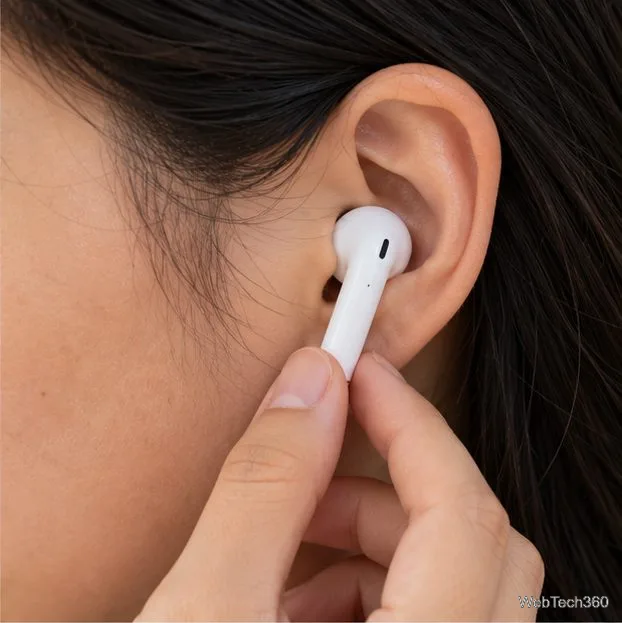
If playback stops when one earbud shifts, reseat it and test again. AirPods with Automatic Ear Detection pause audio when they sense that an earbud has been removed, so a loose fit can make this seem random.
To test the setting, connect your AirPods, open Settings on iPhone or iPad, tap the AirPods name near the top, and turn off Automatic Ear Detection temporarily. If the problem stops, fit or detection may be involved; turn the feature back on if you want automatic pausing when you remove an earbud. If the option is missing, check Audio & Routing. On Mac, open System Settings, select your AirPods, and look for the same setting. Apple's AirPods settings guide has current menu details.
On supported models, check Pause Media When Falling Asleep if playback stops while you are dozing. If touching an earbud triggers the pause, review its gesture controls and avoid pressing the stem while adjusting it.

Compatible AirPods can switch between Apple devices signed in to the same Apple Account. Starting a podcast on an iPhone or answering a call on another device can move the audio. Use the AirPlay or playback destination control on the Lock Screen, Now Playing screen, or Control Center to select your AirPods again.
To prevent unwanted switching on iPhone or iPad, go to Settings, tap your AirPods, choose Audio & Routing if shown, then Connect to This iPhone (or iPad) and When Last Connected to This Device. Choose Automatically to restore switching later. Options vary by software and device. See Apple's instructions for switching AirPods between devices.

Bluetooth can weaken with distance, walls, or wireless interference. Apple recommends testing audio stored on your device with the source within a few feet. If it plays reliably, keep the source close and unobstructed. If the problem is worse in crowded places or near heavy Wi-Fi activity, move elsewhere and test again. See Apple's guide to wireless-headphone dropouts.
If only streamed content stalls, check the app and network; buffering does not by itself mean the AirPods are faulty. If downloaded audio also cuts out, reconnect the earbuds and continue below.
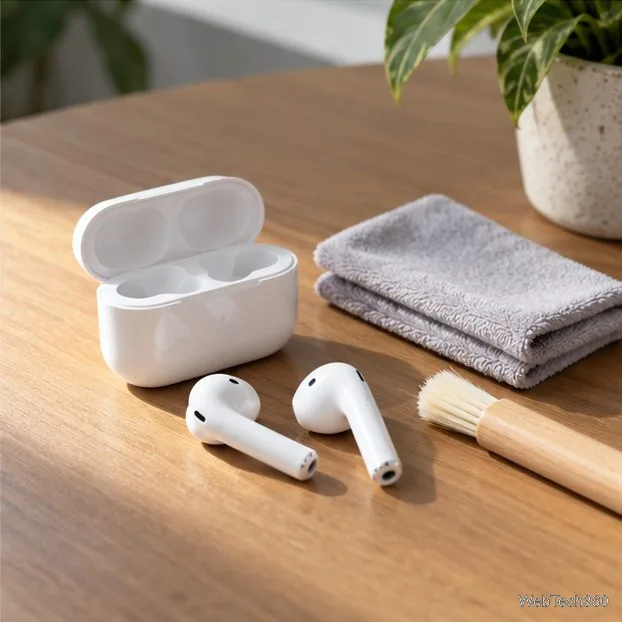
Check each AirPod's charge. On iPhone or iPad, open the case or take the earbuds out, then go to Settings, tap Bluetooth, tap the AirPods, and tap the Info button. A nearly empty earbud may shut down, which can seem like playback stopped. Apple's charging guide explains battery indicators.
Look for debris and make sure both earbuds sit comfortably. Follow the cleaning steps for your exact model; do not use sharp tools or abrasives, and do not add liquid unless its instructions say to. See Apple's AirPods cleaning guide.
If several apps and devices have the same problem, forget the AirPods in Bluetooth settings, pair them again, and test. Reset only if reconnecting fails; reset steps differ by model. Follow Apple's current reset instructions.
If one AirPod repeatedly disconnects, its battery drains unusually fast, or pausing continues after testing another app and device, contact Apple Support or an Apple Authorized Service Provider. Note whether the screen showed Paused or Buffering and whether turning off Automatic Ear Detection changed anything.
Fix the iMessage Is Signed Out error on iPhone by checking Apple Account sign-in, activation, connectivity, and settings—without erasing your messages.
Turn off your iPhone VPN in the app or Settings, confirm it disconnected, and stop automatic reconnections without deleting your account.
Learn how to encrypt your iPhone with a strong passcode, protect iCloud and computer backups, and secure your data if your phone is lost or stolen.
Learn how to clear Safari and Chrome cache on iPhone, manage app storage safely, and understand when clearing cached data actually helps.
Learn how to fight Gym Battles in Pokémon GO, pick effective attackers, use Charged Attacks and dodges, and claim a Gym after defeating its defenders.
Explore classic Cydia tweaks for jailbroken iPads, from SwipeSelection to Quasar, with compatibility warnings and modern alternatives.
Stop Apple Music signup prompts in the Music app. Learn where to find Show Apple Music on iOS and what turning it off does—and does not—change.
Set up a Shortcuts automation to text Mom when your iPhone battery gets low. Follow four steps, plus delivery checks and privacy tips.
Save posts on X in a few taps. Learn where to find the Bookmark button on iPhone, Android, and desktop, plus how to view, remove, and organize saved tweets.
Turn on AR mode in Pokémon GO during a wild encounter, find AR settings, and fix camera or device compatibility issues.








