iMessage Is Signed Out on iPhone: How to Fix It

Fix the iMessage Is Signed Out error on iPhone by checking Apple Account sign-in, activation, connectivity, and settings—without erasing your messages.
If your iPad is not charging, start with the power path: the outlet, adapter, cable, and port. A frozen screen or extreme temperature can also make charging appear to stop. Check each part in order before assuming the battery has failed.
Connect the iPad directly to a wall outlet with a compatible cable and power adapter. When it is charging, iPadOS shows a lightning bolt on the battery icon in the status bar or a larger battery icon on the Lock Screen. If the battery is completely drained, leave the iPad connected for up to an hour; Apple notes that an iPad that will not turn on may need that long to charge.
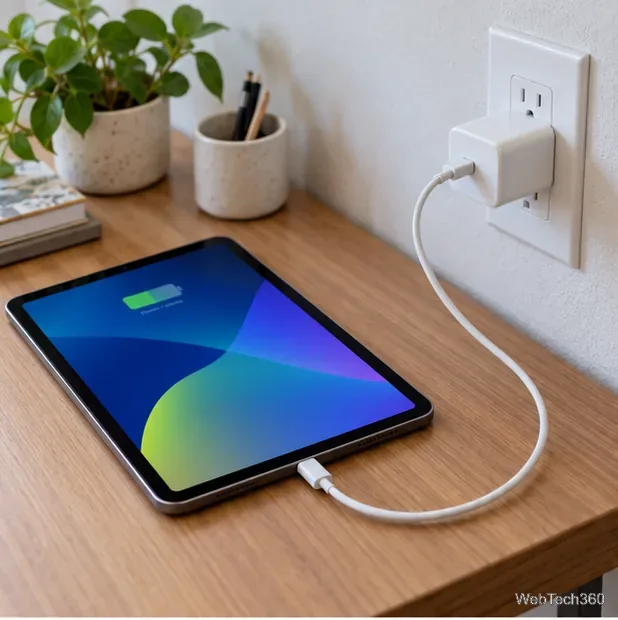
See Apple's iPad charging instructions for indicator details.
Make sure the wall outlet works, then firmly reconnect the adapter to the outlet and the cable to the adapter. Try another working outlet. For a clean test, unplug docks and other accessories. A wall adapter is simplest; a powered computer USB port can also charge an iPad.
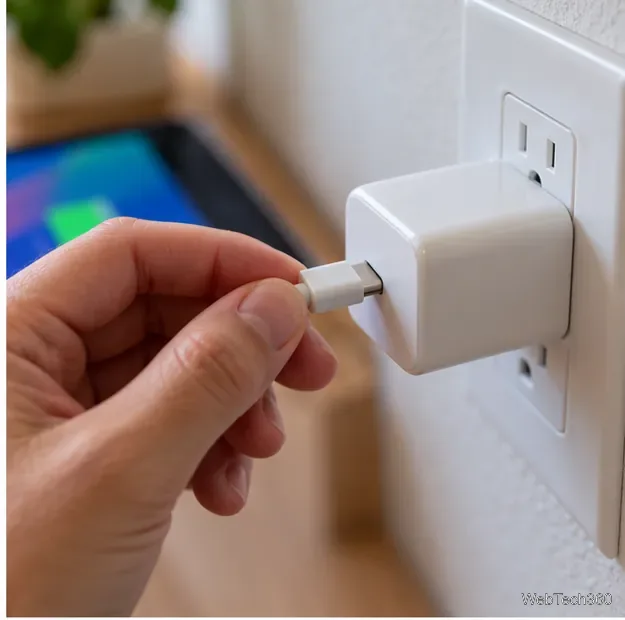
Use the adapter supplied with your iPad when possible, or a compatible adapter with the right connector.
Try one known-good cable at a time, then try another compatible adapter. This isolates the faulty part: if the iPad charges with the replacement cable, retire the original cable; if it charges only with another adapter, replace or have the adapter checked. Do not keep bending or wiggling a cable that charges only at a certain angle. Stop using a frayed, bent, discolored, or unusually hot cable or adapter.
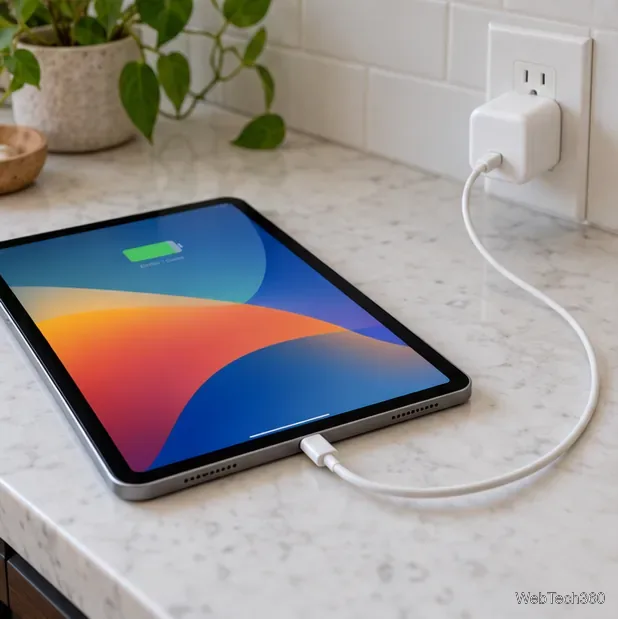
iPad models use different connectors. Some have USB-C ports, while older models use Lightning. Match the cable to the iPad and make sure the plug fits easily; never force it. Apple's USB-C iPad guide shows how supported USB-C models connect to power.
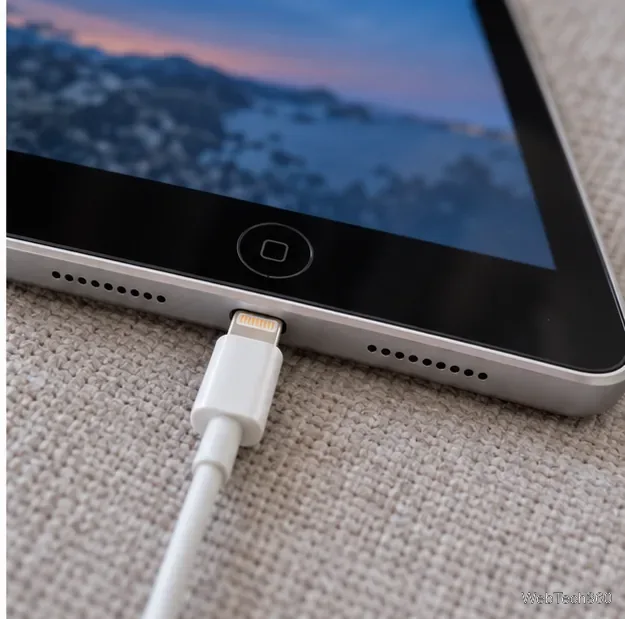
Look inside the port for visible lint, corrosion, or damage. If the plug will not seat fully, stop rather than scraping inside it with a pin, paper clip, or other tool. Avoid liquids and compressed air. If debris is packed in or the port looks damaged, ask Apple or an authorized service provider to inspect it.

If the screen is black, frozen, or not responding, a force restart can clear a temporary software hang. It does not erase your data. Keep the iPad connected to power while you try it:


Apple shows these force-restart steps. If the battery is empty, reconnect power and wait.
Charging may slow or pause when an iPad is too hot or too cold. If you see “Charging On Hold,” move the device out of direct sun or a cold environment, lock the screen, and let it return gradually to room temperature. Do not put it in a refrigerator or try to cool it with ice. Apple advises avoiding charging in ambient temperatures above 95°F (35°C), which can shorten battery life.

Learn more about Apple's Charging On Hold temperature alert and iPad battery temperature guidance.
An iPad that reaches about 80 percent and then pauses may be using an 80% Charge Limit, available on some newer models. Check Settings > Battery > Battery Health if your model has that option. Heat can also limit charging above 80 percent, so check the device's temperature before treating this as a cable failure.
Contact Apple or an authorized service provider if the iPad still shows no charging icon after you have tested a working outlet, compatible adapter, and different cable, and tried a force restart. Get help sooner if the port is loose or visibly damaged, the device becomes unusually hot, or the case is lifting or bulging. If the battery appears swollen, disconnect power if it is safe to do so and stop using the iPad; do not press the case back together.
Fix the iMessage Is Signed Out error on iPhone by checking Apple Account sign-in, activation, connectivity, and settings—without erasing your messages.
Turn off your iPhone VPN in the app or Settings, confirm it disconnected, and stop automatic reconnections without deleting your account.
Learn how to encrypt your iPhone with a strong passcode, protect iCloud and computer backups, and secure your data if your phone is lost or stolen.
Learn how to clear Safari and Chrome cache on iPhone, manage app storage safely, and understand when clearing cached data actually helps.
Learn how to fight Gym Battles in Pokémon GO, pick effective attackers, use Charged Attacks and dodges, and claim a Gym after defeating its defenders.
Explore classic Cydia tweaks for jailbroken iPads, from SwipeSelection to Quasar, with compatibility warnings and modern alternatives.
Stop Apple Music signup prompts in the Music app. Learn where to find Show Apple Music on iOS and what turning it off does—and does not—change.
Set up a Shortcuts automation to text Mom when your iPhone battery gets low. Follow four steps, plus delivery checks and privacy tips.
Save posts on X in a few taps. Learn where to find the Bookmark button on iPhone, Android, and desktop, plus how to view, remove, and organize saved tweets.
Turn on AR mode in Pokémon GO during a wild encounter, find AR settings, and fix camera or device compatibility issues.








