iMessage Is Signed Out on iPhone: How to Fix It

Fix the iMessage Is Signed Out error on iPhone by checking Apple Account sign-in, activation, connectivity, and settings—without erasing your messages.
Clearing history on an iPad can make sense when you share the device, want to remove a sensitive search from the browser, or are troubleshooting a website. It removes a record that someone using the same browser may be able to open. It is not a complete privacy or security measure, though: websites, apps, and online accounts can keep separate records.
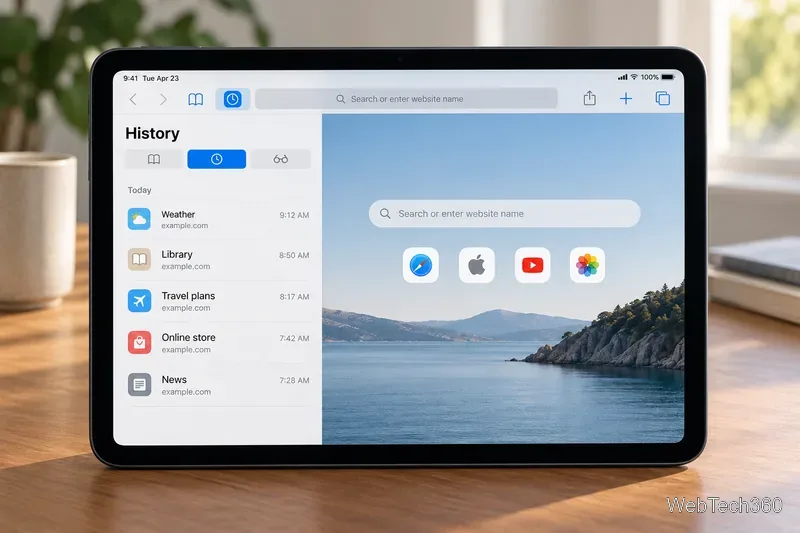
Safari and other browsers can display pages you visited, recent searches, and frequently visited sites. If a family member, coworker, or guest uses the same unlocked iPad, they may see that information simply by opening the browser. Clearing history is a practical way to remove those local browsing records before handing the device to someone else.
This can matter when a search relates to health, finances, work, school, travel, or a personal purchase. The point is control over what another casual user can see, not hiding wrongdoing. Use a device passcode and separate user accounts where available for stronger privacy; deleting history does not protect content in apps where you remain signed in.
A browser account can make history visible beyond the iPad. Google says Chrome can show pages from other devices when you are signed in and history sync is enabled, and that deleting Chrome history also deletes it on devices where that history is synced. This is helpful if you want to clean up a shared computer or phone too, but check which Google Account and sync settings are active before confirming. Apple’s Safari Private Browsing, by contrast, does not add those pages to Safari History or share those private tabs with your other devices.
For account-level searches, use the account’s own activity controls. Deleting Chrome browsing history is separate from deleting Google Search history.
History is useful when you need to return to a page, but it also accumulates old entries. Apple says clearing Safari history removes visited pages and recent searches, along with items such as frequently visited sites and the previous-and-next list for open pages. That can make the browser’s history less revealing and easier to scan. If you often revisit sites, save useful pages as bookmarks before clearing.
Websites store cookies and other data in the browser. Outdated or conflicting site data can sometimes interfere with loading or sign-in behavior. Apple recommends clearing Safari website data occasionally as one troubleshooting step. This may help with a stubborn page, but it is not a guaranteed fix: check your connection and the site’s status first, and clear only the data you are comfortable losing.
Cookies can keep you signed in and remember site preferences. Removing them may sign you out or reset permissions you gave a site, such as location or notification access. The amount of storage recovered varies, and clearing history alone should not be treated as a reliable way to free substantial space.
There is no need to erase your history every day by default. Keep it if you rely on it to find pages again; clear it after sensitive browsing on a shared iPad, before lending the device, or when you are following a browser’s troubleshooting steps. If you want Safari not to remember a session in the first place, use Private Browsing. Apple says Safari does not remember the pages, search history, or AutoFill information from private tabs. Private Browsing is still not a promise that websites or network providers keep no records.
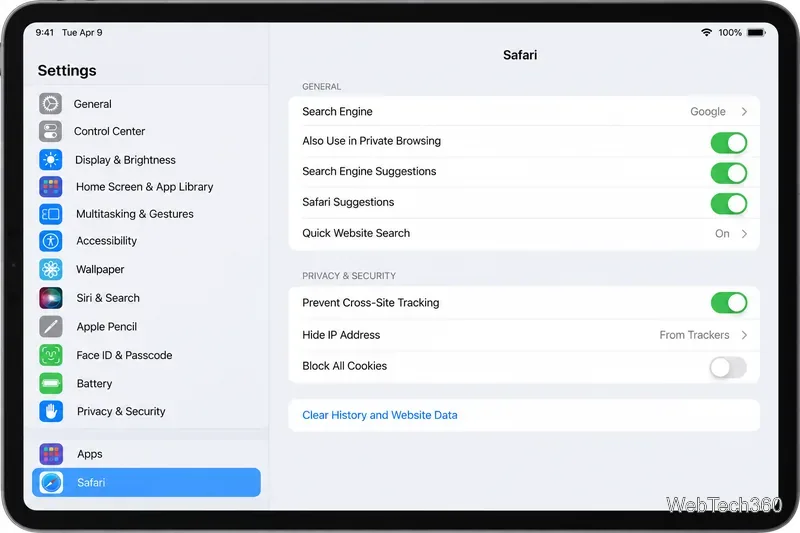
In current iPadOS, Safari lets you open the sidebar, choose History, tap More, tap Clear, select a time range, and clear the selected profile or all profiles. You can also go to Settings > Apps > Safari > Clear History and Website Data. Menu wording may differ slightly by software version.
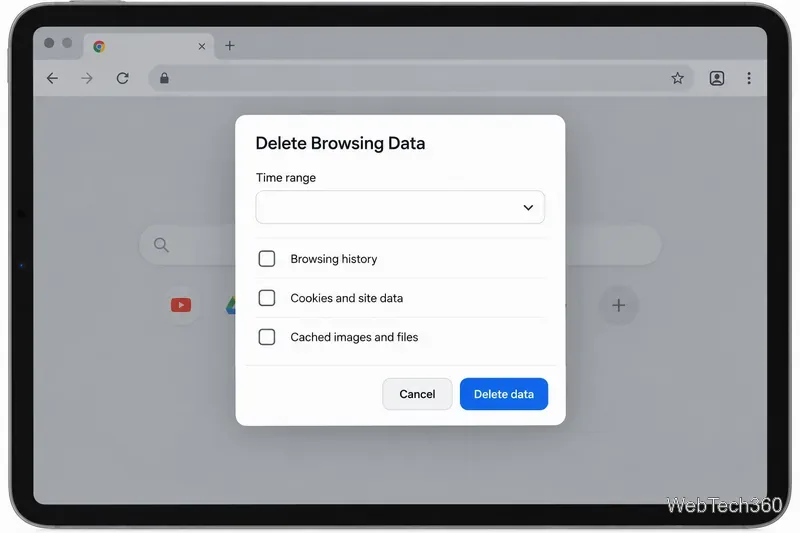
In Chrome for iPad, open More > Delete Browsing Data, choose a time range, select the kinds of data to remove, and confirm. You can delete selected history entries instead of everything. Review the selected categories before tapping the final button.
Apple’s iPad guide to clearing Safari history, cache, and cookies explains the current Safari controls and their effects. See Apple’s Private Browsing guide for iPad for sessions Safari does not add to history. For Chrome, consult Google’s history and deletion instructions for iPhone and iPad.
Fix the iMessage Is Signed Out error on iPhone by checking Apple Account sign-in, activation, connectivity, and settings—without erasing your messages.
Turn off your iPhone VPN in the app or Settings, confirm it disconnected, and stop automatic reconnections without deleting your account.
Learn how to encrypt your iPhone with a strong passcode, protect iCloud and computer backups, and secure your data if your phone is lost or stolen.
Learn how to clear Safari and Chrome cache on iPhone, manage app storage safely, and understand when clearing cached data actually helps.
Learn how to fight Gym Battles in Pokémon GO, pick effective attackers, use Charged Attacks and dodges, and claim a Gym after defeating its defenders.
Explore classic Cydia tweaks for jailbroken iPads, from SwipeSelection to Quasar, with compatibility warnings and modern alternatives.
Stop Apple Music signup prompts in the Music app. Learn where to find Show Apple Music on iOS and what turning it off does—and does not—change.
Set up a Shortcuts automation to text Mom when your iPhone battery gets low. Follow four steps, plus delivery checks and privacy tips.
Save posts on X in a few taps. Learn where to find the Bookmark button on iPhone, Android, and desktop, plus how to view, remove, and organize saved tweets.
Turn on AR mode in Pokémon GO during a wild encounter, find AR settings, and fix camera or device compatibility issues.








