iMessage Is Signed Out on iPhone: How to Fix It

Fix the iMessage Is Signed Out error on iPhone by checking Apple Account sign-in, activation, connectivity, and settings—without erasing your messages.
First note whether all callers or only unsaved numbers go to voicemail. Weak service, Focus, call screening, or forwarding can be responsible. Test after each change.
Silent mode mutes the ringer; it does not itself route calls to voicemail. On recent iOS, Phone options are under Settings > Apps > Phone; older versions may list Phone directly in Settings. Labels can vary by version.
If the status bar shows “SOS,” “No Service,” or “Searching,” the iPhone is disconnected from the carrier network. Move to better coverage. Signal bars alone do not guarantee voice service.
For Dual SIM, open Settings > Cellular (or Mobile Service) and confirm the correct line is on. Wi-Fi Calling may help in weak coverage if your carrier supports it. See Apple’s SOS, No Service, and Searching guide.
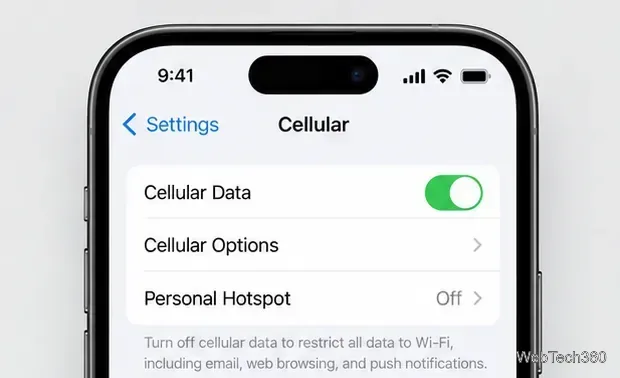
Turn on Airplane Mode in Settings for at least 15 seconds, then turn it off. Wait for signal to return and test. In Control Center, the airplane icon is gray when off; toggling it can refresh a stuck network connection.
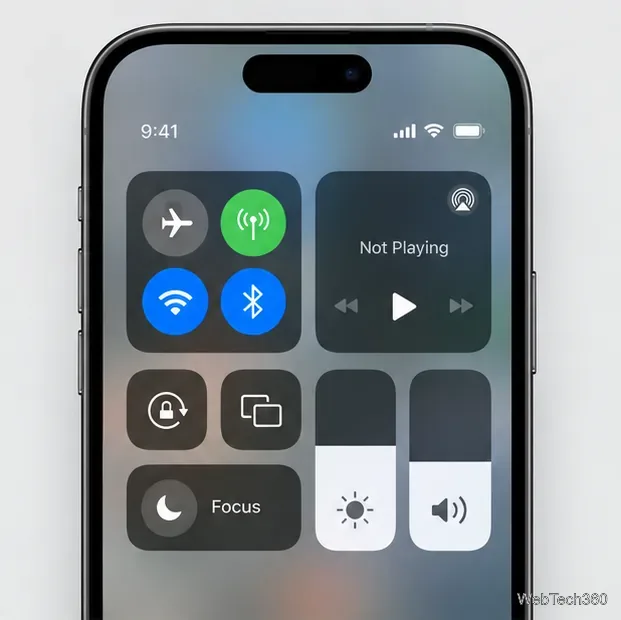
Open Control Center (swipe down from the top-right on Face ID models; swipe up from the bottom on Home-button models). Turn off active Focus modes such as Do Not Disturb, Sleep, or Work. Focus can silence or limit call alerts based on who is allowed through.
If it turns back on, check Settings > Focus for schedules and linked Lock Screens. See Apple’s Do Not Disturb controls.
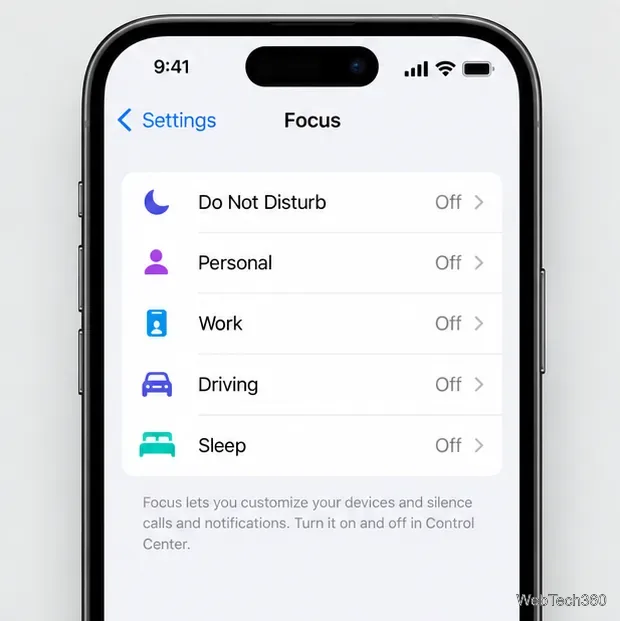
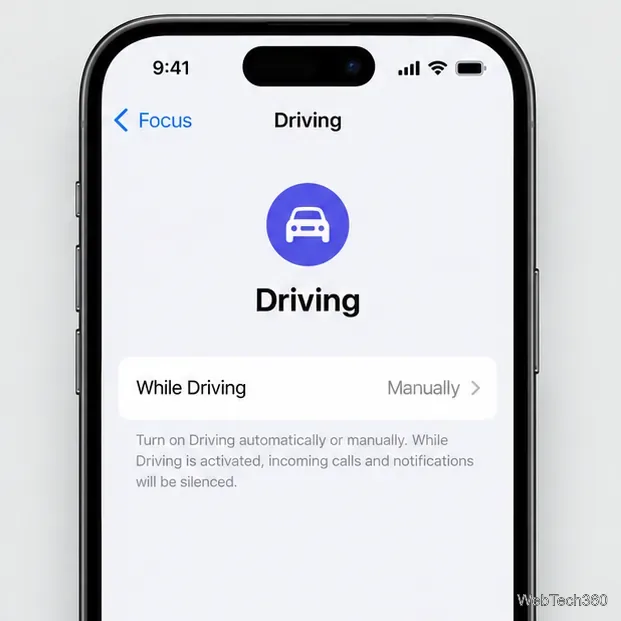
Driving Focus may activate with motion, car Bluetooth, or CarPlay. Apple says incoming calls are allowed only when the iPhone connects to CarPlay, car Bluetooth, or a hands-free accessory. To prevent automatic activation, open Settings > Focus > Driving > While Driving and choose Manually, or turn Driving off in Control Center. See Apple’s Driving Focus instructions.
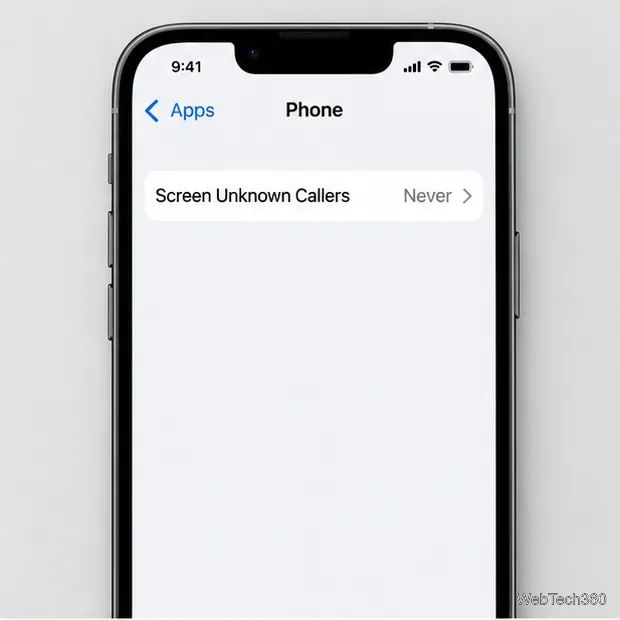
If saved contacts ring but new callers go to voicemail, check call screening. Open Settings > Apps > Phone, then find Screen Unknown Callers. Choose Never to let unsaved numbers ring; Ask Reason for Calling screens the call before the phone rings, while Silence sends it to voicemail. On older iOS versions, the option may be called Silence Unknown Callers.
In the same Phone settings, review Blocked Contacts. If your iPhone offers spam filtering, calls identified as spam may also be silenced or moved out of the regular call list. Add a trusted caller to Contacts if you want to make sure their number is recognized. Apple’s guide to screening and blocking calls describes the current options.
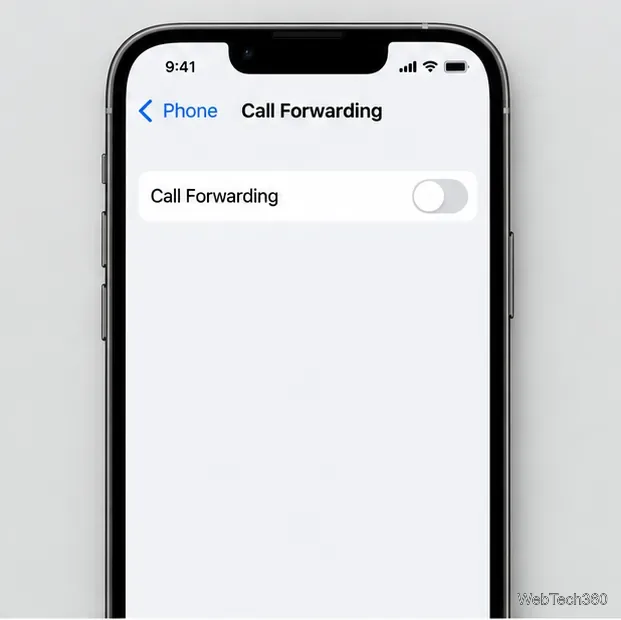
Go to Settings > Apps > Phone > Call Forwarding and turn it off if you do not intentionally send calls to another number. Some older iOS versions place Phone directly in Settings. If Call Forwarding is missing, unavailable, or refuses to change, your carrier may control it; ask the carrier to check the line’s forwarding settings.
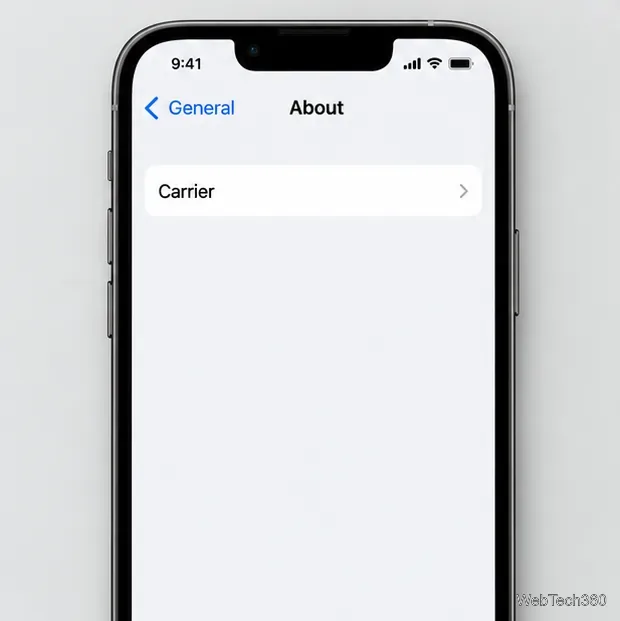
Open Settings > General > About and wait briefly. If an alert offers a carrier settings update, follow the onscreen prompt. Then check Settings > General > Software Update for an available iOS update, and restart the iPhone. Carrier settings updates can support the carrier’s network features; Apple’s carrier update instructions explain where to find them.
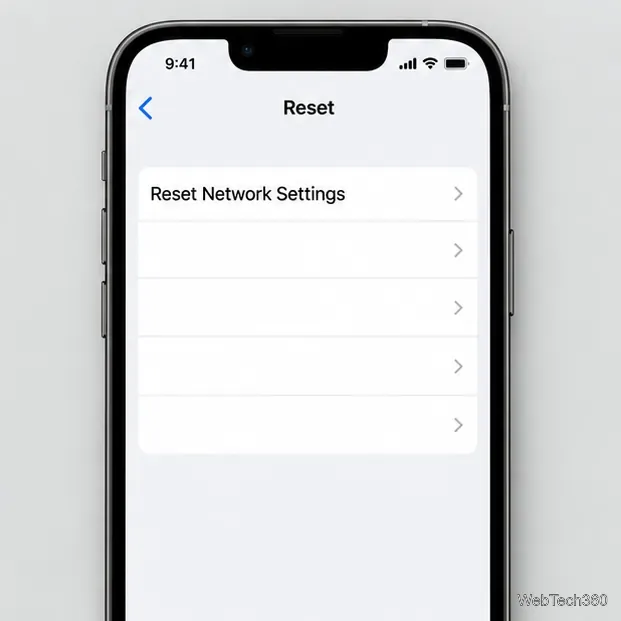
If calls still fail after the simpler checks, go to Settings > General > Transfer or Reset iPhone > Reset > Reset Network Settings. This does not erase photos or apps, but it removes saved Wi-Fi networks and passwords and resets cellular, VPN, and APN settings. Make sure you know how to reconnect to Wi-Fi afterward, and do not choose Erase All Content and Settings. Apple recommends trying this only after other call troubleshooting steps.
If every caller still reaches voicemail, ask your carrier to check for an outage, confirm that your account and voice line are active, and verify SIM or eSIM provisioning and carrier-side call forwarding. A carrier can check account and network details that are not visible on the iPhone. If the carrier confirms service is working and the problem continues, contact Apple Support to check for a device issue. See Apple’s troubleshooting steps for calls you cannot receive.
Fix the iMessage Is Signed Out error on iPhone by checking Apple Account sign-in, activation, connectivity, and settings—without erasing your messages.
Turn off your iPhone VPN in the app or Settings, confirm it disconnected, and stop automatic reconnections without deleting your account.
Learn how to encrypt your iPhone with a strong passcode, protect iCloud and computer backups, and secure your data if your phone is lost or stolen.
Learn how to clear Safari and Chrome cache on iPhone, manage app storage safely, and understand when clearing cached data actually helps.
Learn how to fight Gym Battles in Pokémon GO, pick effective attackers, use Charged Attacks and dodges, and claim a Gym after defeating its defenders.
Explore classic Cydia tweaks for jailbroken iPads, from SwipeSelection to Quasar, with compatibility warnings and modern alternatives.
Stop Apple Music signup prompts in the Music app. Learn where to find Show Apple Music on iOS and what turning it off does—and does not—change.
Set up a Shortcuts automation to text Mom when your iPhone battery gets low. Follow four steps, plus delivery checks and privacy tips.
Save posts on X in a few taps. Learn where to find the Bookmark button on iPhone, Android, and desktop, plus how to view, remove, and organize saved tweets.
Turn on AR mode in Pokémon GO during a wild encounter, find AR settings, and fix camera or device compatibility issues.








