Home
» LINUX
»
3 Ways to Record Your Voice on Linux
3 Ways to Record Your Voice on Linux
You can record your voice on Linux with a full audio editor, a lighter desktop recorder, or a terminal command. The three practical options below are Audacity, Kwave, and PipeWire's pw-record. Audacity is the best choice when you also want to edit the recording, Kwave gives you a focused graphical recording workflow, and pw-record is useful when you want a fast command-line method.
Before you record: check the microphone
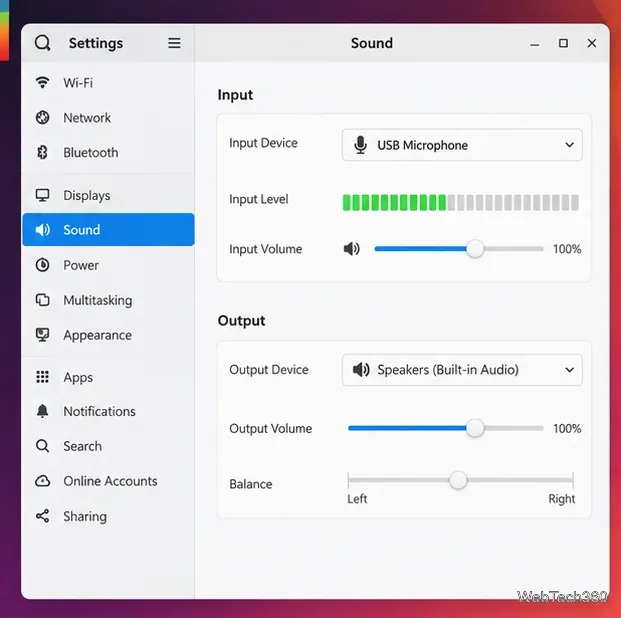
Connect your microphone first, then open your desktop's sound settings and make sure the correct input device is selected. Speak normally and watch the input meter. If the meter does not move, fix that before opening a recorder. On GNOME, the official help explains how to select a default input device in the Sound panel: choose a microphone in GNOME Sound settings.
Choose the microphone you want to record from and confirm that the input meter responds when you speak.
For spoken voice, a single microphone is normally a mono source. Headphones are also useful because they prevent speaker playback from leaking back into the microphone.
1. Record your voice with Audacity
Audacity is the most capable option here because it combines recording with waveform editing, effects, trimming, and export. You can get the Linux build from the official Audacity download page, or use the Audacity package supplied by your Linux distribution.
Open Audacity and use Audio Setup to select the recording device. For one microphone, choose a mono recording setup unless you specifically need stereo. Audacity's current manual also recommends checking the input level before recording; see Connect your microphone.
Click the red Record button and speak. A waveform should appear as Audacity captures the signal. Press Stop when you are finished.
Play the take back. Trim mistakes or unwanted silence if needed. If the waveform is clipped against the top and bottom of the track, lower the microphone level and record again rather than trying to repair severely clipped audio later.
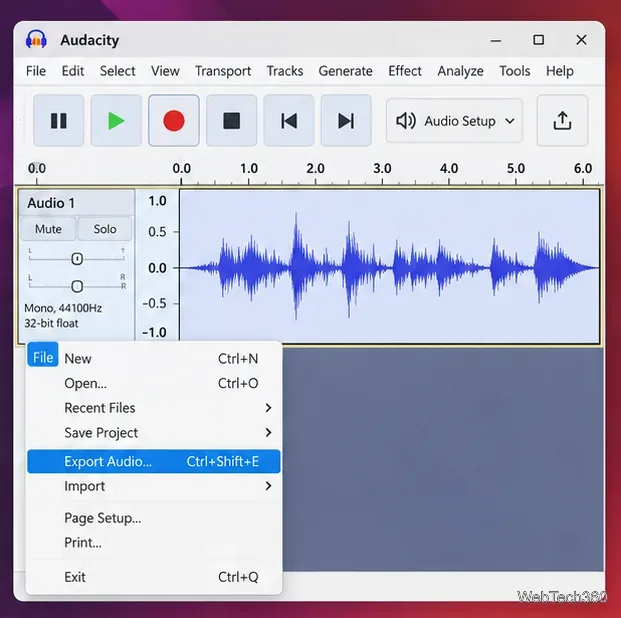
Choose File > Export Audio to create a normal audio file. Audacity's export guide covers the available formats and export options.
Audacity lets you record a waveform, edit it, and then export the finished audio from File > Export Audio.
2. Record with Kwave
Kwave is KDE's sound editor and remains actively released. KDE describes it as an editor that can record, play, open, and edit multiple audio formats. Install it from your distribution's software center or follow the links on the official Kwave app page.
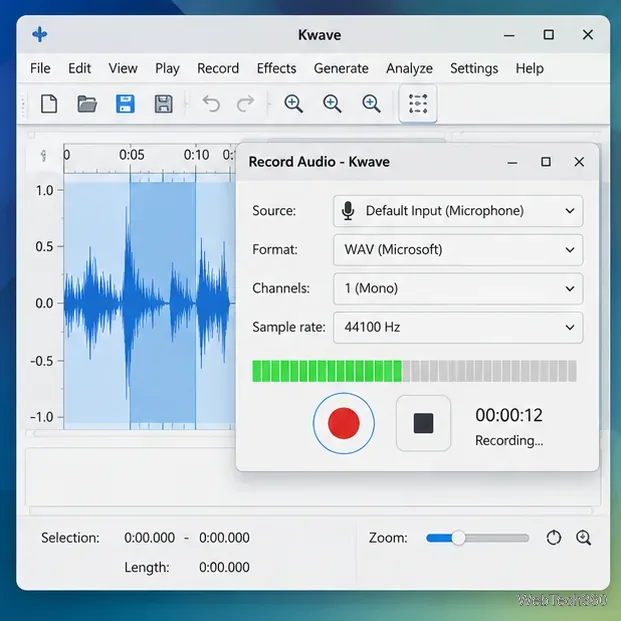
Open Kwave and choose File > Record.
Select the microphone or default input source. For a normal voice mic, one channel (mono) is usually enough. Choose a sample rate supported by your device, such as 44.1 kHz or 48 kHz.
Start recording and watch the level meter while you speak. Stop when the take is complete, then finish the recording dialog.
Listen to the captured waveform and save the file in the format you need. The Kwave recording documentation lists recording-source, channel, sample-rate, sample-format, and related controls.
Kwave's Record dialog groups the input source, channel count, sample rate, level meter, and recording controls in one place.
3. Record from the terminal with PipeWire
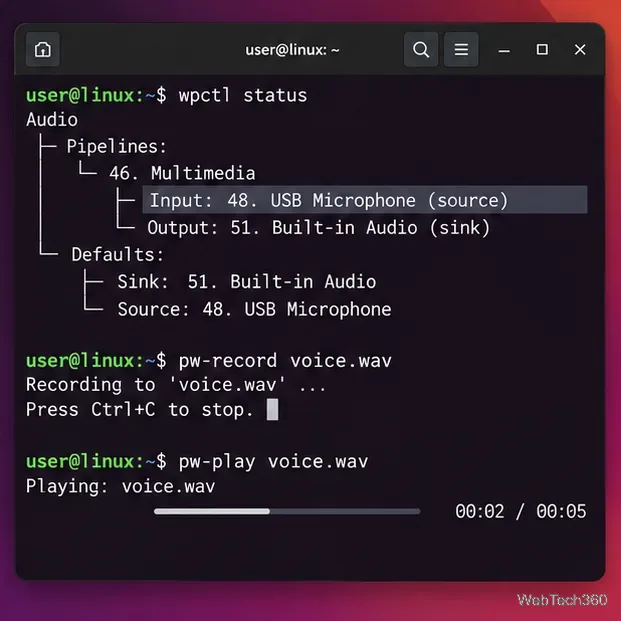
If your Linux system uses PipeWire and provides its command-line tools, pw-record is a quick way to capture a voice recording without opening a GUI. First check the default audio source:
wpctl status
Look for the default source under Audio. Then start a WAV recording with:
pw-record voice.wav
Speak into the microphone and press Ctrl+C when you are done. You can play the file back with:
pw-play voice.wav
The official WirePlumber documentation shows the same workflow and also explains how to target a non-default device with pw-record --list-targets and pw-record --target <node_id> file.wav. See the WirePlumber native client examples. If pw-record is not installed, use your distribution's package manager to install its PipeWire command-line utilities; package names vary by distribution.
With PipeWire tools installed, you can confirm the default source, record to a WAV file, and play it back from the terminal.
Which Linux voice-recording method should you use?
Method
Best for
Main advantage
Audacity
Podcasts, narration, editing
Record, edit, process, and export in one app
Kwave
Desktop recording with a traditional editor
Clear recording controls plus waveform editing
pw-record
Quick recordings, scripts, terminal workflows
No full desktop app required
If Linux is recording the wrong microphone
If you get silence or the wrong input, return to the system sound settings and verify the default microphone first. Make sure the mic is not muted, reconnect USB audio devices if necessary, and confirm the input meter reacts to your voice. In Audacity, reselect the recording device or rescan audio devices after connecting a microphone. With PipeWire, run wpctl status again to confirm which source is marked as default. These checks solve the device-selection problem before you spend time changing recording formats or reinstalling applications.