Home
» LINUX
»
How to Install the Hiri Email Client on Linux
How to Install the Hiri Email Client on Linux
Install the Hiri email client on Linux either with its Snap package or with the official Linux tarball. Snap is a one-command install when snapd is available; the tarball runs from an extracted folder and can create its own desktop launcher. Before choosing, check that Hiri supports your mail account and note that its Snap listing is very old.
The Snap Store lists Hiri version 1.4.0.5, last updated on August 21, 2018, and warns that the package may be unmaintained and could have stability or security issues. The vendor still publishes Linux download instructions, but an old proprietary client may not meet your organization’s security requirements. Review the Snap Store listing and your organization’s software policy before installing it.
Hiri provides Snap and tarball installation routes for Linux.
Check account and system compatibility
Hiri is designed for Microsoft email services. Its download page lists Exchange, Office 365, Outlook.com, Live, and Hotmail; it does not support Gmail or Yahoo. Hiri is proprietary software, and the vendor offers a seven-day trial before requiring a purchase to continue. Check the current terms on the official download page before signing in.
The vendor’s Linux guide says the tarball is a 64-bit build and does not provide a 32-bit version. If you are unsure about your machine’s architecture, run uname -m in a terminal. An x86_64 result identifies a 64-bit x86 system; if your result is different, confirm that Hiri offers a compatible build before downloading. The official guide says the “Exec format error” at launch indicates a 32-bit system.
Option 1: Install Hiri with Snap
Choose Snap only if your distribution supports it and you are comfortable with the age of the package. If Snap is not installed, follow the instructions for your distribution in Snapcraft’s snapd guide. Package names and service setup differ across Linux distributions, so avoid copying an Ubuntu command onto another system without checking its documentation.
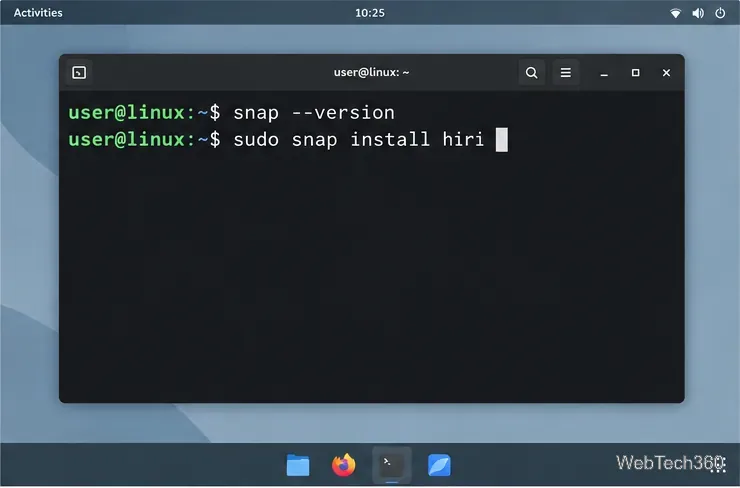
Confirm that Snap is available by opening a terminal and running snap --version. If the command is missing, install and enable snapd using your distribution’s official steps.
Install Hiri with sudo snap install hiri. Enter your administrator password if prompted.
When installation finishes, open Hiri from your applications menu or launch it from the terminal with hiri. Follow the sign-in wizard for your supported Microsoft account.
Check that snapd is available, then install the Hiri Snap package.
If email links do not open, check current documentation for your distribution and Snap version; Hiri’s older package advice may not apply everywhere.
Option 2: Install Hiri from the Linux tarball
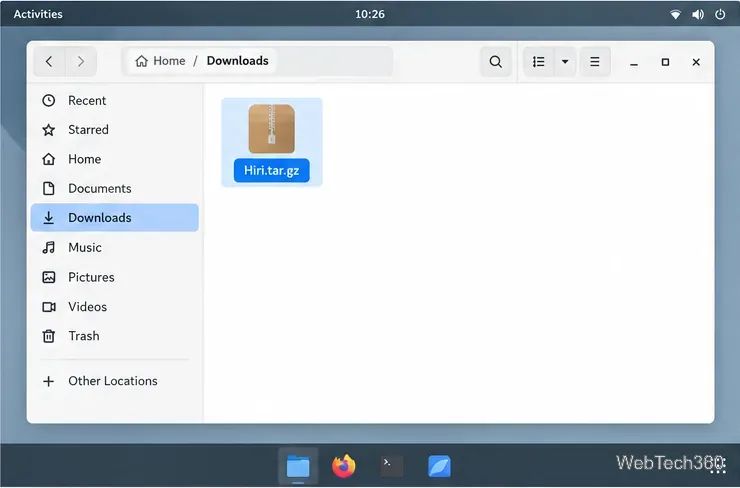
The tarball is a bundled binary, not source code: Hiri’s support page says its source code is not provided and that the archive includes the dependencies it needs. Download Hiri.tar.gz from Hiri’s Linux download page and keep it in your Downloads folder, or adjust the commands below if your browser saved it elsewhere.
Save the official Hiri archive before extracting it.
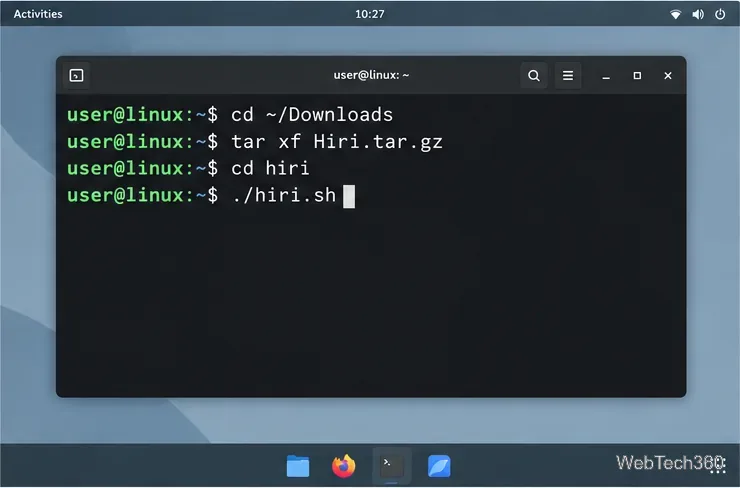
Open a terminal and extract the archive, then start Hiri from the folder it creates:
cd ~/Downloads
tar xf Hiri.tar.gz
cd hiri
./hiri.sh
Extract the tarball and run Hiri from its extracted hiri folder.
Hiri’s official Linux guide uses this sequence. Complete the sign-in wizard, then keep the extracted folder in place so Hiri’s launcher can find it.
Create a desktop launcher
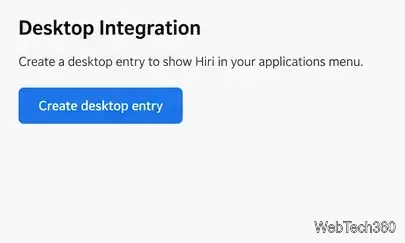
After the first launch, use Hiri’s built-in desktop integration instead of writing a .desktop file with a hard-coded username and path. Open Hiri’s settings and choose Create desktop entry. Hiri’s download page labels the route Settings → General, while its support guide uses Settings → Preferences; the menu wording can vary by build. The entry adds Hiri to your desktop applications menu.
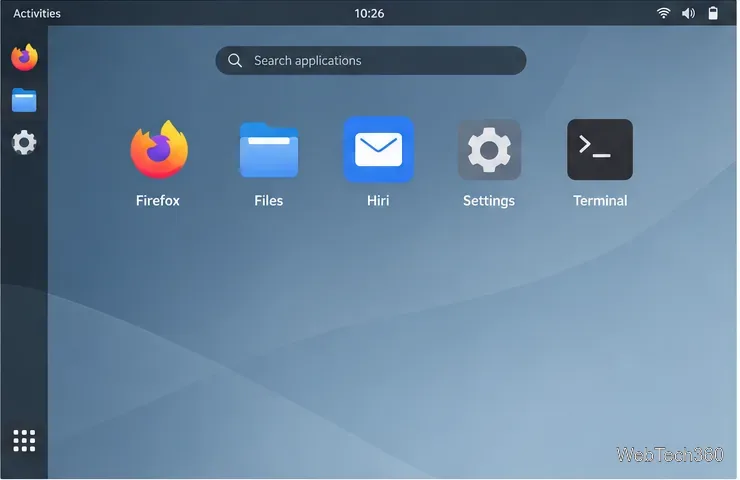
Use Hiri’s built-in command to add it to the applications menu.After creating the desktop entry, find Hiri in your applications menu.
Set Hiri as the default mail app
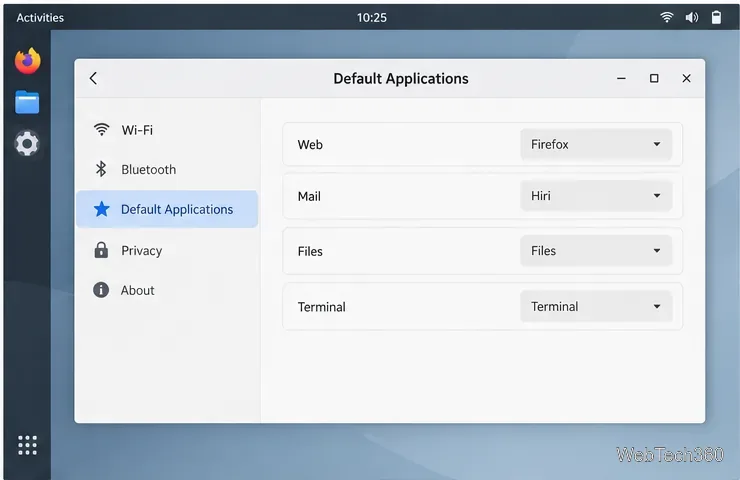
If you want mail links to open in Hiri, register it as your default email application. Hiri’s support guide says a Snap installation should appear in the desktop environment’s default-application list. Select Hiri in the Mail category if your desktop provides that setting. For a tarball installation, open Hiri’s settings, find Desktop Integration, and select Register as default mail app. The exact controls depend on your desktop environment. See Hiri’s Linux default-mail instructions for both methods.
Choose Hiri as the Mail application if your desktop exposes this setting.
Remove Hiri
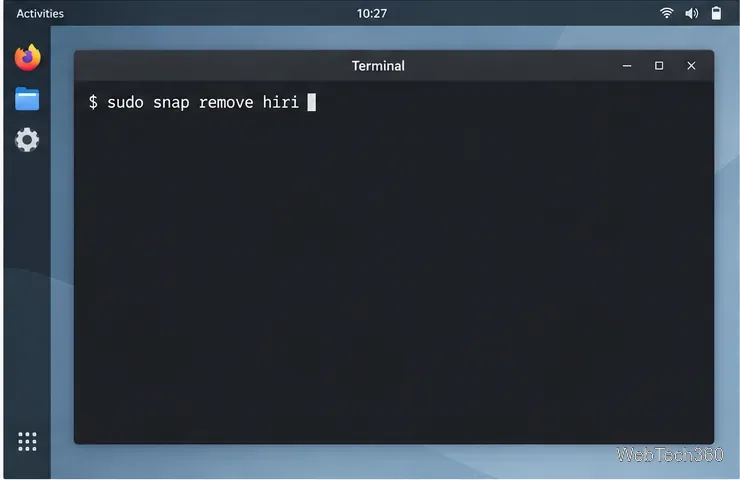
To uninstall the Snap package, run:
sudo snap remove hiri
Remove the installed Snap package with snap remove.
For the tarball version, delete the extracted hiri folder to remove the application files. Hiri’s support guide also names ~/.local/share/hiri as its local data directory. Remove that folder only if you intend to erase Hiri’s local profile data as well; back up anything you need first.
Installation problems to check
“Exec format error”: Hiri’s tarball is 64-bit only; the vendor says this error indicates a 32-bit system.
Sign-in fails: verify the account is an Exchange or supported Microsoft address. Gmail and Yahoo are not supported.