Home
» LINUX
»
How to Clean and Speed Up Ubuntu Safely
How to Clean and Speed Up Ubuntu Safely
To clean and speed up Ubuntu, update installed packages, remove only dependencies APT marks as unused, clear package downloads if you need disk space, and reduce unnecessary login apps. Start by checking whether the problem is low free space, high CPU or memory use, or a slow startup; cleanup helps only when it addresses the actual bottleneck.
Find what is slowing Ubuntu down
Open System Monitor from the Activities overview and sort processes by CPU or memory use. If one app is consuming resources, close it or review its settings before changing the operating system. To check free space, open Disk Usage Analyzer if it is installed, or run df -h in Terminal. Ubuntu’s disk-space guide describes the desktop storage tools.
For a slow boot, run systemd-analyze time and then systemd-analyze blame. The first reports a boot-time breakdown for the kernel, initrd, and user space, plus firmware and loader time when available; the second lists services by activation time. A long service time is a clue, not proof that it delays the desktop, because services can start in parallel. See the Ubuntu systemd-analyze manual.
1. Install Ubuntu’s available updates
Updates can fix bugs and improve compatibility, so bring the installed release up to date before trying performance tweaks. In Terminal, run:
sudo apt update
sudo apt upgrade
The first command refreshes APT’s package index; the second installs available package upgrades. Read the proposed changes before accepting them, and restart if Ubuntu asks you to. These commands update your current Ubuntu release; they do not upgrade to a different release. Canonical documents the same sequence in its APT package-management guide.
A terminal with the two APT commands for refreshing package lists and installing available updates.
2. Remove unused packages and cached downloads
When you uninstall software, APT may leave automatically installed dependencies that nothing else needs. Review and remove those with:
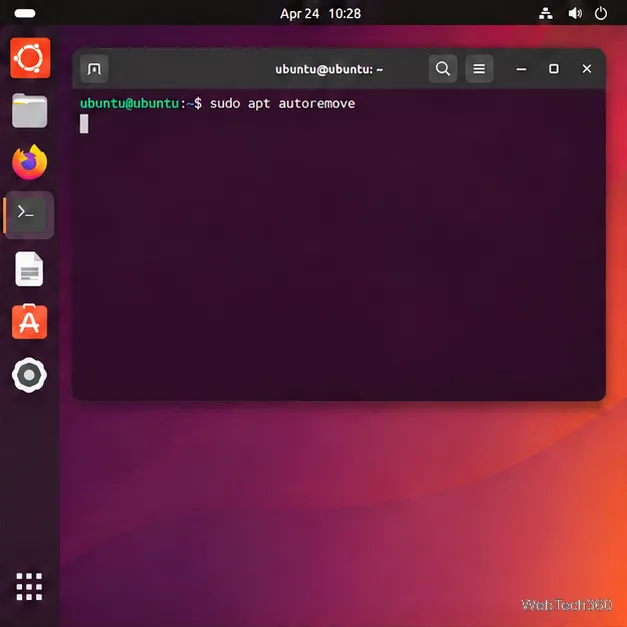
sudo apt autoremove
APT displays the packages it proposes to remove. Check the list before confirming; if it includes something you rely on or do not recognize, answer n and investigate first. APT marks packages as automatically installed to satisfy dependencies, so its suggestion can depend on what software you installed. Ubuntu’s package guidance explains why careless automatic removal can affect applications.
To clear downloaded package archives from APT’s cache, run sudo apt clean. This removes cached installer files, not installed applications; it can recover disk space but usually will not make a computer faster by itself. Use it when space is tight or after you have finished troubleshooting. The APT manual describes clean, autoclean, and autoremove.
The APT cleanup command to run before reviewing the packages it proposes to remove.
3. Find large personal files before deleting anything
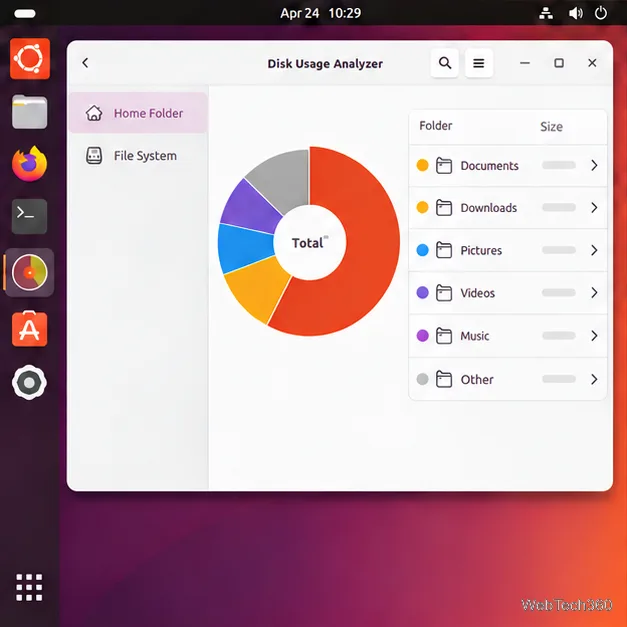
Open Disk Usage Analyzer from Activities and scan your Home folder. Review large items such as old downloads, disk images, videos, and duplicate archives. Move anything you want to keep to another drive or backup before deleting it, then empty Trash only when you are sure. You can compare free space before and after with df -h.
Do not manually delete unfamiliar files from /usr, /var, /boot, or hidden folders under your home directory. Ubuntu and applications store required files there, and removing them can break updates or software. If storage is nearly full, start with your own files and the APT cache instead of running a broad “cleaner.”
Disk Usage Analyzer can help you spot large folders to review before reclaiming space.
4. Limit apps that launch when you sign in
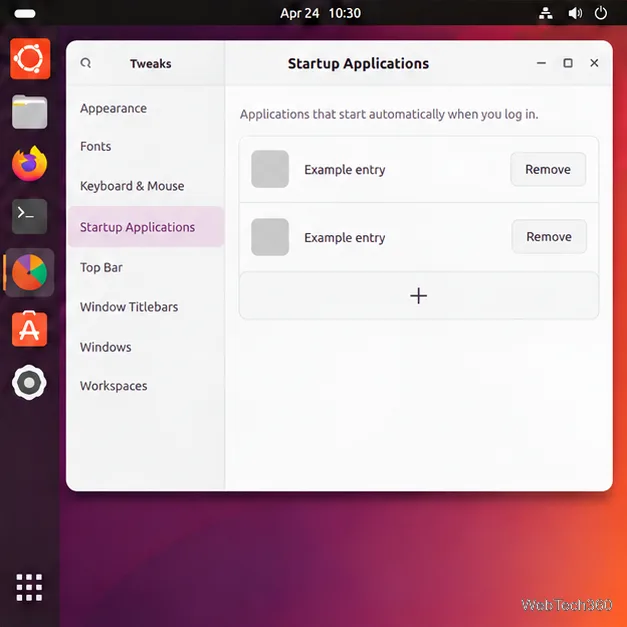
Too many login apps can make the desktop take longer to become responsive and keep background processes using memory. In Ubuntu’s GNOME desktop, open Tweaks and select Startup Applications. If Tweaks is not installed, install it from Ubuntu Software first. Remove only entries you recognize and do not need immediately after login; this stops automatic launch but does not uninstall the app. Keep unfamiliar entries, since some support your desktop or hardware. The GNOME help page notes that Tweaks is required to manage these entries.
The Startup Applications page lists login entries and offers a Remove control for each one.
Skip risky speed-up shortcuts
Reducing the GRUB menu timeout only shortens the pause before the default operating system starts. It does not make Ubuntu’s services or desktop load faster, and a very short timeout can make it harder to choose another operating system or recovery option. Avoid copying commands that disable system services or deleting configuration files unless you know exactly what they control.
After cleanup, restart once and check whether the original symptom improved. If the system remains slow, use System Monitor to find the process consuming resources, check for low memory or a failing drive, and investigate the specific boot service rather than repeating cleanup commands.