Home
» LINUX
»
How to Use Dropbox on Linux: Install and Sync Your Files
How to Use Dropbox on Linux: Install and Sync Your Files
To use Dropbox on Linux, install the desktop package from Dropbox, sign in, and choose a local folder for synced files. Files you save in that folder sync with your Dropbox account and other connected devices. Use selective sync when you want to keep some folders online without storing them on this computer.
Menu names differ across Linux desktops. The illustrations below show the general setup flow; your package installer and tray menu may look different.
Check Linux compatibility first
Dropbox’s full desktop experience, including a system tray icon, is officially supported on 64-bit Ubuntu 18.04 or later and 64-bit Fedora 28 or later. Dropbox says other Linux distributions may work if they meet the app’s requirements, but they are not officially supported. Dropbox does not support ARM processors on Linux.
The Dropbox folder must be on a local hard drive or partition formatted as ext4, ZFS, eCryptFS backed by ext4, XFS, or Btrfs.
The full desktop app also needs GTK, GDK, GLib, and AppIndicator libraries. Some desktop environments need an indicator extension or plugin for the tray icon.
If you are unsure which desktop environment is active, run echo $XDG_CURRENT_DESKTOP in Terminal. For the complete current requirements, see Dropbox’s Linux desktop app requirements and system requirements.
Check the desktop environment before installing Dropbox.
Install the official Dropbox package
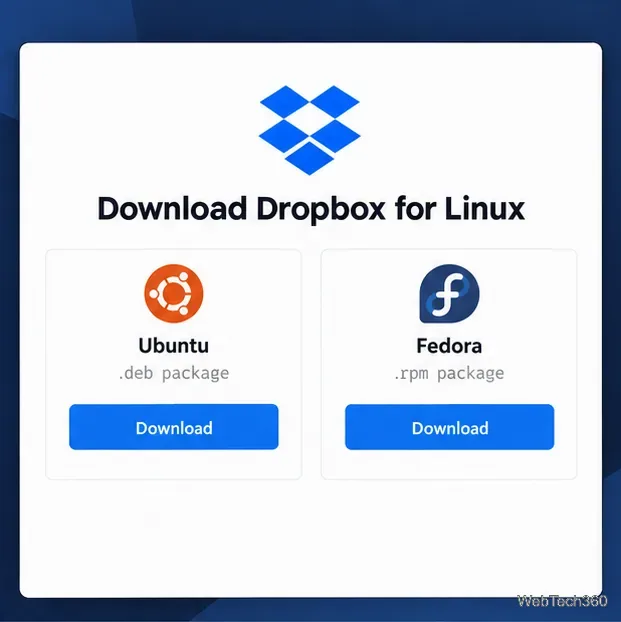
Download the package for your distribution. Open Dropbox’s Linux download page and select the package that matches your system. Dropbox’s Linux instructions list packages for Ubuntu, Fedora, and Debian. The package page can change, so use the current download rather than an old mirror or package link.Choose the package that matches your Linux distribution.
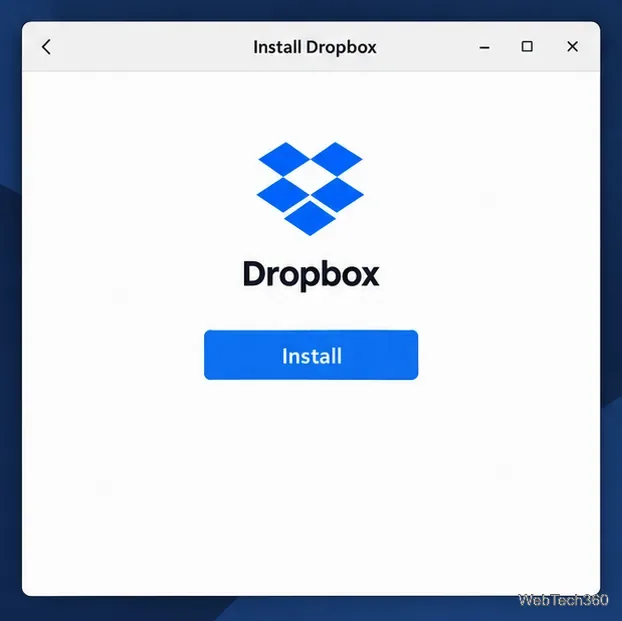
Install the downloaded file. Open your Downloads folder and double-click the package. Use your distribution’s software installer to finish: Ubuntu and Debian packages use the .deb format, while Fedora packages use .rpm. Approve the system password prompt if it appears. Avoid copying old repository snippets or signing-key commands from outdated tutorials; Dropbox currently recommends its appropriate Linux package.Install the official Dropbox package with your distribution’s package installer.
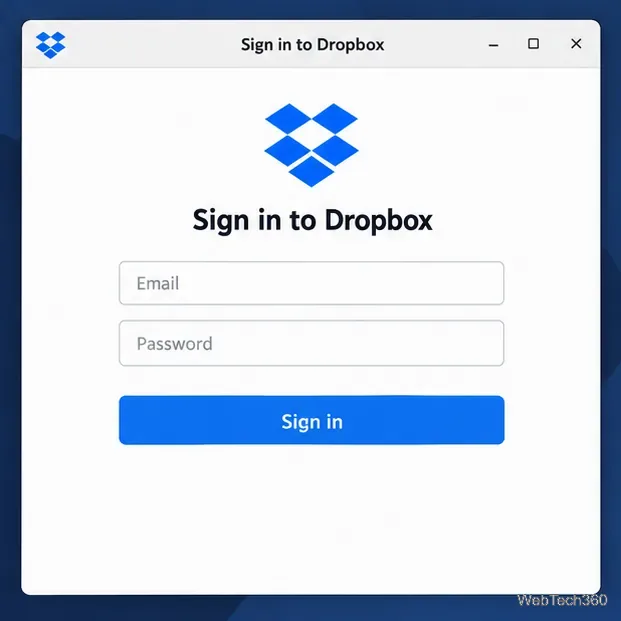
Start Dropbox and sign in. Open Dropbox from your applications menu. When prompted, sign in with your Dropbox account or create one. If your organization uses single sign-on, Dropbox says to sign in at dropbox.com before installing the desktop app.Sign in to link the Linux desktop app to your Dropbox account.
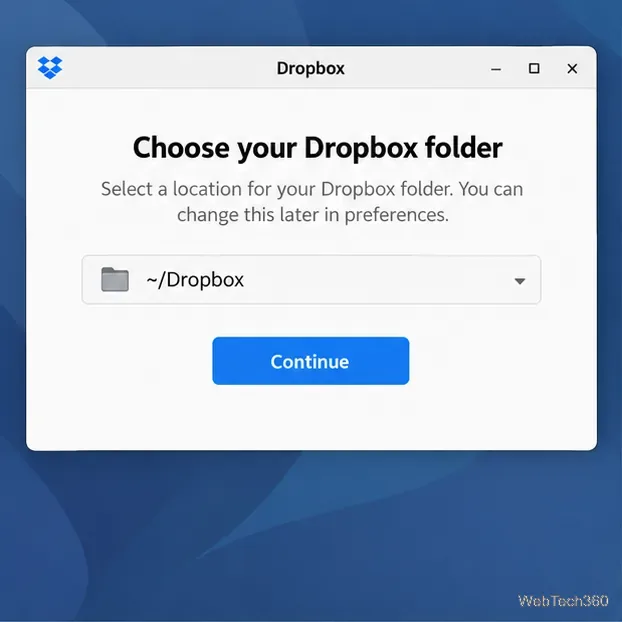
Choose the local Dropbox folder. The default is usually ~/Dropbox. Keep it on a supported local file system, or choose another supported location if you have a reason to. Confirm the setup and let the app finish connecting and indexing your account.Choose the local folder Dropbox will use for synced files.
Sync and manage your files
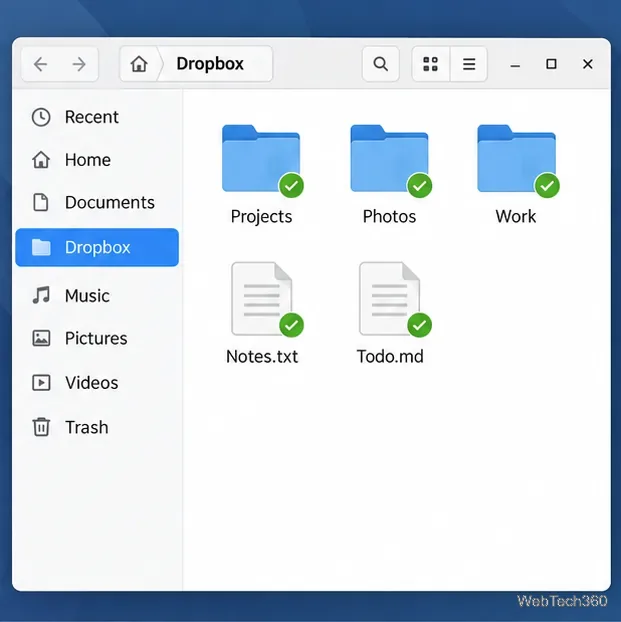
Open the Dropbox folder in your file manager and add or edit files there. Dropbox syncs those changes to your account when the computer is online. A status badge may appear beside a file or folder if your desktop environment supports Dropbox’s file-status integration. You can also view your files from Dropbox on the web.
Files placed in the Dropbox folder sync with the account.
Choose which folders stay on this computer
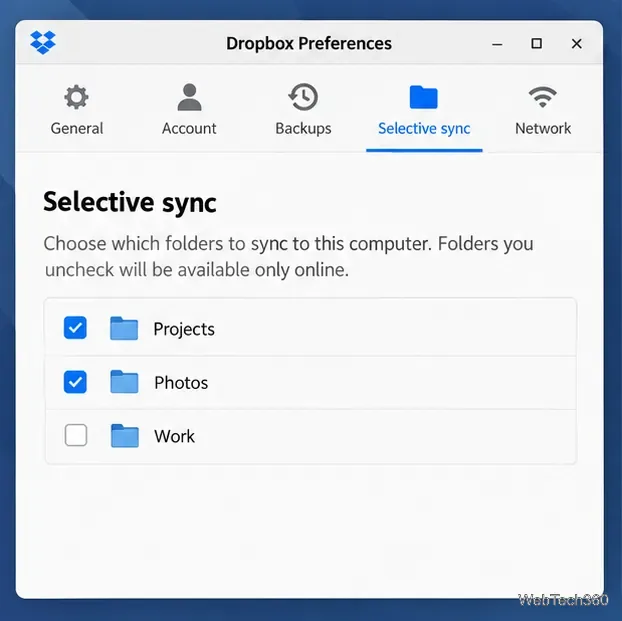
To save disk space, open the Dropbox tray icon, select Preferences, then choose Selective sync…. Check folders you want stored locally, uncheck folders you want removed from this computer, and confirm. Selective sync works at the folder level, and removing a folder this way does not delete it from your Dropbox account. The selection applies to this computer only. See Dropbox’s selective sync guide for current steps.
Uncheck folders you do not want stored on this computer.
Check sync status from the command line
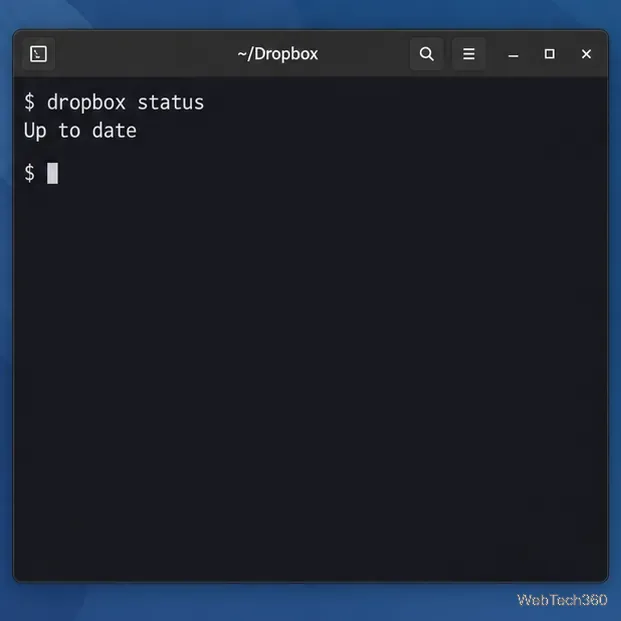
If the tray icon is unavailable or you prefer Terminal, run Dropbox’s CLI command from the top level of your Dropbox folder. With the default location, use:
cd ~/Dropbox
dropbox status
The command reports the daemon’s current sync status; Up to date means there are no pending changes. If you moved the Dropbox folder or use a team folder, change into that folder first. The official Linux CLI reference lists additional commands.
Use the Dropbox CLI to check whether syncing is complete.
If the Dropbox icon or sync does not appear
First check that Dropbox is running and that the Linux version and file system meet the requirements above. The tray icon requires AppIndicator support: Dropbox notes that GNOME generally needs the AppIndicator extension, while XFCE uses xfce4-indicator-plugin. On Fedora, Dropbox lists sudo dnf install libappindicator-gtk3; on Debian or Ubuntu, it lists sudo apt install libappindicator3-1. Restart the desktop session or computer after adding a required extension or library.
If your Linux distribution is outside Dropbox’s supported list, the desktop app may still work, but behavior can vary. You can use Dropbox in a browser, or follow Dropbox’s headless Linux instructions when you need command-line operation without a graphical desktop.