Home
» LINUX
»
How to Install the Paper GTK Theme on Linux
How to Install the Paper GTK Theme on Linux
Install the Paper GTK theme from your Linux distribution’s package repository when it is available, then select Paper in your desktop’s GTK theme settings. That avoids the old build-from-source instructions, which rely on an aging upstream project. Paper is a legacy theme for GTK 2 and GTK 3 applications; it does not restyle every part of a modern Linux desktop.
Check your distribution’s package sources first
Paper is a flat, Material Design-influenced desktop theme. The maintainer’s Paper project page covers the companion icon set and says that project has been discontinued. Treat the GTK theme as a legacy component: prefer packages maintained by your distribution, and do not assume an old build guide reflects current upstream support. Package names and supported releases differ. Avoid adding an old third-party repository just to follow a dated tutorial, and do not assume a package exists in every Ubuntu, Debian, Fedora, or Arch release.
Two current package indexes provide clear installation paths:
Alpine Linux: Alpine’s Edge community index lists paper-gtk-theme (the page currently describes the x86 package as version 2.1.0-r3). Check the index for your Alpine branch and architecture before installing.
SUSE Linux Enterprise: SUSE Package Hub lists Paper GTK packages for SLES 15 SP7, including GTK 3 and GTK 2 metathemes. Package Hub must be enabled on the system first.
On another distribution, search its official package repositories for paper-gtk-theme or gtk3-metatheme-paper. If the official repositories have no candidate, stop there rather than running the old git clone, ./autogen.sh, and sudo make install sequence: those commands do not establish that the source is still maintained or safe to build.
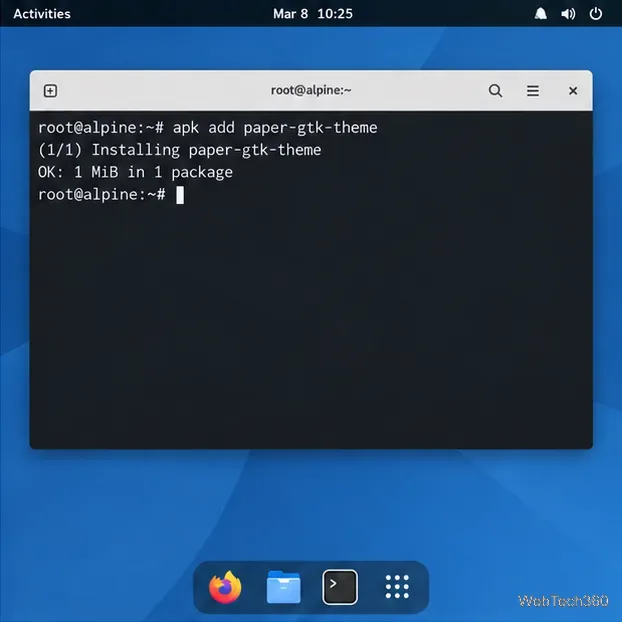
Alpine’s package index provides a native Paper GTK package; availability depends on the enabled repository, release, and architecture.
Install Paper from a supported repository
Alpine Linux
If your configured Alpine repositories list Paper for your release and architecture, run the commands as root:
apk update
apk add paper-gtk-theme
The package is listed in Alpine’s Edge community repository. Do not switch a stable Alpine system to Edge solely to get this theme; mixing branches can create broader dependency changes. Use the package that matches the repositories already configured on your machine.
Install Paper with Alpine’s package manager when the package is available for your configured branch.
SUSE Linux Enterprise
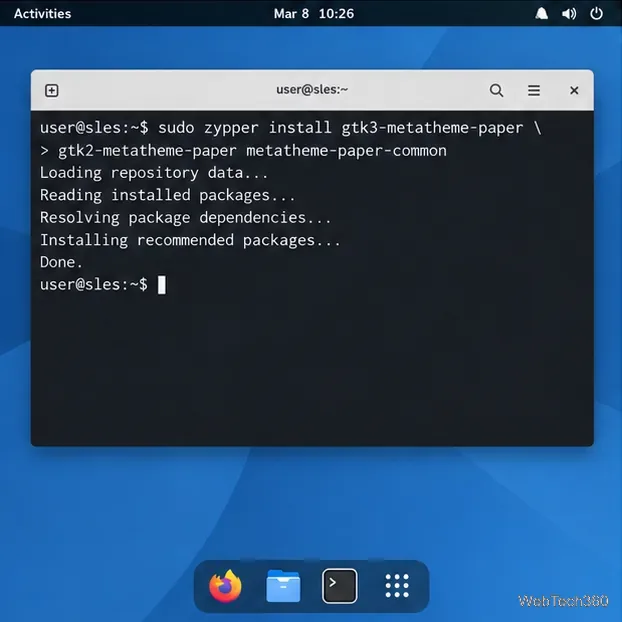
On SLES 15 SP7, enable the SUSE Package Hub extension by following its official post-installation steps. Then refresh repository metadata and install the theme packages:
The GTK 3 package covers GTK 3 applications. Keep the GTK 2 package only if you also want Paper applied to older GTK 2 applications; the shared package provides common theme files. SUSE Package Hub’s package page lists the releases and platforms that provide these packages, so check it before using the command on a different SLES version.
With Package Hub enabled, zypper can install the GTK 3 theme and optional GTK 2 support.
Select Paper in your desktop settings
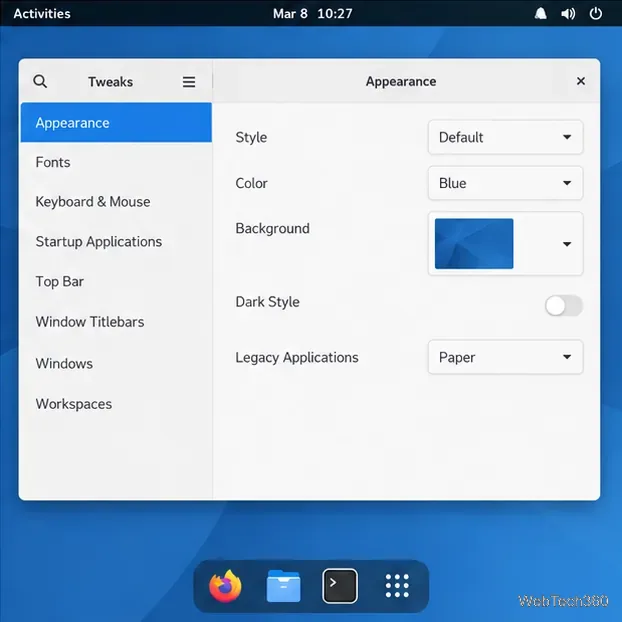
Installing the files does not automatically change the current user’s appearance. In GNOME, open Tweaks, choose Appearance, and set Legacy Applications to Paper. On Xfce, MATE, Cinnamon, or another GTK desktop, open that desktop’s appearance or theme panel and choose Paper in its GTK/application theme list. The exact label varies by desktop version.
In GNOME Tweaks, choose Paper under Legacy Applications to apply it to supported GTK applications.
On a GNOME session, you can also set the current user’s GTK theme from a terminal:
gsettings set org.gnome.desktop.interface gtk-theme 'Paper'
That setting changes the current user’s preference; it does not install the theme files. To return to the desktop default, run:
Paper’s package names target GTK 2 and GTK 3. GTK 3 themes use CSS files in a theme-specific directory such as Paper/gtk-3.0/gtk.css, as explained in the GTK 3 theme documentation. GTK 4 applications, GNOME Shell, Qt programs, and web pages use different styling systems or their own settings, so they may keep their existing appearance. A theme not affecting those components does not necessarily mean installation failed.
If Paper does not appear or apply
Confirm the package installation completed and that your enabled repository supports your distribution release and CPU architecture.
Close and reopen the GTK application after switching themes. Some applications keep their current style until they start again.
Check the theme setting in GNOME with gsettings get org.gnome.desktop.interface gtk-theme. It should return 'Paper' after you select it.
If the theme is missing from the picker, check the package’s file list with your package manager and confirm its GTK theme files were installed. Do not move files out of a system package by hand; reinstalling or updating the package may overwrite manual changes.
For a system without a maintained package, choose a currently maintained GTK theme or use a vetted fork from a source you trust. Paper can still be installed where a distribution packages it. If a future GTK update breaks its appearance, check whether your distribution or a trusted fork maintains a fix instead of relying on the old Autotools instructions.