Home
» LINUX
»
How to Record Speaker Output on Linux with Audacity
How to Record Speaker Output on Linux with Audacity
To record speaker output on Linux, route Audacity’s recording stream to the monitor source for the output device playing your audio. A monitor captures the digital sound sent to speakers or headphones; it does not record the room through a microphone. Audacity’s Linux computer-playback guide documents this method for PulseAudio. It can also work on PipeWire desktops that provide the PulseAudio compatibility service and support tools such as pavucontrol.
Capture only audio you are allowed to record or distribute. Copyright or service restrictions may apply.
Install Audacity and PulseAudio Volume Control
Install Audacity and pavucontrol (PulseAudio Volume Control) from your distribution’s package repositories. Common package commands are:
Package availability can differ by release. If a command cannot find a package, check your distribution’s official repository or package catalog. Launch both applications after installation.
Illustrative terminal view; use the install command for your distribution.
Identify the output device
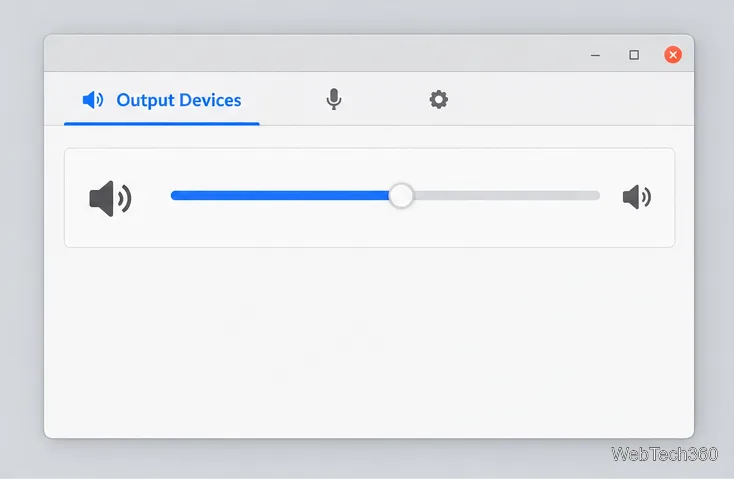
Open pavucontrol and play audio in the application you want to capture. In Output Devices, find the device whose level responds to that audio. It might be named after your sound card, USB headset, HDMI display, or another output. Remember the name: you will select its matching monitor source. Your PC may list several outputs, so choose the one actually playing the sound.
The device label and available controls vary with the audio hardware.
Route Audacity to the monitor source
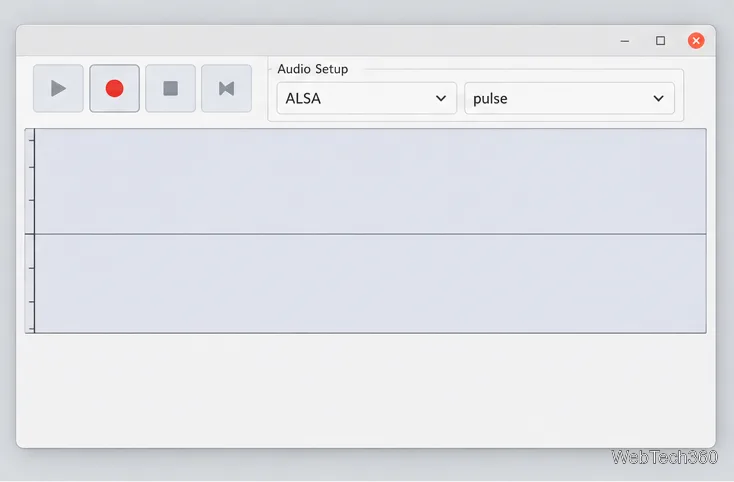
Set Audacity’s recording device. Open Audacity. If needed, show the Audio Setup Toolbar from View > Toolbars. For the PulseAudio method, Audacity’s guide recommends setting the host to ALSA and the recording device to pulse. On systems where PulseAudio is the default, default may also be available. Choose mono or stereo recording channels as needed.
Illustrative Audio Setup view; the available device names depend on your Linux audio setup.
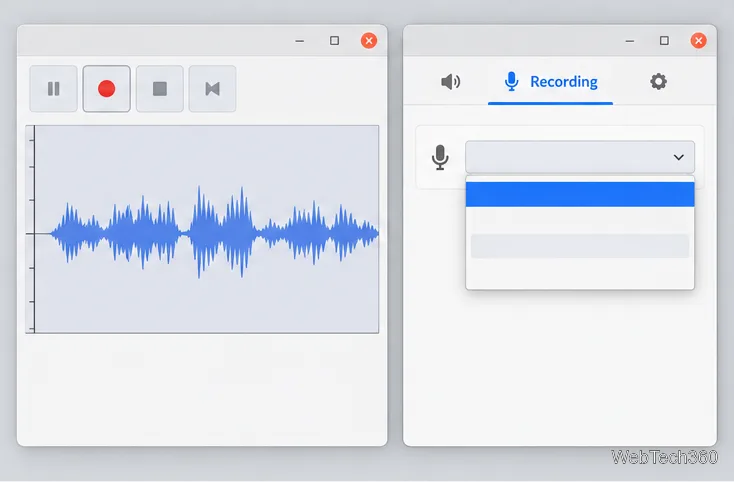
Start a short test recording. Click Audacity’s Record button and leave it running briefly. This creates an active recording stream that appears in pavucontrol. Open pavucontrol’s Recording tab and find the Audacity stream. Use its Capture from menu to change the source.
Start a brief test so Audacity’s active stream appears in the Recording tab.
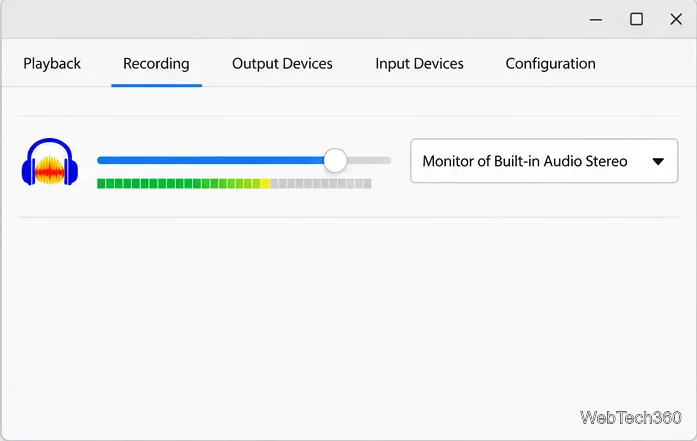
Choose the matching monitor. Select Monitor of [output device] for the output identified in the previous section. For example, if audio plays through a built-in stereo output, choose that output’s monitor. Do not choose the microphone unless you also want room sound. A monitor is a virtual capture of the output stream, not a physical device.
Check the level, then make the real recording. Play a representative part of the audio and watch Audacity’s recording meter. Adjust the Audacity stream’s level in pavucontrol so peaks remain below 0 dB; Audacity suggests aiming around −6 dB. Stop the short test, start a fresh recording, and verify the source still shows the monitor before capturing the full audio. Pause unrelated apps if their alerts or sounds should not be included.
Select the monitor belonging to the output that is playing your audio.
Leave Audacity’s audible input monitoring off unless you specifically need software playthrough; it can add a delayed copy of the audio. If you want less sound from your speakers while recording, lower playback or output level rather than pressing Mute. Muting the output can make the recording silent. PipeWire’s PulseAudio compatibility service supports common PulseAudio tools, including pavucontrol.
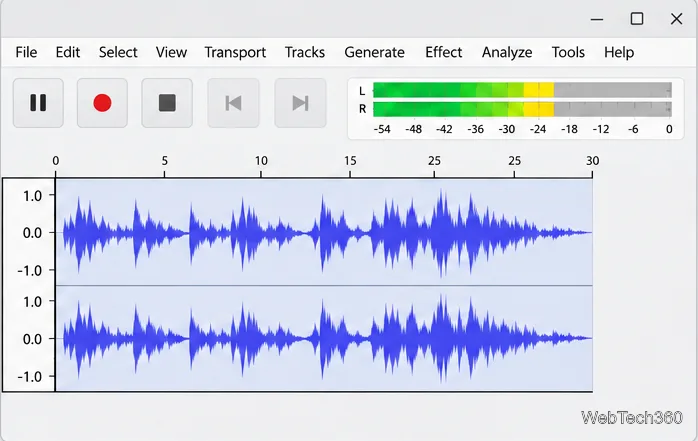
Confirm that the waveform and meters respond while audio plays.
Stop and export the recording
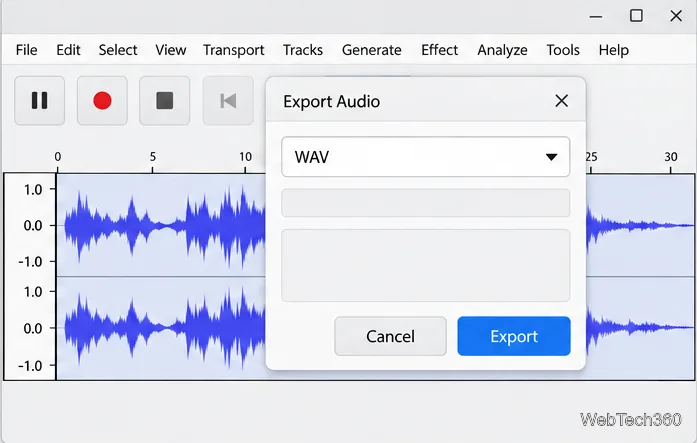
Click Stop when the capture is complete. To create a regular audio file, choose File > Export Audio, then select the destination, filename, and a format supported by your Audacity installation. WAV is a useful uncompressed choice for further editing; a compressed format can make a smaller sharing copy. Click Export and play the saved file once to confirm it contains the expected audio. Saving an Audacity project is separate from exporting a playable audio file. See the Audacity Export Audio instructions for format and range options.
Choose the output format and file location in Export Audio.
Fix a silent or incorrect recording
The track is flat: confirm audio is playing through the output you selected, and check that Audacity is recording from pulse or the working default device. In pavucontrol, set the Audacity stream to the output’s monitor source.
You hear only the microphone: reopen the Recording tab while Audacity is recording and change Capture from from the microphone to Monitor of the correct output.
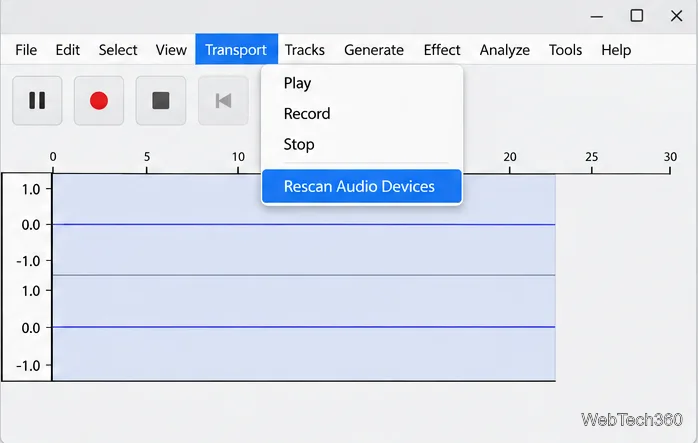
The monitor or device is missing: verify that the output is enabled in your system’s audio settings. Restart Audacity after connecting a new USB device, or use Transport > Rescan Audio Devices and check the source again. Audacity’s recording troubleshooting guide covers flat tracks and unavailable inputs.
The recording clips or includes alerts: reduce the capture level until peaks stay below 0 dB, and pause other applications that send sound to the same output.
Rescan devices if Audacity does not show the expected recording source.