Home
» LINUX
»
How to Get System Specifications for a Linux PC
How to Get System Specifications for a Linux PC
To check a Linux PC’s specifications, run fastfetch for a quick summary, then use focused commands such as lscpu, free -h, lspci, and lsblk to verify individual components.
Get a quick overview with Fastfetch
Fastfetch is a maintained, Neofetch-style system information tool. It gathers a compact overview of the operating system, kernel, host, processor, graphics, and memory. If it is already installed, open a terminal and run:
fastfetch
Fastfetch prints a compact overview of the Linux PC, including its OS, kernel, CPU, GPU, and memory fields.
If the command is missing, install Fastfetch from your distribution’s package manager. The upstream project currently lists these examples; package availability depends on your release:
# Debian 13 or newer, or Ubuntu 25.04 or newer
sudo apt install fastfetch

# Fedora
sudo dnf install fastfetch

# Arch Linux
sudo pacman -S fastfetch

# openSUSE
sudo zypper install fastfetch
Older Debian and Ubuntu releases may not include Fastfetch in their standard repositories. Check the upstream installation page before adding a third-party repository. Fastfetch is only a summary: use the commands below when you need a particular device, installed-memory amount, or disk layout.
Check the Linux distribution and kernel
Read the distribution’s identification file and ask uname for the running kernel release:
cat /etc/os-release
uname -r
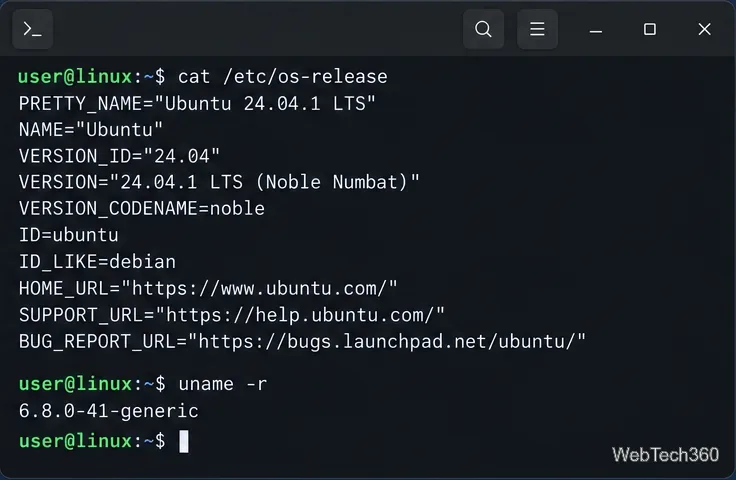
The os-release file identifies the distribution, while uname -r prints the running kernel release.
/etc/os-release contains distribution identification data, while uname -r returns the kernel release. These are useful when checking software compatibility or reporting a Linux issue. See the os-release manual and the uname manual for the documented fields and options.
Find CPU and memory specifications
Processor model, cores, and threads
Run lscpu for the CPU model, architecture, logical CPU count, cores, sockets, and other topology details:
lscpu
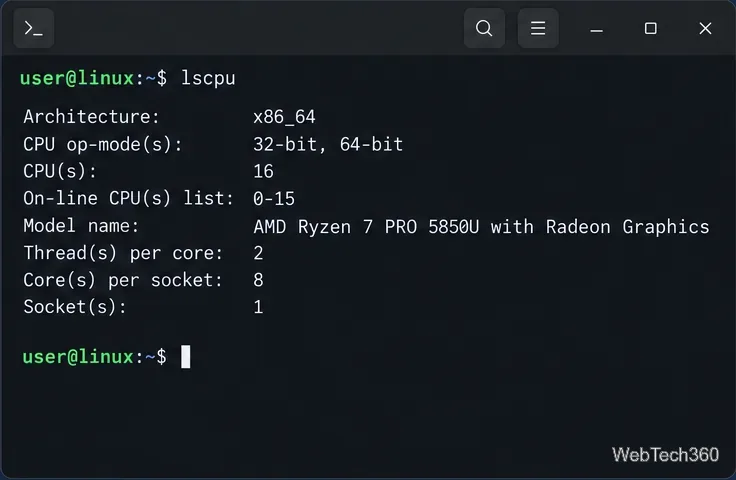
The lscpu report lists the CPU model and topology visible to Linux.
The result describes what Linux can see. On a virtual machine, it may reflect the virtual CPU assigned to the guest instead of the physical host processor. For details, see the lscpu manual.
Installed and currently available memory
Use free -h to see usable RAM and swap in human-readable units:
free -h
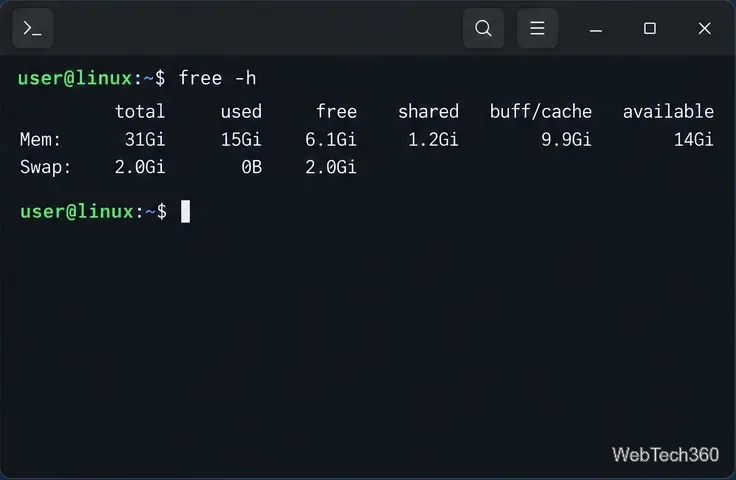
The free -h table summarizes usable RAM and swap in readable units.
The available column is a better quick estimate of memory that can be used by applications than the free column alone, because Linux uses otherwise idle RAM for caches. free does not identify a DIMM’s type or rated speed. If you need module-level details, try sudo dmidecode --type memory. The dmidecode project explains that it reads what system firmware reports; values can be incomplete or unreliable, and some computers expose little detail. The free manual describes its memory columns.
Identify graphics, storage, and USB devices
Graphics and PCI devices
Most graphics cards and integrated graphics controllers appear on the PCI bus. Filter the list to display-class devices:
lspci -nn | grep -Ei 'vga|3d|display'
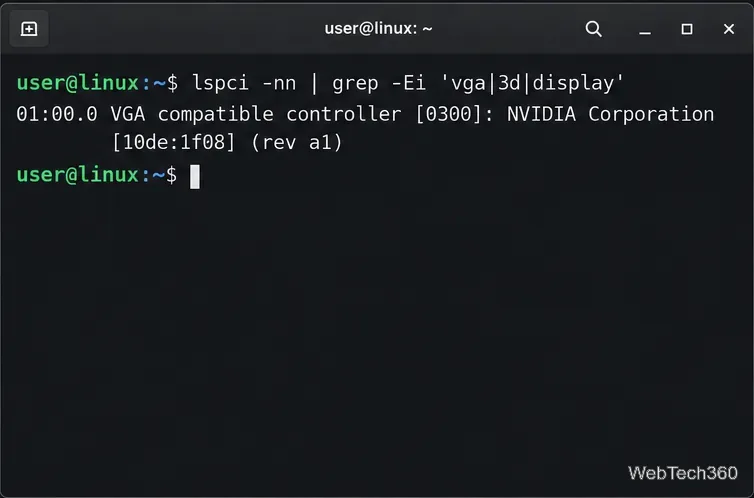
The filtered lspci output identifies a sample graphics controller and its PCI vendor/device ID.
The bracketed numbers are PCI vendor and device IDs. If the filter returns nothing, run lspci -nn to inspect the full list. You can also use lspci -k to see kernel drivers associated with devices. The lspci manual explains its output. If lspci is missing, install the pciutils package using your distribution’s package manager.
Disks and partitions
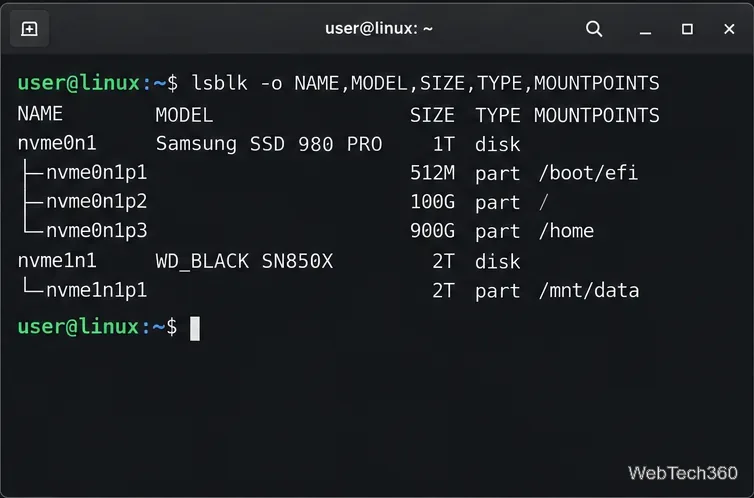
For drive names, models, capacities, device types, and mount points, run:
lsblk -o NAME,MODEL,SIZE,TYPE,MOUNTPOINTS
The lsblk tree distinguishes disks from partitions and shows their sizes and mount points.
The tree helps distinguish a physical disk from its partitions. It reports block-device layout rather than a full performance or health test. The selected columns make the output easier to compare and share; consult the lsblk manual for other available fields.
USB peripherals
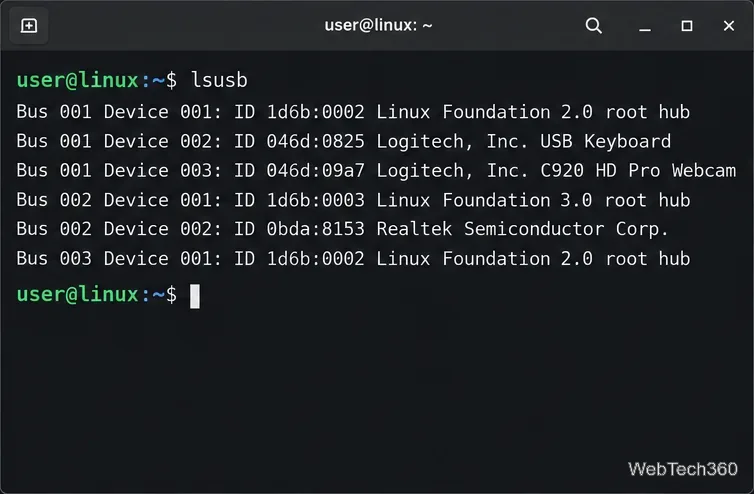
Use lsusb to list USB devices currently detected by Linux:
lsusb
The lsusb output shows USB devices detected on the system, including sample peripherals.
This is useful for checking whether a webcam, adapter, or other USB device is visible to the system. It does not list internal PCI devices such as most built-in graphics or network controllers. If the command is unavailable, install usbutils from your distribution’s repositories. The lsusb manual documents its options.
Save a system report
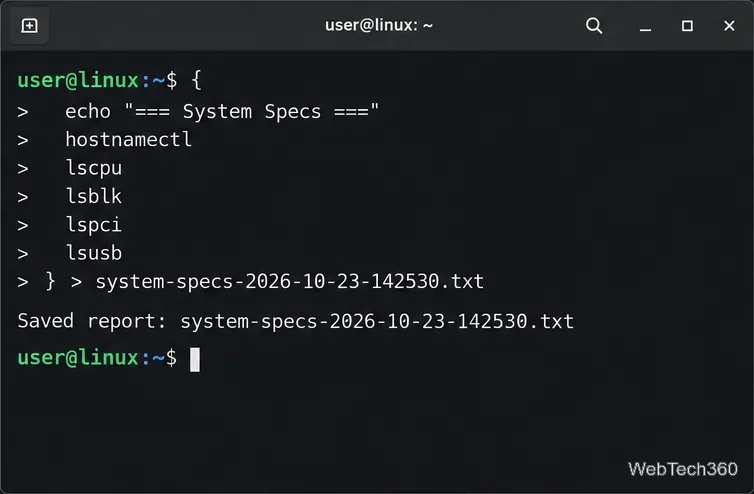
To keep the information in one text file, run this Bash block. It creates a new filename using the current date and time, then writes the command output to your home folder:
A shell command group writes a system information report to a timestamped text file.
If lspci or lsusb is not installed, install the matching package or remove that command from the block before running it. Review the report before sending it to someone: hardware inventories can reveal device identifiers, and additional commands such as dmidecode may expose serial numbers. You usually do not need sudo for the commands above, except when reading firmware-reported memory details.