Home
» LINUX
»
How to Install Inkscape on Linux: Ubuntu, Fedora, Arch, and More
How to Install Inkscape on Linux: Ubuntu, Fedora, Arch, and More
To install Inkscape on Linux, use your distribution’s software center or package manager. Ubuntu and Debian users can install it with APT; Fedora, Arch Linux, and openSUSE have their own package commands. If your distribution does not offer a suitable package, install Inkscape with Snap or Flatpak. Choose one source so you do not end up with duplicate launchers or different versions.
In a desktop software center, search for Inkscape and install the matching vector graphics editor.
Choose an installation source
Inkscape is a free, open-source vector graphics editor for SVG artwork. The version in a distribution’s repository follows that distribution’s release schedule, so it may not match the newest upstream release. The Inkscape installation guide recommends using your system’s software installer or a supported Linux package method. Use the built-in repository for the simplest system integration; choose Snap or Flathub if your release lacks Inkscape or you prefer an independently updated app package.
Install Inkscape on Ubuntu or Debian
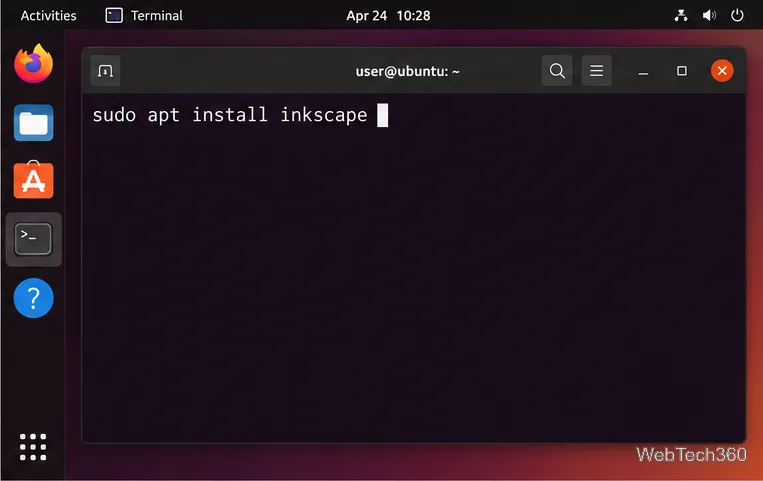
Open a terminal and refresh APT’s package list before installing the package:
sudo apt update && sudo apt install inkscape
APT installs the version provided by your enabled Ubuntu or Debian repositories.
You can also open the desktop software center, search for Inkscape, and select Install. Repository versions can lag behind upstream, especially on long-term-support releases.
Optional: use Inkscape’s stable PPA on Ubuntu
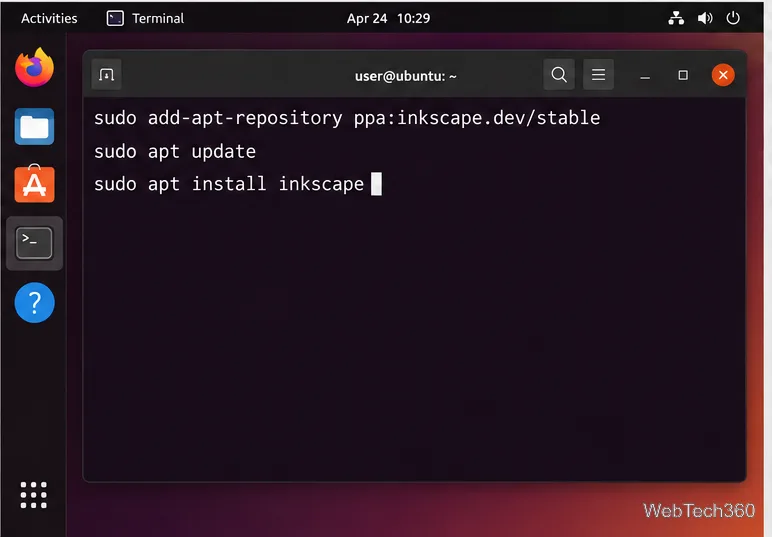
If you are using Ubuntu or an Ubuntu derivative and need a newer stable build than your enabled repositories provide, Inkscape documents this PPA. The PPA is for Ubuntu-based systems, not Debian. Add the Universe repository if needed, then add the stable PPA and install:
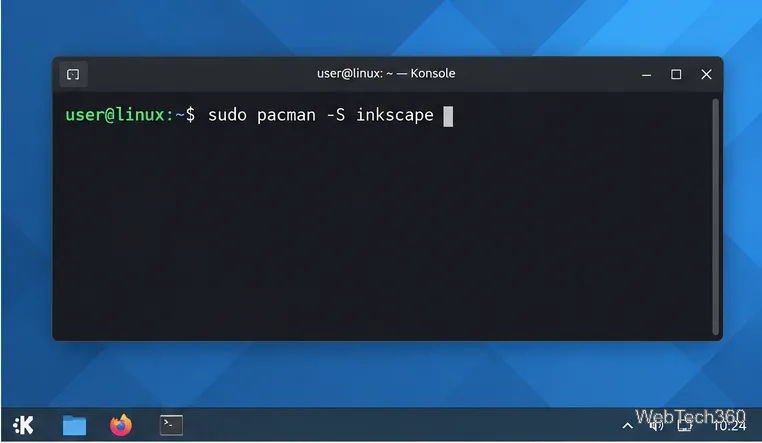
Install the package from Arch’s Extra repository with Pacman:
sudo pacman -S inkscape
Pacman installs Inkscape from Arch Linux’s package repositories.
Arch users who need a system update should follow Arch’s normal full-upgrade guidance; do not force repeated database refreshes just to install one application. Check the Arch package listing for the current package status.
openSUSE
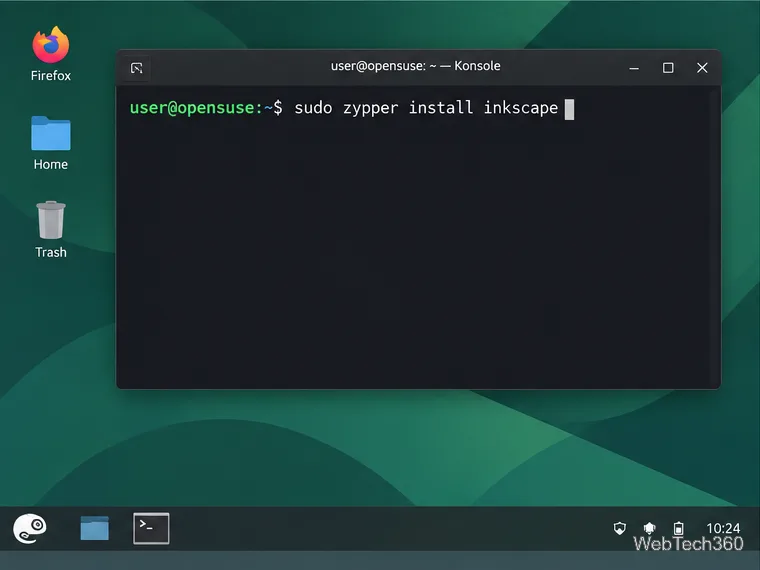
On an openSUSE release whose enabled repositories provide Inkscape, install it with Zypper:
sudo zypper install inkscape
Zypper can install Inkscape when the package is available in your enabled repositories.
Availability differs by release. The openSUSE package page currently lists Tumbleweed and reports no official package for Leap 16.0. Check your exact release there; if it has no package, use a supported Snap or Flatpak installation instead of changing distributions just for Inkscape.
Install Inkscape with Snap or Flatpak
Snap
If Snap support is already installed and enabled on your Linux system, run:
sudo snap install inkscape
The Snap Store listing identifies the publisher as the Inkscape Project. If the snap command is missing, follow your distribution’s official Snap setup instructions first.
Flatpak from Flathub
Install Flatpak using your distribution’s documentation. Add Flathub if it is not already configured, then install Inkscape by its application ID:
Follow the prompts to approve the remote and install. The Flathub Inkscape listing provides the application details. Start it from your app menu or run flatpak run org.inkscape.Inkscape.
Snap and Flatpak use separate package sources; choose the command that matches the package manager you have set up.
Launch and update Inkscape
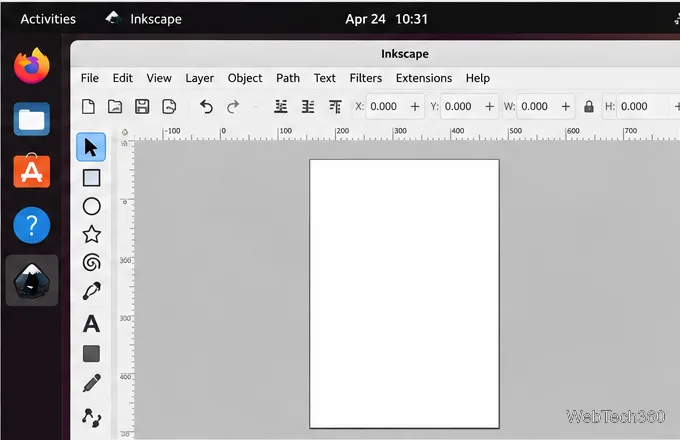
After installation, open Inkscape from your desktop’s application menu. A blank page and drawing toolbar indicate that the editor is ready; create or open an SVG file to begin. You can also launch a repository or Snap installation by entering inkscape in a terminal. For Flatpak, use the flatpak run command above.
On first launch, Inkscape opens a drawing workspace with a page centered on the canvas.
Update Inkscape through the same source you used to install it: your distribution’s normal software updates, sudo snap refresh inkscape for Snap, or flatpak update org.inkscape.Inkscape for Flatpak. If the app does not appear in the menu immediately, reopen the menu or sign out and back in; desktop launchers can take time to refresh.
Uninstall Inkscape
Use the package manager that installed the application. These commands remove the app but are not interchangeable across package formats:
Installation source
Removal command
Ubuntu or Debian APT
sudo apt remove inkscape
Fedora DNF
sudo dnf remove inkscape
Arch Pacman
sudo pacman -R inkscape
openSUSE Zypper
sudo zypper remove inkscape
Snap
sudo snap remove inkscape
Flatpak
flatpak uninstall org.inkscape.Inkscape
Flatpak normally keeps the app’s data when you uninstall it. Only add its --delete-data option if you also intend to remove Inkscape’s stored settings and app data.
For the latest supported download routes, consult the Inkscape installation guide and the package page for your specific Linux release.