Home
» LINUX
»
How to Install SABnzbd on Linux and Configure It
How to Install SABnzbd on Linux and Configure It
Install SABnzbd with a package route suited to your Linux distribution, then open its browser-based setup wizard to connect your Usenet provider. Ubuntu users can use the stable-only PPA; the SABnzbd team recommends a container for Debian when a newer package matters, with Debian Backports as an APT option. On other distributions, use a package linked from the project’s Unix/Linux guide or the LinuxServer.io Docker image.
SABnzbd runs as a web application, not as a traditional desktop window. Run it as your normal Linux account; it does not need root privileges after installation.
Install SABnzbd on Ubuntu
The SABnzbd wiki documents JCFP’s nobetas PPA for stable releases. This is a third-party repository, not a package maintained by the SABnzbd team. On a supported Ubuntu release, open Terminal and run:
If your system does not recognize add-apt-repository, install software-properties-common first. The PPA’s dependencies also require Ubuntu’s Universe and Multiverse repositories. The project’s Ubuntu PPA guide lists the setup details and supported-release notes.
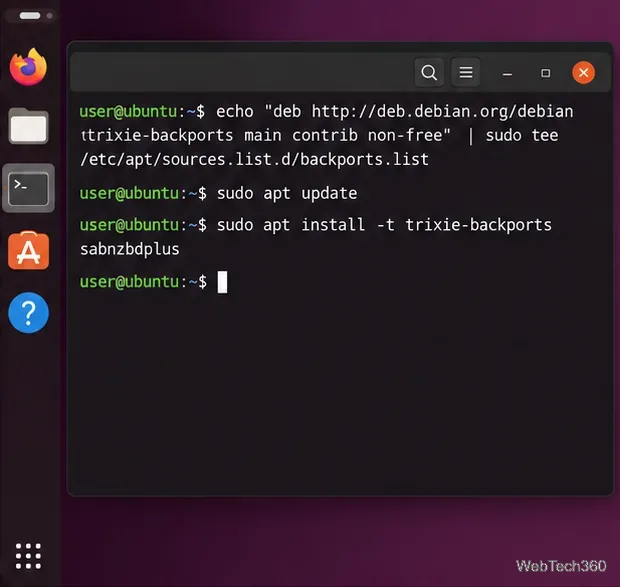
On Ubuntu, add the stable-only PPA, refresh APT, and install sabnzbdplus.
Install SABnzbd on Debian
Debian’s stable repository can lag behind SABnzbd releases. The project recommends a containerized installation for Debian if you need a more current version. If you prefer APT, the project’s Debian guide recommends Backports. Its current example uses Debian 13, Trixie.
Add the matching Backports entry to your APT sources configuration, keeping your existing repository entries:
deb http://deb.debian.org/debian trixie-backports main contrib non-free
Make sure your regular Debian sources already include main, contrib, and non-free. Replace trixie in the Backports entry and install command below if your Debian release has a different codename; do not mix releases.
The Backports entry and package target must use the codename for your Debian release.
Start the application with sabnzbdplus or continue to the service setup described in the official Debian installation guide. Review that guide before changing APT sources, especially if your system uses Debian’s newer deb822-style .sources files.
Use Docker on another Linux distribution
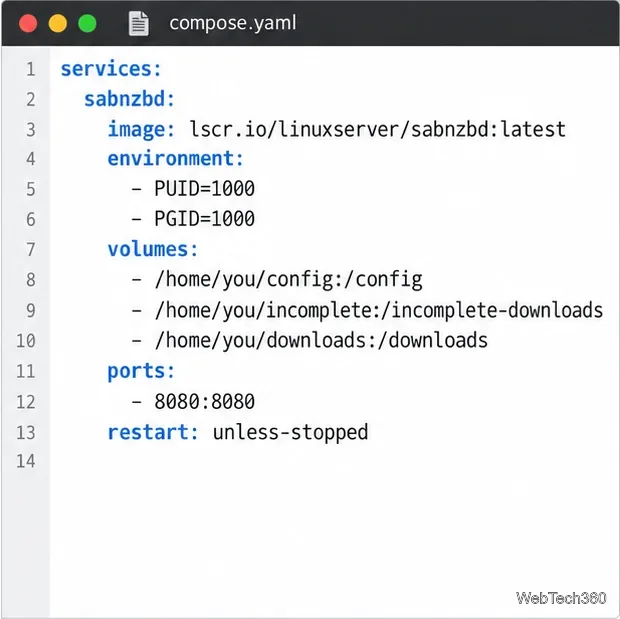
The project’s Unix/Linux installation page links to a multi-architecture SABnzbd container maintained by LinuxServer.io. This route works across many Linux hosts that have Docker Compose installed. Create a Compose file such as compose.yaml and replace the example host paths and numeric user/group IDs with values for your machine:
The Compose file keeps SABnzbd configuration and download folders on the Linux host.
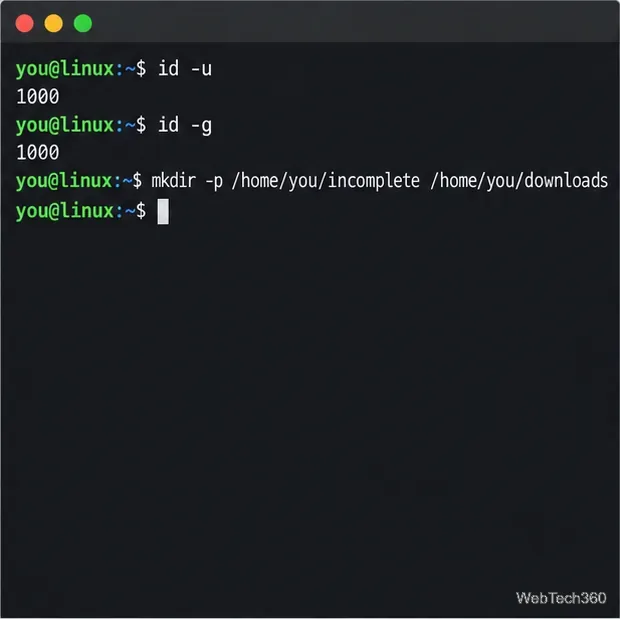
Create the three host directories first. Set PUID and PGID to the results of id -u and id -g for the account that should own the files. Then start the container:
Use the IDs for the account that will own SABnzbd’s mounted files.
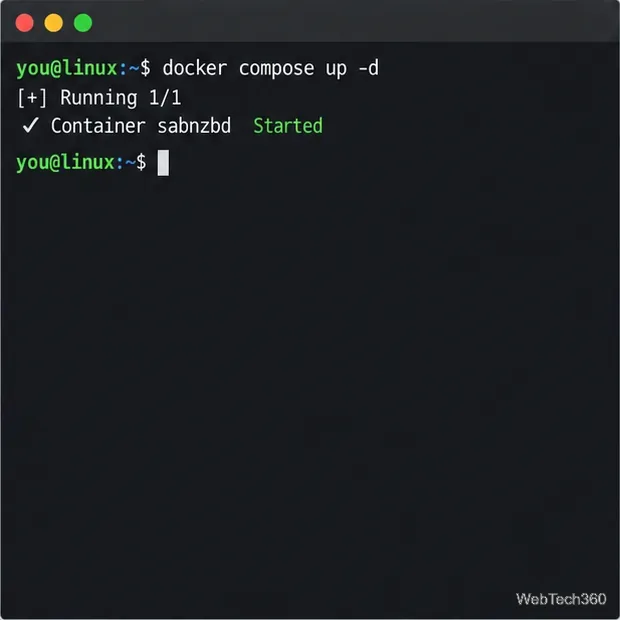
docker compose up -d
Start the service in the background with Docker Compose.
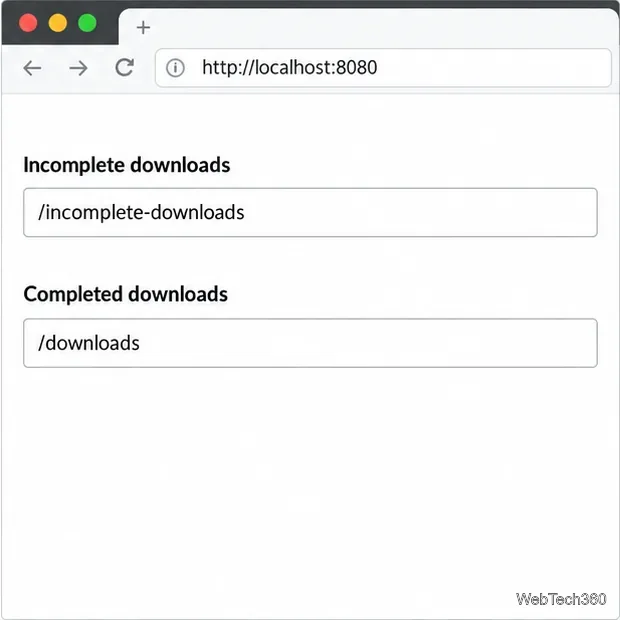
In SABnzbd’s folder settings, use the container paths /incomplete-downloads and /downloads; those map to the host directories above. The official SABnzbd Unix page lists the Docker option, and the LinuxServer.io container documentation explains its ports, volumes, and permissions.
The SABnzbd folder paths must match the container mount points.
Open the web interface and finish setup
For an Ubuntu or Debian package, launch SABnzbd from your application menu or run sabnzbdplus as your regular user. For Docker, open http://localhost:8080 on the host. The package service commonly uses http://localhost:8080/sabnzbd/; use the address opened by the launcher or shown in the service documentation if it differs.
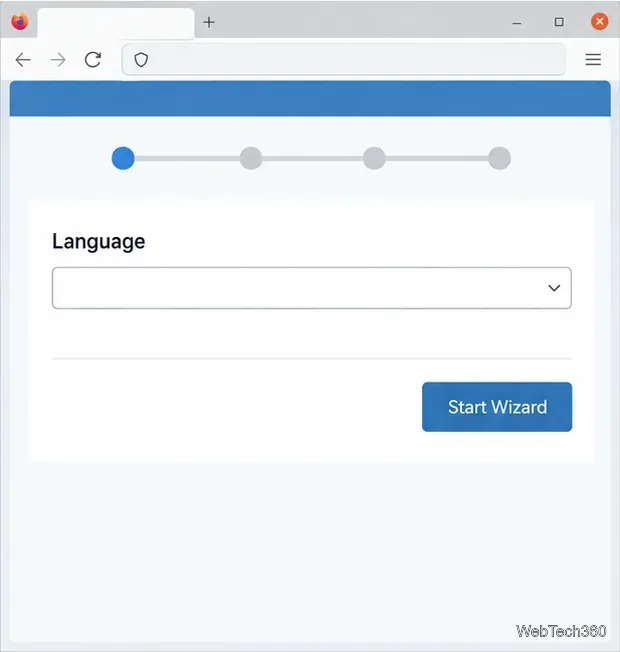
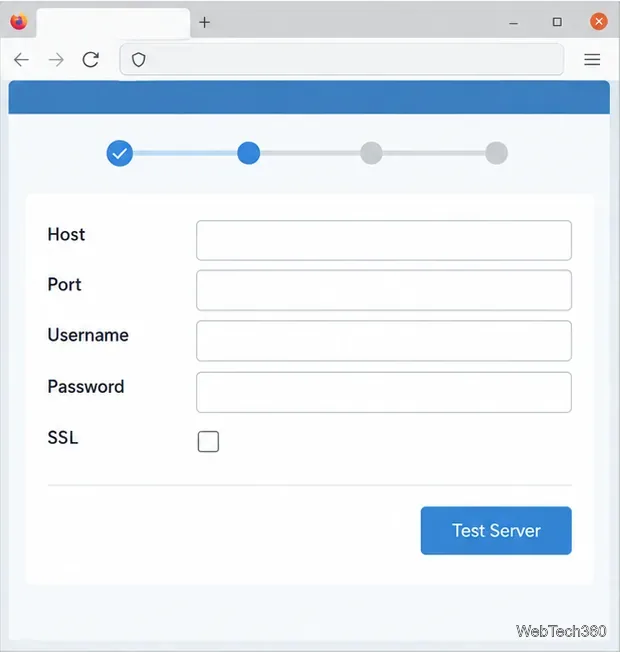
On the first visit, select the interface language and choose Start Wizard. SABnzbd’s quick-start wizard then asks for your Usenet server details. Use the host, port, username, and password supplied by your provider. Enable SSL only if the provider supports it, and use its specified secure port. Select Test Server to verify the connection before completing the wizard.
Choose the interface language to begin SABnzbd’s first-run wizard.Enter the connection values from your Usenet provider, then test the server.
If the connection test fails, recheck the provider’s server hostname, port, credentials, and SSL requirements. Once setup is complete, open Config > Folders to confirm that the completed and temporary download locations exist and are writable by the account running SABnzbd. With Docker, the paths in the interface must be the container paths from the Compose file.
Keep the interface private
SABnzbd listens on port 8080 by default, but ordinary use does not require router port forwarding. Keep external internet access disabled and do not expose port 8080 directly to the public internet. The project documents serious web-interface vulnerabilities in versions 5.1.1 and earlier; its downloads page currently lists 5.1.3 as the stable release. Install a current fixed version before considering remote access, and follow the project’s current security guidance. For remote use, prefer a VPN or a carefully configured HTTPS reverse proxy with authentication.