Home
» LINUX
»
How to Find and Remove Duplicate Files on Linux With FSlint
How to Find and Remove Duplicate Files on Linux With FSlint
FSlint can scan selected Linux folders for duplicate files, group matching copies for review, and let you delete extra paths or merge them as hard links. The cleanup workflow is straightforward when FSlint is already installed, but the program is legacy software: many current distributions no longer package it. Check the installation notes below before following older instructions.
The figures show example layouts and filenames; the exact appearance can vary with your FSlint build and desktop theme. Start with folders that hold your own documents, photos, or downloads. Do not run a duplicate cleanup across the whole system as a first scan.
Check FSlint availability before installing
Open a terminal and check whether the graphical program is already installed:
command -v fslint-gui
If the command returns a path, launch FSlint from your app menu or run fslint-gui. If it is missing, check your distribution’s official package repository first. On Debian-based systems, apt-cache policy fslint shows whether a package candidate is available; install it with sudo apt install fslint only when your configured repository offers one. Debian’s current package search does not list FSlint, and the Debian removal record cites its dependency on unmaintained PyGTK, which was tied to Python 2.
The FSlint project page lists version 2.46, links to its source and documentation, and notes that modern Linux users may prefer a more actively maintained tool. It also links to a Snap package; the Snap Store identifies that package as fslint-unofficial, so treat it as a third-party repackaging and review its publisher and permissions before installing. Avoid relying on old tutorials that tell you to build FSlint with a make command inside the po directory; that is not a current, general installation method.
Scan folders with FSlint
1. Open the duplicate finder
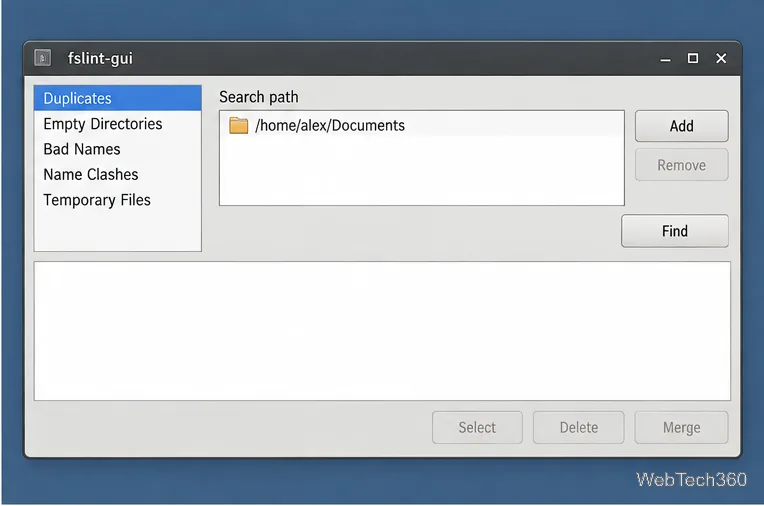
Start fslint-gui. In the left-hand list, choose Duplicates if it is not already selected. You can also pass directories to the program when launching it, for example fslint-gui "$HOME/Documents"; the FSlint manual documents paths as an optional argument.
Open FSlint and choose the Duplicates tool before setting up a scan.
2. Limit the search path
Add only the folders you want to compare, such as Documents, Pictures, or a specific backup folder. In the Search path area, use Add to choose each directory and remove any locations you do not want included. If you launch FSlint with directory arguments, confirm that those are the paths you intend to scan.
Choose a focused search path, such as Documents, before scanning.
3. Run the scan
Click Find and let FSlint finish. It can take longer when a folder contains many large files. FSlint searches subdirectories by default. If you use its command-line tool, findup -f "$HOME/Documents" lists matching paths without requesting a delete or merge operation; the -r flag turns recursion off, so leave it out when you want to include subfolders.
Run Find on the selected folders; subfolders are included by default.
4. Read the result groups
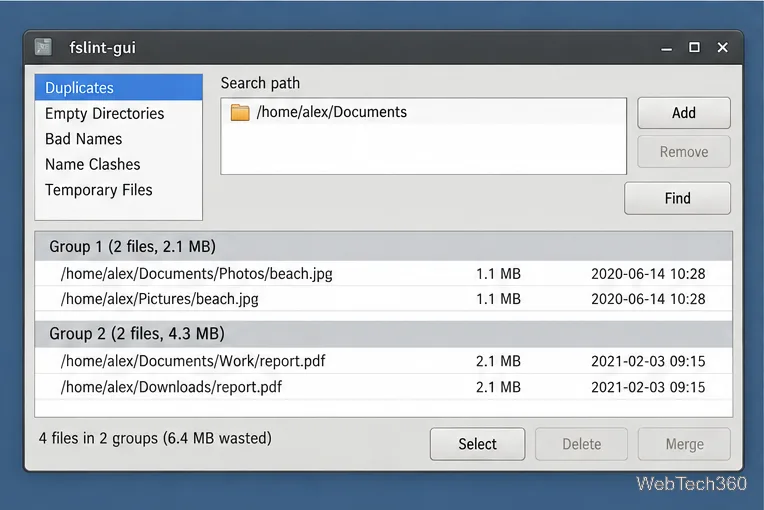
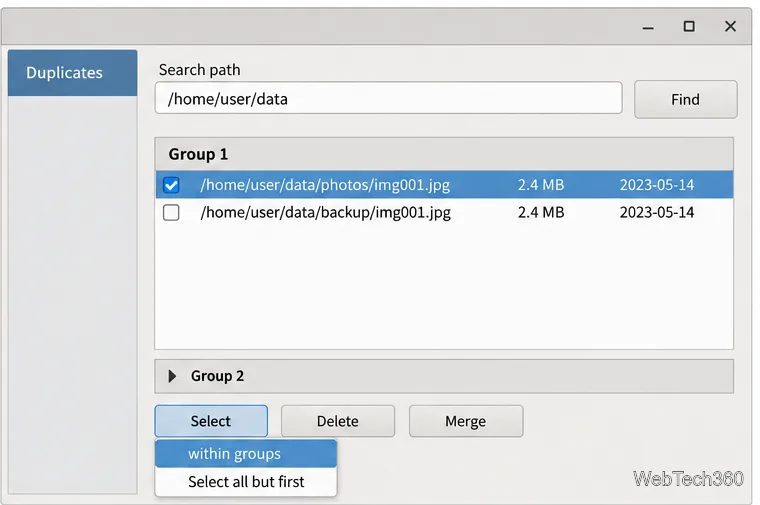
FSlint groups duplicate files together and reports paths, sizes, dates, and a total for the results. A matching name alone does not make two files duplicates; the tool compares file contents. Expand each group and check where every copy lives. A photo in a dated archive and a photo in a current album may be identical bytes but still serve different purposes in your organization.
Review each group’s paths and summary before selecting any files.
5. Decide which copy to keep
Choose the copy whose location and filename you want to preserve. Check that important applications, scripts, or workflows do not rely on the other path. If you are unsure, leave that group untouched. Back up valuable files before making changes, especially when cleaning a shared folder or backup set.
Compare the full paths and file details, then decide which pathname should remain.
6. Delete only the redundant copies
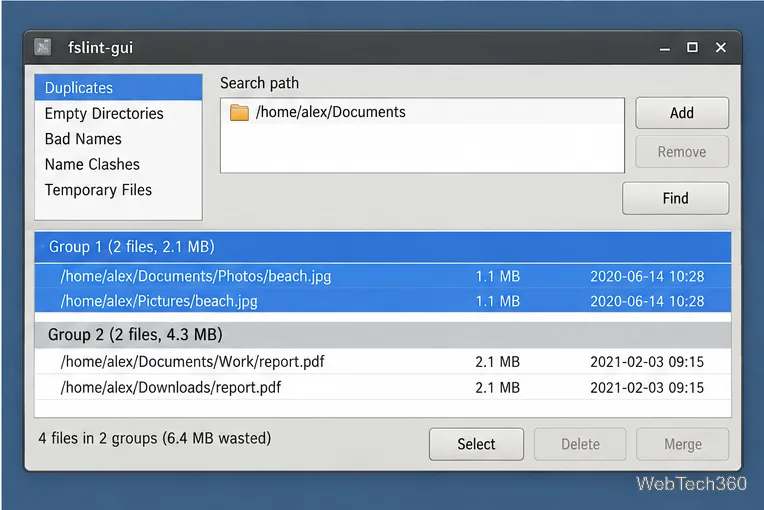
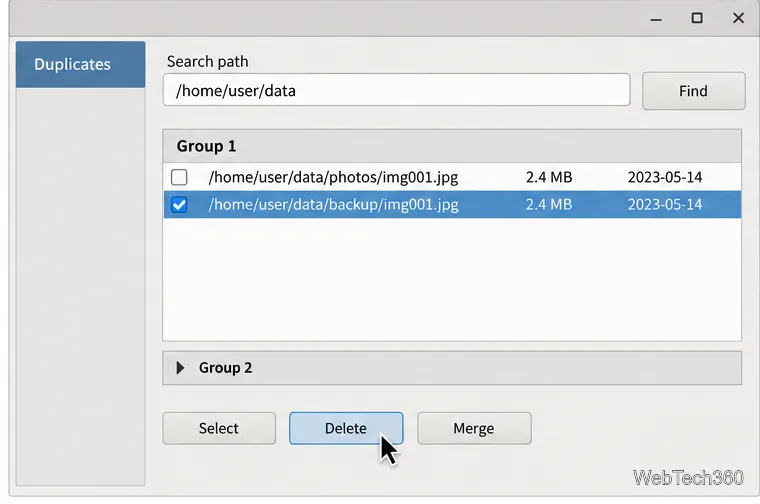
Select the extra file or files, leaving at least one copy in every group, and click Delete. Some builds offer selection shortcuts under Select; inspect the selected rows before confirming any bulk action. Treat deletion as permanent unless your build clearly says otherwise. Do not select every result simply to maximize the displayed space total.
Bulk selection can help, but confirm that the intended original remains unselected.The redundant path is selected before Delete is applied.
7. Use Merge only when hard links are appropriate
FSlint’s Merge action replaces duplicate paths with hard links to one stored file. The paths remain available, but they refer to the same underlying file data; edits through one path affect the same data seen through the others. This is not a separate backup copy, and hard links cannot span different filesystems, as the Linux link manual explains. For ordinary personal cleanup, deleting verified extra copies is easier to understand. Use Merge only when you understand hard links and have a backup.
8. Scan again and verify
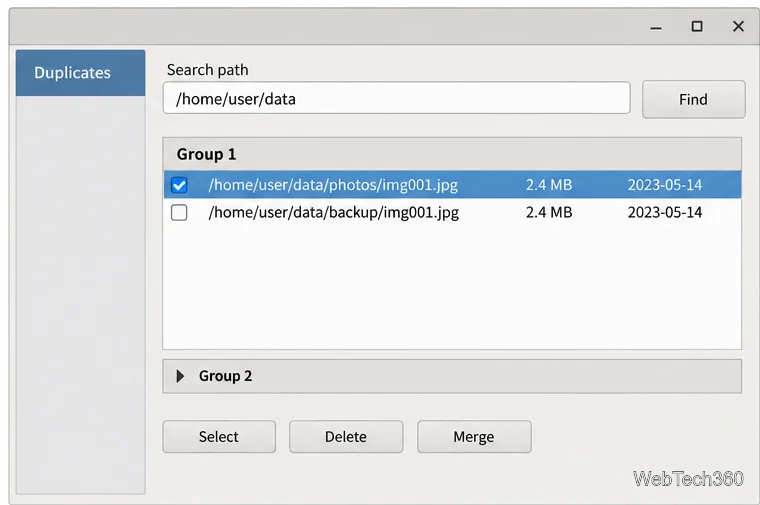
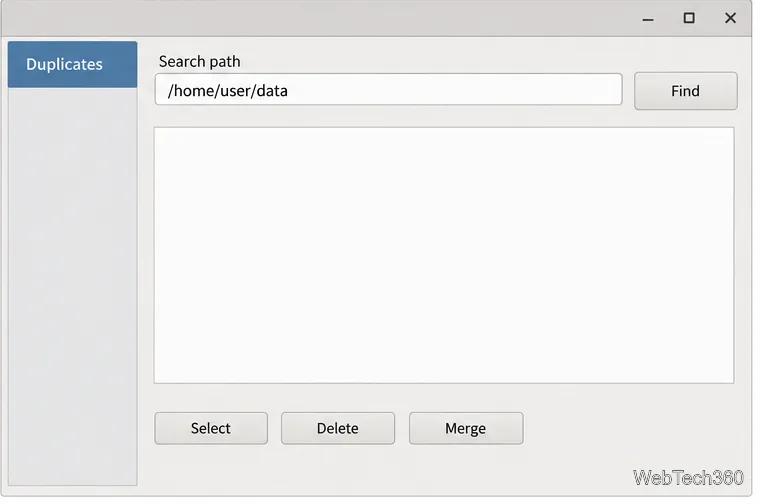
Run Find again on the same folders to confirm the duplicate groups you addressed are gone. Open the retained files to make sure they still work, then check available storage in your desktop’s disk utility or with df -h "$HOME". The result can be smaller than FSlint’s estimate if the filesystem uses compression or other storage features. Keep your backup until you are confident that no needed file was removed.
A clean rescan confirms that no duplicate groups remain in the paths you checked.