4 Best Adobe Acrobat Alternatives for Linux: PDF Reading and Markup
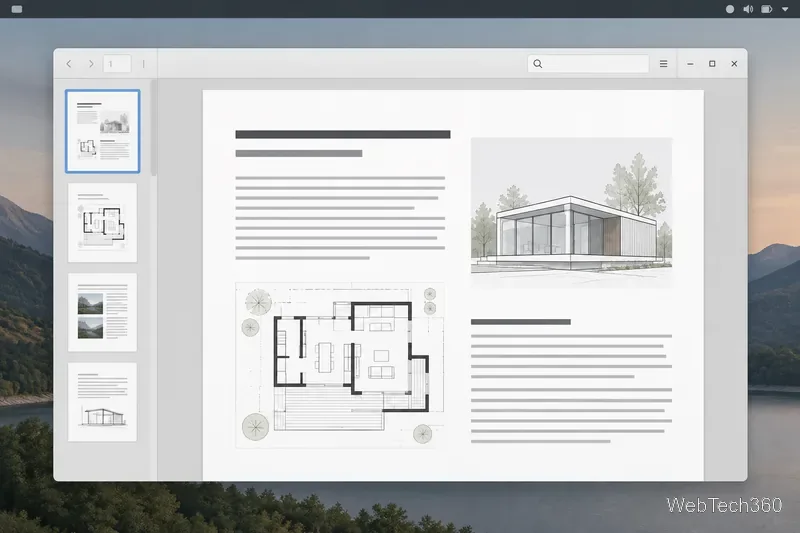
Compare four Adobe Acrobat alternatives for Linux, from Okular’s signatures and markup to GNOME Papers, Atril, and MuPDF.
There is no supported native Adobe Acrobat desktop release for Linux: Adobe’s current Acrobat desktop requirements list Windows and macOS. If you mainly need to read PDFs, search them, or add review notes, several Linux apps cover those everyday jobs. Okular is the strongest all-around pick for markup and signatures; GNOME Document Viewer and Atril suit straightforward reading; MuPDF offers a capable viewer with a relatively focused interface. None should be assumed to match every Acrobat Pro workflow, so check the features you depend on before moving important work.
These four alternatives differ more in how much PDF work they handle than in whether they can open a file.
| App | Best fit | Notable strengths |
|---|---|---|
| Okular | Reviewing and signing PDFs | Notes, highlights, signatures, broad format support |
| GNOME Document Viewer (Papers) | Simple GNOME desktop reading | Search and annotations across several document formats |
| Atril | Basic reading in MATE-oriented setups | Search, text copying, links, bookmarks, text notes |
| MuPDF | Focused viewing with optional markup tools | Fast rendering, search, annotations, and redaction in its main Linux viewer |
Okular is the closest match here if you read PDFs actively rather than just opening them. Its annotation mode supports inline and popup notes, highlights, underlining, and added text. It can also display and verify embedded digital signatures and sign PDFs. That makes it the best first app to try for document review, though it is not a promise of full Acrobat Pro parity for every form, conversion, or business workflow.
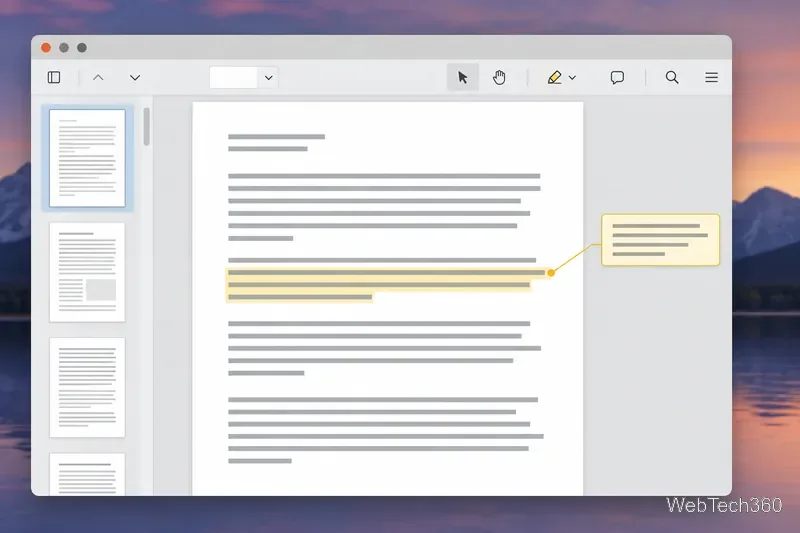
Okular opens more than PDFs, including EPUB and DjVu documents, Markdown, images, and comic archives. KDE Plasma users may already have it installed; other desktop environments can install it from their Linux distribution’s repository or use the official Okular download page to find an appropriate package. Check the format and signature support you need in the Okular feature list.
GNOME’s current app catalog lists its viewer as Document Viewer under the Papers project. Linux users may also recognize the older Evince name and documentation. Papers is a good fit when the main tasks are reading, searching, and adding annotations without a busy toolset. The GNOME project lists support for PDF, DjVu, TIFF, and comic-book archives, and offers installation through Flathub from its official app page.
Keep the distinction between annotation and editing in mind: a note or highlight is review markup, not a rewrite of the PDF’s original text. GNOME’s Evince help says the viewer cannot be used to change document contents. If you need to edit paragraphs or rebuild a complex form, use a dedicated editing workflow and verify the saved result separately.
Atril is MATE’s multipage document viewer. It can display and print PDF, PostScript, EPS, DjVu, DVI, and XPS files. Its official overview also documents text search, copying text, hypertext links, and table-of-contents bookmarks. Atril’s help includes adding text annotations to PDFs, making it useful for occasional notes, but it is best treated as a viewer with basic review tools rather than a full PDF production suite.
If you use MATE, Atril may already be part of your desktop setup. Otherwise, search for “Atril” in your distribution’s software center or package manager and follow that distribution’s installation guidance; package names and availability vary. The MATE Atril page describes its format and navigation support, while the project help source covers PDF notes.
MuPDF is often recommended for its speed and compact feel, but the current Linux viewer is more capable than the old “view only” description suggests. The project identifies mupdf-gl as its main Linux viewer, with a table-of-contents sidebar, Unicode text search, annotation editing, and redaction. It supports PDF, XPS, EPUB, CBZ, FB2, and common image formats. A legacy X11 viewer is also available on systems where the main viewer cannot be built, but it has fewer features.
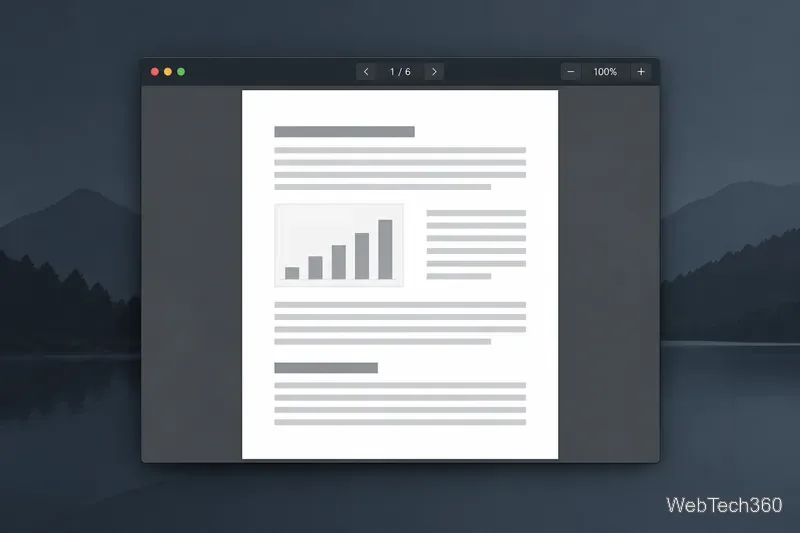
MuPDF’s project page links open-source releases, and its documentation explains the Linux viewer variants. Many distributions also package MuPDF, so check the package description to confirm which viewer you are installing—especially if you need annotation or redaction tools. Start with the MuPDF releases page or the official viewer overview.
mupdf-gl with the tools you need.Before settling on one, open a copy of a representative PDF and test links, embedded fonts, forms, signatures, and any annotations you plan to exchange with other people. Compatibility can vary by file and app version. For ordinary reading, all four are viable Adobe Acrobat alternatives for Linux; for advanced editing or a business-critical document, confirm the exported file in the software your recipients will use.
Compare four Adobe Acrobat alternatives for Linux, from Okular’s signatures and markup to GNOME Papers, Atril, and MuPDF.
Compare Linux audio converters for batch jobs, CD ripping, editing, and command-line workflows, with practical format and codec notes.
Set up The Witcher 3 on Linux with Steam Proton or a GOG copy in Heroic, with current guidance for Remastered compatibility issues.
Install Peppermint OS from the Debian Trixie 64-bit ISO: verify the download, create a bootable USB, choose a disk layout, and complete setup safely.
Compare four Linux wallpaper apps for searching, filtering, saving, and rotating desktop backgrounds, with current install links and compatibility notes.
Install Fallout 4 from Steam on Linux, enable Proton for Windows games, and troubleshoot common launch problems with practical compatibility steps.
Use Steam Play and Proton to install The Sims 3 on Linux, or try a PC DVD copy with Wine. Follow current setup steps and compatibility tips.
Prepare a model-matched microSD card, install OSMC with the official desktop installer, and complete first-run setup on your Raspberry Pi.
Install the Steam version of No Man’s Sky on Linux with Proton, then troubleshoot launch failures, graphics issues, and compatibility settings.
Find the repository that raised NO_PUBKEY, verify its publisher’s signing key, scope it with Signed-By, and refresh APT safely without weakening signature checks.