4 Best Adobe Acrobat Alternatives for Linux: PDF Reading and Markup
Compare four Adobe Acrobat alternatives for Linux, from Okular’s signatures and markup to GNOME Papers, Atril, and MuPDF.
If you want Linux wallpapers without searching through browser tabs, choose an app based on how you collect images: WallpaperDownloader handles several online sources and automatic changes, Variety rotates local or online pictures, WonderWall focuses on browsing and filters, and Wallpaper Selector is a simple Wallhaven browser. The four options below have current project or app-store pages; each has a different trade-off.
For a quick comparison, start here. Flatpak install commands assume you have enabled Flathub; see the official Flathub setup guide if the remote is not configured.
| App | Best fit | Install route |
|---|---|---|
| WallpaperDownloader | Searching several image providers and rotating downloads | Flathub or Snap Store |
| Variety | Automating changes from local folders and online sources | Your distribution’s package repository |
| WonderWall | Filtering, previewing, and organizing a wallpaper library | Flathub |
| Wallpaper Selector | Browsing and setting images from Wallhaven | Flathub |

WallpaperDownloader is a good starting point if you want one desktop app to find, download, and manage images. Its current Flathub listing says it can automatically download and set wallpapers, and names providers such as Wallhaven, Unsplash, and Bing Daily Wallpaper. The Snap Store also lists the application, so you can use whichever package format your distribution already supports.
Install the Flatpak with flatpak install flathub es.estoes.wallpaperDownloader, or open its Flathub listing. If you use Snap, the official Snap Store page provides the current install command. Look through its provider and changer settings after the first launch: automatic rotation is useful only if the sources, download folder, and interval match what you want.
Variety is a wallpaper manager as much as a downloader. It can use images already on your computer or fetch them from online sources such as Wallhaven, Unsplash, Bing, and Reddit, then change the desktop background on a schedule. Its source project says it supports most Linux desktop environments; for window managers such as i3 or Openbox, it documents optional helpers such as feh or nitrogen.
On Ubuntu or Debian, the project documents sudo apt update && sudo apt install variety when the relevant repository is enabled. Other distributions can check the project’s installation instructions for their package manager. One caveat matters: the maintainers label Variety as being in maintenance mode and say they have limited time to triage issues or make major changes. It remains useful, but check compatibility with your desktop before relying on it for unattended rotation.
WonderWall suits people who want to browse before saving. Its current Flathub page describes filters for categories, colors, resolutions, and content purity; it also lists previews, bookmarks, batch downloads, an offline library, and cropping before applying a wallpaper. That makes it easier to narrow a large catalog than using a plain random downloader.
Install it with flatpak install flathub com.ktechpit.wonderwall or use the WonderWall Flathub listing. Flathub labels the app proprietary, so review the publisher’s current terms and account or license requirements before choosing it for a workflow that depends on paid or account-based features.

Wallpaper Selector is the simplest choice here if Wallhaven is the catalog you want. The Flathub description is deliberately narrow: browse, download, and set wallpapers from Wallhaven. The listing also notes sorting options and category controls. It is free, small, and avoids the many provider settings in a broader manager, but it is not a general image search tool.
Install it with flatpak install flathub io.github.davidoc26.wallpaper_selector, or open the Wallpaper Selector listing. For source details and support, use the developer’s project repository.
Before downloading, check the monitor’s native resolution and the image’s aspect ratio. A picture smaller than the display may look soft when enlarged; a portrait or square image may be cropped heavily on a widescreen monitor. Use the preview or crop controls when available, especially if the focal subject sits near an edge.

For a multi-monitor setup, decide whether you want one image extended across the full desktop, the same image on each screen, or a different image per monitor. Support depends on both the application and the desktop environment, so verify the setting before downloading a large batch. Also remember that an app’s ability to download a picture does not automatically grant permission to reuse it elsewhere; check the image source’s license for any use beyond your personal desktop.
Fondo appeared in earlier versions of this roundup. Its public repository still documents building the app, including a Flatpak builder route, but that is different from the old one-click Flathub instructions. If you specifically want Fondo, follow the current project README and check its compatibility notes rather than relying on an old install command.
Compare four Adobe Acrobat alternatives for Linux, from Okular’s signatures and markup to GNOME Papers, Atril, and MuPDF.
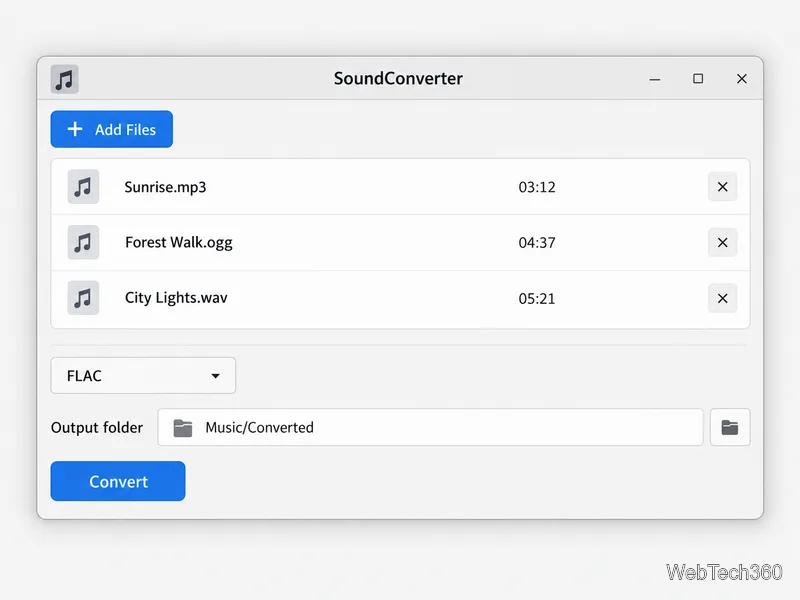
Compare Linux audio converters for batch jobs, CD ripping, editing, and command-line workflows, with practical format and codec notes.
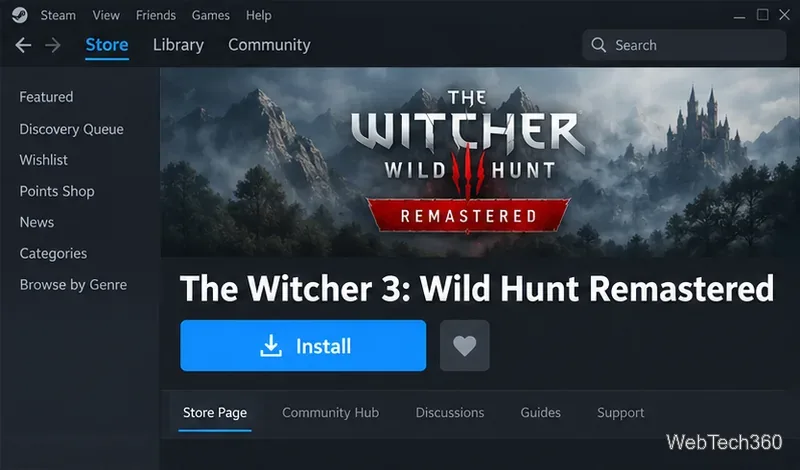
Set up The Witcher 3 on Linux with Steam Proton or a GOG copy in Heroic, with current guidance for Remastered compatibility issues.
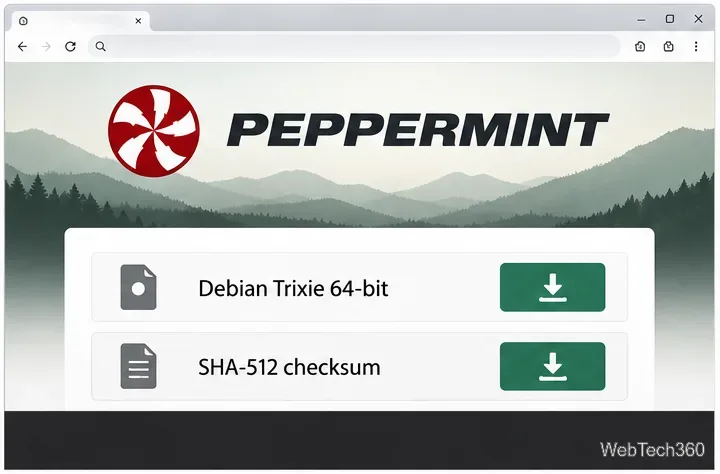
Install Peppermint OS from the Debian Trixie 64-bit ISO: verify the download, create a bootable USB, choose a disk layout, and complete setup safely.
Compare four Linux wallpaper apps for searching, filtering, saving, and rotating desktop backgrounds, with current install links and compatibility notes.
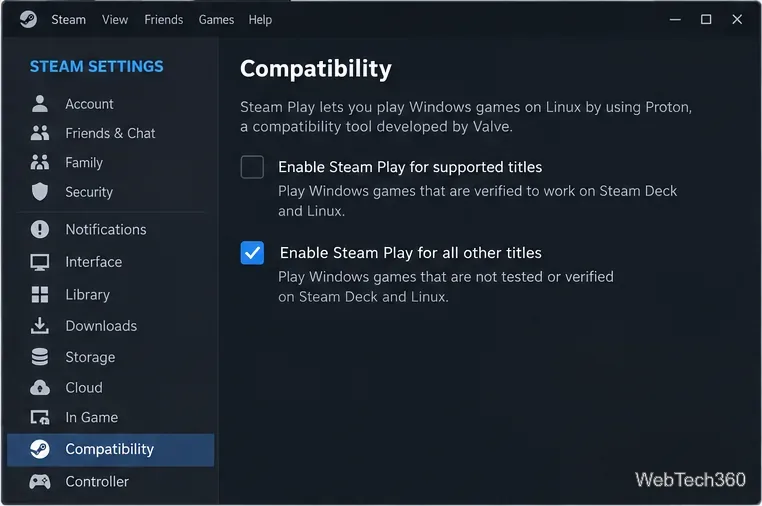
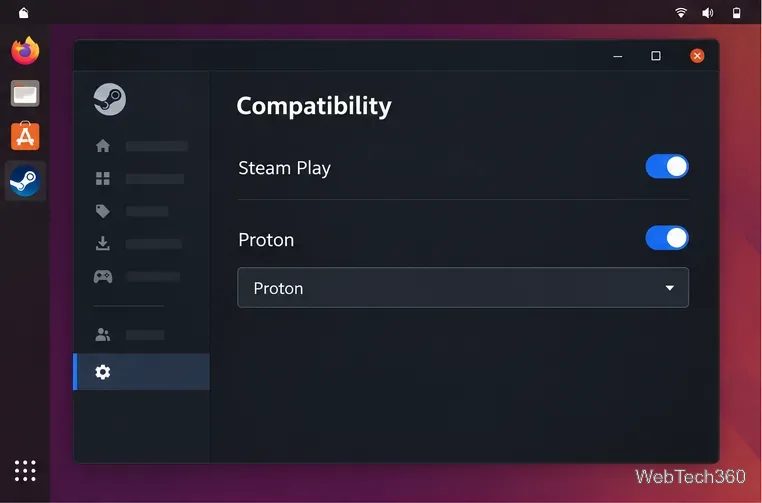
Install Fallout 4 from Steam on Linux, enable Proton for Windows games, and troubleshoot common launch problems with practical compatibility steps.
Use Steam Play and Proton to install The Sims 3 on Linux, or try a PC DVD copy with Wine. Follow current setup steps and compatibility tips.
Prepare a model-matched microSD card, install OSMC with the official desktop installer, and complete first-run setup on your Raspberry Pi.
Install the Steam version of No Man’s Sky on Linux with Proton, then troubleshoot launch failures, graphics issues, and compatibility settings.
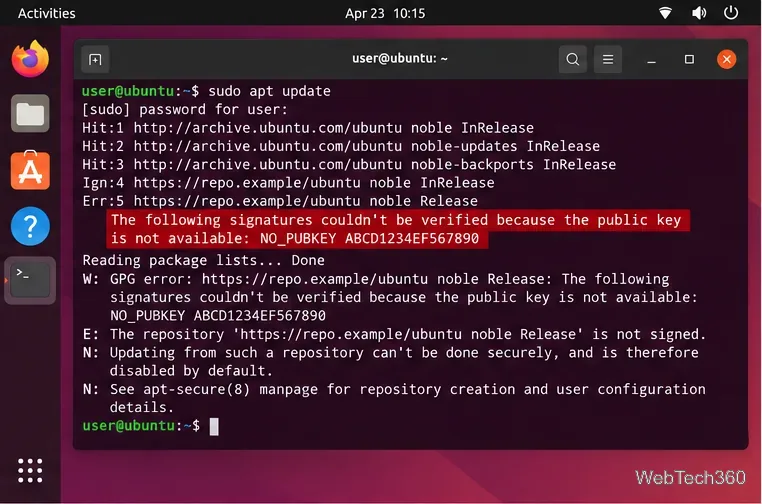
Find the repository that raised NO_PUBKEY, verify its publisher’s signing key, scope it with Signed-By, and refresh APT safely without weakening signature checks.