4 Best Adobe Acrobat Alternatives for Linux: PDF Reading and Markup
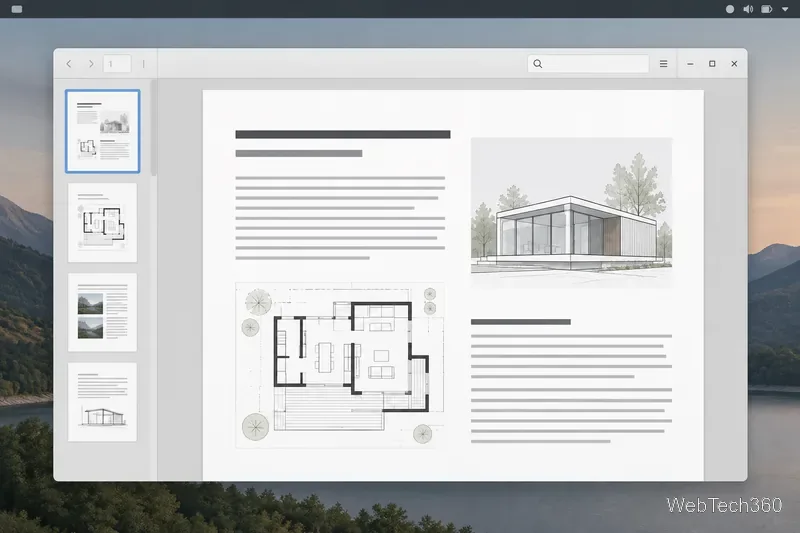
Compare four Adobe Acrobat alternatives for Linux, from Okular’s signatures and markup to GNOME Papers, Atril, and MuPDF.
The Sims 3 does not have a native Linux version on Steam, but you can run its Windows edition with Steam Play and Proton. This is the easiest route. If you already own the PC DVD, Wine is another option, though installation and activation can be less reliable and EA does not document Linux support for it.
Steam lists Windows system requirements, so Linux players depend on Proton. Use the Steam route if you have a choice, and follow the DVD steps only with a legitimate disc and product code.
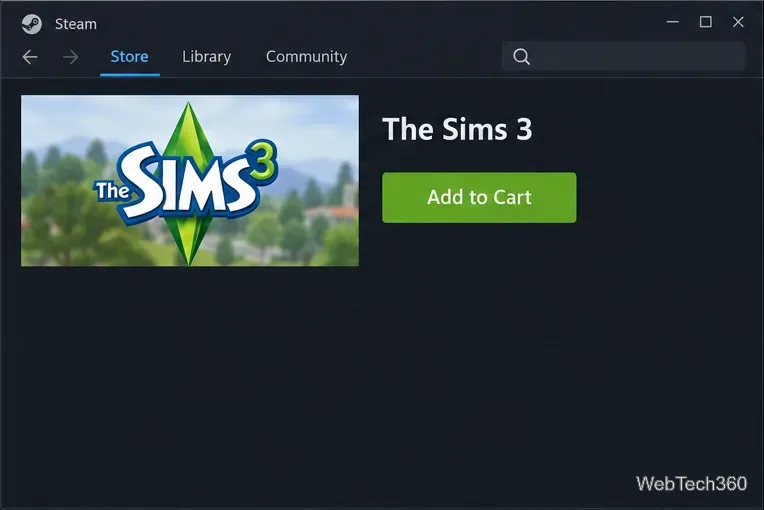
Install Steam for Linux from your distribution’s software center or Steam’s official download page. Sign in and open The Sims 3 on Steam. Buy it if needed; availability and price vary by region. The listing requires an internet connection and license acceptance for the digital game, and specifies EA account registration for online services.
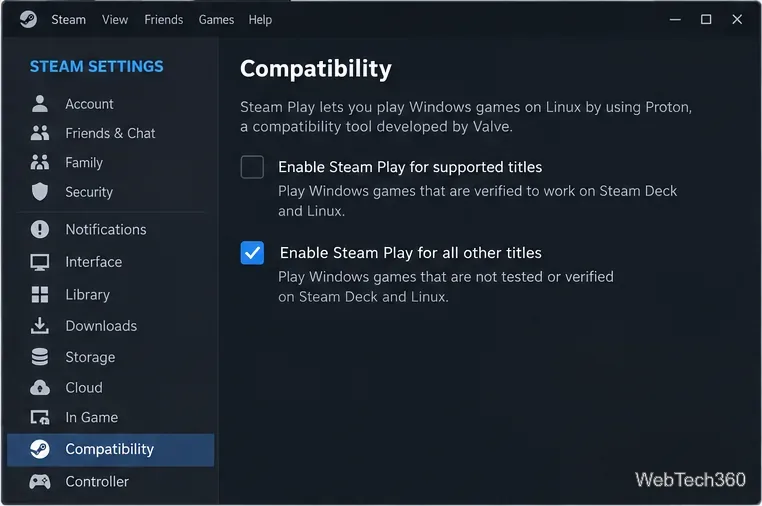
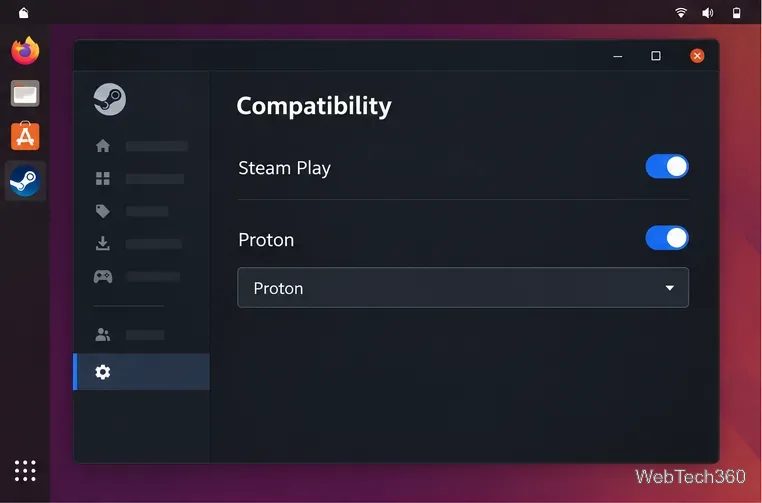
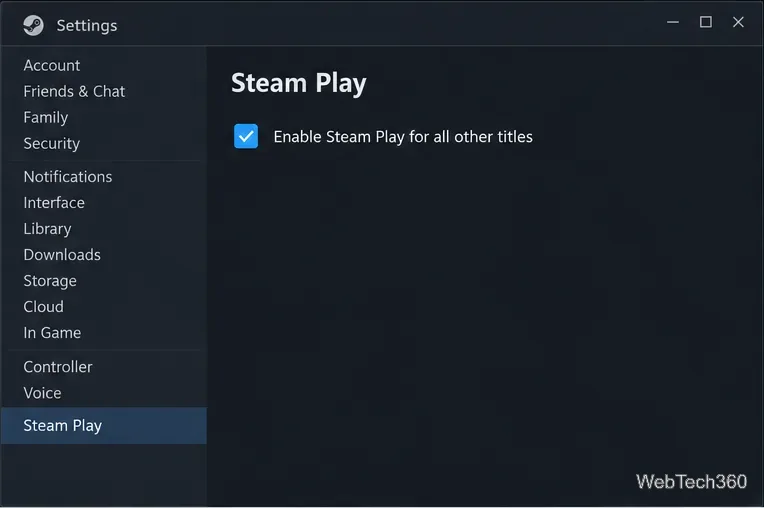
In Steam, open Settings → Steam Play and turn on Enable Steam Play for all other titles. Restart Steam if prompted. This lets Steam run non-native Windows games through Proton. Canonical’s current guide describes this setting and says Steam downloads Proton components when needed.
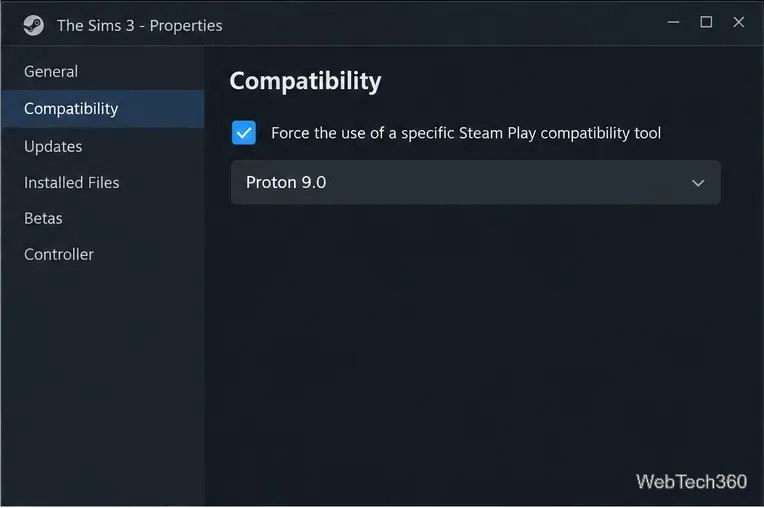
Steam may select a compatibility tool automatically. If needed, right-click The Sims 3 in your Library and open Properties → Compatibility. Check Force the use of a specific Steam Play compatibility tool, then choose an installed Proton version. Try the default first; if it fails, test another version, such as Proton Experimental. Names and versions can change as Valve updates Proton.
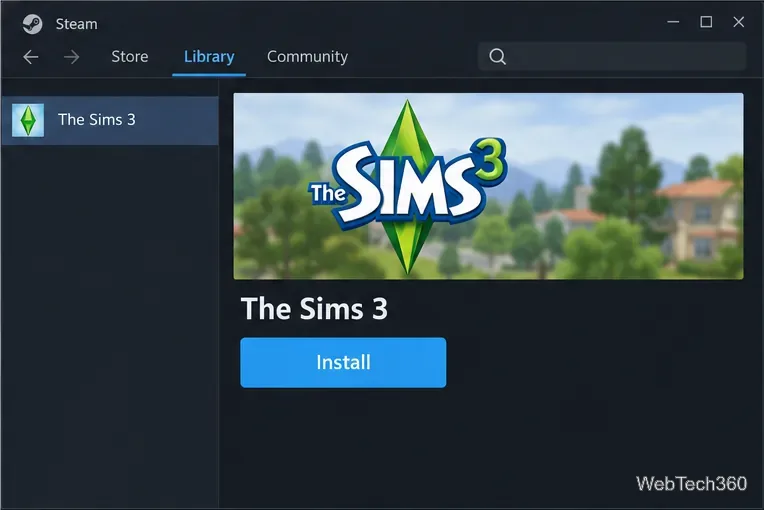
Select the game in your Library, click Install, choose a Steam library with enough free space, and wait for setup to finish. Then click Play. The first launch may take longer while Steam creates the game’s Proton environment; let it complete before trying again.
Compatibility can vary by Proton version. If the game opens and closes, check recent ProtonDB reports for similar systems. These are player submissions, not guarantees. Change one setting at a time. Back up saves before deleting game data or rebuilding Proton’s environment; the save path varies with the Steam package and library location.
EA’s current guide covers disc installation on Windows, not Wine or Linux. EA says to register the PC disc through the EA app or TheSims3.com, enter its product code during setup, and notes that disc copies do not update beyond version 1.67. EA recommends its digital app route for the latest version, but that does not guarantee the EA app will run under Wine.
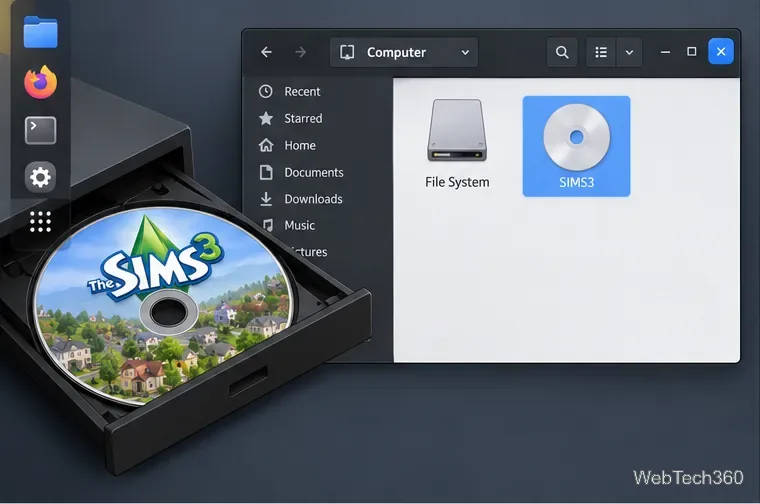
Install Wine using the current instructions for your distribution from WineHQ. Insert the disc and open its mounted volume in the file manager. The setup filename varies by edition; the old guide used Sims3Setup.exe, so look for the installer on your own disc.
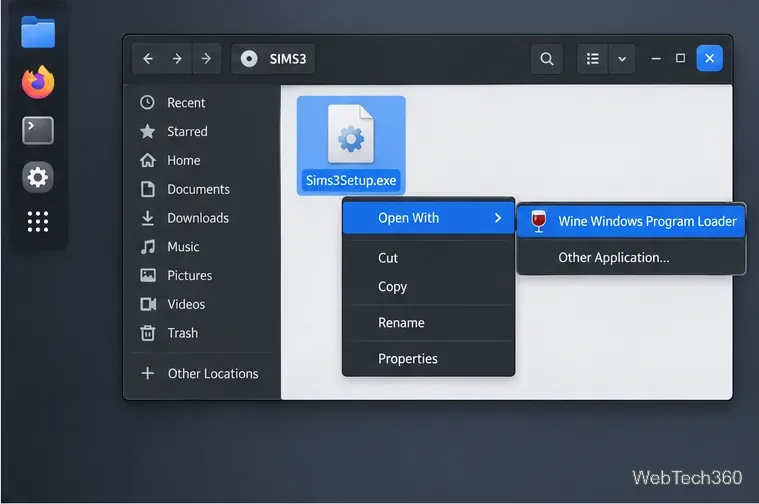
Right-click the setup program and select Open With → Wine Windows Program Loader. Follow the installer, enter your genuine product code if requested, and install the base game before expansion packs.
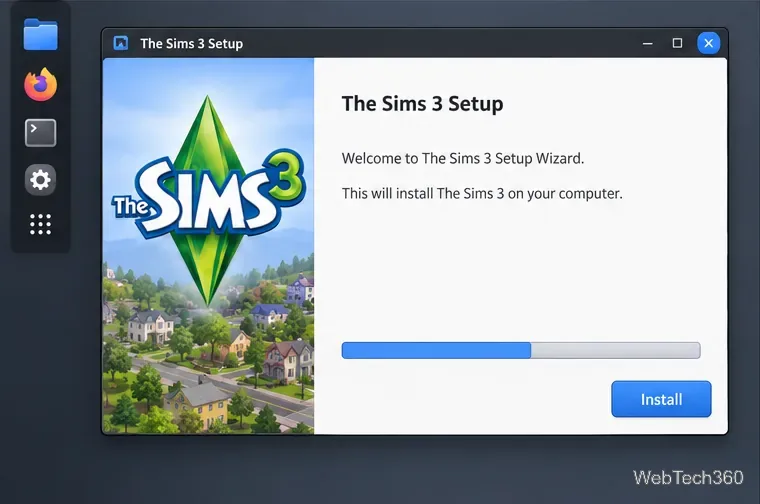
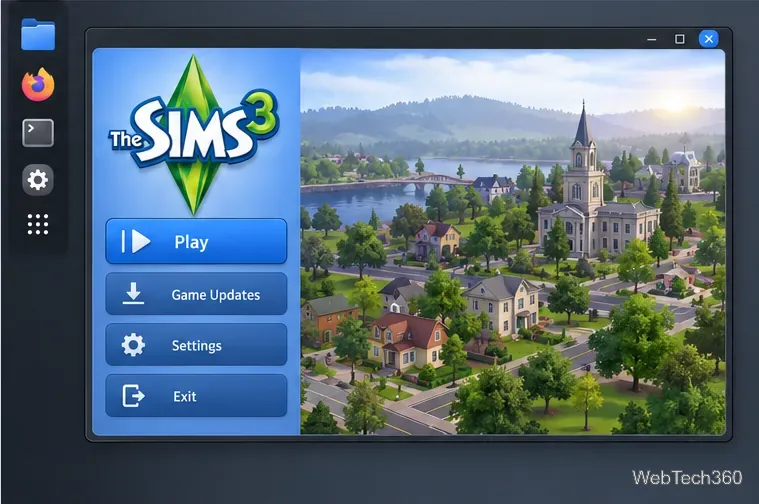
After setup, start the game through the Wine environment used for installation. If the launcher opens, click Play. If disc checks or activation fail, do not download a replacement executable or “no-DVD” patch; those files can bypass copy protection or compromise your system. Use EA’s supported registration options or a digital copy you own.
Steam with Proton is the practical choice for most Linux players. Wine may work with an existing DVD, but results depend on that disc’s installer and activation system.
Sources: Valve Proton documentation, Canonical’s Steam and Proton guide, and EA’s The Sims 3 installation guide.
Compare four Adobe Acrobat alternatives for Linux, from Okular’s signatures and markup to GNOME Papers, Atril, and MuPDF.
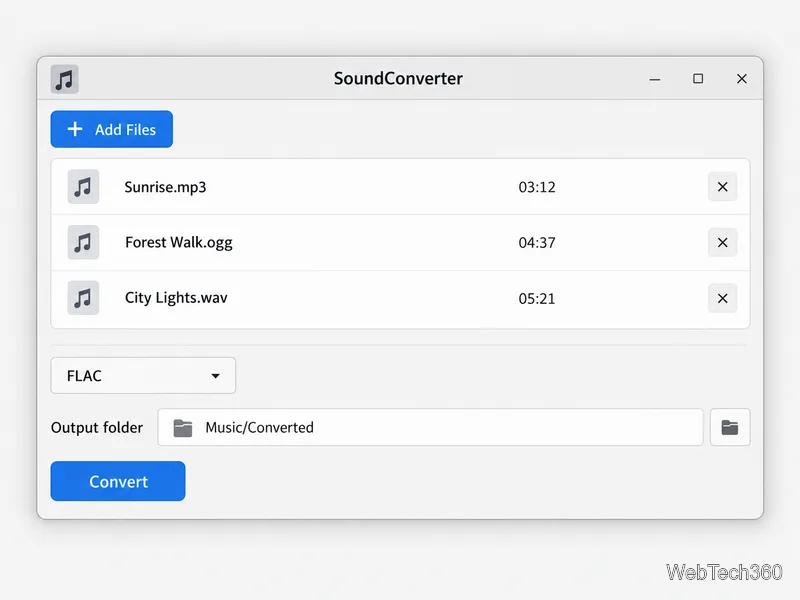
Compare Linux audio converters for batch jobs, CD ripping, editing, and command-line workflows, with practical format and codec notes.
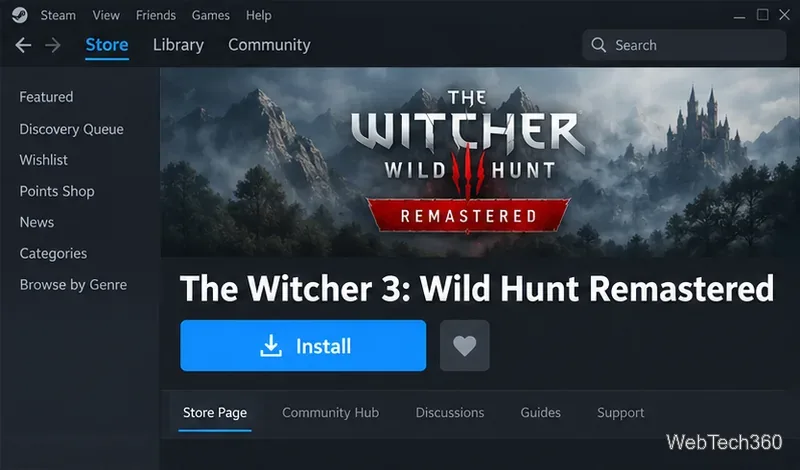
Set up The Witcher 3 on Linux with Steam Proton or a GOG copy in Heroic, with current guidance for Remastered compatibility issues.
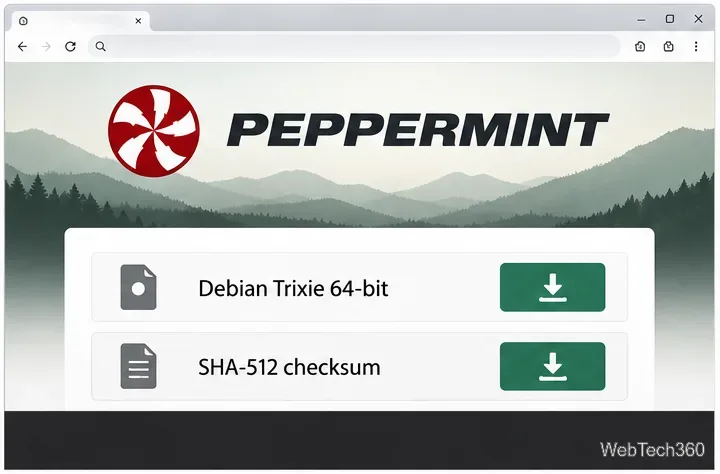
Install Peppermint OS from the Debian Trixie 64-bit ISO: verify the download, create a bootable USB, choose a disk layout, and complete setup safely.
Compare four Linux wallpaper apps for searching, filtering, saving, and rotating desktop backgrounds, with current install links and compatibility notes.
Install Fallout 4 from Steam on Linux, enable Proton for Windows games, and troubleshoot common launch problems with practical compatibility steps.
Use Steam Play and Proton to install The Sims 3 on Linux, or try a PC DVD copy with Wine. Follow current setup steps and compatibility tips.
Prepare a model-matched microSD card, install OSMC with the official desktop installer, and complete first-run setup on your Raspberry Pi.
Install the Steam version of No Man’s Sky on Linux with Proton, then troubleshoot launch failures, graphics issues, and compatibility settings.
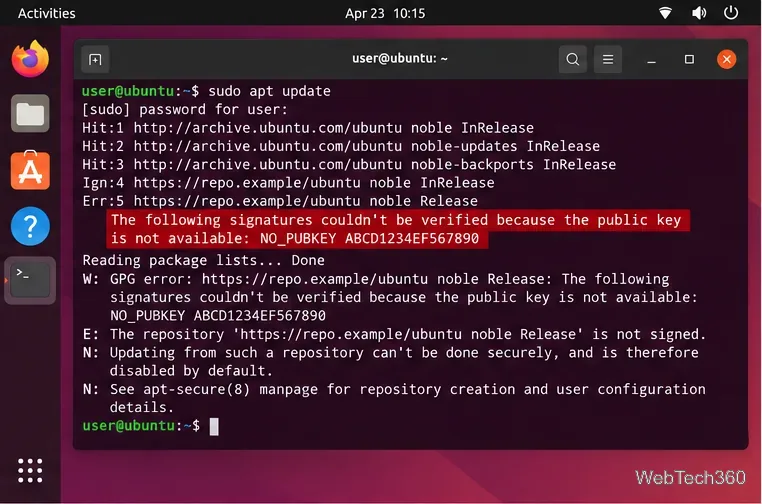
Find the repository that raised NO_PUBKEY, verify its publisher’s signing key, scope it with Signed-By, and refresh APT safely without weakening signature checks.