4 Best Adobe Acrobat Alternatives for Linux: PDF Reading and Markup
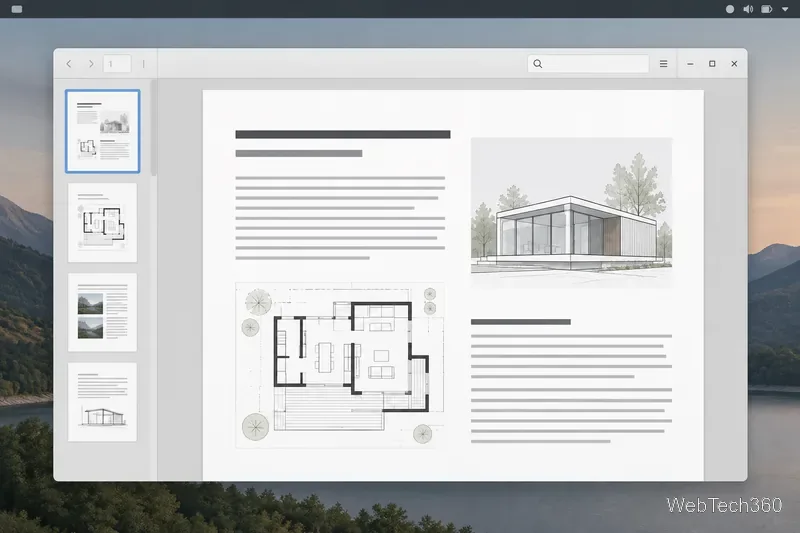
Compare four Adobe Acrobat alternatives for Linux, from Okular’s signatures and markup to GNOME Papers, Atril, and MuPDF.
For a quick desktop batch conversion, start with SoundConverter. fre:ac is a stronger fit when you also need CD ripping and tag support; Audacity works well for files you plan to edit or split; FFmpeg is the most flexible choice for repeatable command-line jobs. The best Linux audio converter depends on whether you value a simple queue, a music-library workflow, editing tools, or automation.
| Tool | Best for | What sets it apart |
|---|---|---|
| SoundConverter | Simple desktop batches | GNOME interface and multithreaded conversion |
| fre:ac | Music libraries and CDs | Batch conversion, metadata, and CD ripping |
| Audacity | Editing before export | Waveform editing and track or label export |
| FFmpeg | Scripts and advanced control | Command-line conversion across audio and video |
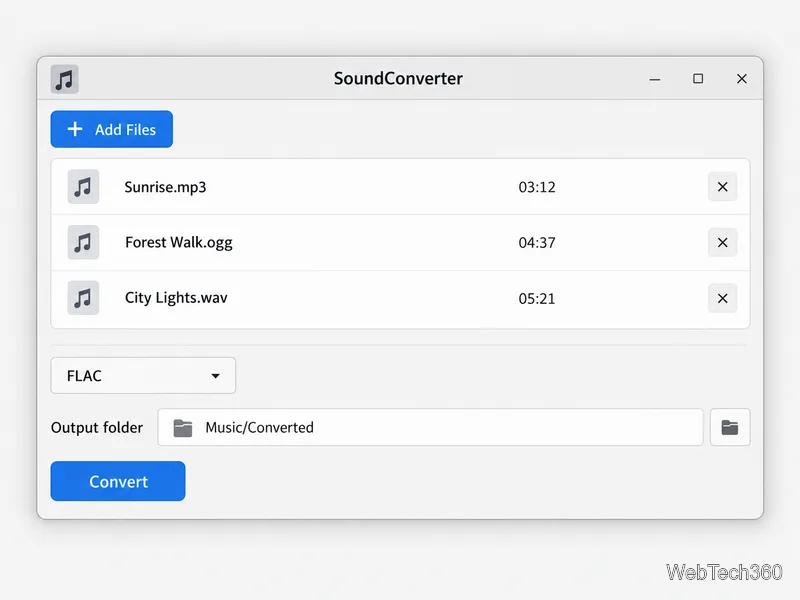
SoundConverter is a straightforward graphical converter for GNOME. Add several files, choose an output profile, and convert them together. Its official feature list highlights multithreaded processing, automatic file and folder naming from tags, and audio extraction from supported video files.
SoundConverter reads formats that your GStreamer installation can handle and lists Opus, Ogg Vorbis, FLAC, WAV, AAC, and MP3 among its output options. The exact formats depend on installed plugins. In particular, the project notes that MP3 output requires GStreamer LAME support; if MP3 is unavailable, install the relevant plugin through your distribution or choose another output format. Check your Linux distribution’s software repository first, since package names and plugin bundles vary.
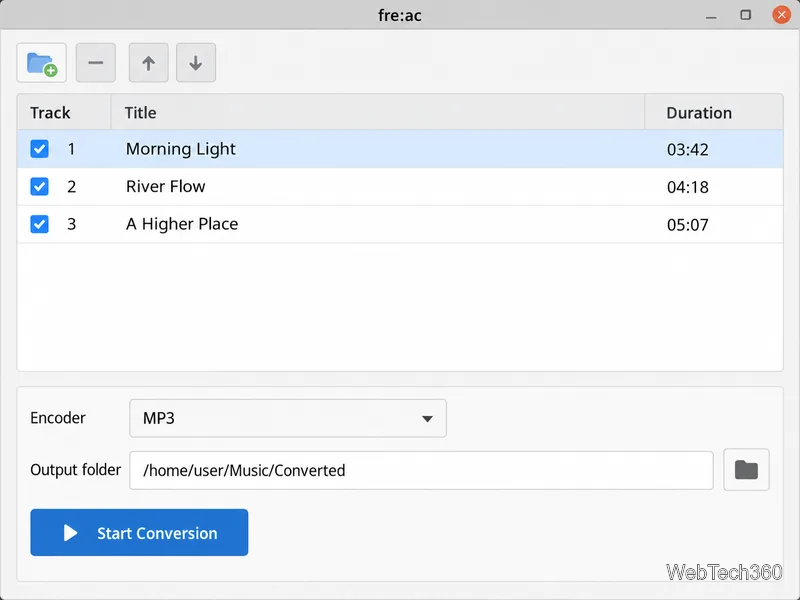
fre:ac is a free graphical converter with an integrated audio CD ripper. It supports common formats such as MP3, M4A/AAC, FLAC, WMA, Opus, Ogg Vorbis, and WAV, and can process a music library while retaining folder and file-name structure. Its built-in metadata lookup can retrieve track information from the online CDDB/GNUdb database when ripping a disc, so an internet connection helps with automatic titles and tags.
Choose fre:ac if you want one interface for converting files, organizing output, and ripping CDs. The project provides Linux builds as AppImage, Flatpak, and Snap. Use the package format that fits your system; avoid following old distro-specific instructions unless they match a current package source.
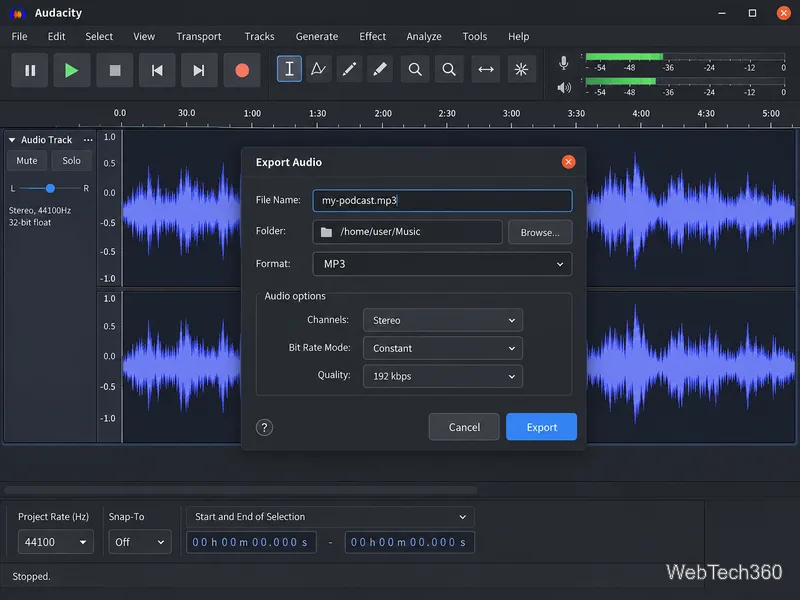
Audacity is an audio editor rather than a dedicated folder-wide converter, but it is useful when you need to trim silence, adjust a recording, or split a long track before exporting. Import a file, make any edits, then use File > Export Audio and choose a supported output format. The official manual documents formats including WAV, AIFF, and MP3; its format list depends on the libraries available in your Audacity build.
For projects with several tracks or labels, Export Multiple can create a separate file for each track or labeled section. That is different from dropping a folder of unrelated files into a conversion queue. Audacity’s optional FFmpeg library expands import and export support for formats such as M4A/AAC, AC3, and WMA; availability still depends on the compatible library and encoders installed. Most Linux distributions provide Audacity through their official repositories. See the Linux installation notes, Export Multiple guide, and supported export formats.
FFmpeg is a command-line media framework suited to scripts, scheduled jobs, and precise conversions. It can process audio and video, so it is also handy for extracting audio from a video file. A basic WAV-to-MP3 conversion with an FFmpeg build that includes the LAME encoder looks like this:
ffmpeg -i "input.wav" -c:a libmp3lame -q:a 2 "output.mp3"The input and output names can be changed to match your files. This command explicitly selects the libmp3lame MP3 encoder; if your build lacks it, FFmpeg will report that the encoder is unavailable. Install FFmpeg from your distribution’s repository or use the project’s download and package links, then consult the official command documentation for stream selection, filters, and other options. FFmpeg is powerful, but its terminal workflow has a steeper learning curve than the graphical choices above.
MP3, AAC, Ogg Vorbis, and Opus are lossy formats that reduce file size by discarding some audio information. FLAC is lossless, while ordinary PCM WAV files are uncompressed and larger. Converting an MP3 into FLAC or WAV does not restore information already lost in the MP3; it only creates a larger file. Keep an original lossless source when possible, and choose the output format based on the player or service that must open it.
Before converting a large collection, test one file and check that it plays, has the expected duration and channels, and retains the tags you need. Codec support can vary between a desktop app, its system libraries, and an FFmpeg build, so the available output list matters as much as the filename extension.
Compare four Adobe Acrobat alternatives for Linux, from Okular’s signatures and markup to GNOME Papers, Atril, and MuPDF.
Compare Linux audio converters for batch jobs, CD ripping, editing, and command-line workflows, with practical format and codec notes.
Set up The Witcher 3 on Linux with Steam Proton or a GOG copy in Heroic, with current guidance for Remastered compatibility issues.
Install Peppermint OS from the Debian Trixie 64-bit ISO: verify the download, create a bootable USB, choose a disk layout, and complete setup safely.
Compare four Linux wallpaper apps for searching, filtering, saving, and rotating desktop backgrounds, with current install links and compatibility notes.
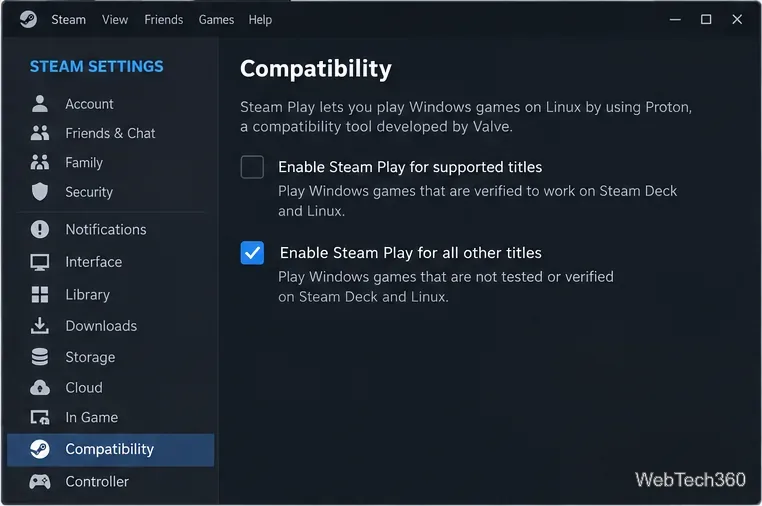
Install Fallout 4 from Steam on Linux, enable Proton for Windows games, and troubleshoot common launch problems with practical compatibility steps.
Use Steam Play and Proton to install The Sims 3 on Linux, or try a PC DVD copy with Wine. Follow current setup steps and compatibility tips.
Prepare a model-matched microSD card, install OSMC with the official desktop installer, and complete first-run setup on your Raspberry Pi.
Install the Steam version of No Man’s Sky on Linux with Proton, then troubleshoot launch failures, graphics issues, and compatibility settings.
Find the repository that raised NO_PUBKEY, verify its publisher’s signing key, scope it with Signed-By, and refresh APT safely without weakening signature checks.