4 Best Adobe Acrobat Alternatives for Linux: PDF Reading and Markup
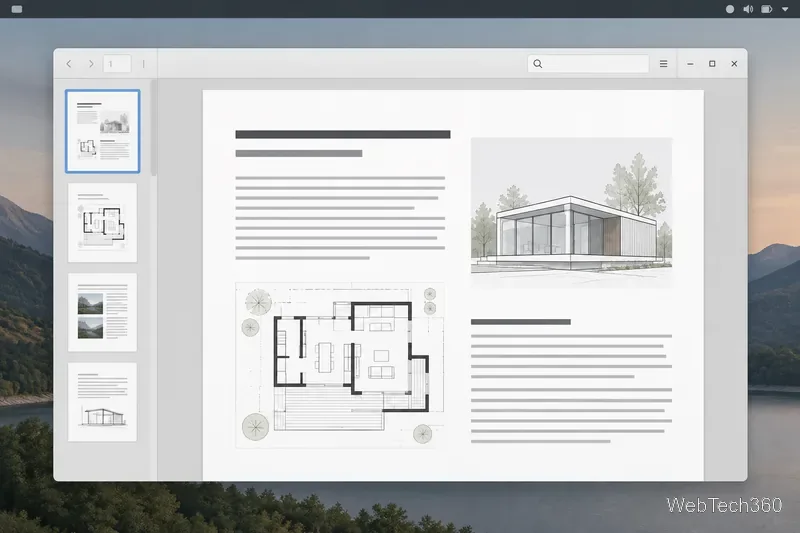
Compare four Adobe Acrobat alternatives for Linux, from Okular’s signatures and markup to GNOME Papers, Atril, and MuPDF.
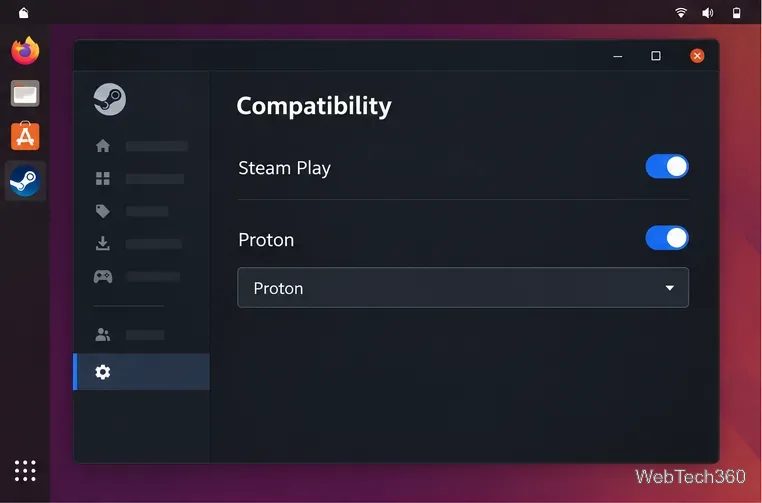
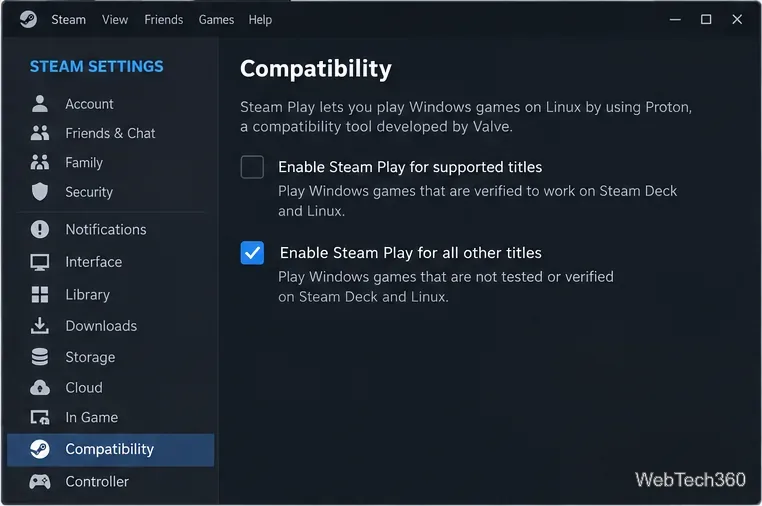
Fallout 4 can be played on Linux through Steam Play, which uses Valve's Proton compatibility tool to run the Windows version. For most players, the straightforward method is to install the Linux Steam client, enable Steam Play for other titles, and install Fallout 4 from the Steam library. This guide covers the Steam edition; it does not require setting up Windows Steam under Wine. Proton is a compatibility layer rather than a native Linux port, so results can vary with your distribution, graphics drivers, and game updates.
Steam describes Steam Play as a way to potentially run some Windows-only games on Linux. Check Valve's Steam for Linux compatibility information for the current scope and limitations.
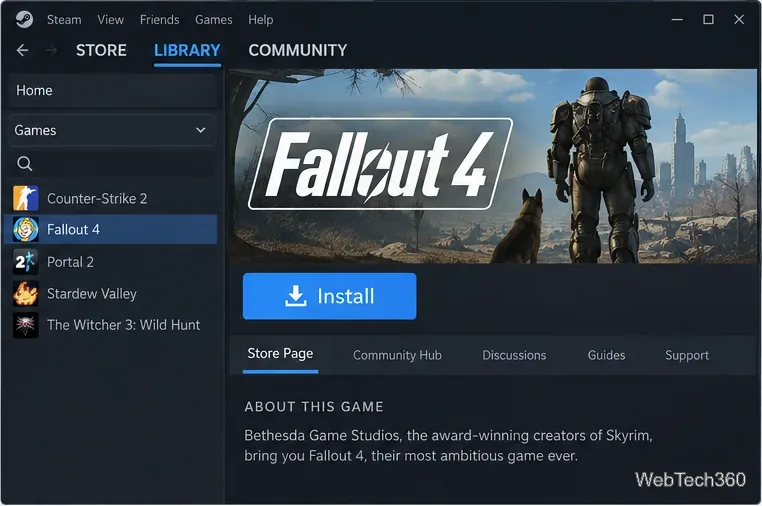
Once the game reaches its main menu, start with the default graphics settings and test that the game saves and reloads correctly. Then adjust resolution and quality for your hardware. Add mods or Creations only after the unmodified game starts reliably; third-party additions can introduce separate compatibility problems.
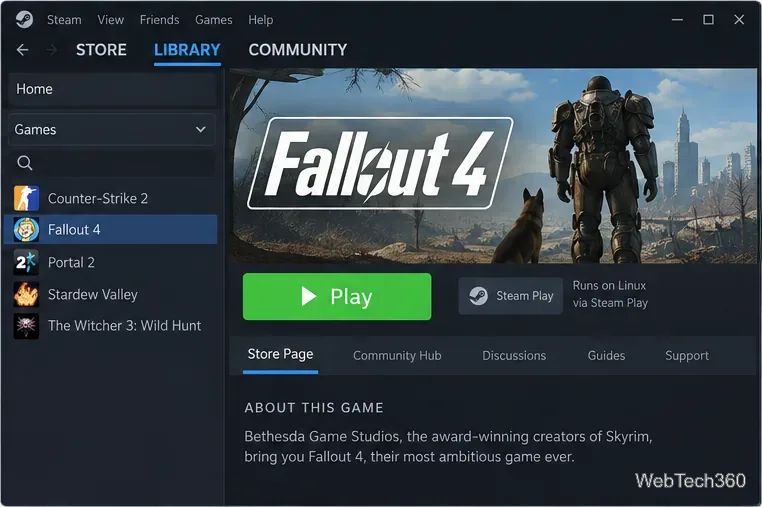
If clicking Play returns you to the library or the game crashes, try one change at a time:
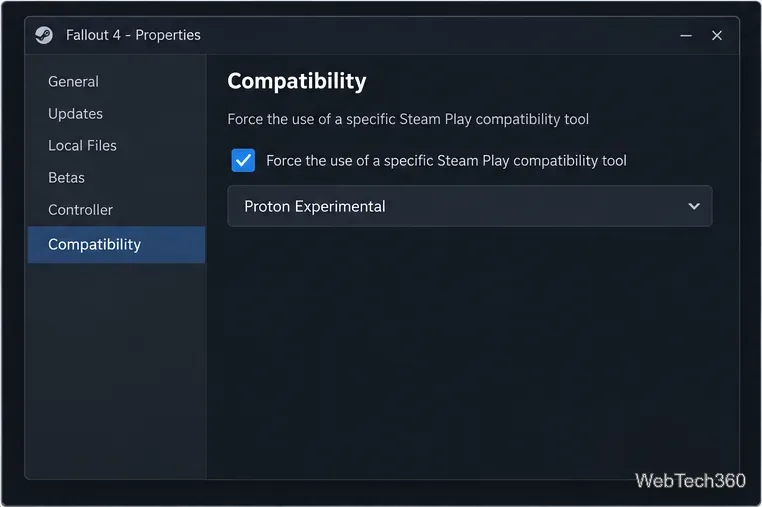
Valve's Proton project documentation explains the compatibility tool and its releases. For general crash advice, see Bethesda Support's Fallout 4 PC troubleshooting guide, which includes file verification and removing problematic launch options. Its Windows-specific steps may not apply directly to Linux, so use the Steam client for the checks above.
Steam Play is the simplest supported route for the Steam copy, but it does not guarantee identical behavior on every Linux setup. Keep Steam and your graphics drivers current, and use the per-game Proton setting only when the default fails. The old Wine-and-Winetricks method adds a second Windows Steam installation and a separate compatibility prefix; it is not needed for this Steam Play workflow. If the game still will not start after file verification and a Proton version test, consult Valve's Proton issue tracker with your distro, GPU, driver, and Proton version so the problem can be narrowed down.
Compare four Adobe Acrobat alternatives for Linux, from Okular’s signatures and markup to GNOME Papers, Atril, and MuPDF.
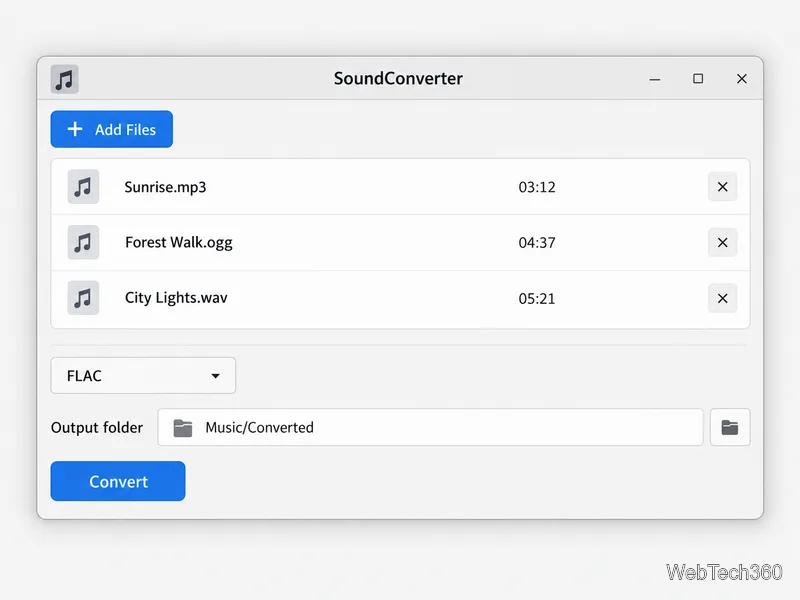
Compare Linux audio converters for batch jobs, CD ripping, editing, and command-line workflows, with practical format and codec notes.
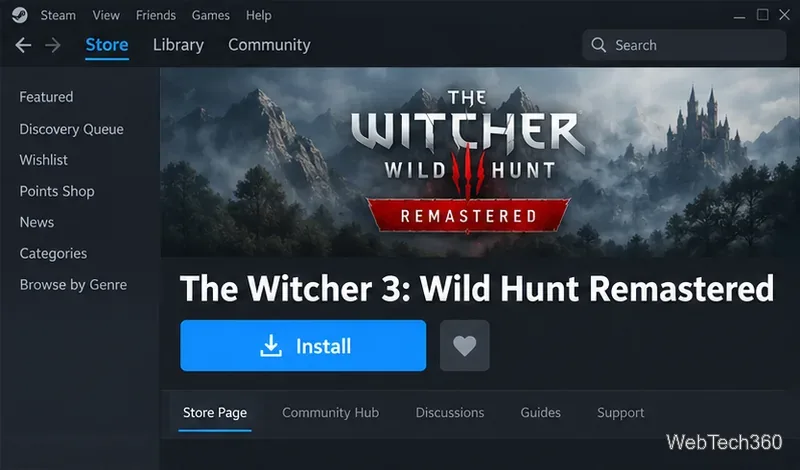
Set up The Witcher 3 on Linux with Steam Proton or a GOG copy in Heroic, with current guidance for Remastered compatibility issues.
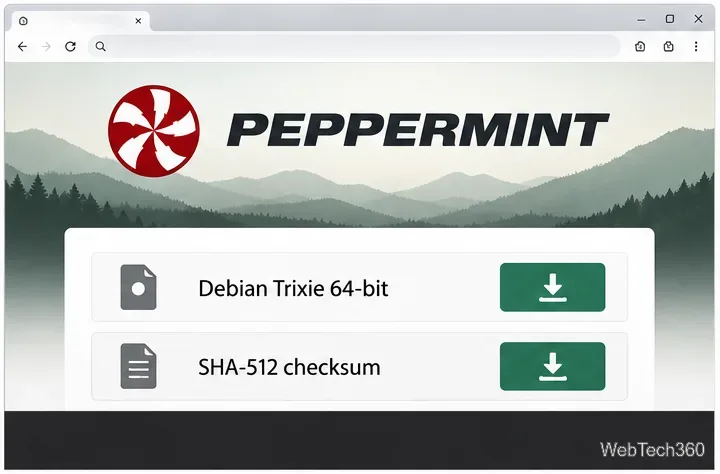
Install Peppermint OS from the Debian Trixie 64-bit ISO: verify the download, create a bootable USB, choose a disk layout, and complete setup safely.
Compare four Linux wallpaper apps for searching, filtering, saving, and rotating desktop backgrounds, with current install links and compatibility notes.
Install Fallout 4 from Steam on Linux, enable Proton for Windows games, and troubleshoot common launch problems with practical compatibility steps.
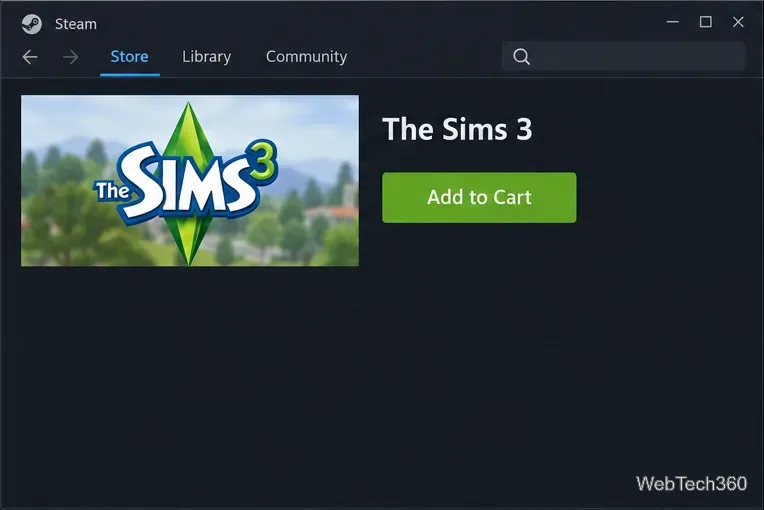
Use Steam Play and Proton to install The Sims 3 on Linux, or try a PC DVD copy with Wine. Follow current setup steps and compatibility tips.
Prepare a model-matched microSD card, install OSMC with the official desktop installer, and complete first-run setup on your Raspberry Pi.
Install the Steam version of No Man’s Sky on Linux with Proton, then troubleshoot launch failures, graphics issues, and compatibility settings.
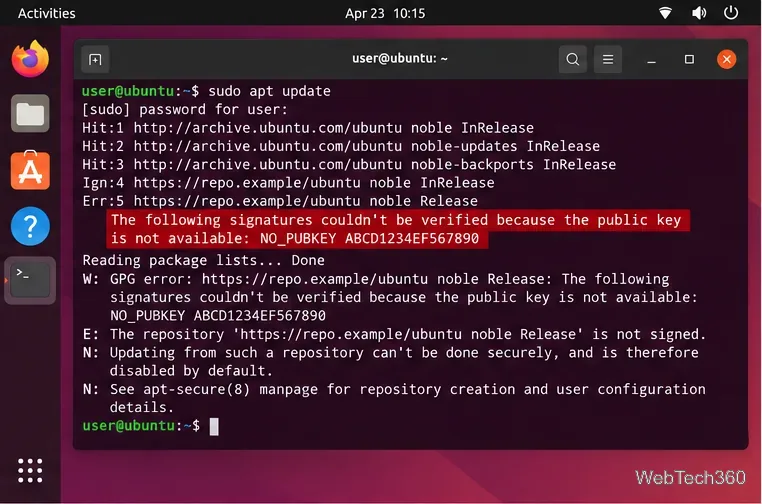
Find the repository that raised NO_PUBKEY, verify its publisher’s signing key, scope it with Signed-By, and refresh APT safely without weakening signature checks.