4 Best Adobe Acrobat Alternatives for Linux: PDF Reading and Markup
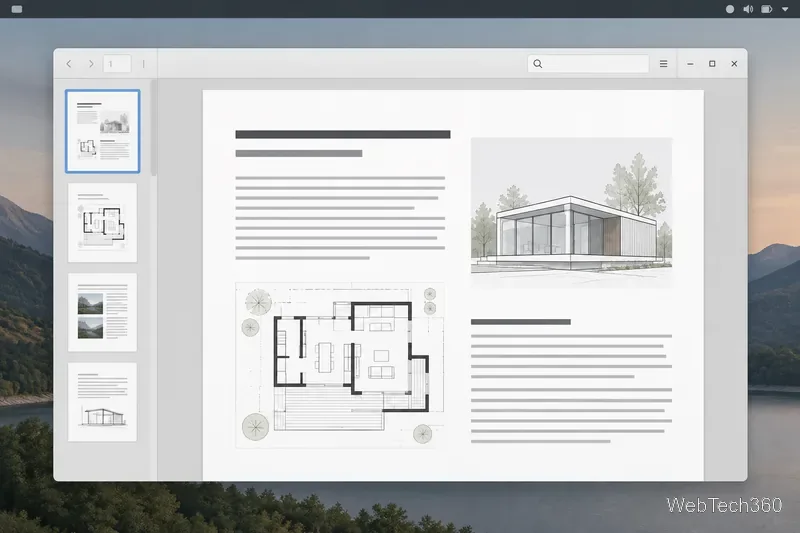
Compare four Adobe Acrobat alternatives for Linux, from Okular’s signatures and markup to GNOME Papers, Atril, and MuPDF.
To install Peppermint OS, download the current ISO, write it to a USB flash drive, boot from that drive, and follow the graphical installer. Back up your files first: an erase option can delete the operating system and data on the selected drive.
This guide follows Peppermint’s Debian Trixie 64-bit flagship. The project also lists other bases, so choose deliberately on the official Peppermint downloads page. The current Debian flagship is 64-bit; old Peppermint 10 instructions, ISO names, and 32-bit download buttons no longer describe this release. See the Trixie release announcement for the project’s release details.
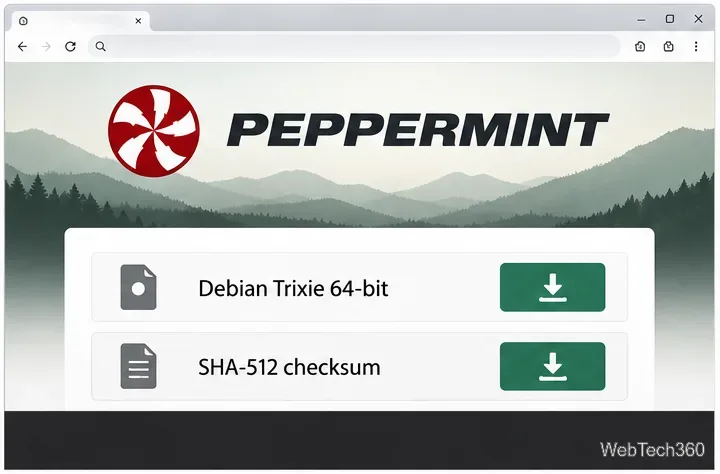
On Peppermint’s download page, choose the Flagship build under the Debian Base (Trixie) heading, then select its 64-bit ISO. Download the SHA-512 checksum file shown beside that image as well. Compare the ISO’s SHA-512 hash with the supplied checksum. Windows PowerShell can run Get-FileHash .\your-file.iso -Algorithm SHA512; on Linux use sha512sum your-file.iso, or on macOS use shasum -a 512 your-file.iso. If the values differ, download the ISO again.
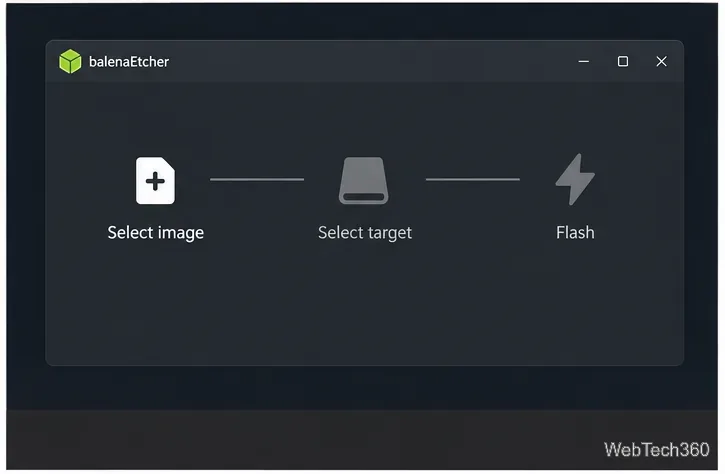
Install balenaEtcher from its official site or use another trusted image writer. Select the ISO and USB target, confirm its name and capacity, then flash and wait for validation. Etcher erases the selected drive; save its contents first and disconnect other removable drives. See the official FAQ for details.
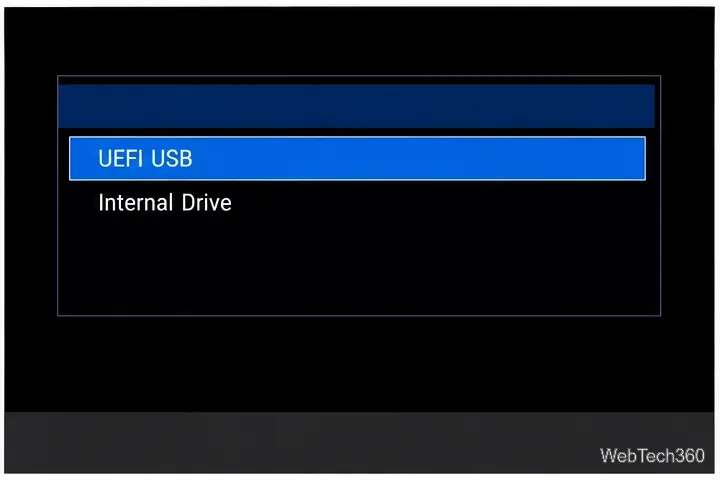
Leave the USB plugged into the PC where you want Peppermint installed, restart, and open the one-time boot-device menu. The key varies by manufacturer; common examples include F12, F11, Esc, or a key shown briefly during startup. Choose the USB device, preferably the entry marked UEFI if your computer offers one. If the menu does not list the USB, try another port and confirm Etcher completed successfully before rewriting the drive.
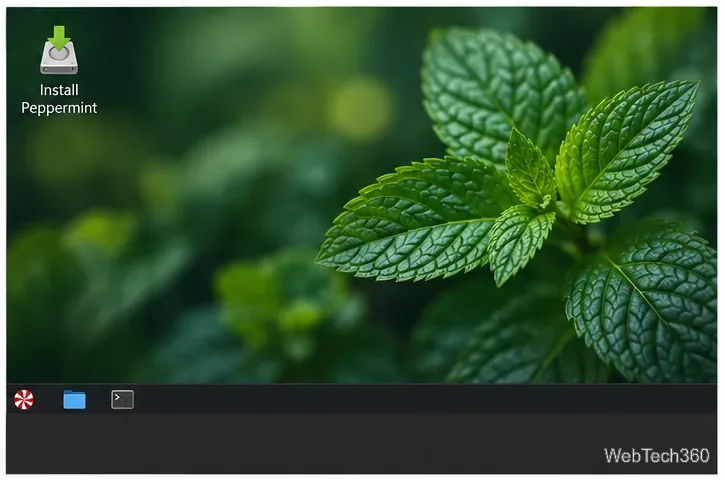
The ISO starts a live Peppermint desktop where you can check the display and keyboard. Open the Install Peppermint icon, or search for it in the application menu. The project’s quick install walkthrough also describes starting from the live desktop; screen wording can differ between builds.
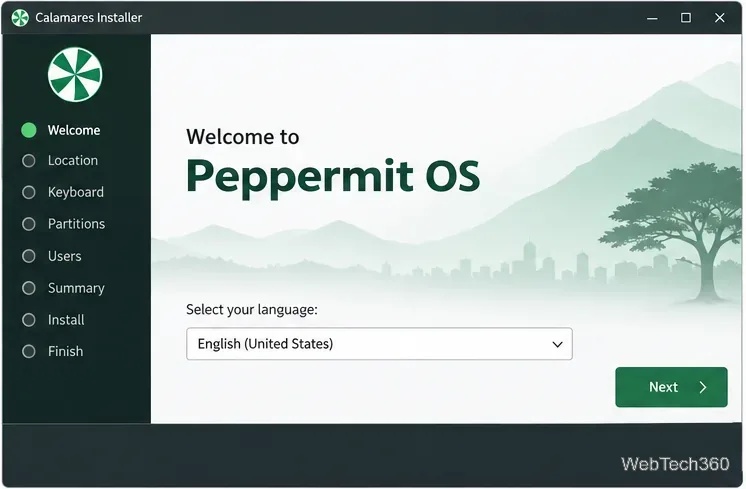
Select the language for the installed system and continue. Review each page before advancing; these choices carry over to the installed system.
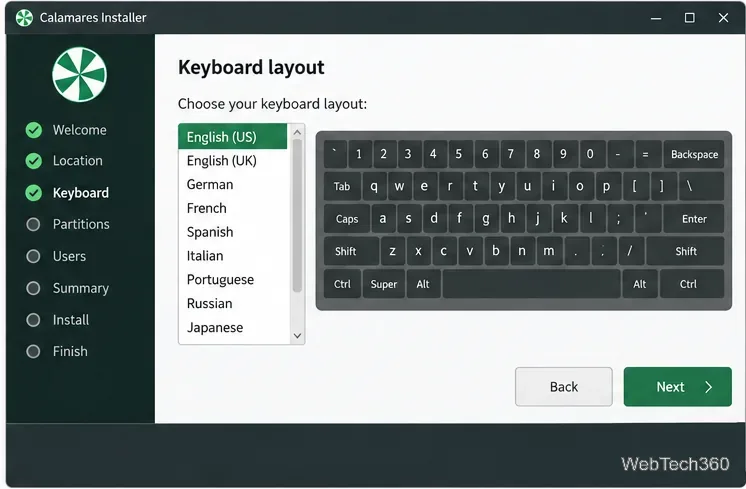
Choose the layout and variant that match your physical keyboard. If a test field is available, try punctuation or accented characters that differ between layouts. This helps ensure your password will work after setup.
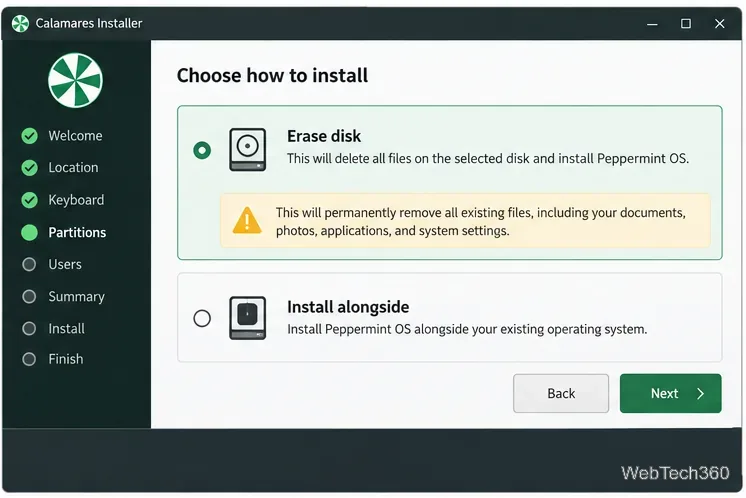
The disk page may offer Erase disk and Install alongside. Erasing removes the existing files and operating systems from the selected disk, so choose it only when you intend to replace that disk and have a verified backup. To keep another OS, use an alongside option only if it appears and identifies the right drive. For custom partitions, confirm the partition table and mount points instead of guessing. Review the summary before writing changes.
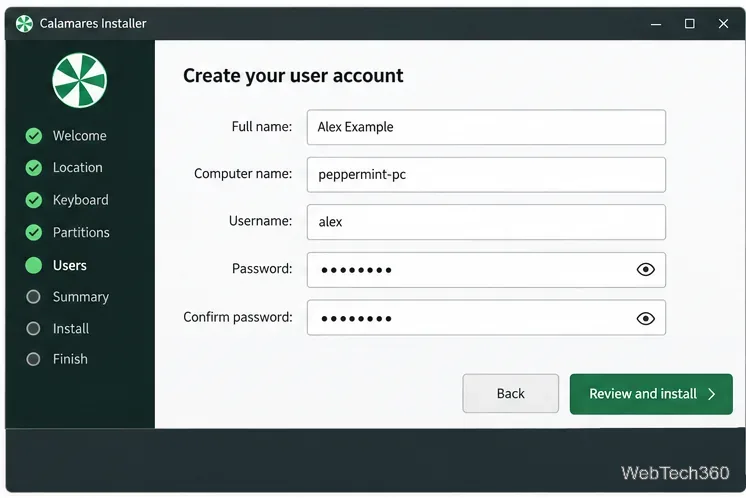
Enter your name, computer name, username, and a strong password. If asked for a region or time zone, choose the computer’s normal location. Review the summary and start only when the target disk and planned changes are correct. Keep the PC powered on. When installation finishes, restart and remove the USB when prompted so the computer boots from its internal drive.
If the computer returns to its old OS, reopen the boot menu and select the USB. For a bootloader or partition error, record the message and stop before changing partitions. Boot mode and disk layout must agree; ask the Peppermint community forum for help. After signing in, connect to the network and install available updates.
Compare four Adobe Acrobat alternatives for Linux, from Okular’s signatures and markup to GNOME Papers, Atril, and MuPDF.
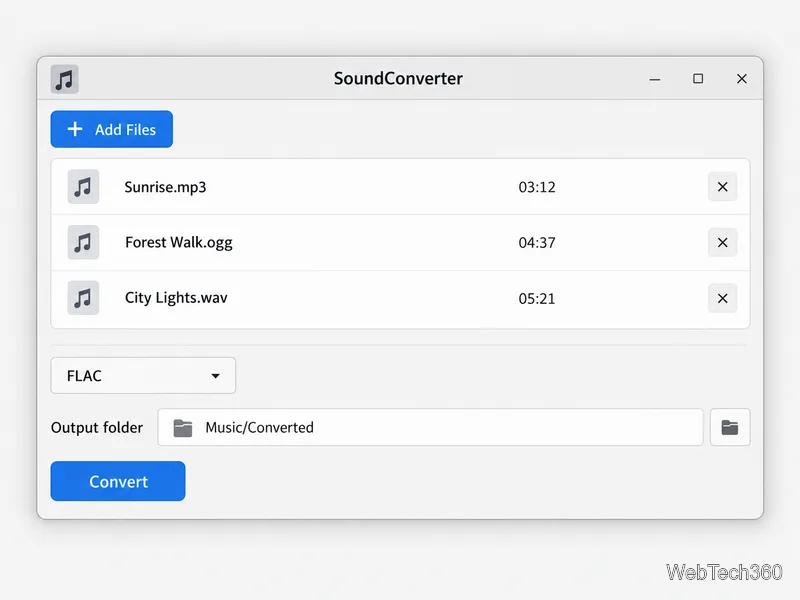
Compare Linux audio converters for batch jobs, CD ripping, editing, and command-line workflows, with practical format and codec notes.
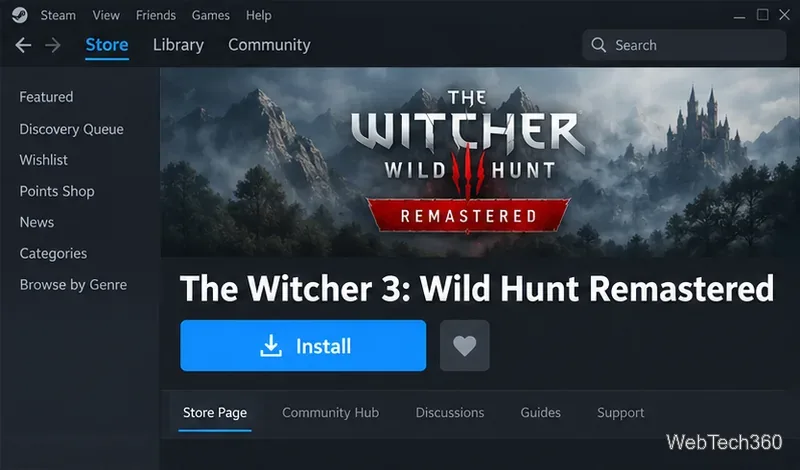
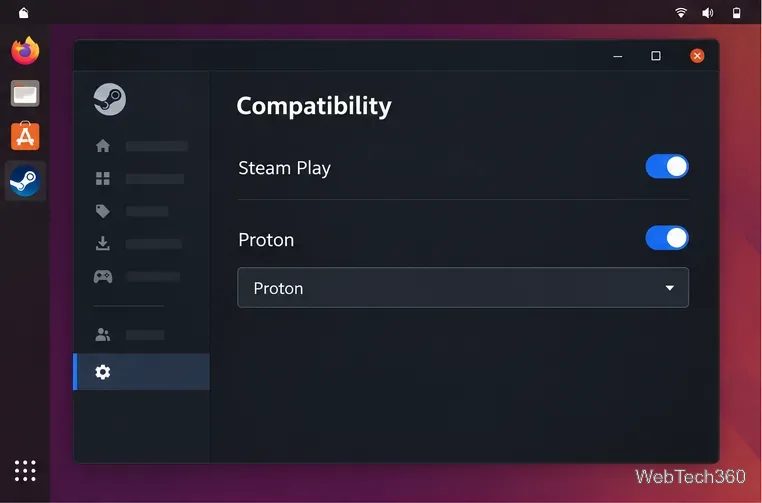
Set up The Witcher 3 on Linux with Steam Proton or a GOG copy in Heroic, with current guidance for Remastered compatibility issues.
Install Peppermint OS from the Debian Trixie 64-bit ISO: verify the download, create a bootable USB, choose a disk layout, and complete setup safely.
Compare four Linux wallpaper apps for searching, filtering, saving, and rotating desktop backgrounds, with current install links and compatibility notes.
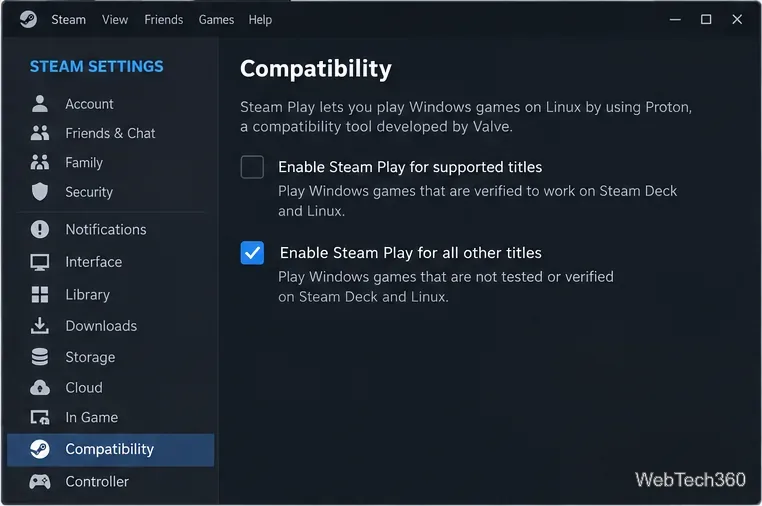
Install Fallout 4 from Steam on Linux, enable Proton for Windows games, and troubleshoot common launch problems with practical compatibility steps.
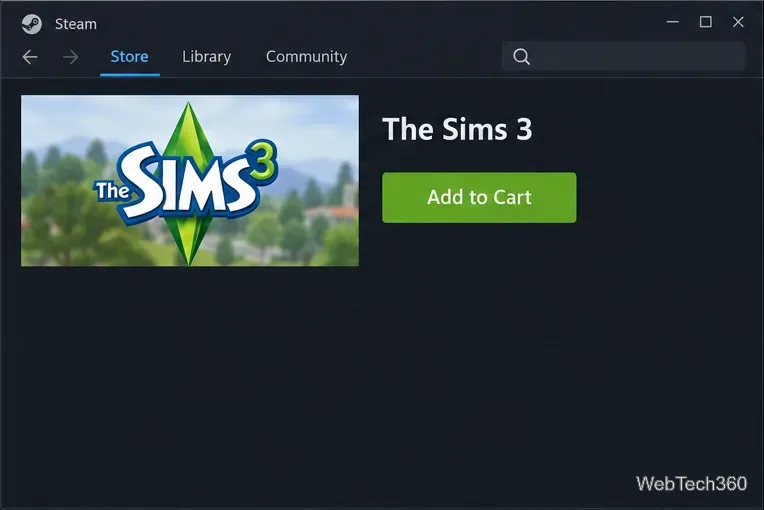
Use Steam Play and Proton to install The Sims 3 on Linux, or try a PC DVD copy with Wine. Follow current setup steps and compatibility tips.
Prepare a model-matched microSD card, install OSMC with the official desktop installer, and complete first-run setup on your Raspberry Pi.
Install the Steam version of No Man’s Sky on Linux with Proton, then troubleshoot launch failures, graphics issues, and compatibility settings.
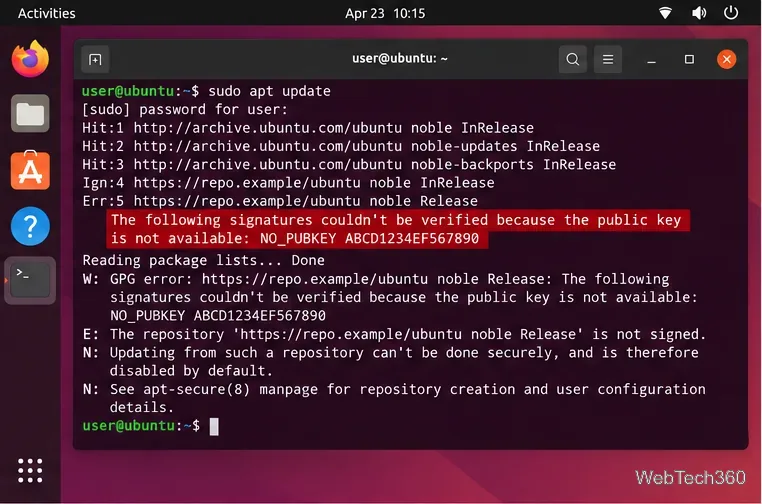
Find the repository that raised NO_PUBKEY, verify its publisher’s signing key, scope it with Signed-By, and refresh APT safely without weakening signature checks.