Home
» LINUX
»
4 Ways to Back Up Steam Games on Linux
4 Ways to Back Up Steam Games on Linux
If you want to back up Steam games on Linux without downloading a large library again, you have four practical options: Steam's own backup feature, a direct copy of the Steam library, a compressed archive, or an incremental rsync backup. The best choice depends on whether you want the simplest restore, the fastest raw copy, one portable archive file, or repeat backups that only transfer changes.
Before copying anything manually, exit Steam so files are not changing during the backup. Installed game files and save files are not always the same thing: Steam Support notes that its game backup can omit saves, custom maps, and configuration files, while Steam Cloud only covers data a game actually chooses to sync. See Steam's backup documentation and Steam Cloud support.
1. Use Steam's built-in Backup game files feature
This is the easiest method when you mainly want to preserve installed game content and let Steam handle the restore.
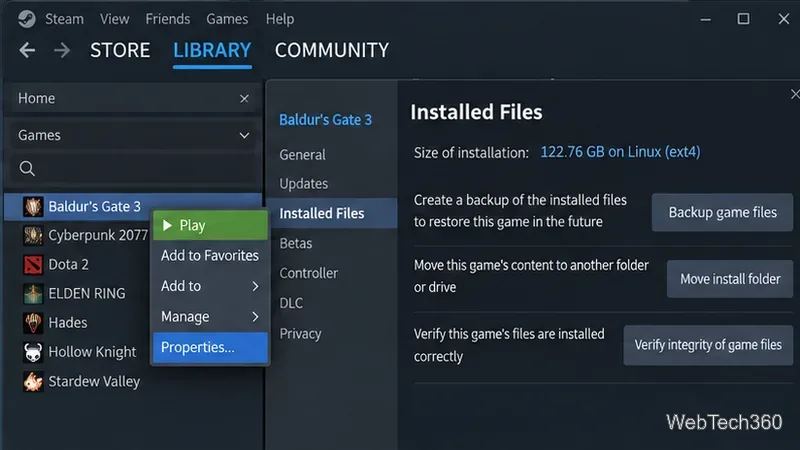
Open Library in Steam.
Right-click the game and choose Properties.
Open Installed Files.
Select Backup game files, choose a destination with enough free space, and create the backup.
Steam still documents Backup game files under Properties > Installed Files.
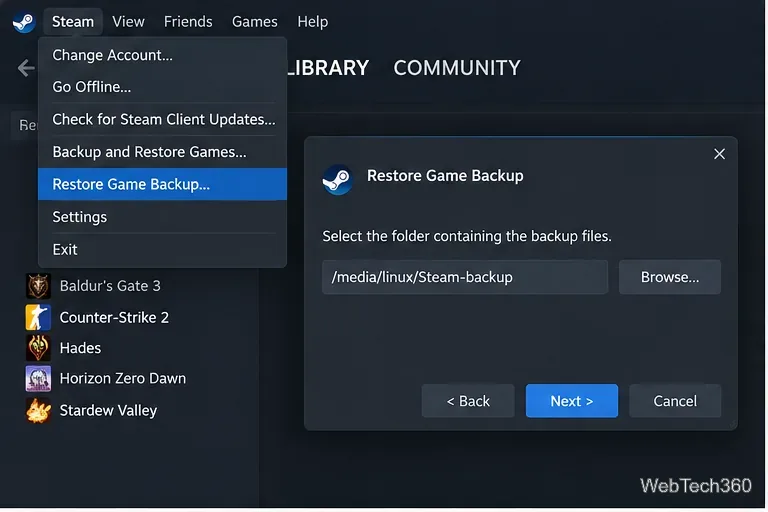
To restore it later, open the Steam menu and choose Restore Game Backup, then browse to the backup folder. Steam says this feature works only for games fully downloaded, installed, and patched through Steam; titles that depend on some third-party installers or downloaders may not be compatible.
Use Steam > Restore Game Backup to import a backup created by Steam.
2. Copy the Steam library with your file manager
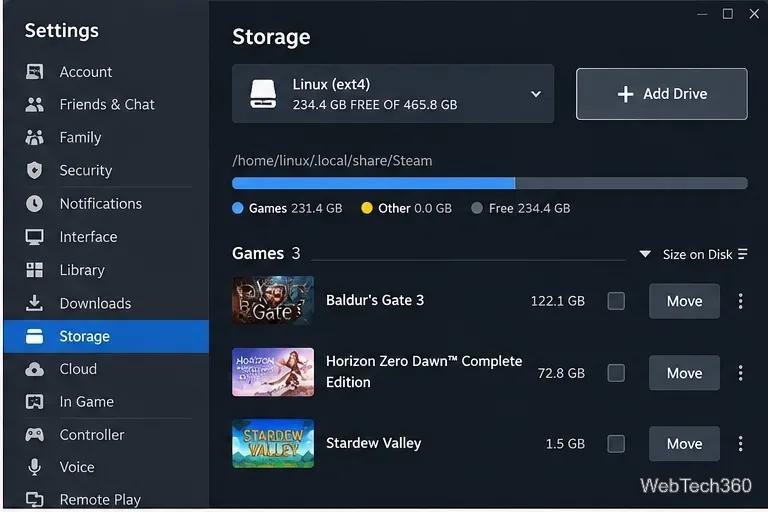
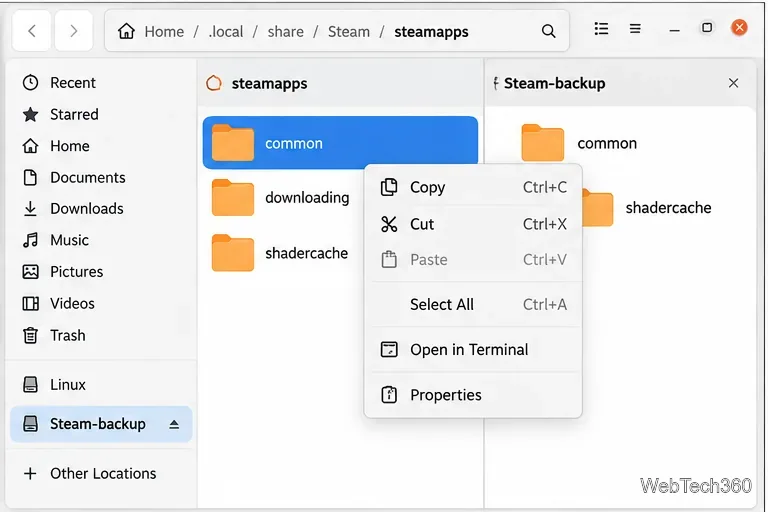
A raw copy is often faster and more flexible than creating a Steam backup archive. On a standard Linux installation, Steam is commonly under ~/.local/share/Steam; the game library is inside steamapps. Steam can also use additional library folders, so check Steam > Settings > Storage first if you are not sure where a game is installed. ArchWiki's Steam documentation lists ~/.local/share/Steam as the default location and explains the steamapps/common library layout.
Steam Settings > Storage helps confirm which library path contains the games you want to back up.
Quit Steam.
Open the Steam library folder in your file manager.
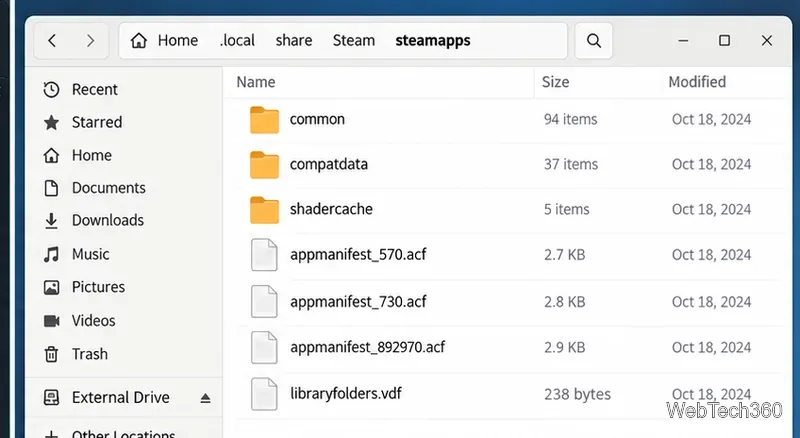
Copy the entire steamapps directory to an external drive or another disk. Copying the whole directory preserves the appmanifest_*.acf files Steam uses to identify installed apps, not just the large folders under common.
After a reinstall, return the folder to a Steam library location, start Steam, and let Steam detect or verify the existing files.
Backing up all of steamapps preserves more useful Steam metadata than copying only steamapps/common.Keep the backup on a different physical drive when possible, not beside the original library.
3. Create a compressed Steam backup archive
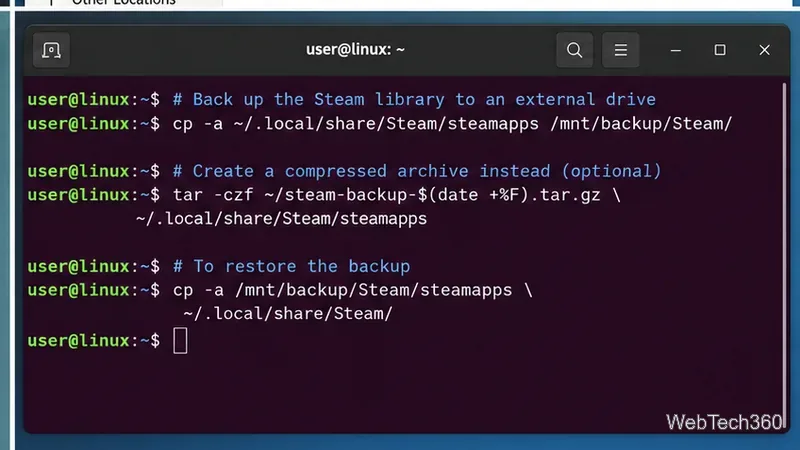
If you prefer one file that is easy to move to a NAS or archive disk, create a tar archive from the terminal. The GNU tar manual documents creating and extracting directory archives. This example stores the whole steamapps directory:
tar -czf "$HOME/steamapps-backup-$(date +%F).tar.gz" \
  -C "$HOME/.local/share/Steam" steamapps
To restore it into the default Steam directory, quit Steam first, make sure the destination exists, and extract the archive:
mkdir -p "$HOME/.local/share/Steam"
tar -xzf "$HOME/steamapps-backup-YYYY-MM-DD.tar.gz" \
  -C "$HOME/.local/share/Steam"
A compressed archive is convenient for cold storage, although creating and extracting it takes extra time.
4. Use rsync for repeat or incremental backups
For a large library that you back up repeatedly, rsync is more efficient than recopying everything. The rsync project describes it as a fast incremental file-transfer utility, and its -a archive mode recursively copies directories while preserving most common file attributes.
rsync -a --info=progress2 \
  "$HOME/.local/share/Steam/steamapps/" \
  "/media/$USER/BackupDrive/Steam/steamapps/"
Run the same command again later and rsync will update the destination instead of blindly copying every file again. Review the official rsync man page before adding destructive options such as --delete.
Do not forget save files and Proton data
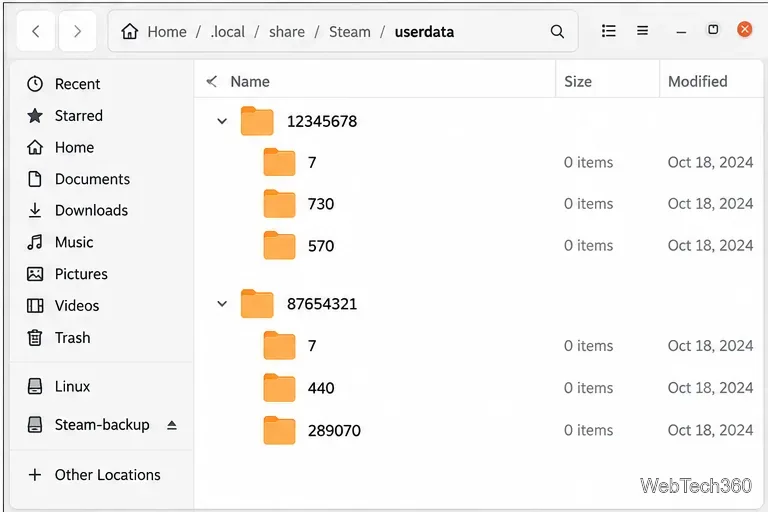
If your goal is disaster recovery rather than just avoiding game downloads, back up save data separately. Steam Support lists Linux Steam Cloud files under ~/.local/share/Steam/userdata. Games that do not use Steam Cloud can store saves elsewhere, and Windows games running through Proton may keep game-specific data inside steamapps/compatdata. Do not assume the game installation folder contains every save.
Steam Cloud data is stored locally under ~/.local/share/Steam/userdata, but not every game relies on Steam Cloud.
Why this guide no longer recommends Déjà Dup for Steam
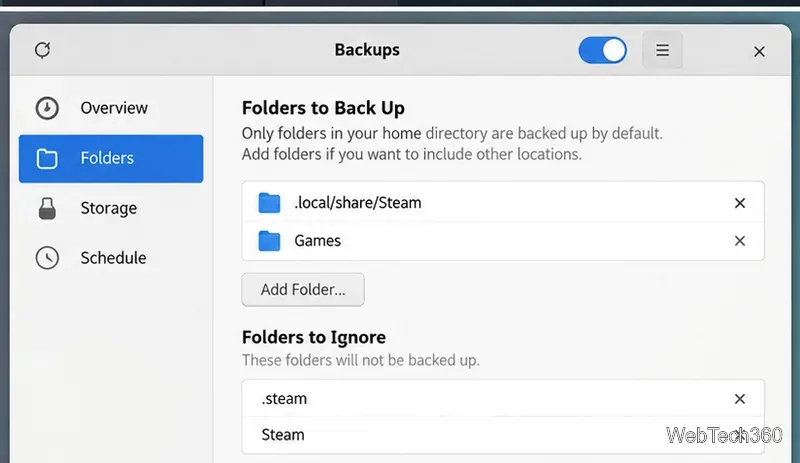
The older article recommended Déjà Dup (GNOME Backups) and claimed that backing up your home folder would automatically include Steam. Current Déjà Dup documentation lists ~/.steam/root, ~/.local/share/Steam, and the Flatpak Steam root among locations ignored by default. For a Steam library, use an explicit method above instead of assuming a general home-directory backup includes it. See the Déjà Dup folder documentation.
Check backup exclusions carefully: Steam directories can be excluded even when they sit under your home folder.
Which backup method should you use?
Method
Best for
Steam Backup game files
Simplest Steam-managed restore
File-manager copy
Fast manual copy of a full library
tar archive
One portable compressed file
rsync
Large libraries and repeat backups
Whichever method you choose, keep at least one backup on a different physical device and test that Steam can see the restored files before deleting the original copy.