Home
» LINUX
»
5 Best Linux Encryption Tools to Install for Better Data Security
5 Best Linux Encryption Tools to Install for Better Data Security
If you want to encrypt data on Linux, the best tool depends on what you need to protect. For most users, the strongest current choices are VeraCrypt for portable encrypted volumes, cryptsetup with LUKS for Linux disks and partitions, Cryptomator for cloud-synced folders, gocryptfs for lightweight encrypted directories, and GnuPG for individual files and messages. These options are better maintained and more practical today than older recommendations such as CipherShed or GNOME EncFS Manager.
One important distinction: a VPN encrypts network traffic, while the tools below protect stored data. A VPN does not replace disk or file encryption.
Quick comparison of the best Linux encryption tools
Tool
Best for
Interface
VeraCrypt
Encrypted containers, USB drives, cross-platform volumes
GUI and CLI
cryptsetup + LUKS
Linux disks, partitions, and full-disk encryption
CLI
Cryptomator
Encrypted folders stored in Dropbox, Nextcloud, OneDrive, or similar services
GUI
gocryptfs
Fast encrypted directories and cloud-sync workflows
CLI
GnuPG
Encrypting or signing individual files and messages
CLI, with optional front ends
1. VeraCrypt: best for encrypted containers and removable drives
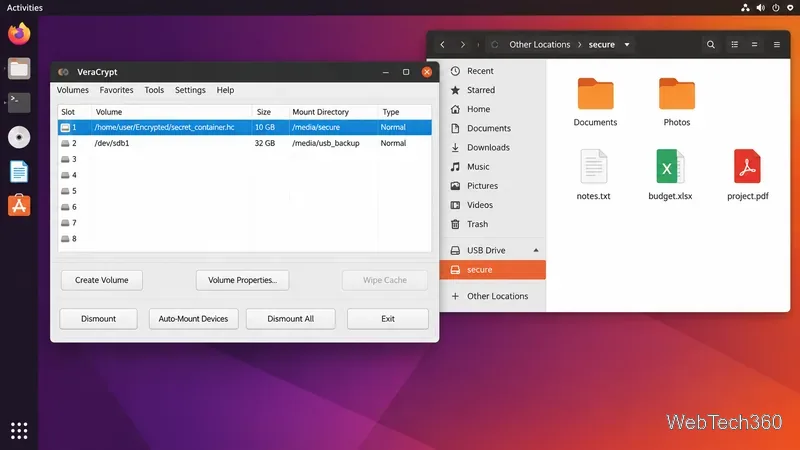
VeraCrypt is an excellent choice when you want an encrypted container that behaves like a virtual disk, or when you need to protect a USB drive or non-system partition. Its documentation supports file-hosted volumes as well as partition- and device-hosted volumes, and the project provides Linux builds for x86-64 and ARM64.
VeraCrypt is especially useful if you move encrypted data between Linux, Windows, and macOS. The official download page currently offers an AppImage, generic Linux installers, and Debian packages. Use the project's official VeraCrypt downloads rather than third-party mirrors, because security tools should be kept current.
A mounted encrypted volume can be accessed like a normal folder after it is unlocked.
2. cryptsetup with LUKS: best for native Linux disk encryption
If your goal is to encrypt a Linux disk, SSD, partition, or block device, cryptsetup with LUKS is the standard Linux-focused option. The cryptsetup project describes LUKS as a managed encrypted-volume format with metadata and multiple key slots; current cryptsetup defaults to LUKS2 when creating new LUKS volumes.
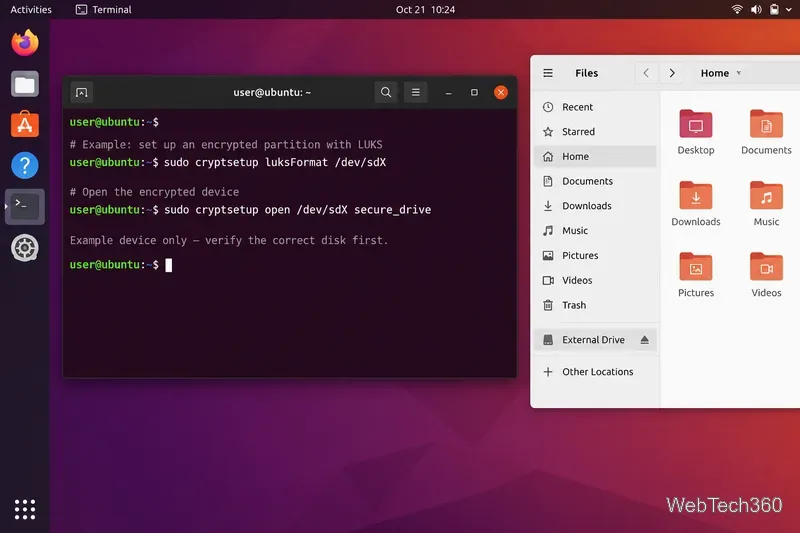
This tool is powerful but deserves care. Commands such as cryptsetup luksFormat initialize a device and can destroy existing data if you select the wrong disk. Back up important files first, verify device names carefully, and keep a LUKS header backup for important encrypted volumes. See the official cryptsetup manual and cryptsetup FAQ before changing partitions.
cryptsetup is designed for encrypted block devices; always confirm the target device before formatting.
3. Cryptomator: best for encrypted cloud folders
Cryptomator is the most approachable option here for people who want a graphical app. It creates encrypted vaults that you can place inside a cloud-sync folder while exposing the unlocked files through a normal filesystem view. Its desktop documentation states that file names and directory structures are encrypted as part of the vault format.
4. gocryptfs: best lightweight encrypted filesystem for Linux
gocryptfs is an encrypted overlay filesystem built specifically with Linux in mind. You keep ciphertext in one directory and mount a decrypted view somewhere else. That design works well when you want encrypted files inside a synchronized cloud folder without encrypting an entire disk.
The project's quickstart shows packages for Debian/Ubuntu and Fedora, plus precompiled binaries. It also recommends keeping the encrypted directory inside your cloud-sync folder while keeping the plaintext mount outside it. Start with the official gocryptfs quickstart. As with any encryption system, back up both your data and recovery material.
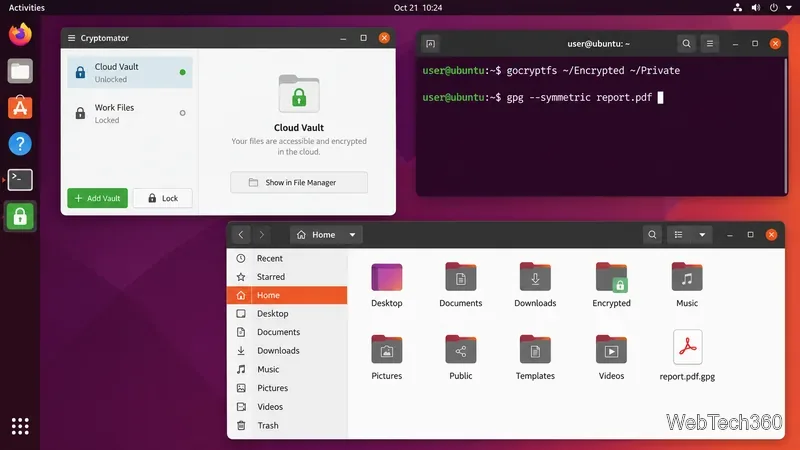
Different encryption tools can coexist: a GUI vault for cloud storage and command-line tools for folders or individual files.
5. GnuPG: best for individual files, messages, and signatures
GnuPG implements OpenPGP and remains one of the most useful command-line security tools on Linux. It can encrypt files to a recipient's public key, perform symmetric encryption with a passphrase, and create or verify digital signatures. That makes it a better fit for documents, archives, email workflows, and software verification than for whole-disk encryption.
Many distributions already include GnuPG, but package availability varies. The current official manual documents GnuPG 2.x commands such as --encrypt, --symmetric, --sign, and --verify. Refer to the official GnuPG manual for supported options and key-management guidance.
Which Linux encryption tool should you install?
Choose based on the data you are protecting. Use VeraCrypt for portable encrypted containers, LUKS for Linux disks and partitions, Cryptomator for a friendly cloud-vault workflow, gocryptfs for efficient encrypted directories, and GnuPG for individual files and signatures. For important data, keep separate backups: encryption protects confidentiality, but it cannot recover files lost to hardware failure, accidental deletion, or a forgotten key.