How to Access a Windows BitLocker Partition in Linux

Use Dislocker to unlock a BitLocker volume in Linux, mount its virtual NTFS file read-only, and safely unmount it without exposing your password in a command.
To reduce RAM usage on Linux, identify memory-hungry apps and close or reconfigure the ones you do not need. Start with browser tabs and apps that launch at sign-in; a lighter desktop can help older computers. Linux can reclaim much of its file cache when applications need memory.
Open a terminal and run free -h. Pay attention to the available column, not just free. Linux uses some spare RAM to cache files so they can open faster. The kernel’s MemAvailable value estimates how much memory can be used for new applications without swapping, taking reclaimable cache into account. Read the Linux kernel documentation for /proc/meminfo for the definition.

available to judge memory headroom; a low free value alone does not prove Linux is short on RAM.If the computer stays responsive and MemAvailable is healthy, high usage may be normal. If available memory stays low, swap use rises, or apps freeze, look for a real source of pressure.
Open your desktop’s system monitor and sort the process list by memory. GNOME System Monitor has a Processes tab with a Memory column; other desktops may include their own process viewer. The GNOME guide to checking memory use explains how to sort that list.
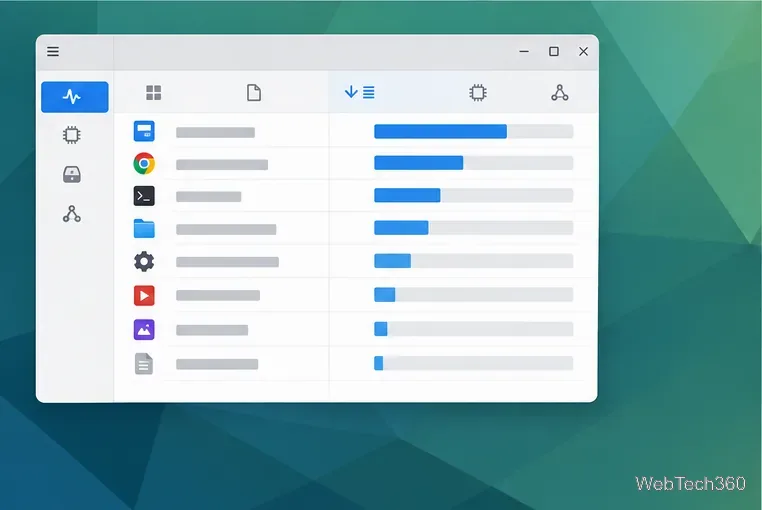
Save work, then close a large editor, game, video project, or virtual machine you no longer need. If an app steadily grows while idle, update it and inspect its extensions or open files. Force-stop only a nonessential, unresponsive app; ending a system or desktop process can log you out or interrupt services.
Browser memory depends on your tabs and extensions, so switching browsers is no guarantee. Close unneeded tabs, especially video pages or large web apps, and disable extensions you rarely use.
In Firefox, press Shift + Esc or open Menu → More Tools → Task Manager to view memory use by process. Its process page can help identify a tab or extension to close; see Mozilla’s Firefox Task Manager guide. Other browsers have similar built-in task managers or process views.
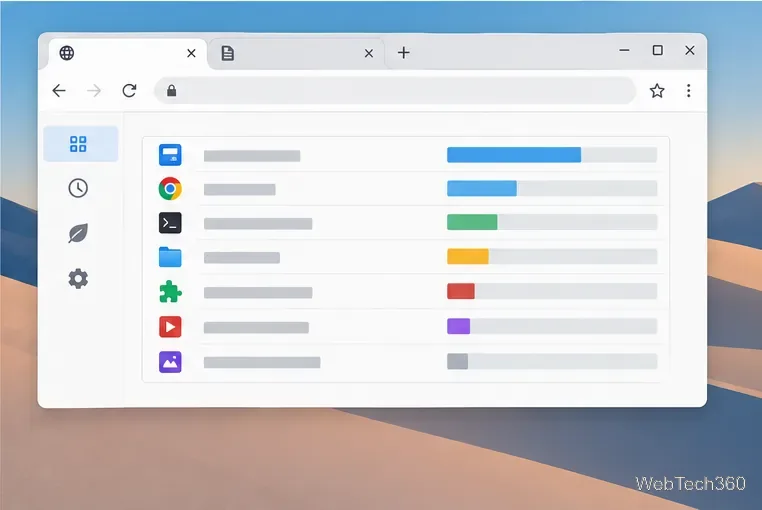
Chat, game, cloud-sync, and helper apps may stay in memory after launching at sign-in. Review your desktop’s startup list and disable only apps you do not need right away. In GNOME, use GNOME Tweaks; the GNOME help page describes the setting. Other desktops may call it Session and Startup or Autostart.
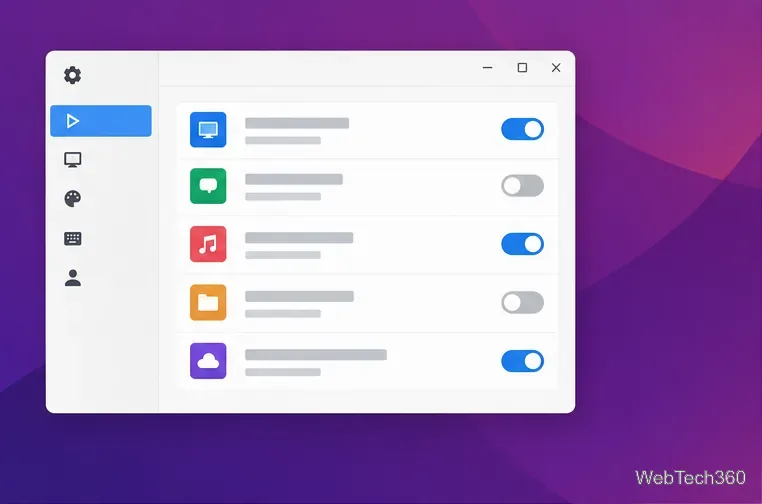
Do not delete every .desktop file from an autostart folder. Some entries support the desktop or hardware, and removing them in bulk can create new problems. Change one or two optional items, sign out and back in, then check whether memory use at idle has improved.
The desktop environment stays active during your session, so replacing a resource-heavy setup can help on a memory-constrained computer. LXQt describes itself as a lightweight, modular desktop. Lubuntu is an Ubuntu flavor built around LXQt; see the official Lubuntu site.
To try LXQt, follow your distribution’s installation instructions; package names and session setup differ. Sign out, choose LXQt at the login screen if offered, and test your usual workload while keeping the original desktop installed. Before changing distributions, try a live USB and check your hardware.
Some workloads need substantial RAM regardless of desktop settings. Close idle virtual machines or containers, reduce parallel builds, and pause large video or image jobs when multitasking. In an IDE, close unused workspaces and language servers. If an app offers a memory or worker limit, lower it gradually and confirm the task still completes reliably.
If you are choosing a replacement app, compare it with the same files and workload rather than assuming that a different program or Linux distribution will always use less memory. The goal is to free enough headroom for the work you actually do.
Do not force-clear the filesystem cache or install a memory-cleaner utility to make a usage display look lower. Linux can reclaim cache under pressure. Swap or zram may help handle bursts, but they do not make applications use less RAM. If MemAvailable stays very low during normal work, the workload may exceed physical memory; adding RAM is the lasting fix when supported.
Use Dislocker to unlock a BitLocker volume in Linux, mount its virtual NTFS file read-only, and safely unmount it without exposing your password in a command.
Learn how to reduce RAM usage on Linux by finding memory-hungry apps, trimming browser and startup load, and testing a lighter desktop safely.
Compare four WhatsApp alternatives for Linux by privacy defaults, desktop support, setup requirements, and the people each app suits.
Troubleshoot a VirtualBox VM that will not start on Linux by checking vboxdrv, kernel headers, Secure Boot, Extension Pack versions, and VM logs.
Transfer your Ubuntu user data with a tar archive and external drive, then restore personal files and selected settings without overwriting the new setup.
Install gThumb on Linux, browse and make simple photo edits, then set it as the default app for the image types you choose in GNOME.
Create an organized playlist in Rhythmbox or save a reusable XSPF playlist in VLC. Learn how to add tracks, name a list, and reopen it on Linux.
Install Dino on Linux with Flatpak or your distribution’s package manager. Get current Ubuntu, Debian, Fedora, and Arch commands, plus first-launch tips.
Install Arch Linux’s linux-lts kernel, add it to GRUB or systemd-boot, select it at startup, and verify it while keeping a fallback kernel.
Download the right Pi 4 image, write it to a microSD card, and complete LibreELEC’s first-run setup with Raspberry Pi Imager.







