How to Access a Windows BitLocker Partition in Linux

Use Dislocker to unlock a BitLocker volume in Linux, mount its virtual NTFS file read-only, and safely unmount it without exposing your password in a command.
To switch Arch Linux to its LTS kernel, install linux-lts, make it available in your bootloader, then choose its entry at startup. Keep the standard linux package until LTS boots successfully; Arch can keep both kernels installed.
Arch provides linux-lts in Core. The kernel receives long-term upstream maintenance and can be a useful alternative or fallback for troubleshooting, but it does not guarantee compatibility. See the official package page and ArchWiki kernel guidance.
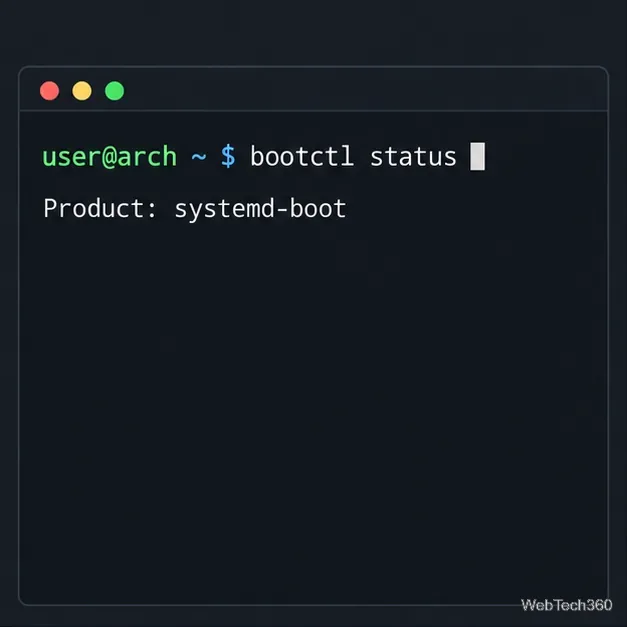
Identify the active bootloader. If bootctl status reports systemd-boot, use that section; bootctl list shows its entries. Otherwise, confirm where your GRUB configuration lives. The GRUB example below uses /boot/grub/grub.cfg; customized systems may use another path. Save any custom boot entry before editing.
Arch does not support partial upgrades. Use a full system upgrade when installing packages, as shown in the first command.
Open a terminal and run:
sudo pacman -Syu linux-ltsReview and confirm Pacman’s transaction. The package installs the LTS kernel and modules; its images are typically named vmlinuz-linux-lts and initramfs-linux-lts.img. The configured initramfs tooling creates the matching boot image.

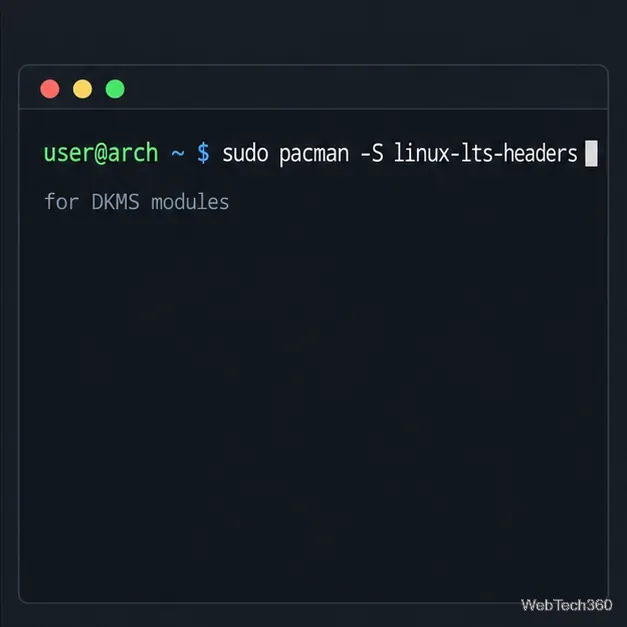
If you use DKMS or another tool to compile out-of-tree modules, install the matching headers too:
sudo pacman -S linux-lts-headersHeaders are optional for most users. Check your driver’s package instructions to see whether it needs them.
Kernel installation alone does not select LTS in every boot setup. Follow the instructions for the bootloader already in use.
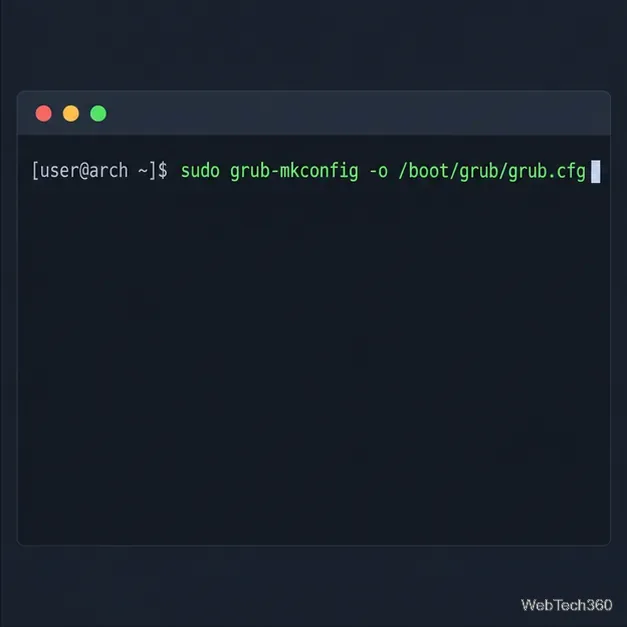
For a standard Arch GRUB installation, regenerate its menu:
sudo grub-mkconfig -o /boot/grub/grub.cfgThe generator normally detects installed Arch kernels and adds an LTS entry. Check its output. If your system stores grub.cfg elsewhere, use that path. See the ArchWiki GRUB guide.
systemd-boot reads entries and boot files from the EFI System Partition (ESP) or an Extended Boot Loader Partition (XBOOTLDR). Confirm the LTS kernel and initramfs are on one of those partitions. Copy your working Arch entry into the same loader/entries/ directory; change its title and kernel/initramfs paths to the LTS names, but preserve the full options line and any CPU microcode initrd line.
When the ESP is mounted at /boot, an entry may be at /boot/loader/entries/arch-lts.conf. Use your existing paths and layout; UKI setups differ.
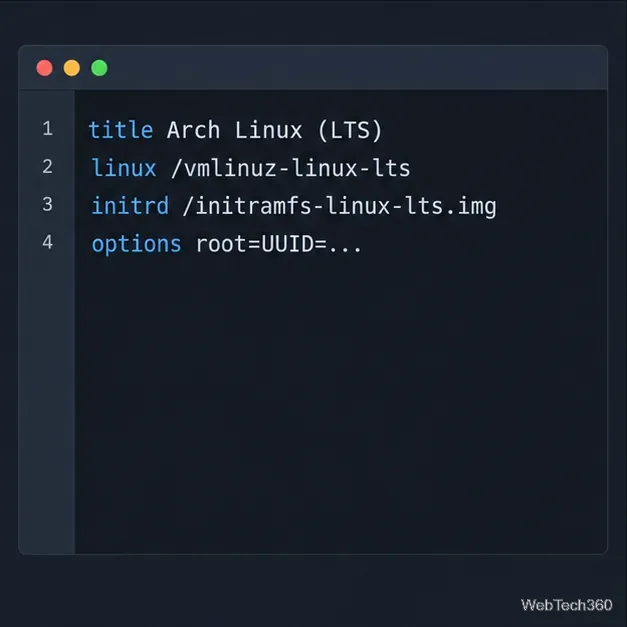
title Arch Linux (LTS)
linux /vmlinuz-linux-lts
initrd /initramfs-linux-lts.img
options [copy the existing options line]
Replace the bracketed reminder with your working entry’s complete options line; it is not literal configuration. See the ArchWiki systemd-boot guide.
Restart. In GRUB, LTS may be under “Advanced options for Arch Linux.” In systemd-boot, choose the entry you created. Select Arch Linux (LTS) and leave the regular Arch entry available as a fallback.
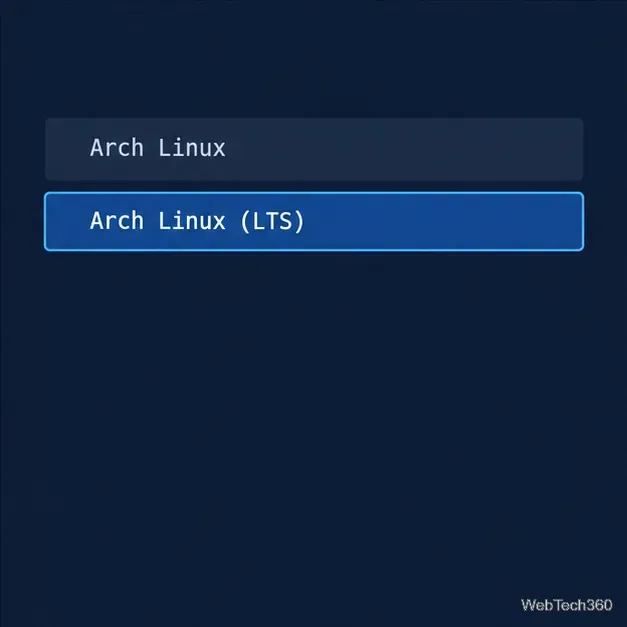
If the LTS option is missing, check that both LTS files exist on the boot filesystem and that the bootloader reads that same partition. With GRUB, regenerate the actual configuration file; with systemd-boot, verify the entry directory and file paths.
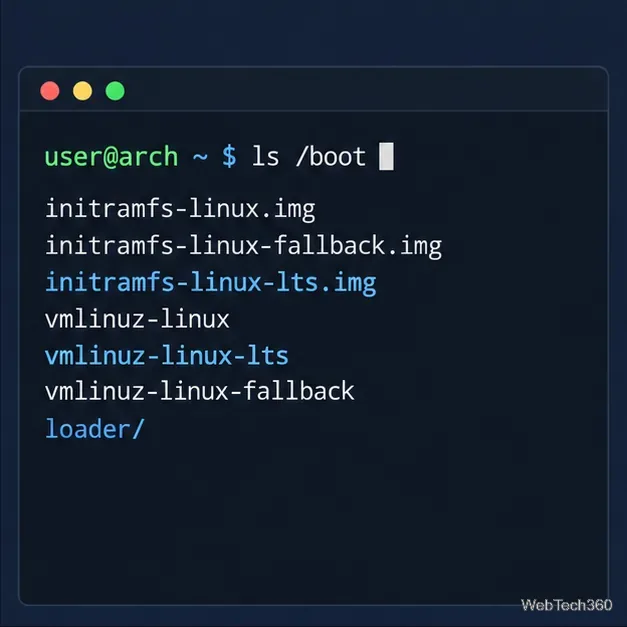
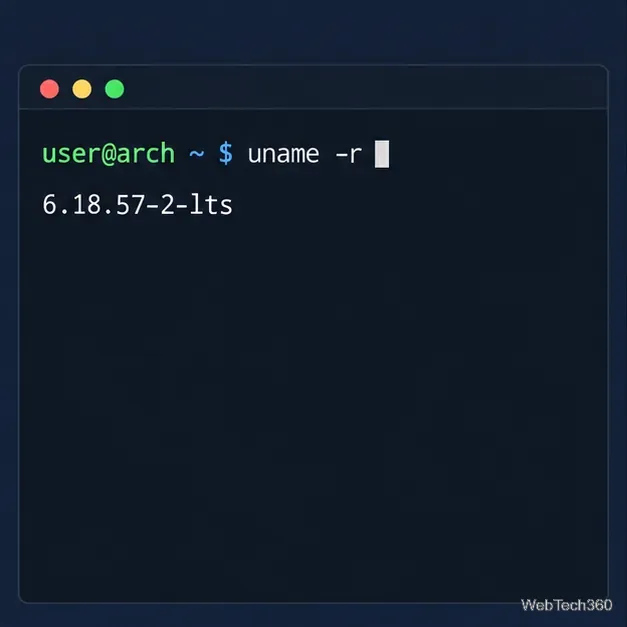
After logging in, run:
uname -rThe version should end in -lts. Version numbers change as Arch updates the kernel, so check the suffix rather than a fixed number.
vmlinuz-linux-lts exists under the mounted boot directory, then regenerate the correct GRUB configuration. Avoid editing generated grub.cfg directly.linux-lts-headers, then rebuild or reinstall the matching module package.linux entry while you troubleshoot.Keeping both kernels installed lets you return to the standard kernel from the boot menu. ArchWiki also describes linux-lts as an alternative kernel and fallback option in its system maintenance guidance.
Use Dislocker to unlock a BitLocker volume in Linux, mount its virtual NTFS file read-only, and safely unmount it without exposing your password in a command.
Learn how to reduce RAM usage on Linux by finding memory-hungry apps, trimming browser and startup load, and testing a lighter desktop safely.
Compare four WhatsApp alternatives for Linux by privacy defaults, desktop support, setup requirements, and the people each app suits.
Troubleshoot a VirtualBox VM that will not start on Linux by checking vboxdrv, kernel headers, Secure Boot, Extension Pack versions, and VM logs.
Transfer your Ubuntu user data with a tar archive and external drive, then restore personal files and selected settings without overwriting the new setup.
Install gThumb on Linux, browse and make simple photo edits, then set it as the default app for the image types you choose in GNOME.
Create an organized playlist in Rhythmbox or save a reusable XSPF playlist in VLC. Learn how to add tracks, name a list, and reopen it on Linux.
Install Dino on Linux with Flatpak or your distribution’s package manager. Get current Ubuntu, Debian, Fedora, and Arch commands, plus first-launch tips.
Install Arch Linux’s linux-lts kernel, add it to GRUB or systemd-boot, select it at startup, and verify it while keeping a fallback kernel.
Download the right Pi 4 image, write it to a microSD card, and complete LibreELEC’s first-run setup with Raspberry Pi Imager.







