How to Access a Windows BitLocker Partition in Linux

Use Dislocker to unlock a BitLocker volume in Linux, mount its virtual NTFS file read-only, and safely unmount it without exposing your password in a command.
To install the Dino XMPP client on Linux, use Flatpak from Flathub for a consistent option across distributions, or install Dino from your distribution’s own package repository. The native package names are dino-im on Ubuntu and Debian, and dino on Fedora and Arch Linux. Choose one route below; you do not need to run every command.
Dino is a Linux desktop client for Jabber/XMPP messaging. It does not provide an XMPP account or host a chat server, so have an account from an XMPP provider ready before signing in. Dino’s official project site links to the current distribution package list and source code.
Flatpak is a practical choice when your distribution does not package Dino or you want one installation method that works across Linux systems. Flathub lists the app under the case-sensitive ID im.dino.Dino. The install command can also fetch the required runtime if it is not already installed.
flatpak --version. If the command is missing, follow the official Flatpak setup instructions for your distribution and add Flathub as directed. These setup steps differ by Linux release.flatpak install flathub im.dino.Dino
flatpak run im.dino.Dino. This launch command is useful if the menu entry has not appeared yet.If Flatpak reports that it cannot find a matching reference, check that Flathub is listed as a remote with flatpak remotes. If it is absent, add it using Flatpak’s documented command, flatpak remote-add --if-not-exists flathub https://dl.flathub.org/repo/flathub.flatpakrepo, then repeat the install command. The Flatpak application guide explains remotes, installs, launching, and updates.
Use a native package when you prefer software managed with the rest of your operating system. The package version and availability depend on your release and enabled repositories. If the package manager cannot find Dino, check the distribution’s package page or use the Flatpak method above instead of downloading an old standalone package.
On supported Ubuntu and Debian releases, the package is named dino-im. Refresh the package index and install it:
sudo apt update
sudo apt install dino-im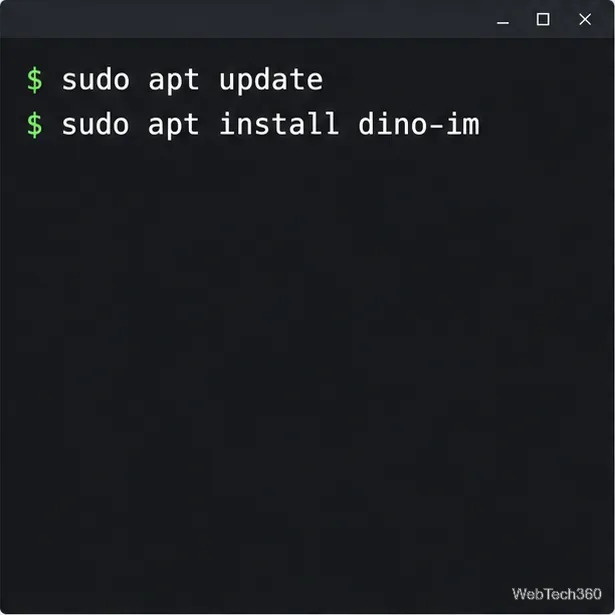
On Ubuntu, Dino is in the Universe component. If APT says it cannot locate dino-im, confirm that Universe is enabled for your release and refresh the package index again. Package availability can differ on older or minimal installations. Check the live Ubuntu package search or Debian stable package page before troubleshooting further.
Fedora provides Dino under the package name dino. Install it with DNF:
sudo dnf install dino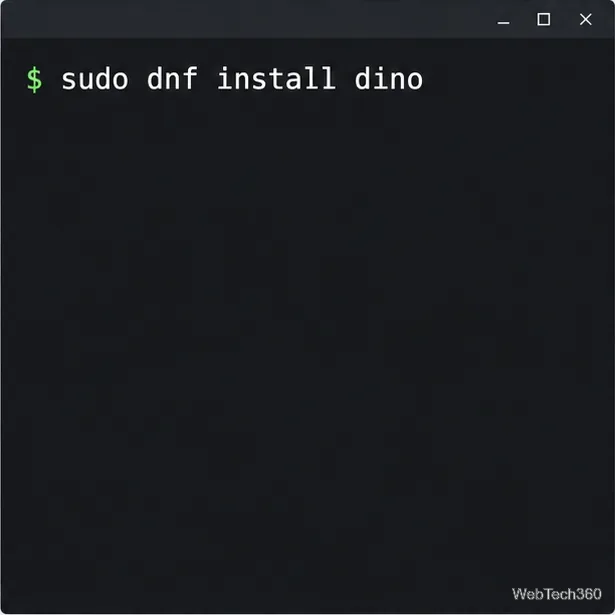
The Fedora package index shows which Fedora releases currently carry the package. DNF will resolve the dependencies from your configured Fedora repositories.
Arch Linux provides the stable package dino in its official Extra repository; an AUR helper is not required for this package. Run a full system upgrade and install Dino in the same transaction:
sudo pacman -Syu dino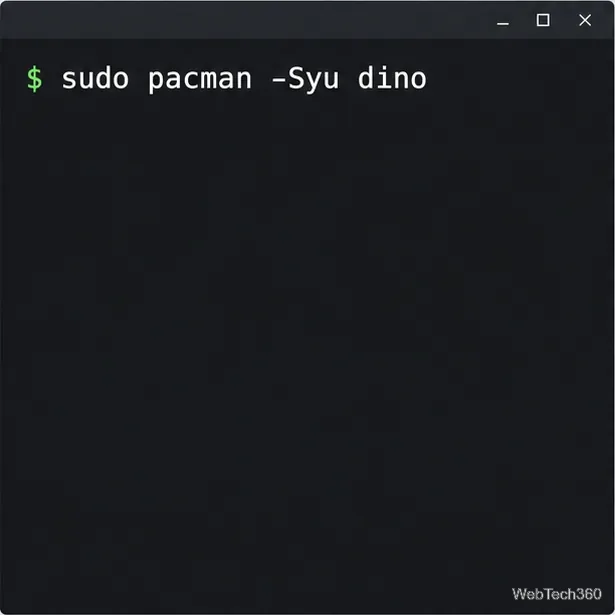
Combining the system upgrade and installation avoids a partial-upgrade workflow. Confirm the package prompt to proceed. You can verify the current package details on the Arch Linux package page.
When Dino opens, sign in with the full XMPP address from your provider, often written as name@example.net, and the account password or app-specific credential the provider requires. If you do not have an account, create one with an XMPP service first; Dino is a client, not a hosted messaging service. Accounts may require provider-specific server details, so use those instructions if automatic connection does not work.
Dino supports XMPP features such as group chats, file transfers, and end-to-end encryption options, but support can vary by server and by the other person’s client. Do not assume a conversation is end-to-end encrypted just because Dino is installed; check the encryption state in the conversation and follow Dino’s current guidance before sending sensitive information.
For the Flatpak build, update Dino with flatpak update im.dino.Dino, or update all Flatpak apps through your desktop’s software center. For a native package, use your distribution’s regular software updater. If the app will not start, try flatpak run im.dino.Dino to see a terminal error; for native packages, refresh the system package index and check the package manager’s error before reinstalling.
For version-specific installation notes, start with Dino’s official distribution package guide and the relevant distribution package listing. This avoids the obsolete fixed-version download links and repository setup commands found in older installation guides.
Use Dislocker to unlock a BitLocker volume in Linux, mount its virtual NTFS file read-only, and safely unmount it without exposing your password in a command.
Learn how to reduce RAM usage on Linux by finding memory-hungry apps, trimming browser and startup load, and testing a lighter desktop safely.
Compare four WhatsApp alternatives for Linux by privacy defaults, desktop support, setup requirements, and the people each app suits.
Troubleshoot a VirtualBox VM that will not start on Linux by checking vboxdrv, kernel headers, Secure Boot, Extension Pack versions, and VM logs.
Transfer your Ubuntu user data with a tar archive and external drive, then restore personal files and selected settings without overwriting the new setup.
Install gThumb on Linux, browse and make simple photo edits, then set it as the default app for the image types you choose in GNOME.
Create an organized playlist in Rhythmbox or save a reusable XSPF playlist in VLC. Learn how to add tracks, name a list, and reopen it on Linux.
Install Dino on Linux with Flatpak or your distribution’s package manager. Get current Ubuntu, Debian, Fedora, and Arch commands, plus first-launch tips.
Install Arch Linux’s linux-lts kernel, add it to GRUB or systemd-boot, select it at startup, and verify it while keeping a fallback kernel.
Download the right Pi 4 image, write it to a microSD card, and complete LibreELEC’s first-run setup with Raspberry Pi Imager.







