How to Access a Windows BitLocker Partition in Linux

Use Dislocker to unlock a BitLocker volume in Linux, mount its virtual NTFS file read-only, and safely unmount it without exposing your password in a command.
To install LibreELEC on a Raspberry Pi 4, download the Raspberry Pi 4 image, write it to a microSD card, and boot the Pi from that card. The process replaces the card’s contents, so copy any files you need before you start. After the first boot, LibreELEC opens a setup wizard for basic choices such as language, network, and remote access.
Use a card with enough space for the image and any later files you plan to keep on it. Writing the image erases the entire card; media can also live on a USB drive or a network share.
Open the official LibreELEC Raspberry Pi download page and choose the Raspberry Pi 4 image. At the time of writing, the page lists LibreELEC 12.2.1 as the latest stable release. Its Pi 4 file is named LibreELEC-RPi4.aarch64-12.2.1.img.gz. The aarch64 build is the 64-bit image for Pi 4; don’t select the Pi 5 image or a generic PC image. Check the page for the current stable version because release numbers can change.

Download the compressed .img.gz file to your computer. You do not need to install LibreELEC on the computer itself; the image is written directly to the Pi’s boot card.
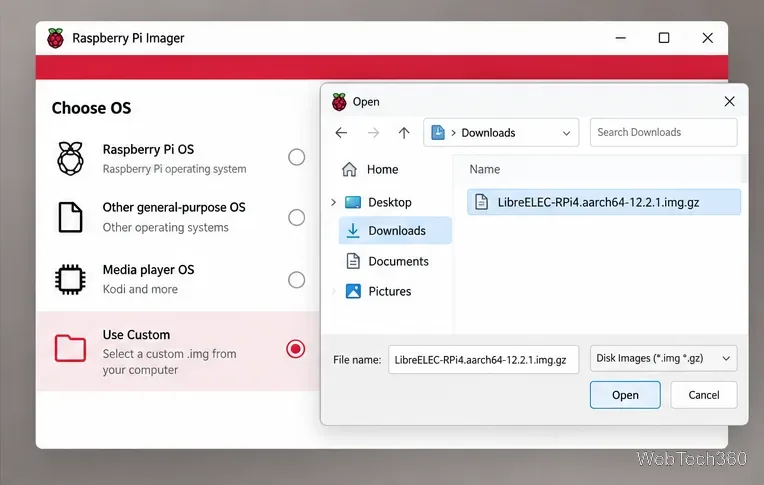
Install and open Raspberry Pi Imager, which is available for Windows, macOS, and Linux. Select Use Custom in the operating-system chooser, then open the LibreELEC image you downloaded. If your Imager version does not accept the compressed file, extract the archive first and select the resulting .img file.
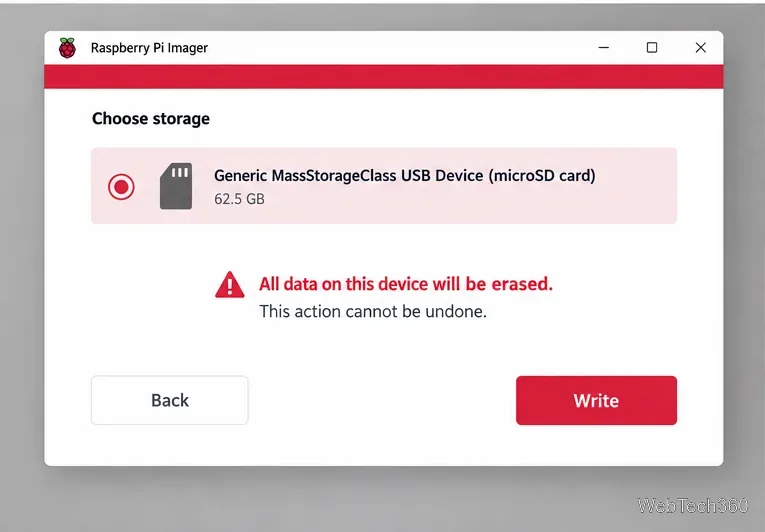
Insert the microSD card, choose it as the storage device, and verify its name and capacity before continuing. If other removable drives are connected, disconnect them so it is easier to identify the card. Keep Imager’s protection against selecting system drives enabled. Select Write and confirm the erase prompt only after you have checked the target. Wait for the write and verification to finish before ejecting the card.
On Windows and macOS, LibreELEC also provides its own USB-SD Creator, which can download and write an image file. The project currently offers that app for 64-bit Windows 10/11 and macOS 14 or newer, but not Linux. See the LibreELEC media-creation instructions for its current steps.
Safely eject the card from your computer and insert it into the Raspberry Pi 4. Connect the Pi to the display with a micro-HDMI cable, attach Ethernet if you plan to use a wired connection, and connect a keyboard or compatible remote. Plug in power last to start the Pi. The first boot can take longer than later starts while LibreELEC prepares its storage, so allow it a few minutes before interrupting the power.
When the welcome wizard appears, choose a language and set a hostname that will help you recognize the media player on your home network. Choose your Wi-Fi network and enter its password if you are not using Ethernet. Continue through the remaining prompts to reach Kodi.
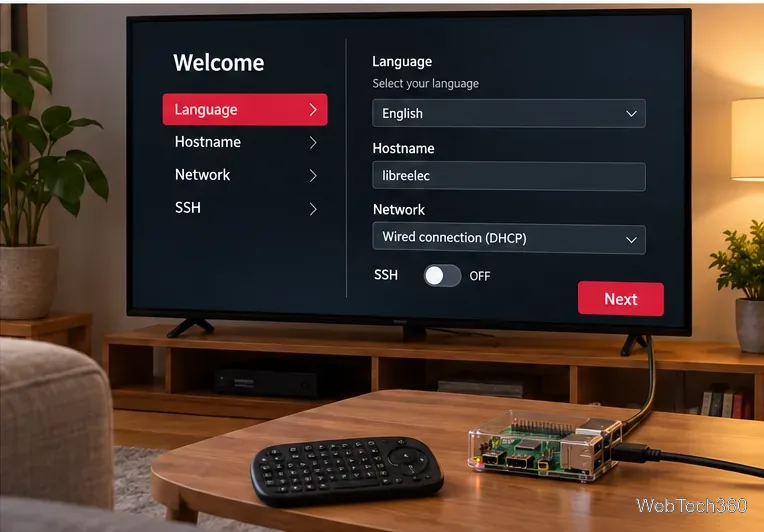
Leave SSH disabled unless you plan to administer LibreELEC from another computer. It is off by default. If you enable it, follow the project’s security guidance and change the default credentials when prompted. SSH is useful for command-line maintenance, but most Kodi setup does not require it.
Once the wizard finishes, Kodi’s home screen is ready. Add video, music, or picture sources from a USB drive or a network share using Kodi’s media menus. For a home server, connect LibreELEC to the same network and use the share address and credentials supplied by that server. Keeping large media files on USB or network storage leaves the microSD card available for the operating system and its settings.
For the current file, platform-specific flashing notes, and troubleshooting updates, use the LibreELEC downloads page and its linked documentation.
Use Dislocker to unlock a BitLocker volume in Linux, mount its virtual NTFS file read-only, and safely unmount it without exposing your password in a command.
Learn how to reduce RAM usage on Linux by finding memory-hungry apps, trimming browser and startup load, and testing a lighter desktop safely.
Compare four WhatsApp alternatives for Linux by privacy defaults, desktop support, setup requirements, and the people each app suits.
Troubleshoot a VirtualBox VM that will not start on Linux by checking vboxdrv, kernel headers, Secure Boot, Extension Pack versions, and VM logs.
Transfer your Ubuntu user data with a tar archive and external drive, then restore personal files and selected settings without overwriting the new setup.
Install gThumb on Linux, browse and make simple photo edits, then set it as the default app for the image types you choose in GNOME.
Create an organized playlist in Rhythmbox or save a reusable XSPF playlist in VLC. Learn how to add tracks, name a list, and reopen it on Linux.
Install Dino on Linux with Flatpak or your distribution’s package manager. Get current Ubuntu, Debian, Fedora, and Arch commands, plus first-launch tips.
Install Arch Linux’s linux-lts kernel, add it to GRUB or systemd-boot, select it at startup, and verify it while keeping a fallback kernel.
Download the right Pi 4 image, write it to a microSD card, and complete LibreELEC’s first-run setup with Raspberry Pi Imager.







